
Suspending subscriptions
There are different ways to suspend subscriptions, either you can manually mark them as suspended or
enable a profile-option to automatically suspend and resume a subscription according to the state of the agreement.
Using our api, it is also possible to change the state of a subscription.
It is not possible to change the state by importing a file.
The profile option can be found under the Profile-Settings > Options > Suspend/Resume plan when contract gets suspended/resumed.
How to suspend a subscription
Click on the subscription to open the details. Here you have a suspend button.
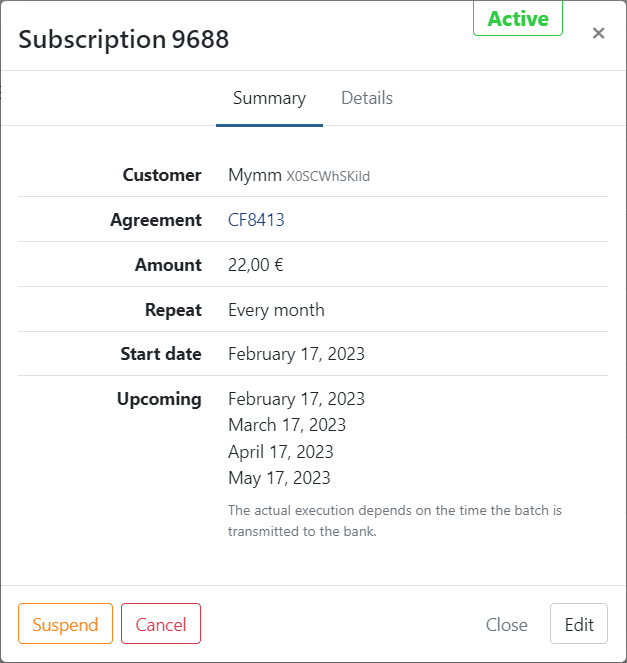
- Click on 'Suspend'
- Confirm
- The subscription is now suspended
When suspending a subscription, the next run and upcoming transactions are removed. Once the subscription is reactivated
the upcoming transactions are available the next day.
Edit suspend a subscription
When you edit a suspended subscription the state is not changed when confirming the changes.
Reactivation is required.
Depending on the changes done, a new subscription is created in a suspended state. See Edit a subscription
for more details about minor and major changes to a subscription.
Transactions of a suspended subscription
Future transactions for a suspended subscription are placed on hold.
Once you resume the subscription the next-run is calculated based on the recurrence and start of the plan.
Last Update: 2023-01-23