Using custom fields
A custom field from Teamleader can be used to pass a specific profile-id to Twikey when you create
a new invoice in Teamleader.
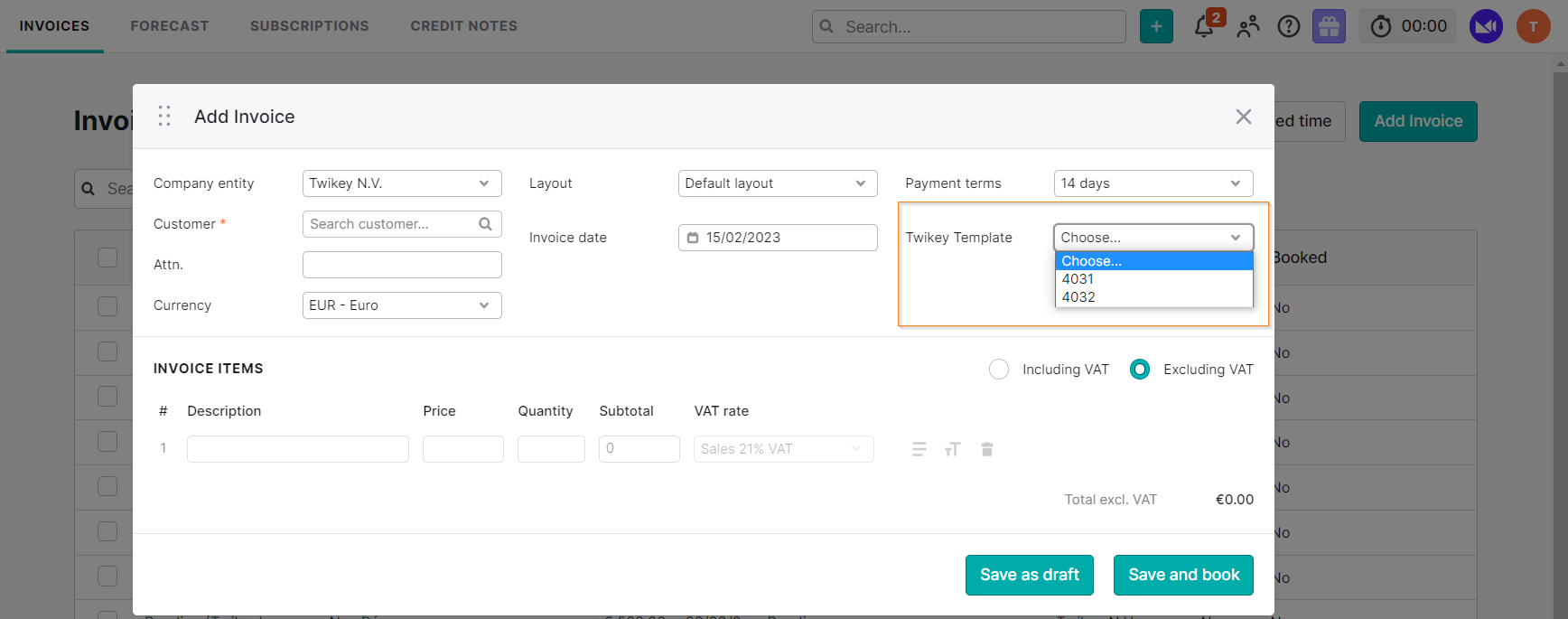
Using this specific profile-id you are able to select how invoices can be paid. For example
you have a customer with a signed mandate, but need this particular invoice to be paid using a
different method, then you can pass the profile-id of one where the option to pay via automatic collection (Direct Debit, recurring credit card payments,..) is
disabled. This way the end-customer will be able to use the payment page instead.
You can create a number of profiles in Twikey each with a different configuration. This way you can really
choose how customers need or can pay invoices. This is both convenient for both you and the end-customer.
Invoices / Subscriptions
Teamleader has both invoices and subscriptions. When you create a custom field you need to determine for which
type it is used.
Once you created your custom fields, you can configure the one you want to use for invoices, and the one you want to use for subscriptions in Twikey.
Creating the custom field
In Teamleader create your custom field as you prefer, we do offer some suggestions however:
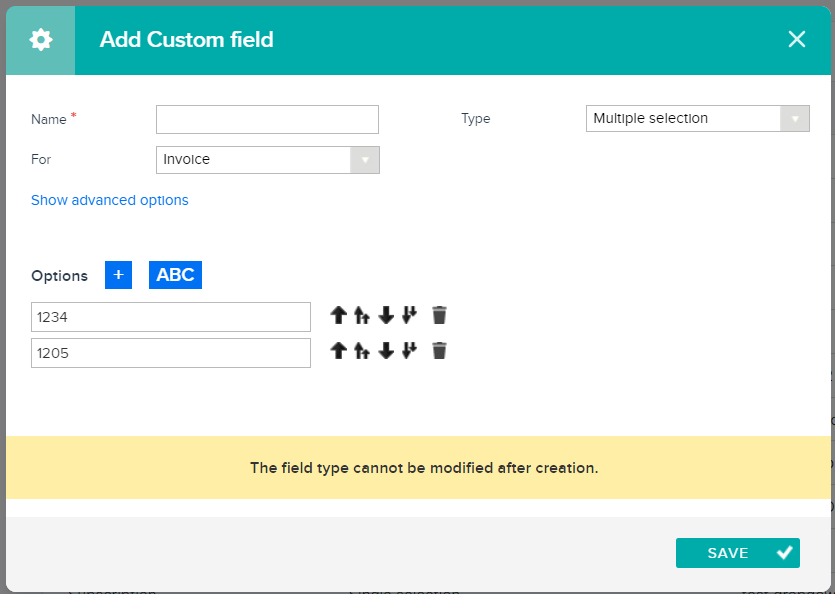
- Name: we suggest to use 'Twikey invoices' and/or 'Twikey subscriptions'. This makes it clear and easy to identify the right field
- Type: a Multiple selection type (*)
(*): If Teamleader is in Ducth, the multiple selection is called: "Vaste opties waarvan er 1 gekozen kan worden"
If you opt for a multiple selection type you can already pre-fill the options with profile-id's.
If you select a text-type then you'll need to (manually) provide the id for each invoice/subscription.
Creating a link to Twikey
Once you defined you custom fields in Teamleader, you can define these in Twikey:
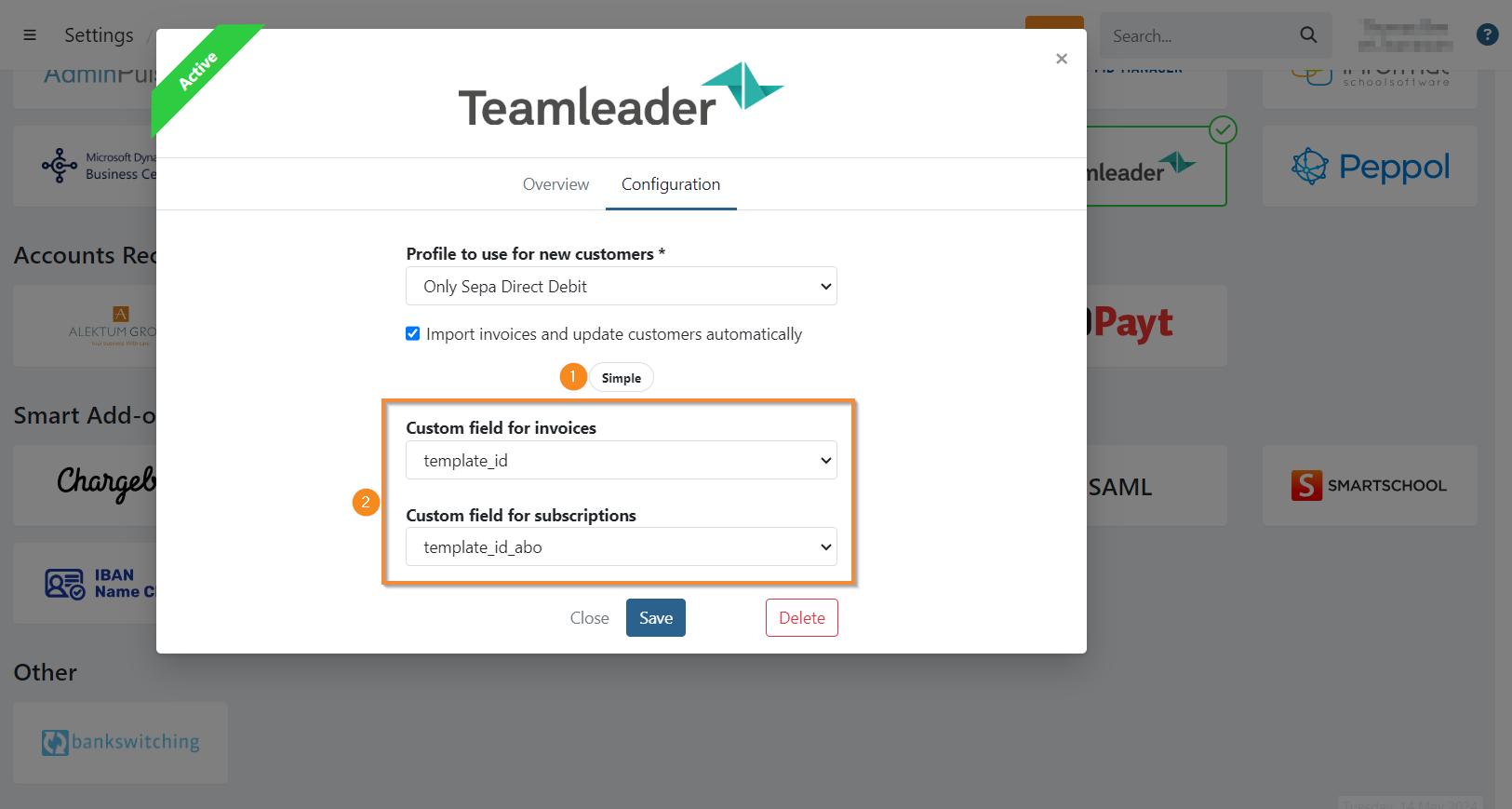
- Go to Integrations
- Open the Teamleader integration
- Click on 'advanced' (1) to toggle between simple and advanced
- Select the custom fields for invoices and/or subscriptions (2)
- Click 'Save' to confirm