How to send invoices
Send letters for invoices
Sending Letters with Twikey (Optional Feature)
Sending letters through Twikey requires this functionality to be enabled in your environment. Contact your Business Support Agent in order to enable this.
Twikey offers three letter options to customize your communication with customers:
- Invoice only: This is the actual invoice itself.
- Custom letter: This is a letter and can be just a leading (general) letter or also contain the invoice details
- Variable fields are used to populate the letter automatically when sending it to your customer
- For more information about the variable fields and to upload it to your Twikey environment: Contact your Business Support Agent
- Letter with Invoice: This combines a custom letter with the attached invoice document.
Sometimes you will receive a message that the letter couldn't be sent, these are the most common causes:
- Already sent: To avoid accidentally sending out duplicate letters only one per invoice can be sent out.
- No PDF: This occurs when you want to send out the invoice but there is no invoice available.
- Invalid Address: The address is missing or not valid.
- Contact support: Configuration is missing
Send individual letters
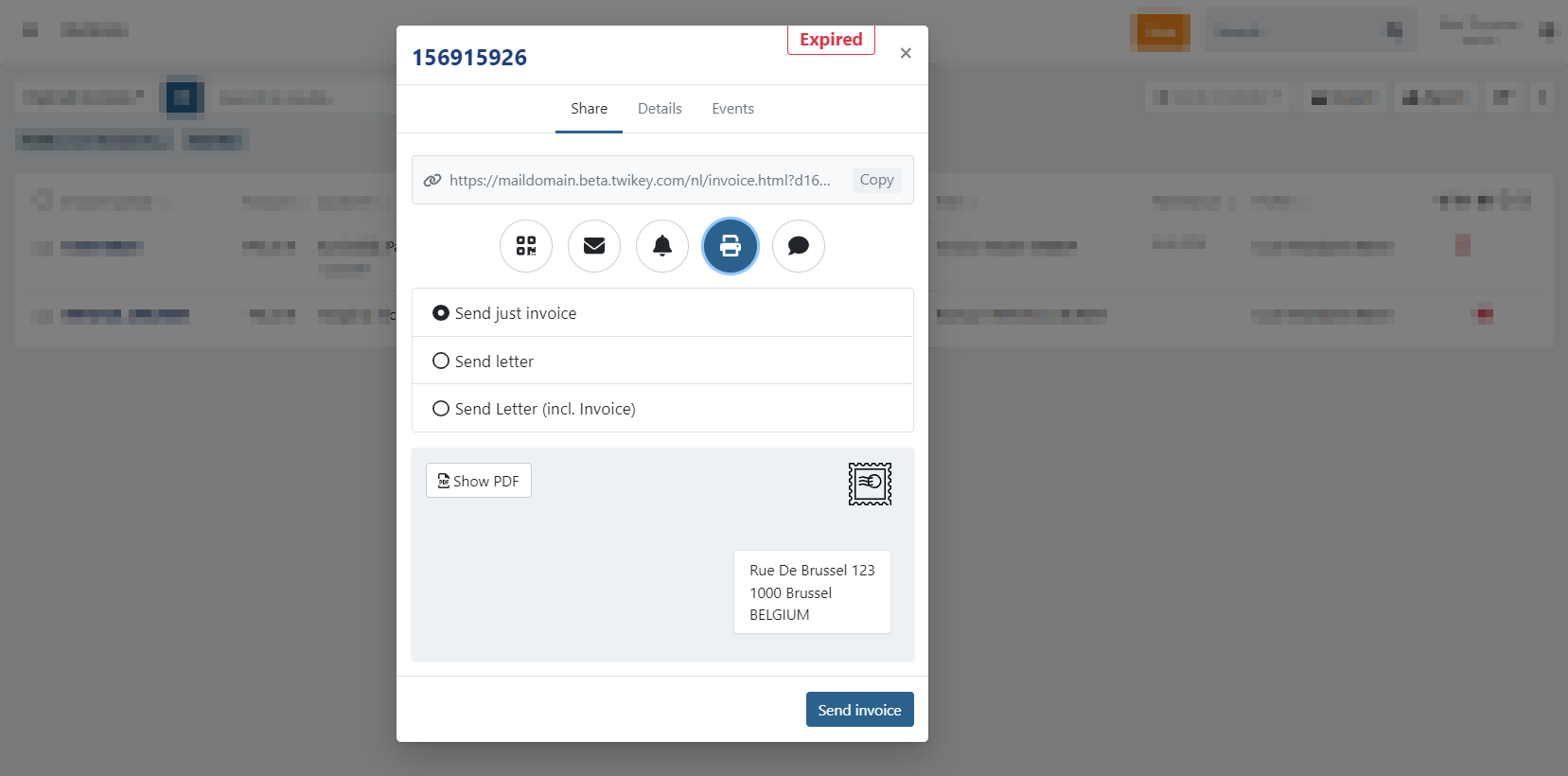
On the invoice overview click on any invoice to open the invitation modal. On the invoice details you can use
the button to open this modal.
Select the printer to display letter options.
Now you have the 3 different letter-combinations that you can send and you can verify the letter before sending it.
Select one of the options (invoice, letter, letter incl. invoice) first.
Then you can download a preview
by using the button
Send multiple letters
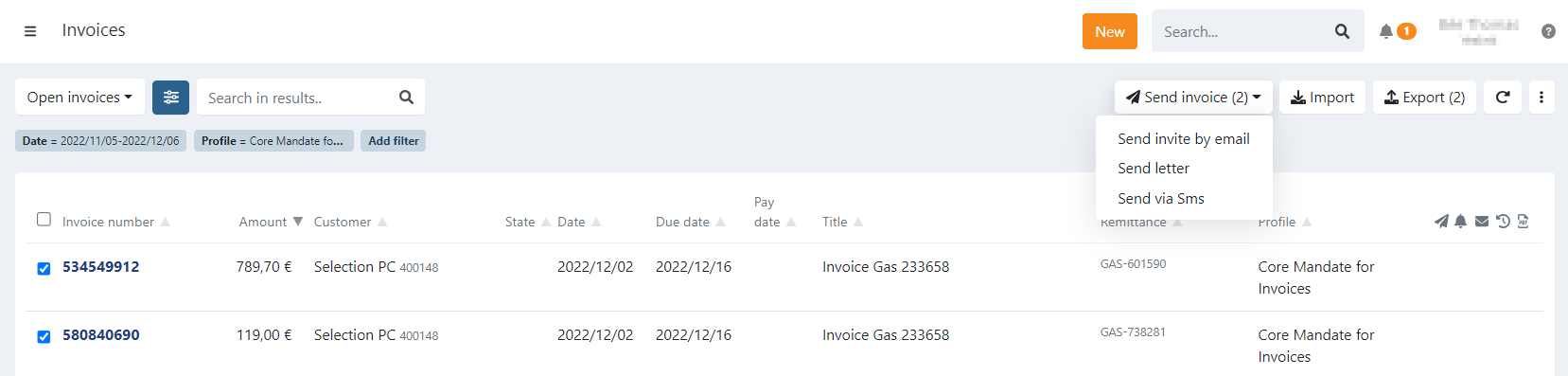
- To send multiple letters at once select one or more invoices on your invoice overview
- Click on 'Send invoice': a dropdown is displayed
- The number of selected invoices is displayed: this is the actual number of invitations you will be sending out.
- Select 'Send letter'
- When sending multiple invites at once, only the letter itself can be sent.
- A confirmation window is displayed, click on 'Yes' to send the letters.
Selecting invoices
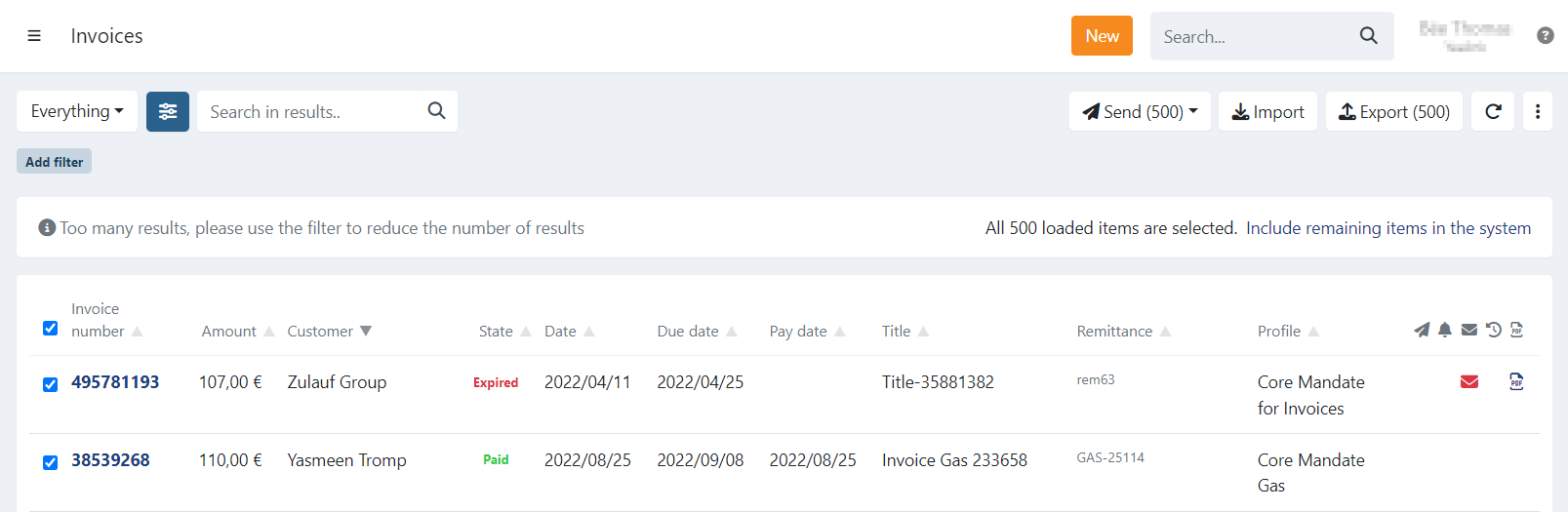
The overview is limited to 500 invoices, when you select all the invoices at once you can opt to perform an action
on only those 500 invoices or select everything that matches your current filter.
In this case a dialogue will be displayed to notify you about this.
To select all remaining invoices that are not displayed press on 'Include remaining items in the system'.