
How to send invoice invitations
- Send invitations and reminders for invoi...
- Send multiple invitations and reminders
- Selecting invoices
Show me
Send invitations and reminders for invoices
On the invoice overview click on any invoice to open the invitation modal. On the invoice details you can use
the button to open this modal.
Different invitation and reminder options are available:
- QR: Display a QR code that redirects to the payment page
- Email: A preview of the email is displayed and from/to. Click on 'Send invoice' to send the email to the customer
- The recipient for the specific invoice can be edited , this does not change the email address of the customer.
- For B2B profiles, the signing flow starts by invoking an email to the customer, allowing them to sign a mandate at a later stage.
- Reminder: A preview of the reminder email is displayed and from/to.
- Click on to send the current reminder displayed (1, 2, 3 or 4).
- Click on the dropdown next to the button instead to select a specific reminder (1, 2, 3 or 4) and then click on the Send Reminder button to send it out.
- Letter: The letter option allows you to send out a paper version of the invoice to your customer.
- SMS: A preview of the text-message is displayed and to which number. You can send an invitation or reminder. Click on 'Send' to send out the message.
Each invitation and reminder option is described in detail. Visit the specific article for more information.
When you have the option 'include PDF' enabled on the invoice-profile, the invitation by email is only sent if the invoice has a PDF.
When you have the option 'include PDF' enabled on the invoice-profile, the invitation by email is only sent if the invoice has a PDF.
Send multiple invitations and reminders
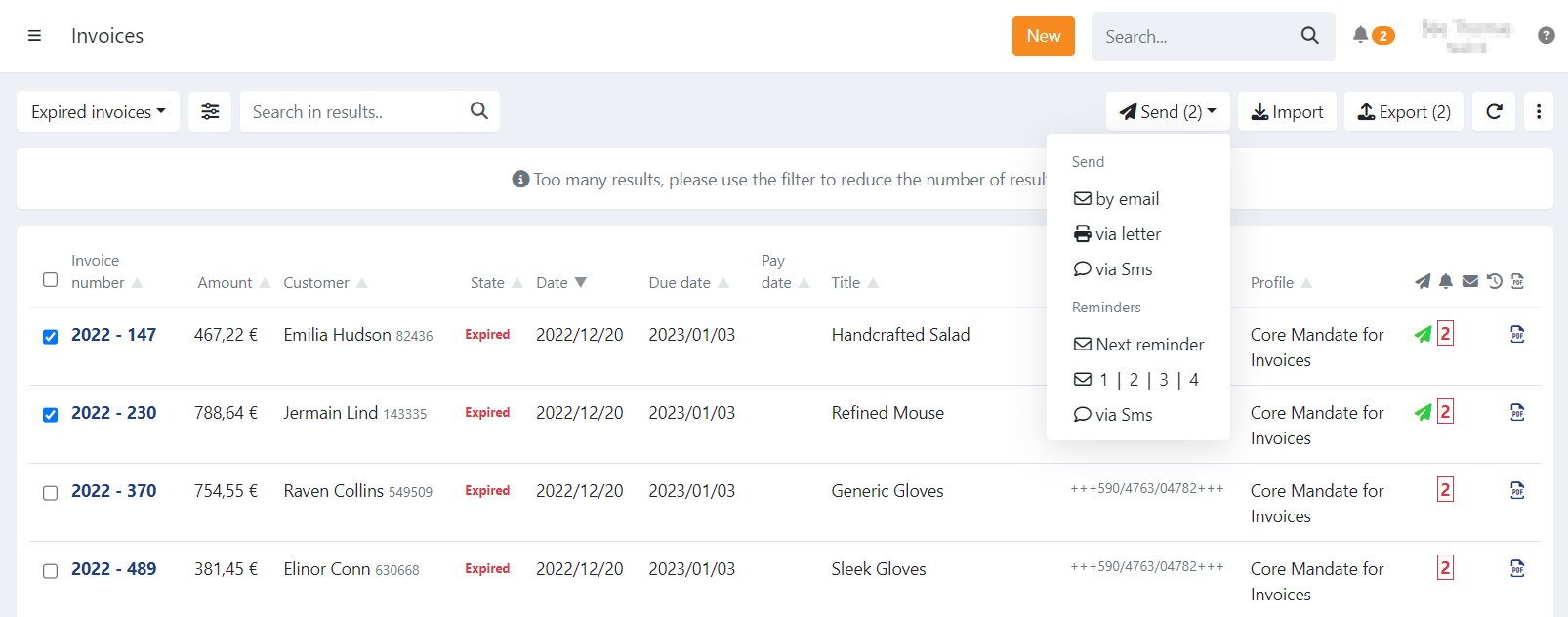
To send multiple invitations or reminders at once, follow these steps:
- Click on 'Send': a dropdown is displayed
- Under the 'Send' section you can select the type of invitation to send:
- 'by email'
- 'via letter'
- 'via SMS'
- Under the 'Reminder' section you can select the type of reminder to send:
- Next reminder: This option will automatically send out the correct reminder for each selected invoice.
Reminder 1 - 4 is sent out depending on the last reminder sent out for each invoice. - 1 | 2 | 3 | 4: Select a specific reminder to send out for all the selected invoices regardless of the current reminder.
- Via SMS: Send a reminder via SMS. Customers with a valid mobile number will receive the text message.
- Next reminder: This option will automatically send out the correct reminder for each selected invoice.
When the selection contains invoices in the state 'Paid' or 'Archived' the invitation or reminder is not sent out for those invoice(s).
Other selected invoices will receive the invitation or reminder.
Selecting invoices
The overview is limited to 500 invoices, when you select all the invoices at once you can opt to perform an action
on only those 500 invoices or select everything that matches your current filter.
In this case a dialogue will be displayed to notify you about this.
To select all remaining invoices that are not displayed press on 'Include remaining items in the system'.
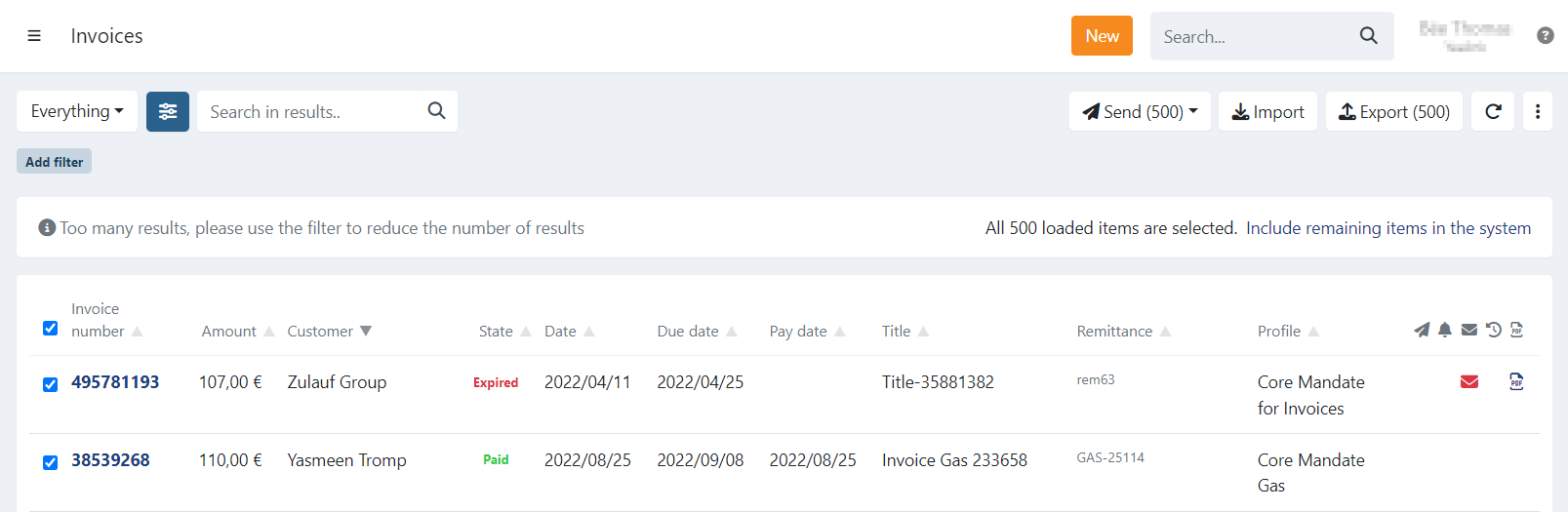
Invoices are always retrieved based on the current filter combinations.
Last Update: 2025-06-02