Overview and managing of your invoices
Invoice overview
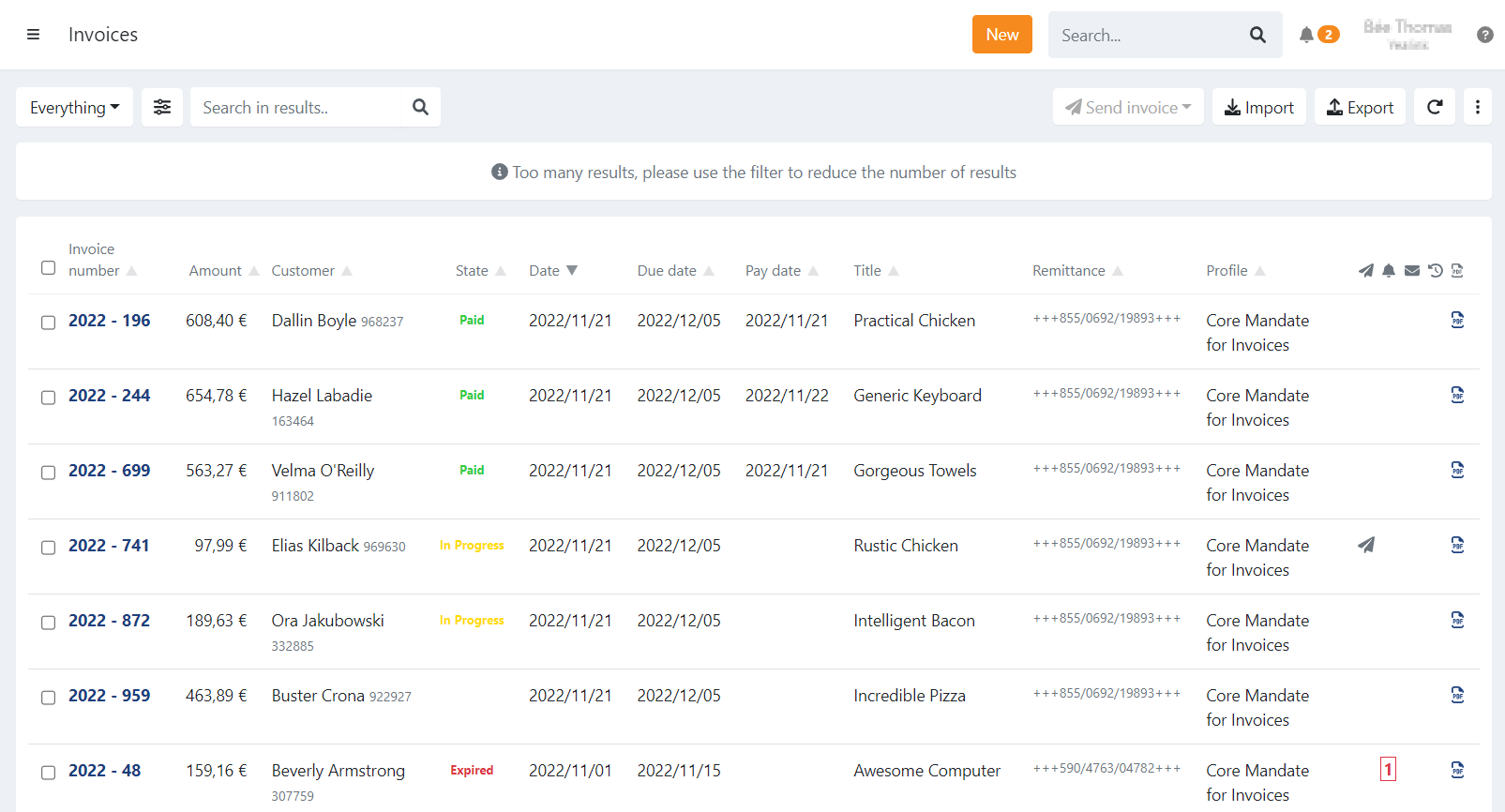
On the invoice overview you have an overview of all your invoices and current state:
- Booked: The invoice is booked
- In Progress: The invoice payment is pending. The payment is via Direct Debit
- Paid: The invoice is paid. The payment date is displayed.
- Expired: The invoice was not paid before the due-date.
Details
For each invoice you have a date, due date and pay date:
- Date: This is the date of the invoice, not the import or creation date. This is the date passed when importing the invoice via a file, your CRM integration, or when creating the invoice using our API.
- Due date: This is the date by which a payment was due. (The invoice link remains valid even after the due date.)
- Pay date: The date on which the invoice was paid.
The title and remittance
- Title: This is the message displayed on the payment page of the invoice.
- Remittance: This is the reference or communication to the customer.
- When the value is a valid structured message or OGM (for Belgium), it is formatted as such:
+++123/4567/89123+++ - When valid as a structured message, it is formatted as such when sending the invoice to your customer via email.
- This is returned on the account statement of the customer.
- The customer can use the remittance when paying the invoice using a wire transfer. If both the remittance and the invoice amount correspond, the payment is directly matched to the invoice and marked as paid.
- When the value is a valid structured message or OGM (for Belgium), it is formatted as such:
Profile
The profile determines which payment options are available for your invoice.
When importing or creating invoices, a profile can be defined, and afterwards, you can still change the profile by selecting one or more invoices:
- Click on the three dots on the top right
- Select Move
- A list of available profiles is displayed to which you can move the invoice(s)
Show me
Icons
On the right of each invoice different icons can be displayed:
- An invitation was sent to the customer
- A reminder email was sent to the customer. The reminder level is displayed.
- The email is invalid or could not be delivered, a red envelope is displayed.
- The customer selected a specific date on the payment page on which the invoice can be collected. Only available when the payment is done using a Direct Debit transaction.
- PDF is available for the invoice.
- You can now attach a UBL file with the invoice PDF when sending the invoice via email or allow the customer to download it.
- When using a CRM integration, you can retrieve the PDF automatically:
- Select one or more invoices.
- Click on the three dots on the top right (...)
- Select "retrieve pdf"
- The PDF can also be uploaded manually:
- The name of the PDF must correspond to the invoice number, for example: "invoice123.pdf."
- Click on to import.
- Select 'PDF' as the type.
- Upload one or multiple documents at once.
Selecting invoices
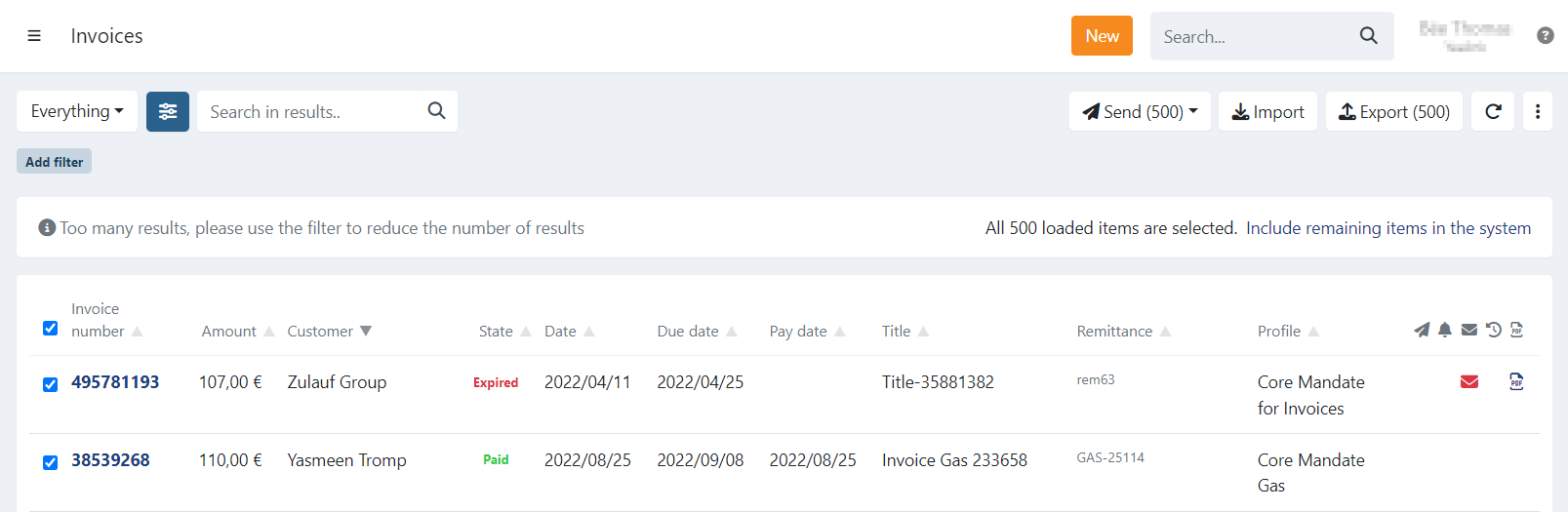
The overview is limited to 500 invoices. When you select all the invoices at once, you can opt to perform an action on only those 500 invoices or select everything that matches your current filter.
In this case, a dialogue will be displayed to notify you about this.
To select all remaining invoices that are not displayed, press "Include remaining items in the system."