
How to import invoices
- General
- Types of invoices that can be imported
- Overwrite Customer Data
- Profile
- Delivery Method
- Headers of the CSV file
Show me
General
Invoices can be imported using a CSV file. When importing invoices, new customers can be created, but updating an existing customer is not possible during this process. To upload invoices, navigate to the invoice overview, click the button, or use the global import function and select "Invoices".
Types of invoices that can be imported
- Standard invoices: Invoice with positive amount
- Zero-amount invoices: When importing invoices with an amount of '0', the invoice is directly marked as paid.
- Credit notes: Import credit notes using a negative amount. After import, you can send the credit note to the customer using the "Send invoice" or "Share" function. Reminders are not sent for credit notes.
- Expired invoices: Invoices already past the due date are marked as expired upon import. If automatic invoice reminders are configured and the imported invoice meets the reminder criteria, the first reminder is sent the day after import.
Overwrite Customer Data
When importing new invoices, you can enable the option "Allow overwrite of customer data when importing". This feature updates existing customer records based on either the customer number or email (if there is no customer number).
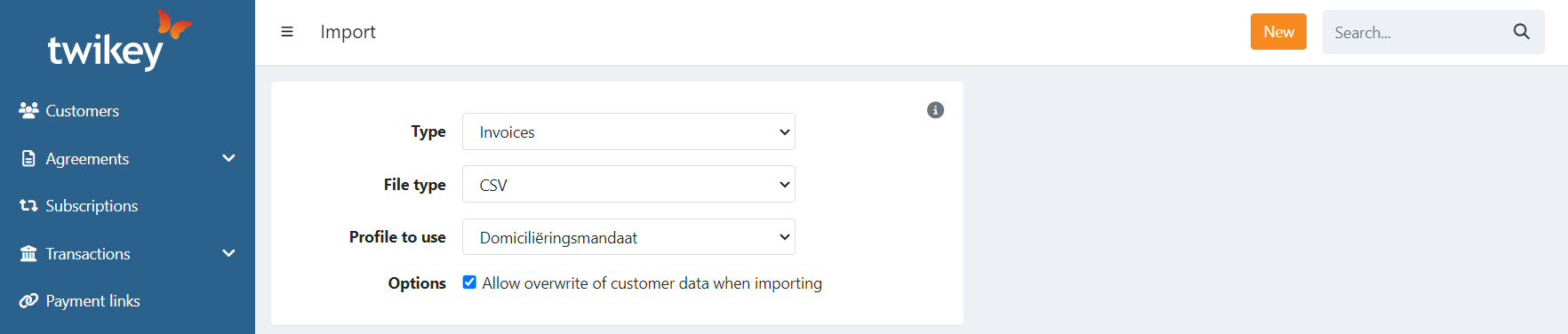
The following fields are updated:
- Address
- Mobile
It is not possible to add or update other values (name, email, ..). The email value is only used on the imported invoice itself as the recipient.
Profile
When importing invoices, you can also select a profile to use. This is used for:
- Offering the payment methods configured on that profile to pay the invoice
- Directly creating a Direct Debit transaction for the invoice when the customer has a signed Direct Debit agreement of the same profile.
Delivery Method
The CSV import option is only visible when the selected profile has the option "Send the invoice when a new invoice is booked" enabled.
Imported invoice invitations will be sent directly to your customer(s) using the selected channel:
- Per customer: Uses the channel configured for each customer. If no specific channel is configured, email is used.
- Disabled: Don’t send any invoices automatically after import
- Email: Sends invitations via email
- Paper: Sends only the invoice via postal service
(Currently, “letter” and “invoice with letter” are not supported. Use a manual invite instead. These will be made available in a later release.) - Peppol: Sends the invoice over the Peppol network
If you did not select a specific profile for import but Default customer profile, then invoices will be sent using the delivery method Per customer.
Note: When uploading an invoice CSV:
- Any new customers created during the upload will be assigned the system's default delivery method.
- The delivery method selected during import applies only to the invoices.
- It does not affect new customers, and existing customers will not be updated.
To change the delivery method of a customer, go to your customer > Edit > Invoice: Select a specific channel and Save.
Important
If both of the following invoice options are enabled on the selected profile:
- Send the invoice when a new invoice is booked
- Include the PDF invoice as attachment to the invite email
And you are using Twikey to generate the PDF after import,
then the invitation is automatically sent using the delivery method selected during import,
once the PDF becomes available after generation.
Headers of the CSV file
Required
| invoicenumber | The number of the invoice (alphanumeric). Needs to be unique! |
| amount | The amount of the invoice |
| date | The date of the invoice (yyyy-mm-dd) |
| duedate | The due-date of the invoice (yyyy-mm-dd) |
| customerNumber | The customer number, can be used to reference an existing customer. |
| firstname | The first name of the customer |
| lastname | The last name of the customer |
| The email, can be used to reference an existing customer (customerNumber takes priority over the email as reference) |
Optional Invoice
| ref | Your own reference, can be used to link the invoice to your internal system |
| title | The title of the invoice, displayed on the payment page. When left empty, the invoice number is used as the title. |
| remittance | The communication to the customer
|
| l | Language, used for the invitation of the invoice.
|
Optional Customer
| mobile | Phone number in international format is preferred (+31, +32, +33,..) |
| companyName | Company name |
| coc | CoC number: The Chamber Of Commerce number of the customer or VAT-number (format: BE0123456789), if the invoiced entity is a person, and thus not a company, this field should be left blank. |
| address | Street and number of the address |
| city | City of the customer |
| zip | Postal code |
| country | Country ISO format (2 characters) |
Optional Invoicing email address
You can use a different email address to send the invoice to. When you pass a reference to an existing customer and an email address (another email address) in your import file, that email address is used on the invoice. The customer itself is not updated.
Template files
Verify the file's content, or use another editor before uploading it in Twikey.
You can still enable the right language on your profile after import to send out the invitations in the correct language.