
Using advanced filters
General information
Advanced filters are available to enable more accurate searches or to display only certain records.
They can be used in combination with the preset filter provided on each page.
The user can perform a targeted search (for example B2B customers with a signed agreement, open invoices with 2 reminders sent,...).
The search results can be used to do an export of specific data.
Each page will have a different set of options and preset filters.
This enables to filter very precisely and take action on only the records you need.
Show me
Use advanced filters
Each page contains:
- The standard preset filter (1)
- The advanced filter (2)
- The search field (3)

When you have high amount of customers, invoices, payment links, etc.. The advanced filter can be used to narrow down all those results.
You can choose a preset filter:
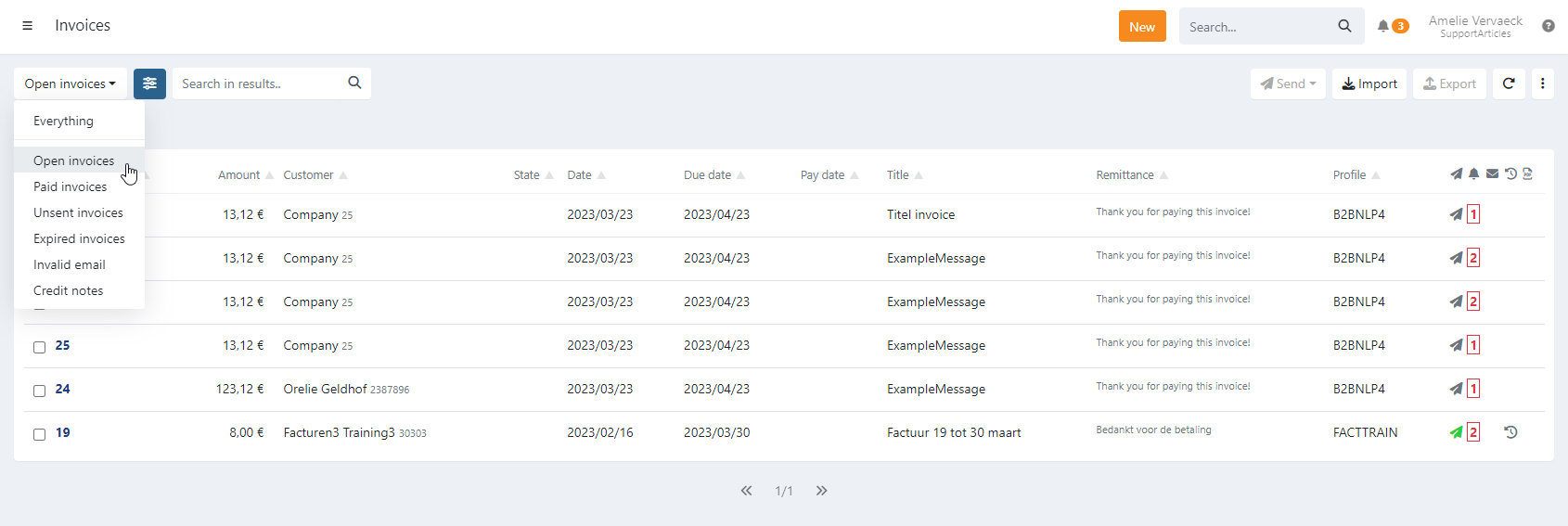
This already reduces the amount of results.
Then you have the option to choose one or multiple criteria to filter and display only the desired records.
When the advanced filter is active the icon is highlighted in blue and the active filters are shown beneath.
In this example we want all open invoices with a due date between 26/02 and 30/03 where at least 1 email reminder has been sent.
- If you first selected a preset filter, advanced options are added to this filter (the preset filter; here: 'Open invoices', remains)
- You can also do advanced filtering with the preset filter on 'Everything'
- Select a filter + its criteria
- Click on 'Apply'
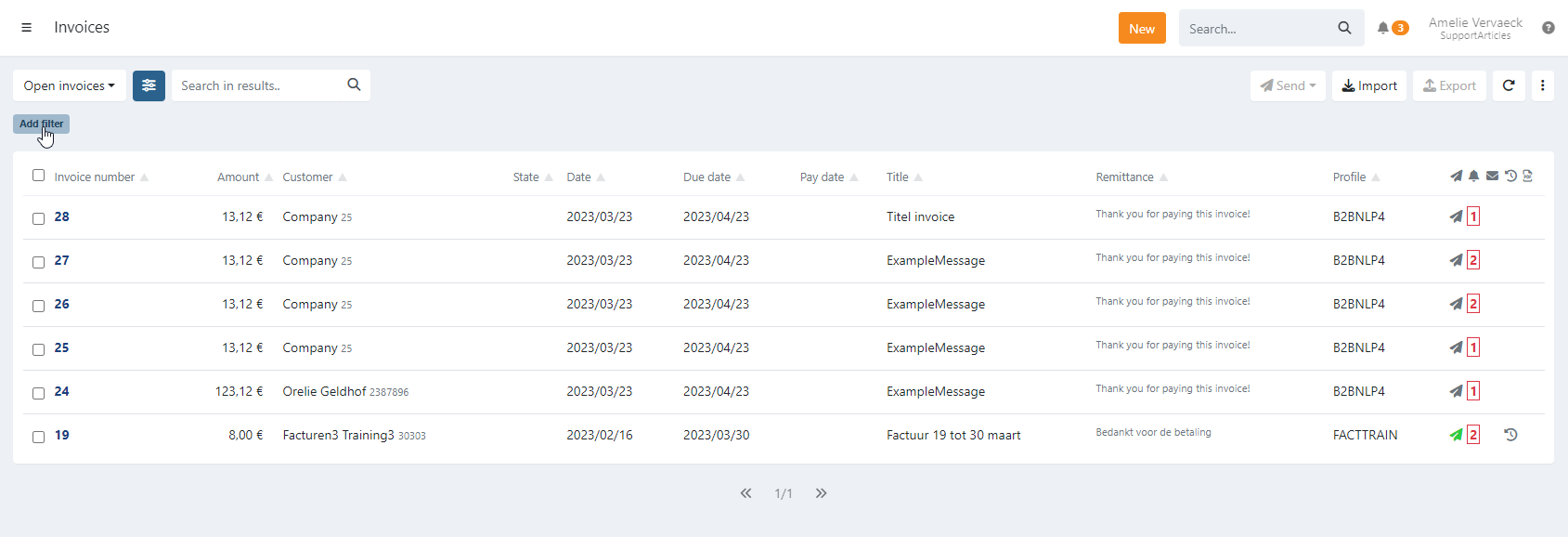
- The filter is active
- Selected results are showed:
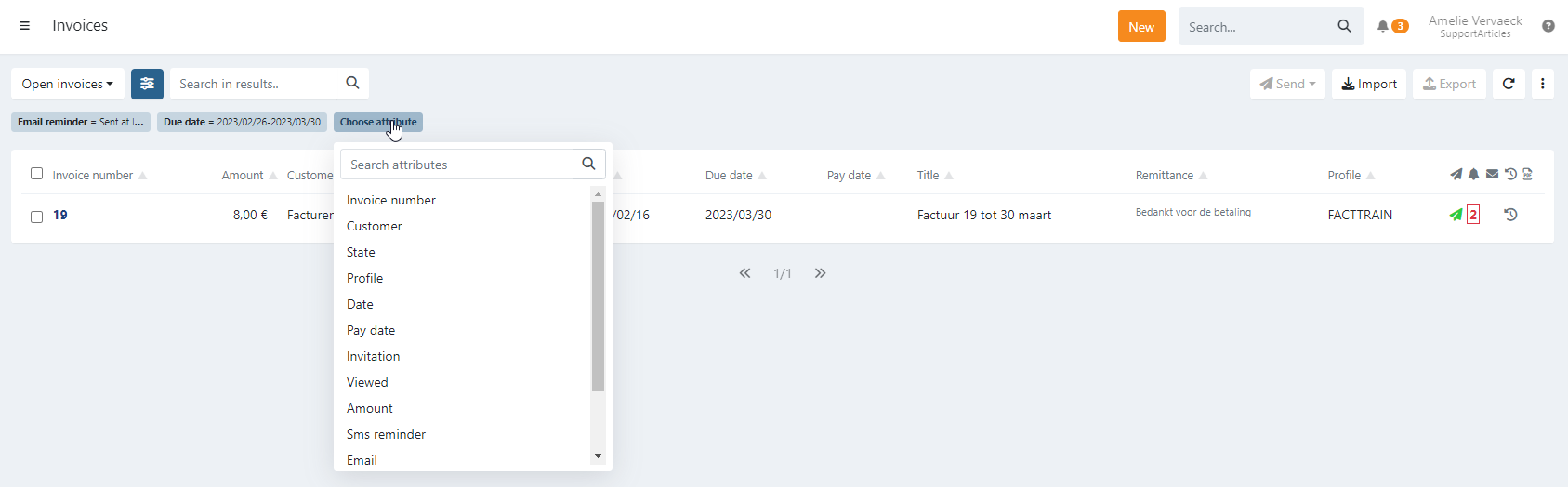
To remove the filter, simply hoover over it and remove.
On each page the mechanism is the same:
- The search is only performed on the listed records (already narrowed down by filters)
- For specific records the advanced filter is used
More detailed information about the filters and search function for each page is available:
Export filtered results
Export:
- Only a preset filter is used
- All records in our database for this filter are exported
- No limit
- Advanced filter is used
- Only the displayed records are exported
- Limited to 500 records
- In order to export specific record(s)
- Filter shown records
- Select the records you'd like to export
- Click the 'Export' on the top right
Global search
On the top right there is a global search. Here, you are looking into all records; this search is not limited to 500 results - but can therefore take longer.
You can't search and filter as precisely as on the respective page for e.g. transactions, invoices,...
Troubleshooting
I can't find the record I am looking for
I can't find customer
If you are having difficulty finding some of your data, the following options may be the cause:
The results are already filtered
Agreements are by default filtered on
- Preset filter: 'Signed'
- Advanced filter: current month
Solution: Remove unnecessary filtering
There are too many results
On each screen the list is limited to 500 records. If you have more results than 500, a message is displayed:
List too long, showing limited results only. You can use filters to narrow it down.
Solution 1: use the global search
Solution 2: narrow down search by filtering