
How to edit a customer
On the customer's details click on the edit-button
A dialogue appears with 3 options.
Click on Save to update the changes.
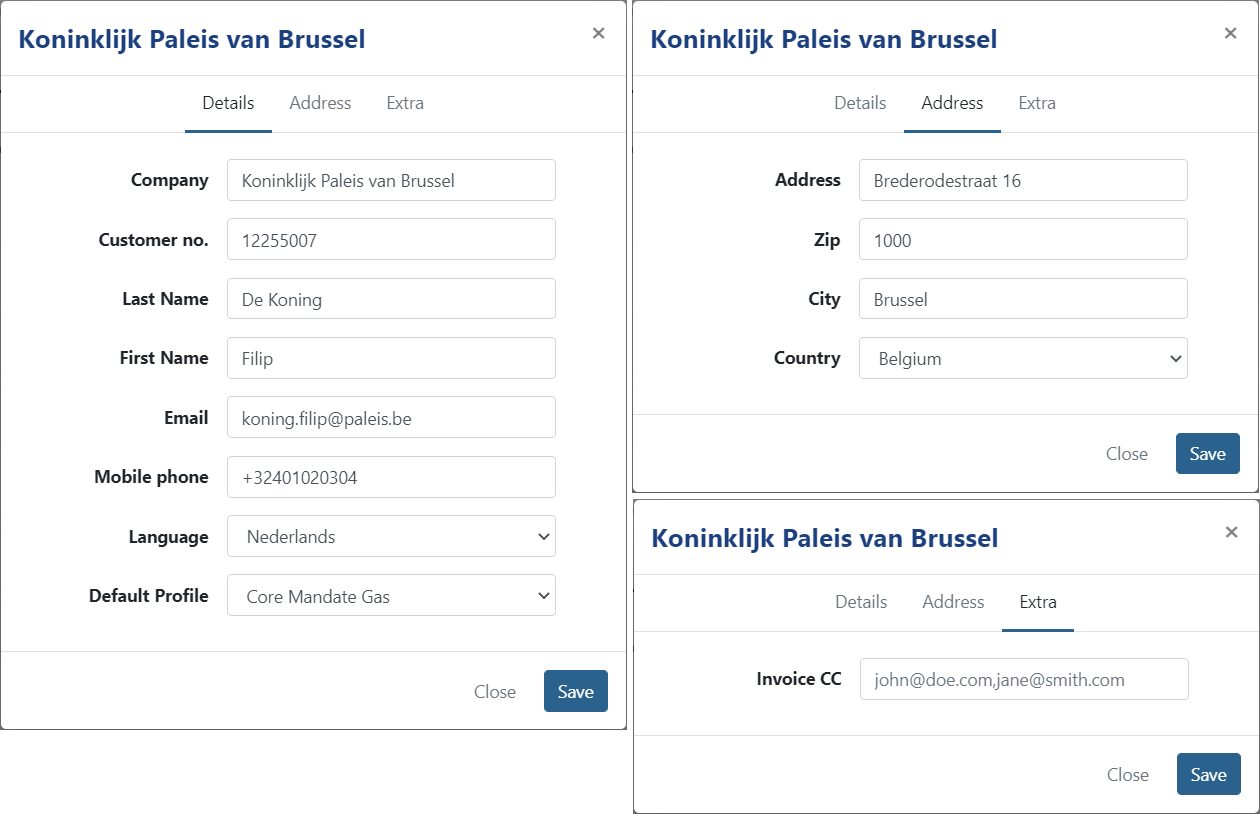
Edit customer number
In order to edit customer data, navigate to the customer you'd like to edit and click the edit icon located at the top right.
Show me
Details
Company:
When the customer is an individual; you will see the option to convert the customer to a company.
To convert a company to an individual/private type of customer, you can clear the company field.
Agreements already signed are not affected by this change. They will remain signed by the original signer.
Language:
This is the language of the customer but important to note is that this language is not used for all the communication.
When creating a new agreement, payment link, invoice,... the language is set separately for those, in the same manner that the
name and address of an agreement can be different from the customer itself.
A customer can be seen as the manager of the goods.
If the customer's language has not been added to the profile (that is used to create a document), the language of the emails will automatically fallback to the default: English. Please note that we make a distinction between Dutch for BE and NL and French voor BE and FR.
Address
The address of the customer, can be different from an address registered on the agreement(s) of the customer.
Invoice
Automatic Collection
- Enabled: If the customer has a mandate on the same profile as the invoice, the invoice will be collected automatically.
- Disabled: Invoices are never collected automatically. The customer can still choose a payment method (mandate, direct payment, etc.).
Enabled by default.
Delivery Method
Used when importing invoices via CSV or when sending invoices in bulk using the Send by Customer preference. If you select the delivery method "Per customer" during import, the invoice invitation will be sent using the method configured here.
The option for selecting a delivery method during import is only available when the profile setting "Send the invoice when a new invoice is booked" is enabled
(Profile > Invoices).
If no delivery method is configured, the default is Inherit. By default, this is per email but a specific one (paper, Peppol, disabled) can be set by our support upon demand.
The delivery method is also used when creating invoices over API, if no method is passed in the request, the configured one on the customer is used.
Invoice CC
Here you can define multiple email addresses to add in copy when sending emails for invoices.
After entering an email, click on the plus (+) sign to add it. You can add multiple CC's using the plus icon.
Peppol address
Only available when your company is Peppol enabled and the customer is a company.
Enter the Peppol address in the format schemeId:VAT, for example: 9925:BE123456789.
This address is required for Twikey’s UBL generation. The electronic address is needed to generate a valid Peppol-compliant UBL file. If you upload your own UBL files directly in Twikey, then there is no need to use this.
Automatic Collection
- Enabled: If the customer has a mandate on the same profile as the invoice, the invoice will be collected automatically.
- Disabled: Invoices are never collected automatically. The customer can still choose a payment method (mandate, direct payment, etc.).
Enabled by default.
Mandatory fields
Creating a new customer can be done with almost no information, but when updating we require more information.
To be able to update a customer, the following fields are required:
- Company name or first and last name (depening the type of customer)
- Address (full address)