
Automated B2B mandate validation
- Before you start
- Configure your profile
- The validation
- 1. How is the validation initiated
- 2. How to start the validation
- 3. How to pause the validation
- 4. The validation succeeded
- 5. The validation failed
- 6. B2B Mandates Awaiting merchant approv...
- 7. Access PDF and Start validation as de...
- Customise Emails
When your customer signs a Business-to-Business (B2B) mandate, customer bank registration is required to allow transactions.
Bank Connections via Twikey
In Belgium, most banks are directly connected to Twikey, enabling automated validation of mandates. Similarly, in the Netherlands, mandates can be
validated through Twikey using the DIM (Digitaal Incassomachtiging) system. These integrations simplify the process, eliminating the need for manual
intervention.
B2B Mandate Validation for Non-Connected Banks
For customers using banks that are not connected to Twikey manual registration is often necessary.
This can be a time-consuming and resource-intensive process.
To address this challenge, our B2B mandate validation feature provides an automated alternative. When your customer registers the mandate, a small
test transaction of €0.01 is sent to the bank. Upon receiving positive feedback from the bank, the mandate is confirmed as valid and ready for
future collections. At this point, the system automatically marks the mandate as signed after the possible refusal period (typically 2/3 days).
Before you start
- Automated validation requires the option Automatically send collection files to bank every night. Contact Support for more information and
activation. - If the automated registration is available then the registration is done that way as it's usually a lot faster.
- A custom exit URL (Thank you page) is still possible using the automated validation but, the first landing page is one of Twikey by default. On
that page, the customer can select to continue to the merchant website.
Configure your profile
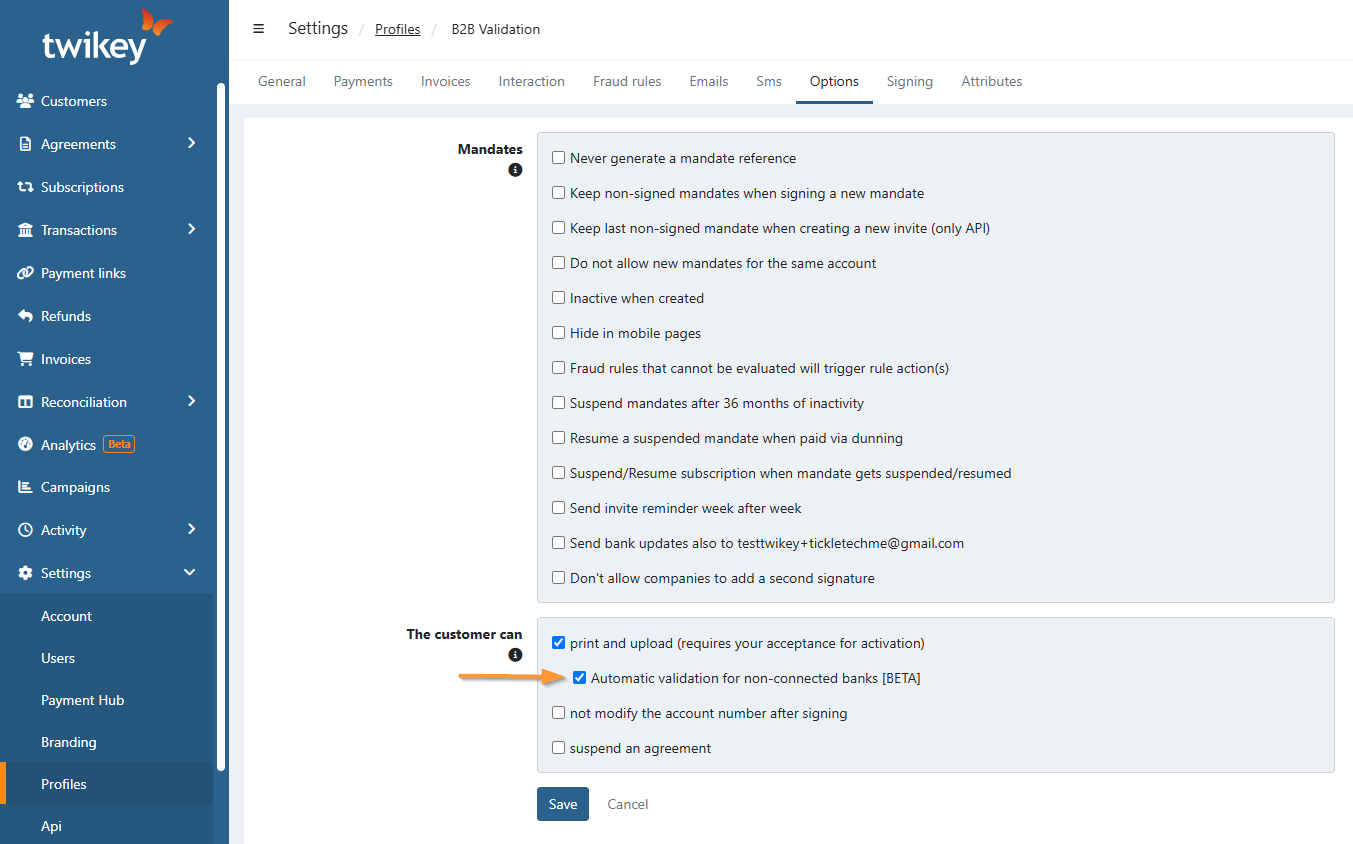
To enable the mandate validation go to your Settings > Profiles > B2B Profile > Options and enable the option "Automatic validation for
non-connected banks"
1. How is the validation initiated
The validation is initiated when the customer registers a mandate with an account that is not connected to Twikey. For specific banks eg. Knab or
Bunq we've got a specific flow as commonly used. Contact us if you know about other banks.
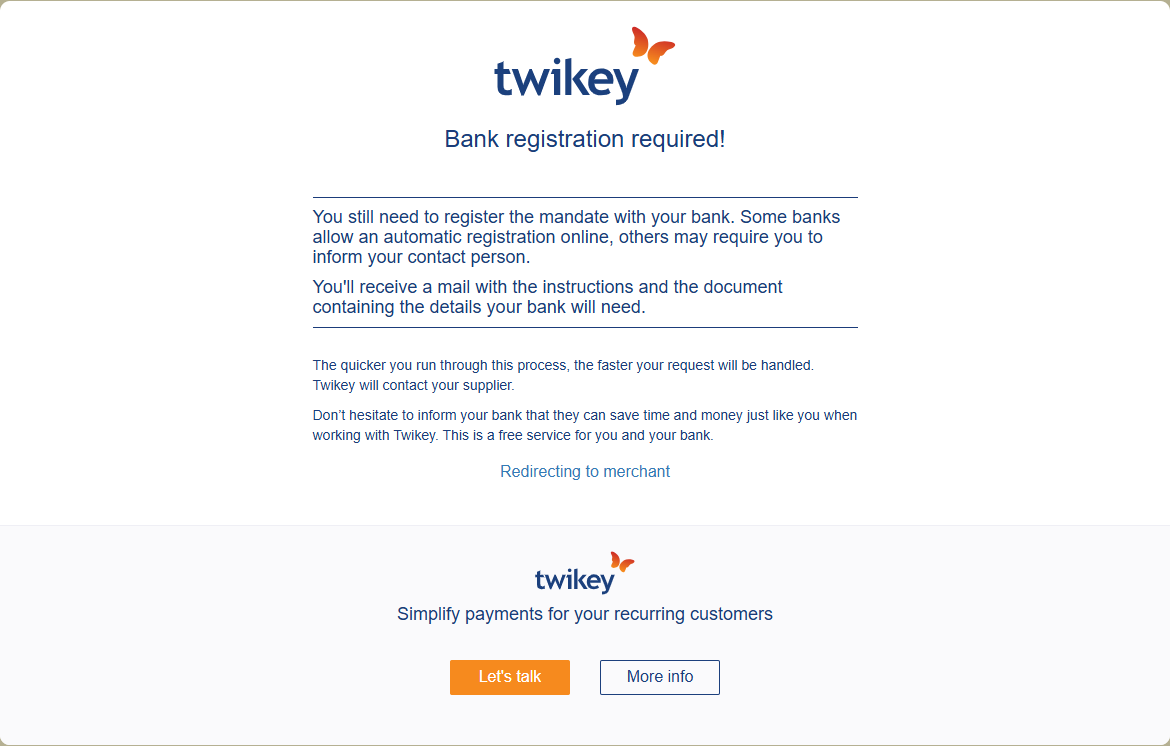
Once the customer confirmed, they are redirected to a landing page with more information about how to proceed further.
Optionally, a 'Redirecting to merchant' link is displayed to continue to your own page if you configured an exit-url.
Regardless if the validation needs to happen or not the customer will receive a pdf containing the necessary data to register the mandate with his bank.
The mandate is now in the state Pending validation.
2. How to start the validation
To validate that the mandate is correctly registered with the bank, a test transaction of €0.01 will be automatically sent during the night.
By default, the transaction is created without a requested collection date, meaning the transaction is directly ready to be sent to the bank . However, upon request, you can customize this delay to more days. Increasing the delay allows more time for the customer to complete their registration with the bank but will naturally extend the overall process.
3. How to pause the validation
During the validation, you can go to the mandate details and click the "Pause Validation"button>.
Any pending transaction for this mandate won't be sent to the bank any more.
The state of the mandate is now "Awaiting merchant approval" and requires a manual action to relaunch the validation.
4. The validation succeeded
Upon receiving a paid outcome, a check will be done 3, 5 or 6 days later to confirm that the transaction wasn't rejected in the mean time.
After that period the mandate is marked as SIGNED. During the delayed period, the mandate remains in the state "pending validation".
The delay in days depends on the day a paid outcome was received:
- Monday - Tuesday: Check is done 3 days later.
- Wednesday: Check is done 6 days later.
- Thursday - Sunday: Check is done 5 days later.
5. The validation failed
Upon receiving a failed status, the mandate remains in the state "pending validation".
At this point the "Registration Attempt" email is sent to the customer to inform them that the validation failed.
The validation is automatically retried after 7 days. After 3 automated validations the state of the mandate goes to "Awaiting merchant approval"
and the customer is informed about this via the email "Registration Failure".
At this point you can manually restart the validation but this time, if the validation fails, it is not retried automatically. You'll need to
manually launch the validation each time at this point, or you can mark the mandate as signed when sure the mandate is correctly registered at the bank.
6. B2B Mandates Awaiting merchant approval
Printed mandates that were uploaded by your customer or failed the verification check more than 3 times, can be filtered in the overview using
the status "awaiting merchant approval". In both cases an action is required. Check the events of the mandate for more information.
7. Access PDF and Start validation as debtor
As debtor, you can access the details while the mandate is in Pending Validation and trigger the validation to the bank.
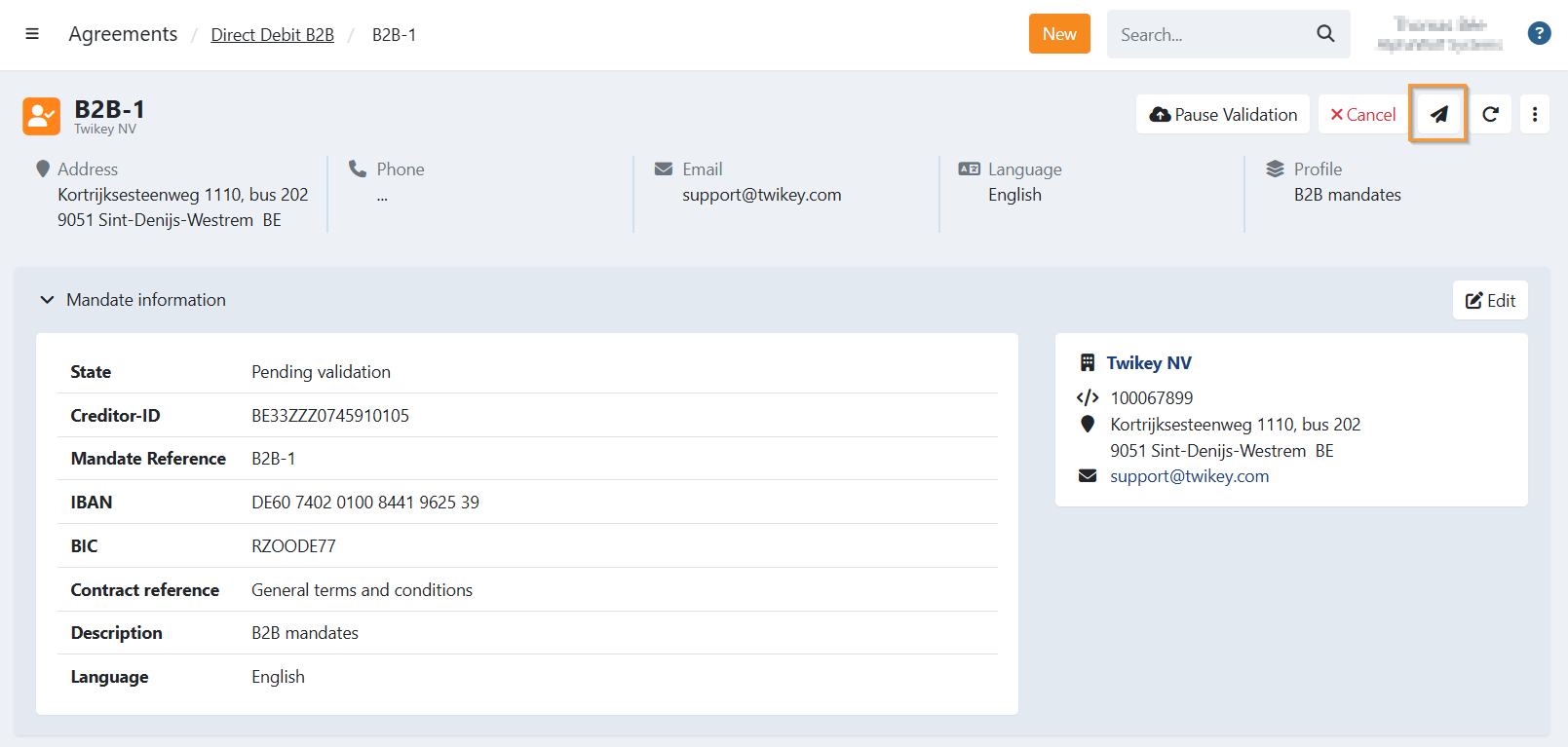
Either they can log in simply with their email and document reference, or as merchant you can easily send an access link, go the mandate details and click on 'Send link to customer':
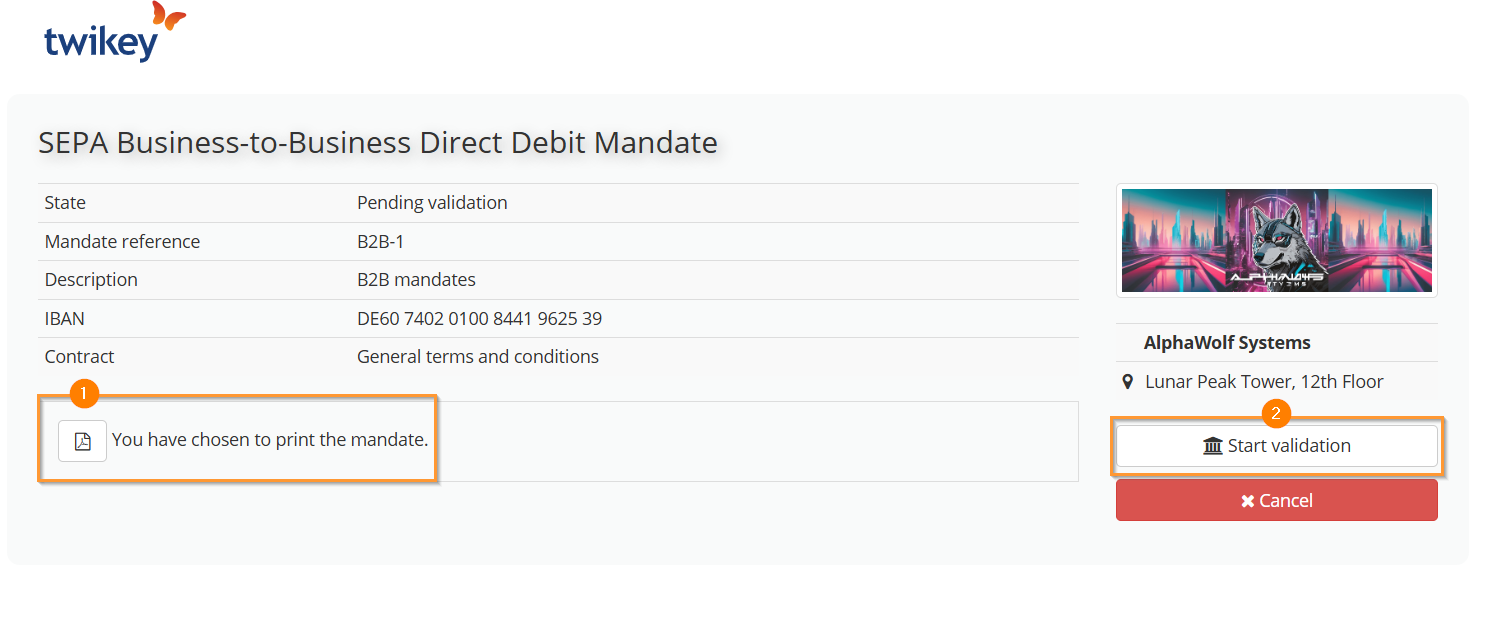
When the debtor is on the overview of their mandate, they can:
- View and download the PDF (1)
- Start validation (2)
- This will update the transaction, and send it to the bank for validation as soon as possible.
Customise Emails
You can customise the emails used for validation by going to your B2B profile > Emails: under Invites > B2B Registration
After registration the customer receives a dedicated email with instructions depending on the bank:
- Registration: Banks requiring registration via a portal (eg. Knab)
- Registration w/payment: Banks allowing acceptance via the first transaction (eg. Bunq)
After every failed validation the customer receives the email "Registration Attempt" and after 3 attempts he will finally get the "Registration Failure".