
Scheduling tasks on agreements in Twikey
- Accessing the Task Schedule Menu
- Schedule reminders for signing agreement...
- Schedule the suspension or reactivation ...
- View the scheduled tasks on an agreement
You can schedule tasks (actions) on agreements depending on their state.
Accessing the Task Schedule Menu
- Single Agreement
- In the agreements overview, click on the name of the agreement to open its details page.
- On the agreement details page, click the icon in the upper right corner, then select Schedule.
- Multiple Agreements
- In the agreements overview, you can apply a specific preset filter based on the status of the agreements (e.g., Signed, Suspended, Prepared). We recommend selecting only one status at a time, as the available follow-up actions may differ (e.g., for a Prepared agreement, you can send a reminder email, which is not applicable for a Signed agreement).
- Select the desired agreements by checking the box next to each agreement.
- Click the icon in the upper right corner, then choose Schedule.
A modal window opens where you can select the desired action and specify the date on which the action should be executed.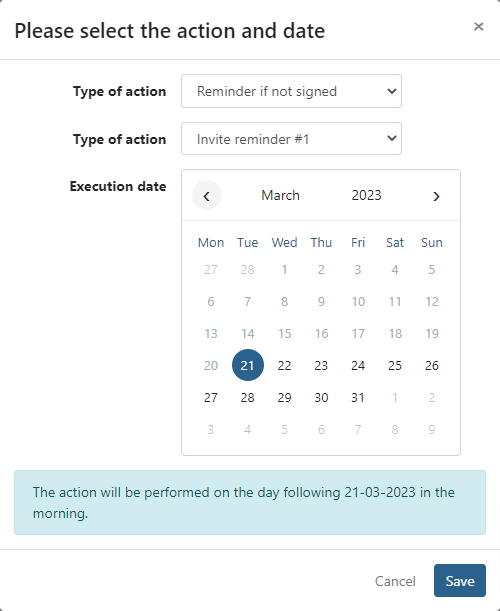
Depending on the filter (i.e., the state of the agreement), the available actions will differ:
- Reminder for unsigned agreements (prepared).
- Suspend/Reactivate Action for signed and suspended agreements.
Schedule reminders for signing agreements
Reminders are only possible for agreements in the Prepared state
- Access the task schedule menu
- Select the invite reminder to send: #1, #2, #3 or #4. The content for invite reminders #1, #2, #3, and #4 can be set in the Profile options > Email
- Select the date to send the reminder
- Click Save
Schedule the suspension or reactivation of an agreement
Scheduled suspensions will only be executed if the agreement has been signed and is not in the Suspended or Cancelled state.
Scheduled reactivations will only be executed if the agreement is in the Suspended state.
- Access the task schedule menu
- Select the type of action: Suspend or Reactivate
- Select the date to schedule the action
- Click Save
View the scheduled tasks on an agreement
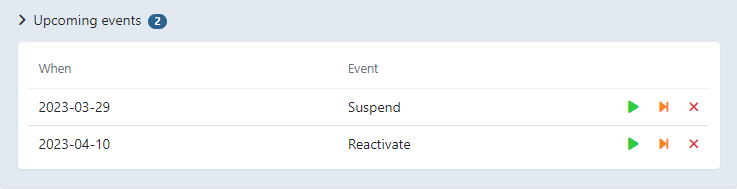
- In the agreements overview, click on the name of the agreement.
- On the agreement detail page, click on Upcoming Events.
- You can view or take actions on the scheduled tasks from this menu. The available options are:
- Run the task without removing its scheduled execution.
- Run and Remove the task.
- Remove the task.
Last Update: 2024-08-14