
Overview of your Agreements
How to filter and export specific agreements
The agreements are grouped by type (Core, B2B, Contract, etc.), you can select the type in the sidebar menu on the left.
There are three ways to filter the agreements, which can be combined:
- Preset filter
- Advanced filter
- Search bar
For example, you want to have all the agreements from last month that are not signed yet
- Preset filter: Prepared
- Advanced filter: date: select the preferred time period
- You can still refine the results with the search bar on mandate name/reference
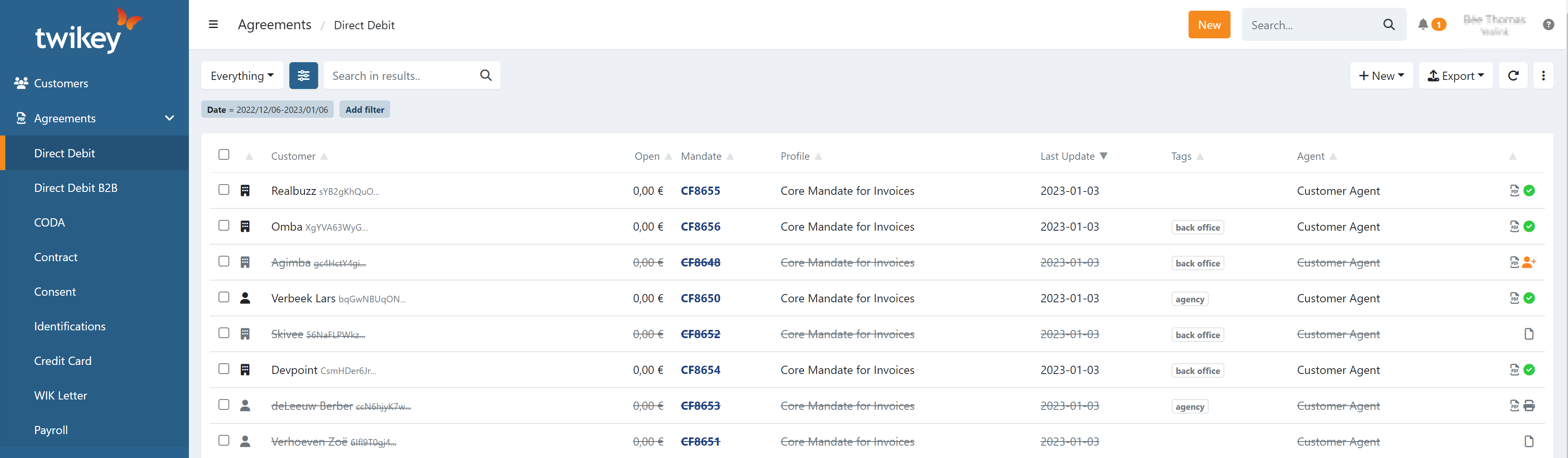
For each agreement, you have additional information displayed:
- Customer: The name of the customer followed by the customer number.
- Open: Total amount of open transactions for that agreement that have not yet been sent to the bank.
- Mandate: The agreement reference.
- Profile: The profile of the agreement.
- Last Update/Signed/Creation: Depending on the current preset filter, a different column is used.
- Last Update: The date of creation or signature of the agreement.
- Tags: The tags assigned to an agreement. You can filter on tags using the advanced filters.
- Agent: The user assigned to the document. By default this is the user who created the document, but a different user can be assigned during or after creation.
- Progress: The status of finalizing the agreement on the merchant's side (only when the agreement is in the Prepared state)
- PDF: When a PDF-document is available, the icon is displayed.
- State: Here you will see the state of the document.
Prepared Agreements
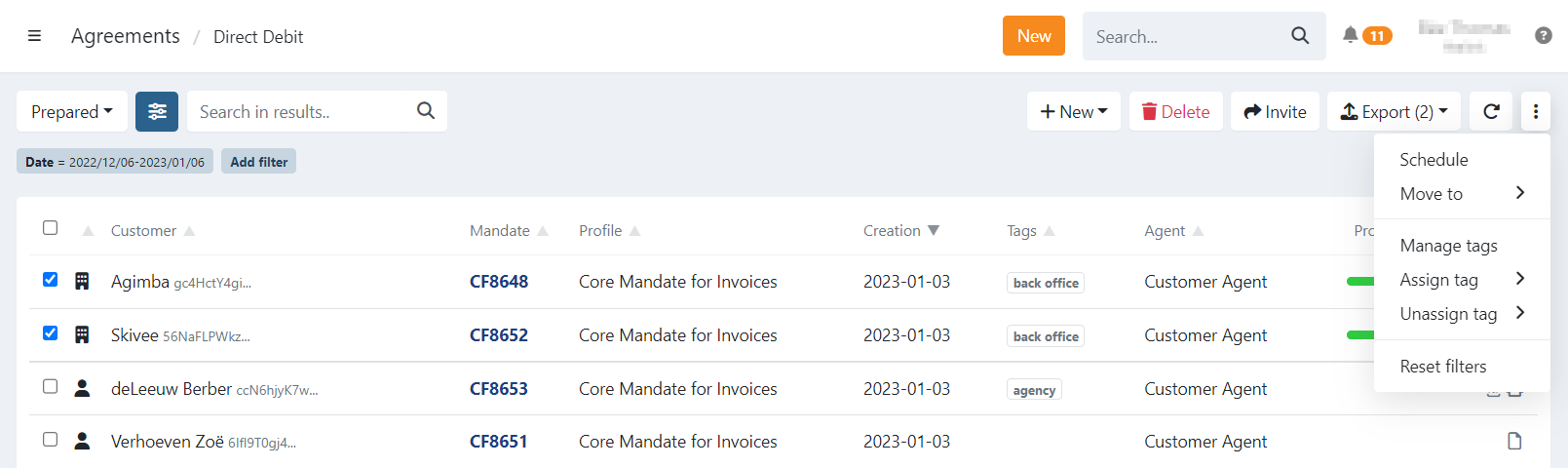
When the preset filter is set on Prepared, all the agreements that are not (fully) signed are displayed.
Using the Prepared filter, you are able to select one or more agreements at once and perform several actions:
- agreements
- Agreements with the state Awaiting bank approval and Requires more signatures cannot be deleted.
- customers to sign via email, letter or SMS. A reminder via email or SMS is also possible.
- Export your selection in CSV format
- Schedule automatic reminder emails to sign the document and on a specific date
- Move to: Change the profile of the agreement to one of a similar type
- Assign/Unassign tags on your agreements
The email will contain the error (invalid email, mobile number,..) and reference to the document.
Signed Agreements
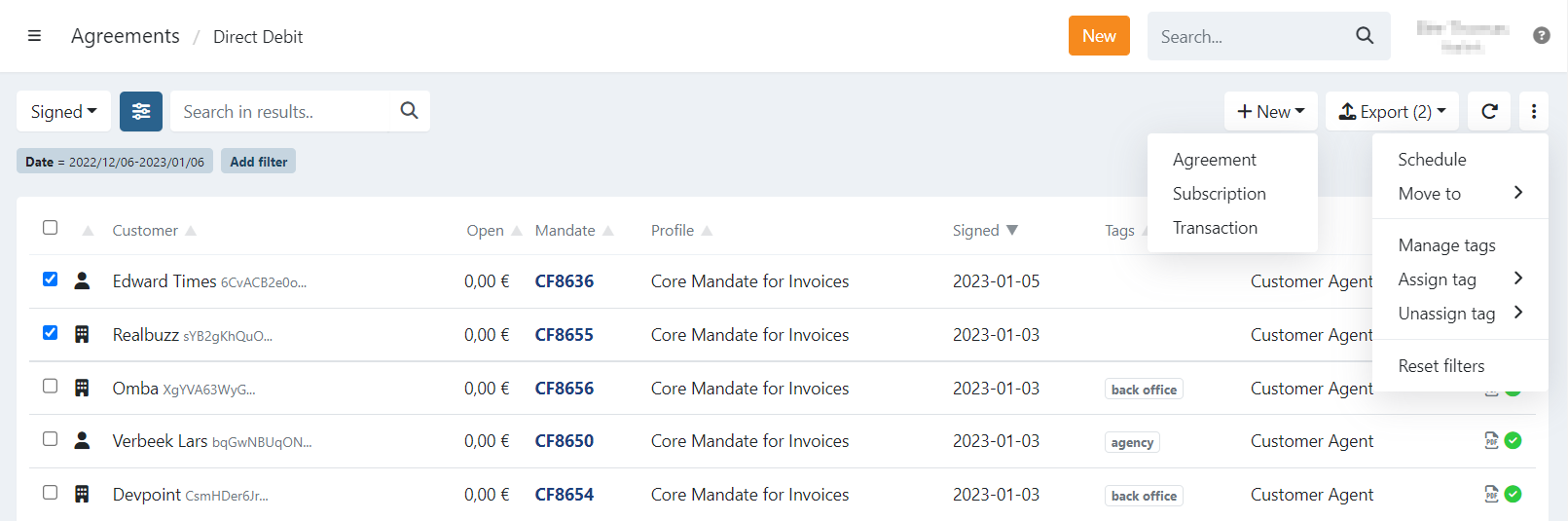
When the preset filter is set on Signed all the agreements that are signed are displayed.
Agreements in this list can be struck through if they were signed but cancelled or paused afterwards. To find out more, click on the agreement to open its detailed information
Using the Signed filter, you are able to select one or more agreements at once and perform the following actions:
Click on the button to:
- Add Subscriptions on all the selected agreements
- Add Transactions on all the selected agreements
Export the selection to different file-formats (CSV, Informat, Kluwer, Reinaert, Count-e, Lord/PIAi, Exact Online)
Schedule to suspend or reactivate documents on a specific date
Move to: Change the agreement's profile to a similar type
Assign/Unassign tags on your agreements