
How to create a new agreement
Show me
How to create a new agreement
A new agreement can be created for new and existing customers in several ways:
- Create a new agreement (using the global New button or the New button on the agreements page) and define the customer (select an existing customer or create a new customer.)
- Search for the customer first and add the new agreement from the customer's details
Option 1: Create a new agreement and define the customer
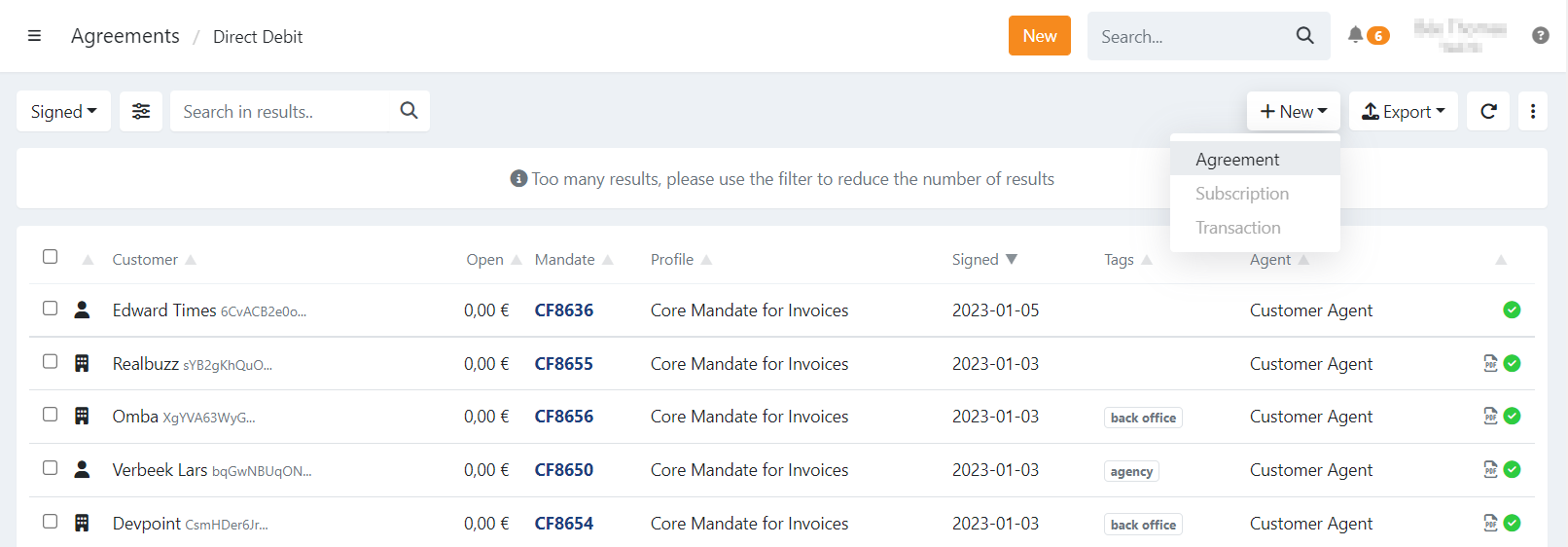
- Use the global New button on the top right or go to the agreements overview, click on and select Agreement.
- Search for an existing customer or create a new customer.
- If you have a CRM integration, you can use the __Find in CRM__ option when creating a new customer.
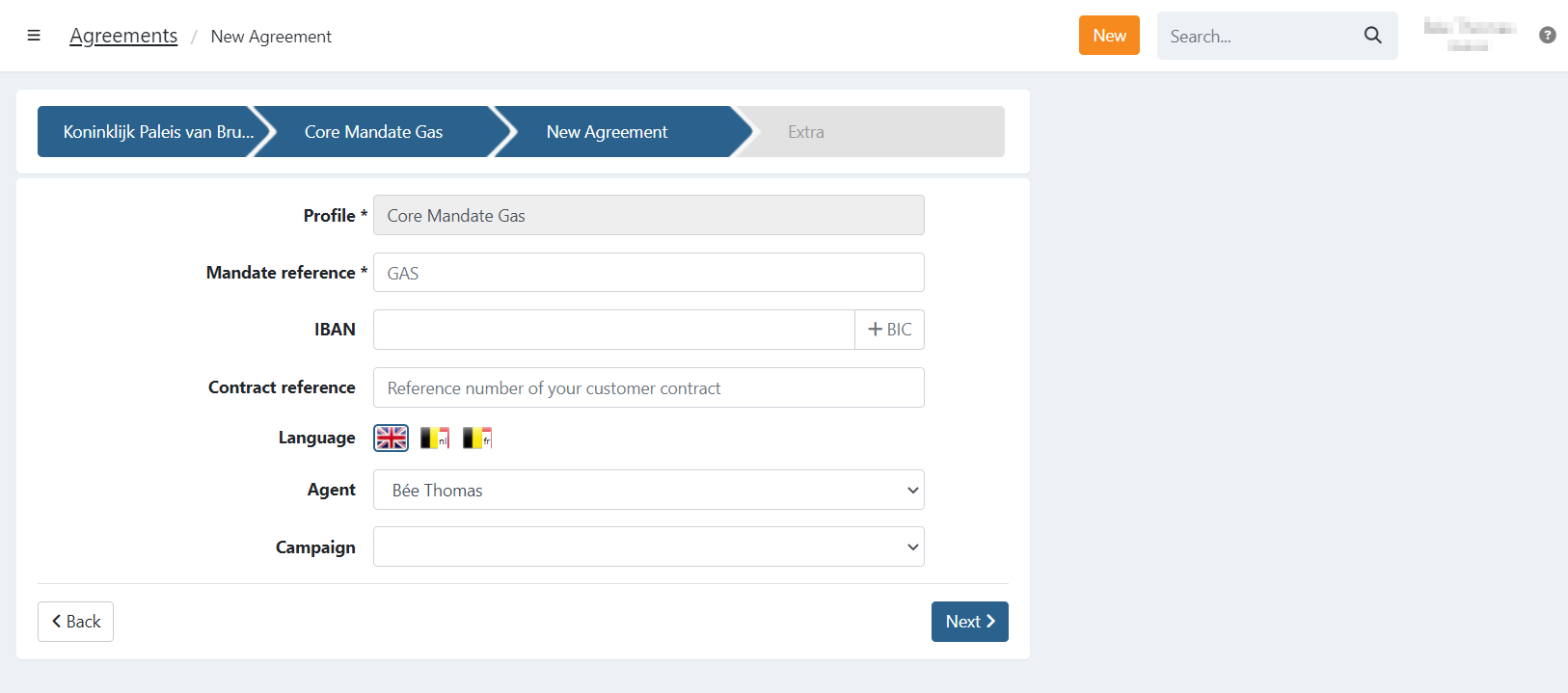
- Select a profile.
- Fill in the required fields.
- You can enter a custom contract reference. If left empty, the default reference of the profile is used. (A contract reference can be "general terms and conditions" or a very specific version of your contract.)
- Select a language.
- Optionally, you can add the agreement to an existing campaign.
- Click on Next.
- Extra: If you have defined custom attributes on your profile, you can enter values here.
- Click on the Add button.
Option 2: Search for the customer first and add the new agreement from the customer's details
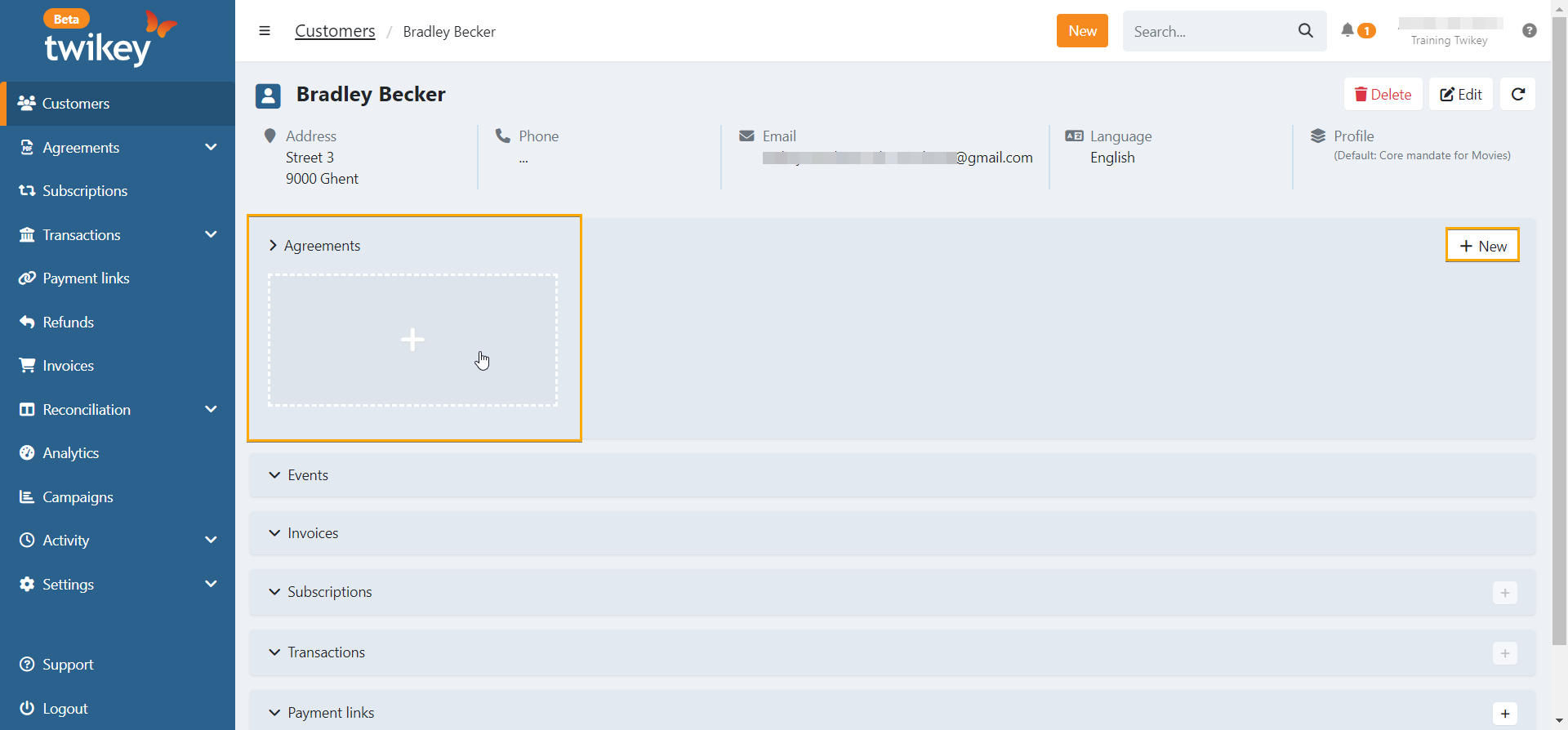
- Find the customer: Begin by using the global search bar or navigating to the "Customers" tab to locate the specific customer for whom you want to create a new agreement.
- Click the customer's name in order to go to the customer's details.
- Click the + button in the agreements section or expand the agreements section and click the + button in order to add a new agreement.
- Select a Profile.
- Fill in the required fields.
- You can enter a custom contract reference. If left empty, the default reference of the profile is used. (A contract reference can be "general terms and conditions" or a very specific version of your contract.
- Select a language.
- Optionally, you can add the agreement to an existing campaign.
- Click on Next.
- Extra: If you have defined custom attributes on your profile, you can enter values here.
- Click the Add button.
Option 3: invite (multiple) existing customers
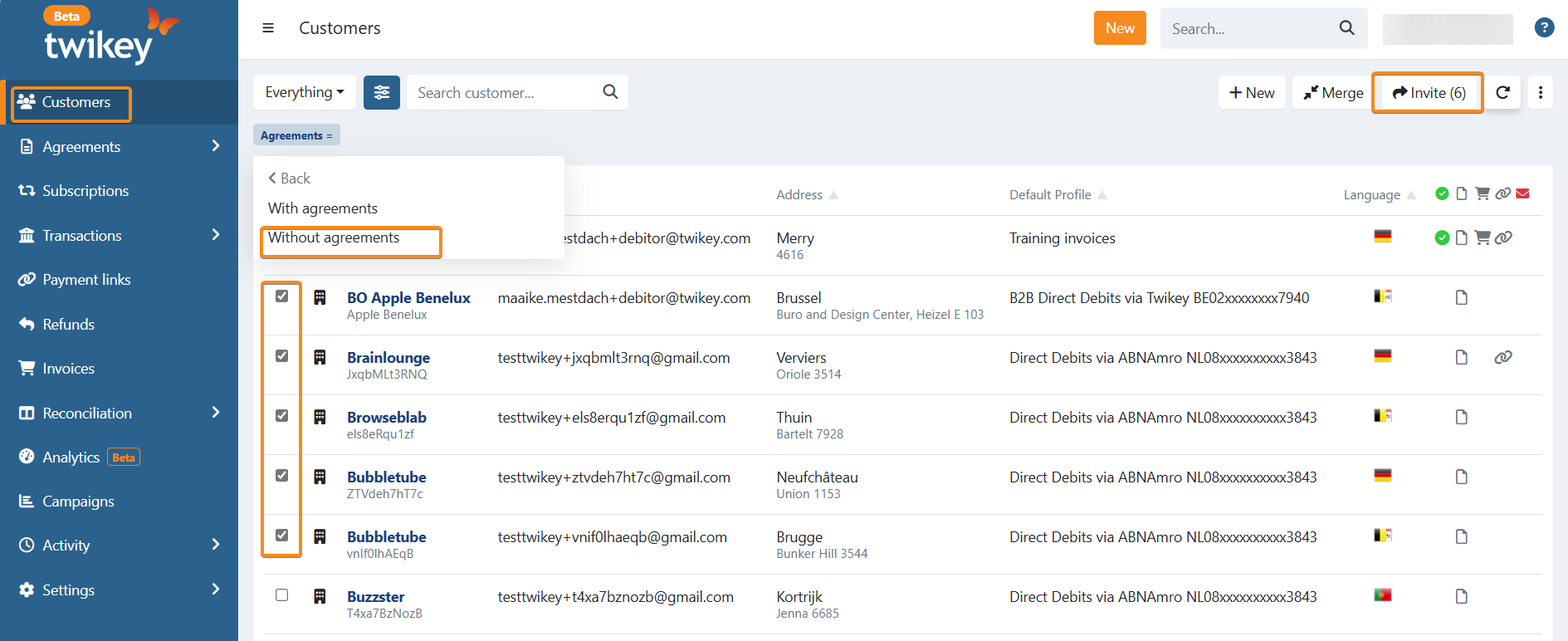
- Find the customers: navigating to the "Customers" tab and add filter agreement, set filter 'without agreements'
- Select the customers who you want to invite for the same profile
- Select invite button and fill in the profile and create a new or use an existing campaign
- Click on Send to invite all the selected customers
More info
The invitation link is valid for 12 months by default. Once the link is clicked, it remains valid for 6 months.
When you create a new contract type, you can use a predefined PDF document or upload a custom document on the contract yourself.
It is also possible to create a contract and a mandate. Visit the Contracts documentation for all possible options.
B2B mandates are only available for company-type customers.
Language
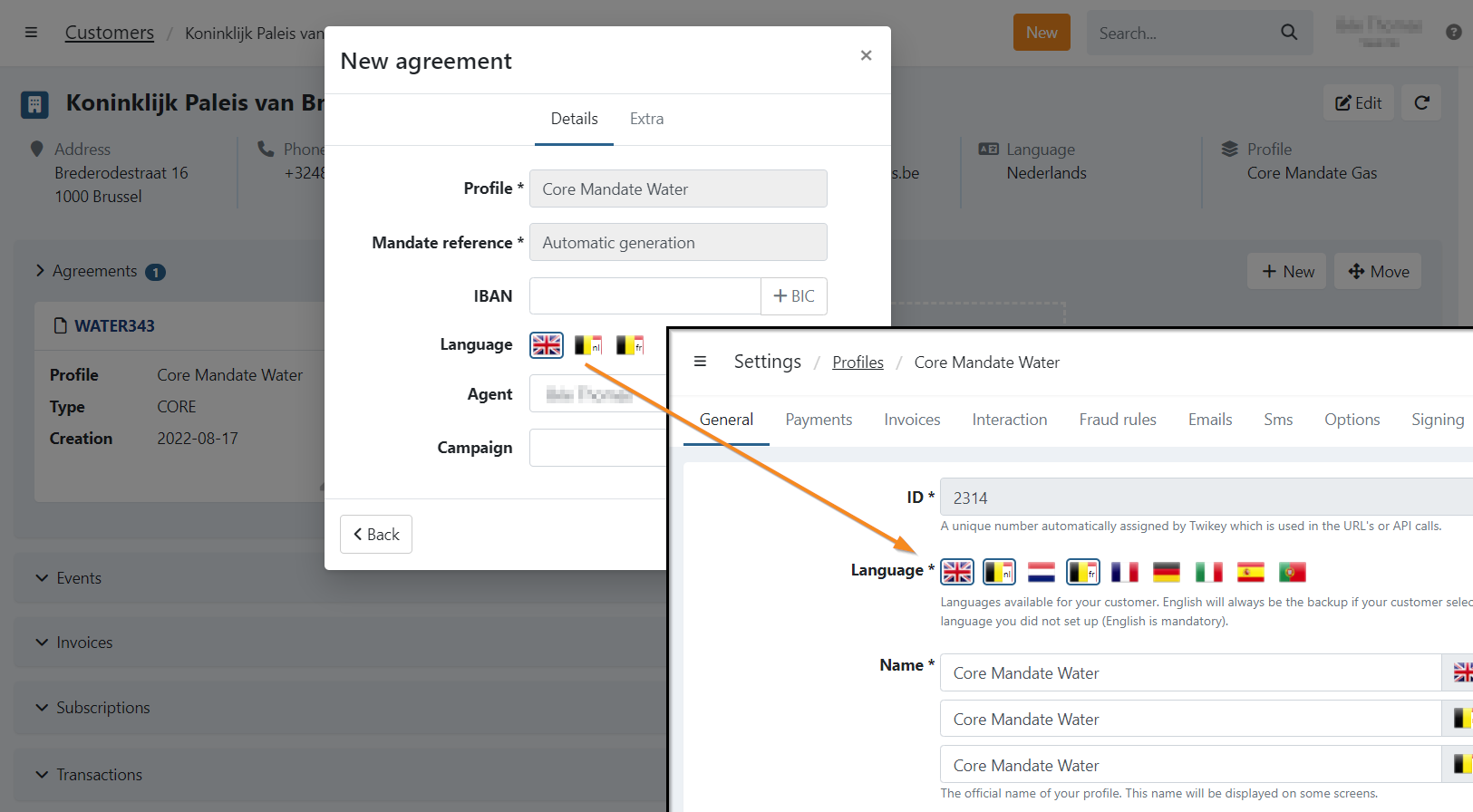
The languages you can select during creation are those enabled on the selected profile.
The communication and signing pages for the end customer are in the language defined on the agreement.
The language can be changed after creation by simply editing the document. You can also enable more languages on the profile if needed.
<ul>
<li>By default, the language of the current user is selected when creating a new agreement.</li>
<li>The customer can have a different locale than the one registered on the agreement.</li>
<li>Once a mandate is created and signed, you can opt to suspend the document automatically after 36 months of inactivity (= no transactions).
Enable the option <i>Suspend mandates after 36 months of inactivity</i> in the respective profile to use this functionality.</li>
</ul>
Get the agreement to your customer
In order to get the agreement signed by your customer, please refer to article Invitation methods
Last Update: 2025-09-09