
How to cancel agreements
- More information
- Cancel agreement
- Transactions
- Subscriptions
- Reactivate a Cancelled Agreement
- Reactivate a Cancelled Agreement Individ...
- Reactivate Agreements in Bulk
Show me
Cancel agreement
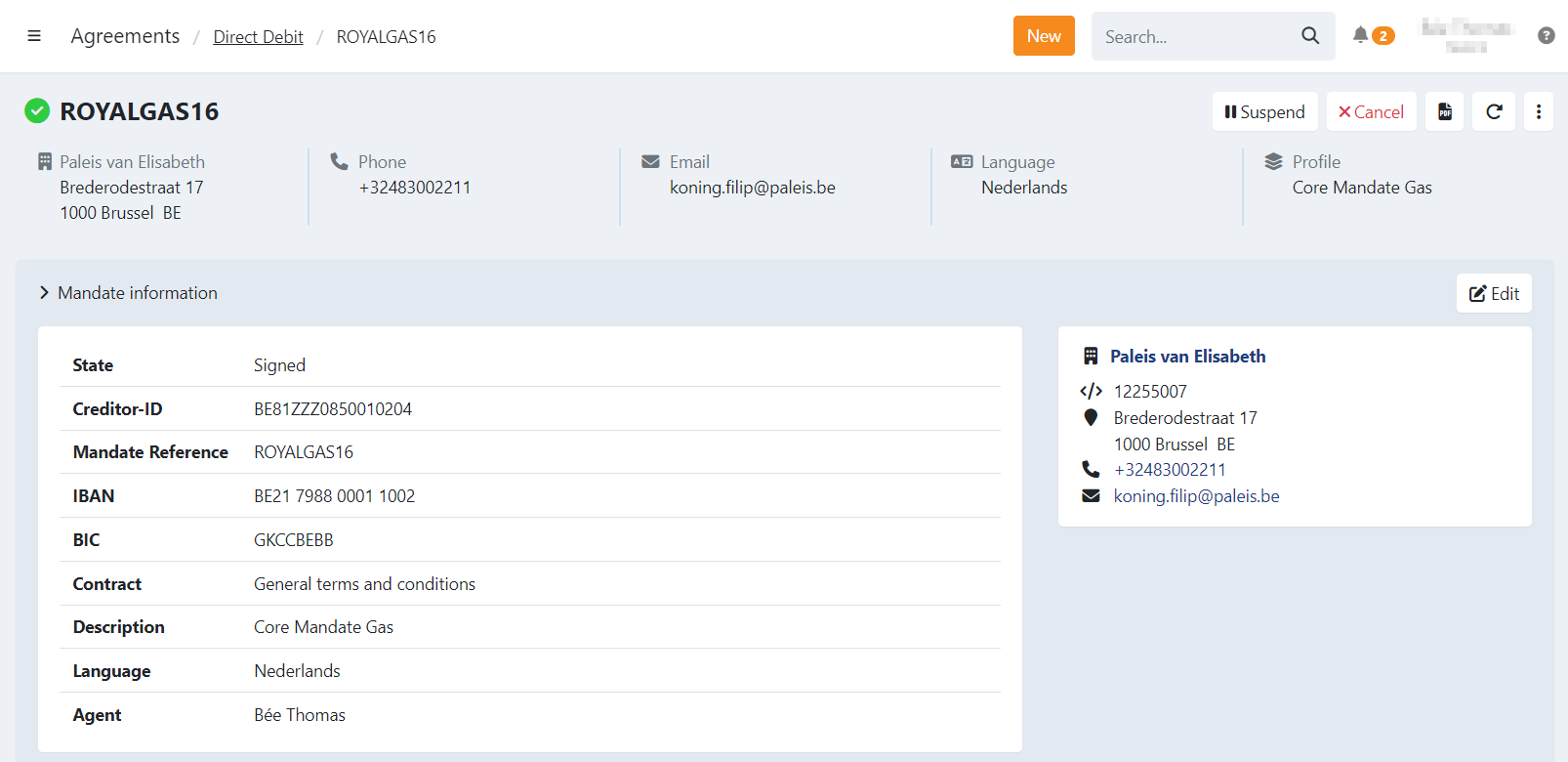
Agreements can be cancelled automatically through the dunning workflow, or you can cancel agreements from the agreement detail page.
To cancel manually, navigate to the agreement details and click on
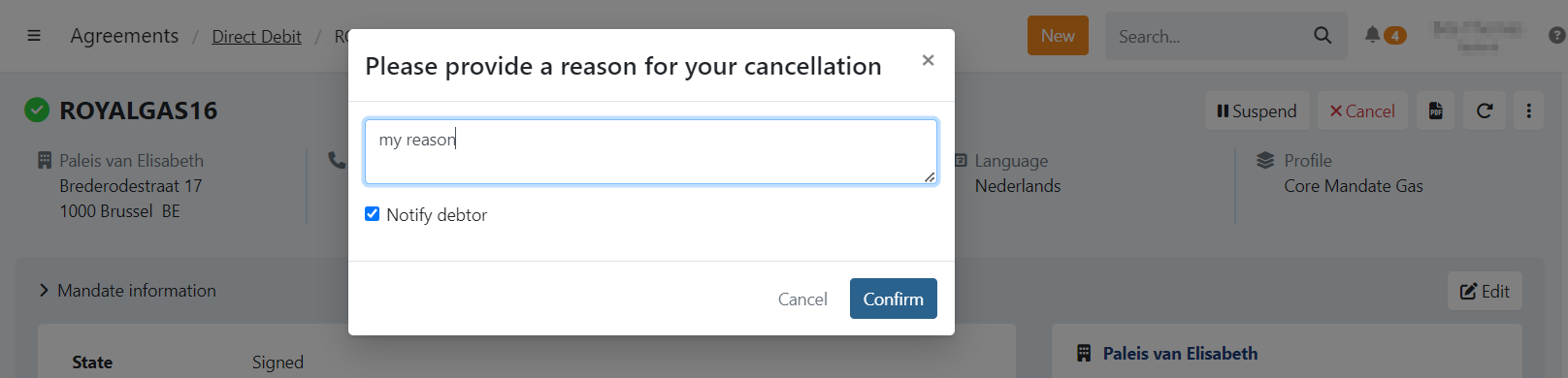
A confirmation modal will appear, prompting you to enter a reason for cancellation. Select whether to notify the debtor about the cancellation and confirm the action.
Transactions
Transactions that haven't been sent to the bank are now labeled as 'Unsettled'. Although they can't be sent to the bank anymore, manual actions are still possible.
To perform a manual action on these transactions, go to Transactions > Unsettled and filter on 'Never collected'. From there, you can select the transaction(s) and click to choose an action.
'Try again' and 'Send to collection agency' actions are available for transactions in a 'never collected' state.
Subscriptions
All subscriptions (active, suspended) become cancelled when the mandate is cancelled. Should the mandate be reactivated you can quickly start the subscriptions again by opening a cancelled subscription and selecting 'Start over'.
Reactivate a Cancelled Agreement
In order to reactivate a mandate, it must have been signed before. An agreement can be cancelled or paused either manually or through the dunning workflow due to a failed collection. Here's how you can reactivate it:
Navigate to the Agreement
Go to the agreement details and click 'Reactivate' in the top right corner.For B2B Mandates
Ensure that a valid agreement is registered with the bank. If no valid agreement exists, you can set the agreement to 'active' in Twikey, but transactions will still fail at the bank.
Reactivate a Cancelled Agreement Individually
You can reactivate a cancelled agreement in two ways:
1. Reactivate a Signed Mandate
- On the agreement details page, use the three dots top right corner and select 'Reactivate'.
The 'Reactivate' option marks the document as signed once more, without needing the customer to sign it again.
2. Re-invite the Customer to Sign Again
- If you click the button, you can take the same actions as for a prepared mandate: send the invitation to the end-customer or copy the URL. The customer will need to sign the agreement again.
Reactivate Agreements in Bulk
To reactivate multiple agreements at once:
- Navigate to your Agreements page.
- Filter the agreements list by selecting the Suspended filter.
- Select the agreements you wish to reactivate.
- Click on the three dots in the upper-right corner.
- Choose 'Schedule'—a pop-up will appear with available actions.
- Select Reactivate, choose a date, and confirm.