Signing
Signing with eID - Installation procedure (Belgium only)
To sign a mandate with your electronic identity card (eID), you need to install the eID plugin when selecting the eID signing option.
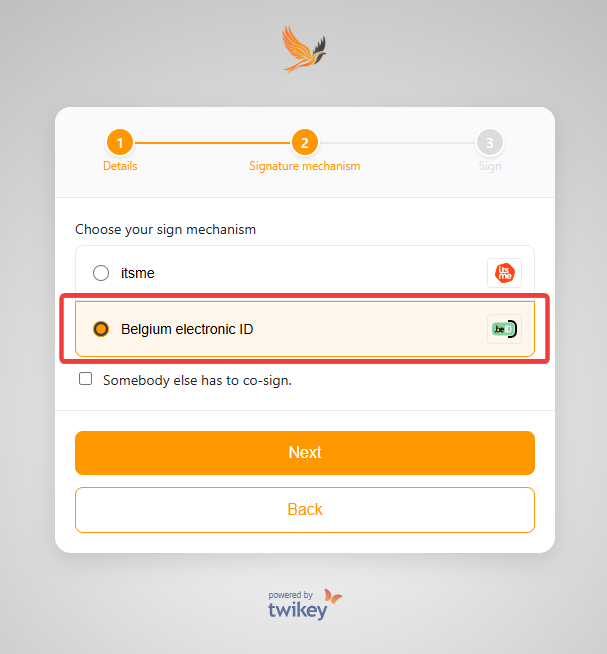
Follow these steps to install the plugin:
- Select which version of the plugin you need, depending on your device.
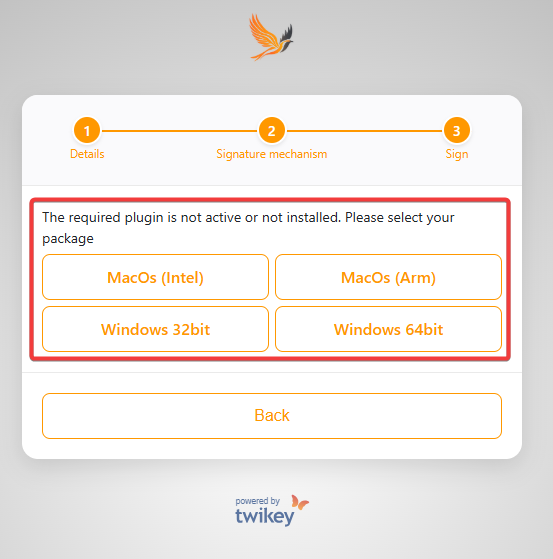
- When prompted, a pop-up will appear to download the installer file. Save the file to your system.
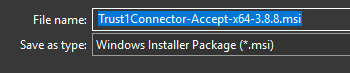
- The file Trust1Connector will begin downloading. Once finished, open the file.
- Accept the terms in the License Agreement and press install and finish the download:
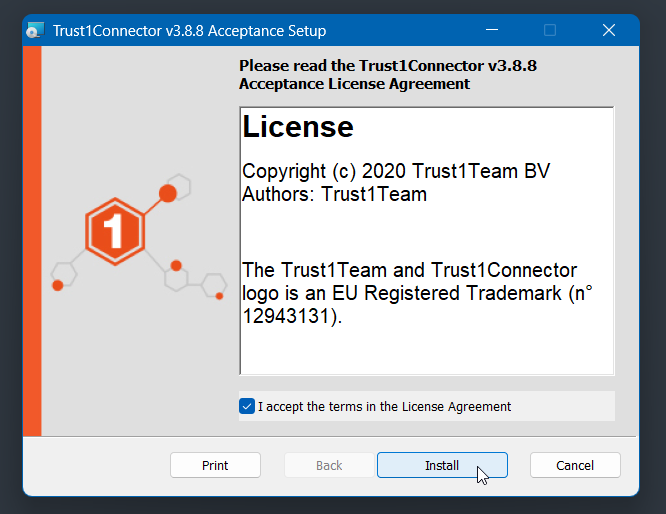
- Once Trust1Connector is installed, Retry the signing process to reinitiate the eID signature.
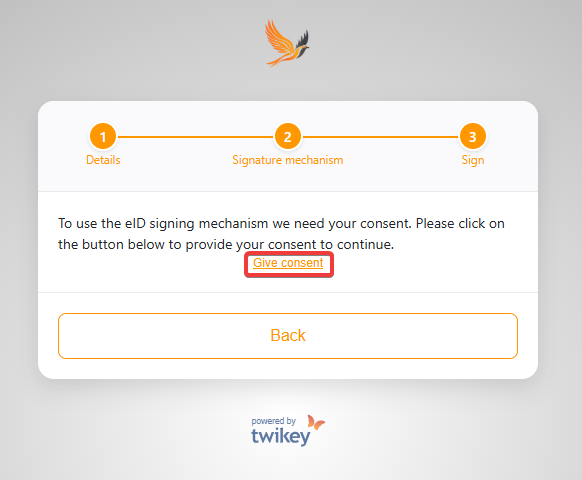
- Press on the "Give Consent" button to give consent to sign the agreement.
- A window will appear asking you to insert your card into the eID reader and enter your pin.
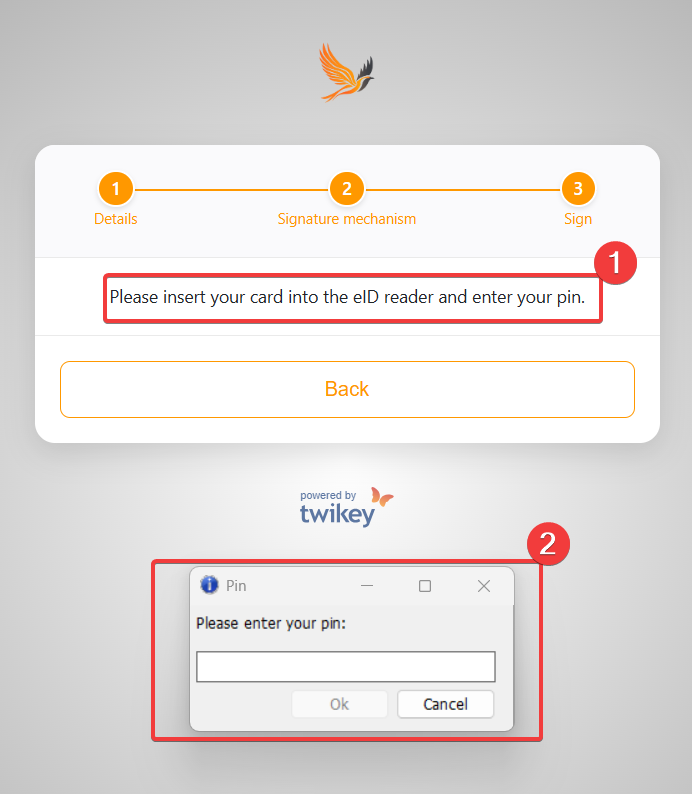
- When prompted, enter your PIN code and click OK — your document is signed.
What to do if you are unable to sign after the installation?
- Close your browser entirely.
- Disconnect and reconnect the eID card reader with your eID-card inserted.
- Return to the link you received from your supplier.
- Follow the signing steps and select Belgium Electronic ID as the signing option.
- A screen will appear in which you can enter your eID pin code.
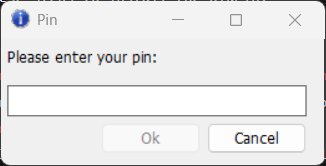
- When prompted, enter your PIN code and click OK — your document is signed.
Common issues with signing via eID (Belgium only)
You forgot the PIN code of your eID card
You can request a new PIN through the official government website.Signing is not possible from a work computer
Your company’s IT department may restrict USB devices or software installations.
If so, try signing from a home computer or use another available signing method.You are trying to sign with eID on a tablet
eID signing is not supported in mobile browsers.Problem with reading the card
Poor contact between the reader and the card can cause issues.
Try cleaning the chip on your eID or using a different reader.I don’t know what the real problem is
Test your eID setup at the Test eID website.
If it fails, reinstall the software following this guide: How to install the eID software?.
Common issues with signing via Itsme (Belgium only)
If you experience issues while signing with itsme, you can first check whether the itsme services are fully operational.
Visit the itsme status page to verify if there are any ongoing disruptions.
If the service is available but problems persist, please consult the itsme Help Center for further assistance.
Common issues with signing via Digitaal Incassomachtigen (Netherlands only)
We couldn’t get a timely answer from your bank
Go to your banking environment and check if the mandate is registered.- If the mandate is registered, notify your supplier that it has been activated.
- If the mandate is not present, retry the signing process later — this often resolves temporary issues.
Can’t sign the document online
It’s not possible to sign an eMachtiging digitally for ING Bank Inside Business Payments or ABN AMRO Access Online.
In these cases, the eMachtiging must be completed on paper.
Signing with Bunq - Procedure (Netherlands only)
With Bunq, your direct debit authorization (mandate) is created during your first direct debit transaction.
Once the transaction is initiated, you will receive a notification in the Bunq app — simply approve it to activate the mandate.
- Personal direct debits: You can sign the authorization online using one of the available methods. You have 5 days to approve the transaction.
- Business direct debits (B2B): Follow the instructions provided in the email you receive. You have 24 hours to approve the transaction.
After approval, all future direct debits will be processed automatically within your configured limit.
You can adjust this limit anytime in the app via: Home → Bank Account → Settings → Automatic Debits
Signing a mandate with two or more signers
Some mandates must be signed by more than one person. This is typically only needed for B2B mandates, where your bank requires multiple legal representatives to approve a company mandate, or when the option Someone else must co-sign was selected during the signing flow. When this applies, an extra signing step starts after the first signature.
- The first signer completes the normal signing flow and selects Someone else must co-sign before signing.
- After signing, the first signer automatically receives an email from Twikey with instructions to forward it to the other signers.
- The first signer forwards this email to every other signer who still needs to sign.
- Each additional signer opens the link in the forwarded email and digitally signs the mandate.
- Once all required signatures are collected, the mandate is fully processed.