
Preparing and sending a batch of transactions for collection
- Batch information
- Preparing a batch of transactions for co...
- Sending a batch of transactions for coll...
- Uncollectable transactions
Show me
The batch details view provides a complete overview of all transactions that are ready to be sent to the bank, as well as transactions that are currently uncollectable due to the status of their mandate.
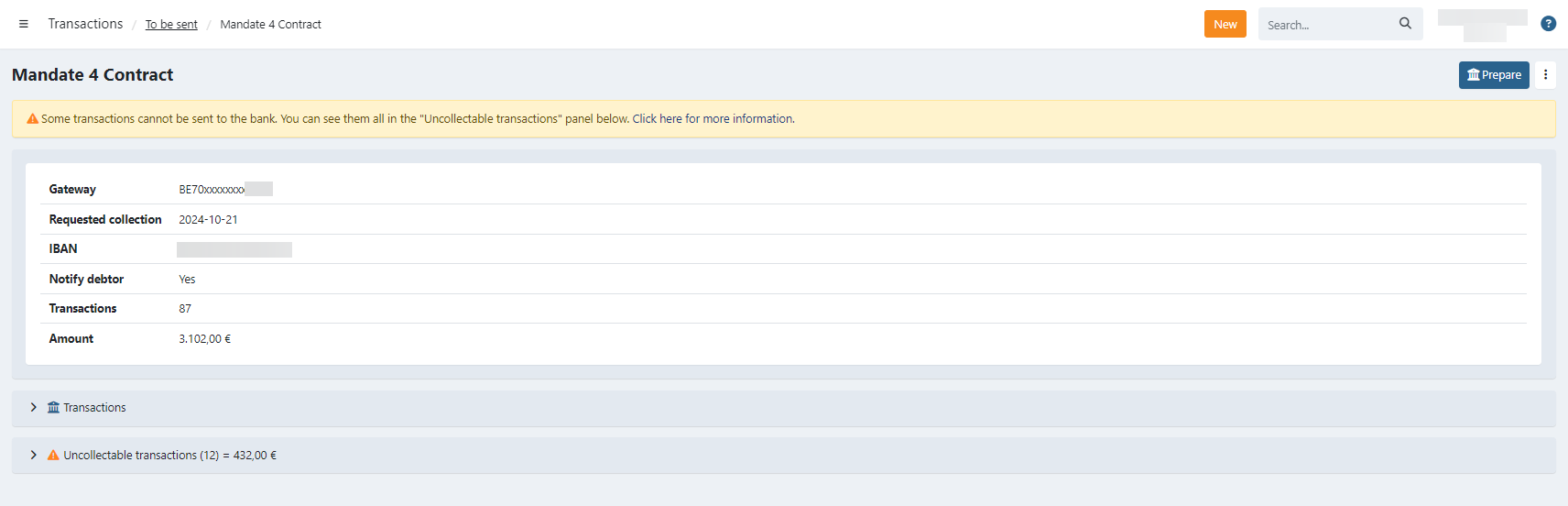
Batch information

At the top of the batch details page, you’ll find the following information:
- Gateway : The IBAN where the collected funds will be deposited.
- Requested collection date : The date on which the transactions are intended to be collected.
Transactions become ready to send approximately 3 days before this date to account for bank processing times. - IBAN : The account number on which the direct debits will be deposited.
- Notify debtor : Indicates whether a collection notification email will be sent to customers when the batch is sent to the bank.
This setting cannot be changed here and is configured under Settings > Profiles > Emails. - Transactions : The total number of collectable transactions in the batch (uncollectable transactions excluded).
- Amount: The total collectable amount of the batch (uncollectable transactions excluded).
Preparing a batch of transactions for collection
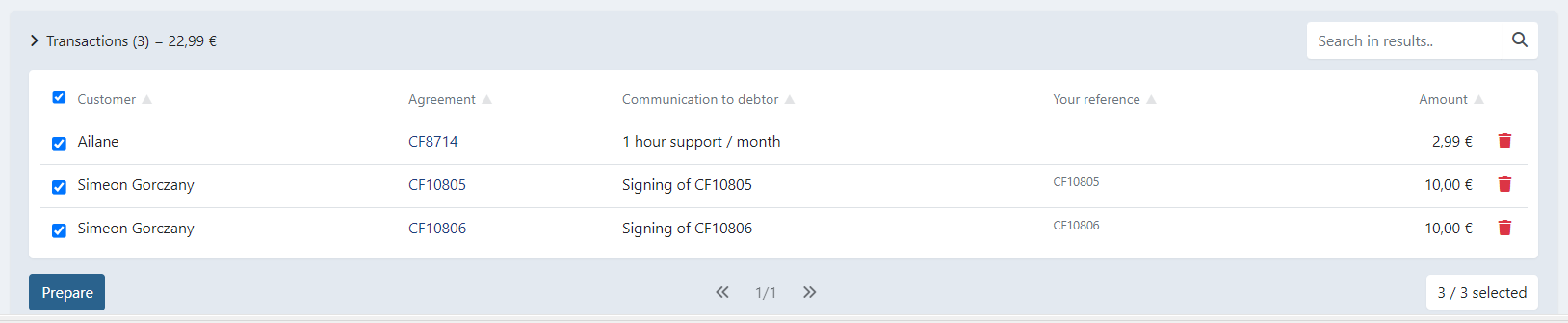
Under the Transactions tab, you’ll find all transactions that are ready to be sent to the bank.
From here, you can:
- Exclude specific transactions from this batch by deselecting the checkbox
- Remove a transaction entirely using the recycle bin icon
- Search after a specific transaction in the batch
Sending a batch of transactions for collection
Once you have checked the content of your batch you can send it to the bank or PSP for collection.
- Click the Prepare button in the top right corner of the screen
- A new screen opens allowing you to:
- Confirm and send the batch directly to the bank or PSP via the configured bank integration
- Download the pain.008 file for manual upload in your own banking environment
(the download option is only available when no bank integration is configured)
- When confirmed, the batch is then sent to the bank or your payment service provider.
- Sent transactions can be found under the “Batches” menu.
Transaction Count Mismatch (manual sending only)
When a merchant manually approves a batch, the number of approved transactions may differ from the number that would actually be included at send time. This mismatch can occur because:
- The API is still receiving new transactions that qualify for inclusion in that batch.
- Bank feedback has caused some transactions to be excluded (e.g. mandate issues) or re-offered (e.g. retry after a technical failure).
This is not an issue for API-triggered or automatic sending.
When a mismatch is detected, the interface blocks the send and the merchant receives an error notification by email (because this typically involves large amounts). The email contains a link to the relevant support article. Twikey Support can force-send the batch even when a count mismatch exists — this is an exceptional, manual action reserved for support staff.
Uncollectable transactions
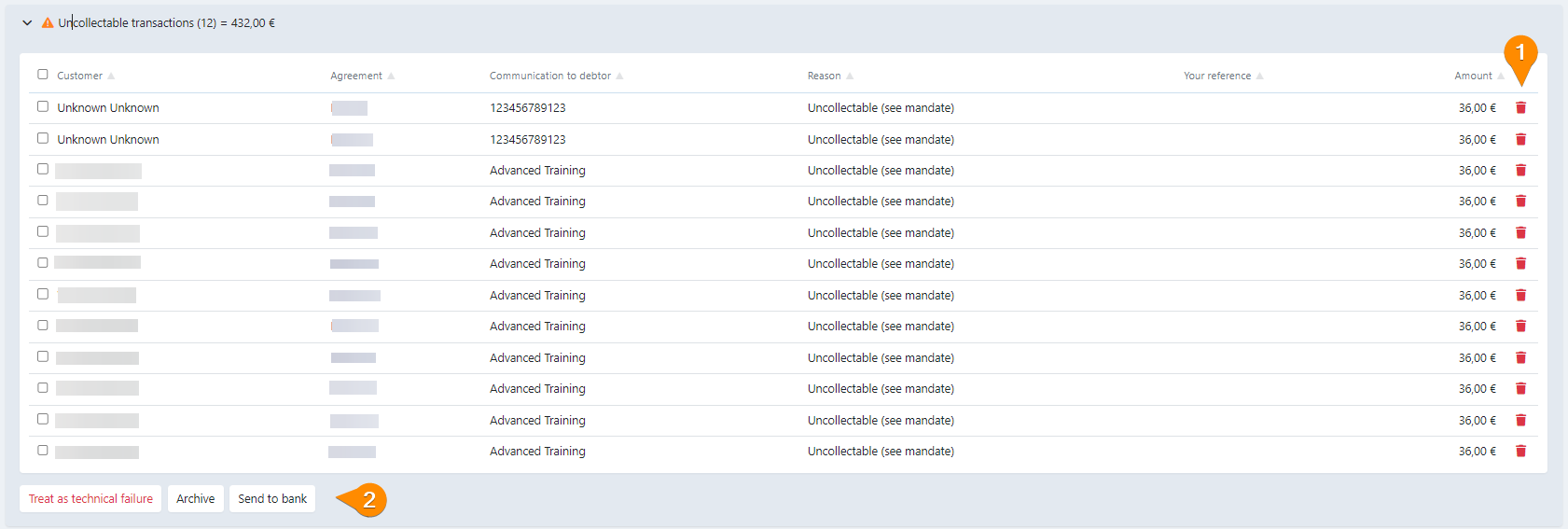
This section lists transactions that were planned for collection but cannot be collected due to the current state of the mandate.
Common reasons include:
- Suspended mandates
- Missing or invalid mandate information
- Amendment in progress — when a mandate is amended, only the first transaction (which carries the amendment) is included in the current batch. Any subsequent transactions for the same mandate are held back and will be picked up in the next batch, to avoid a race condition at the debtor bank.
Available actions
You can select one or more uncollectable transactions and choose one of the following actions:
Treat as technical failure
Moves the transactions to a batch as if they were sent to the bank.
All transactions are marked as unsettled with error code MD01 (invalid mandate).Archive
Places the elected transactions in a batch that is immediately archived.Send to bank
Sends the selected transactions to the bank for collection regardless of mandate status.
Other available actions
On this screen, you can also:
- Change the specific collection date of the batch
- Select one or multiple transactions to export as a CSV file
- View uncollectable transactions
- Choose the columns you want to view