
About Sent transactions
The Sent menu gives you a complete overview of all transactions that have already been sent to the bank. From this screen, you can track their status, follow up on dunning, navigate to related entities, and export results for further analysis.
Transactions shown here can be in different states, such as Paid, Failed, or Offered, and may still be part of an active dunning process or already finalised.
Screen overview
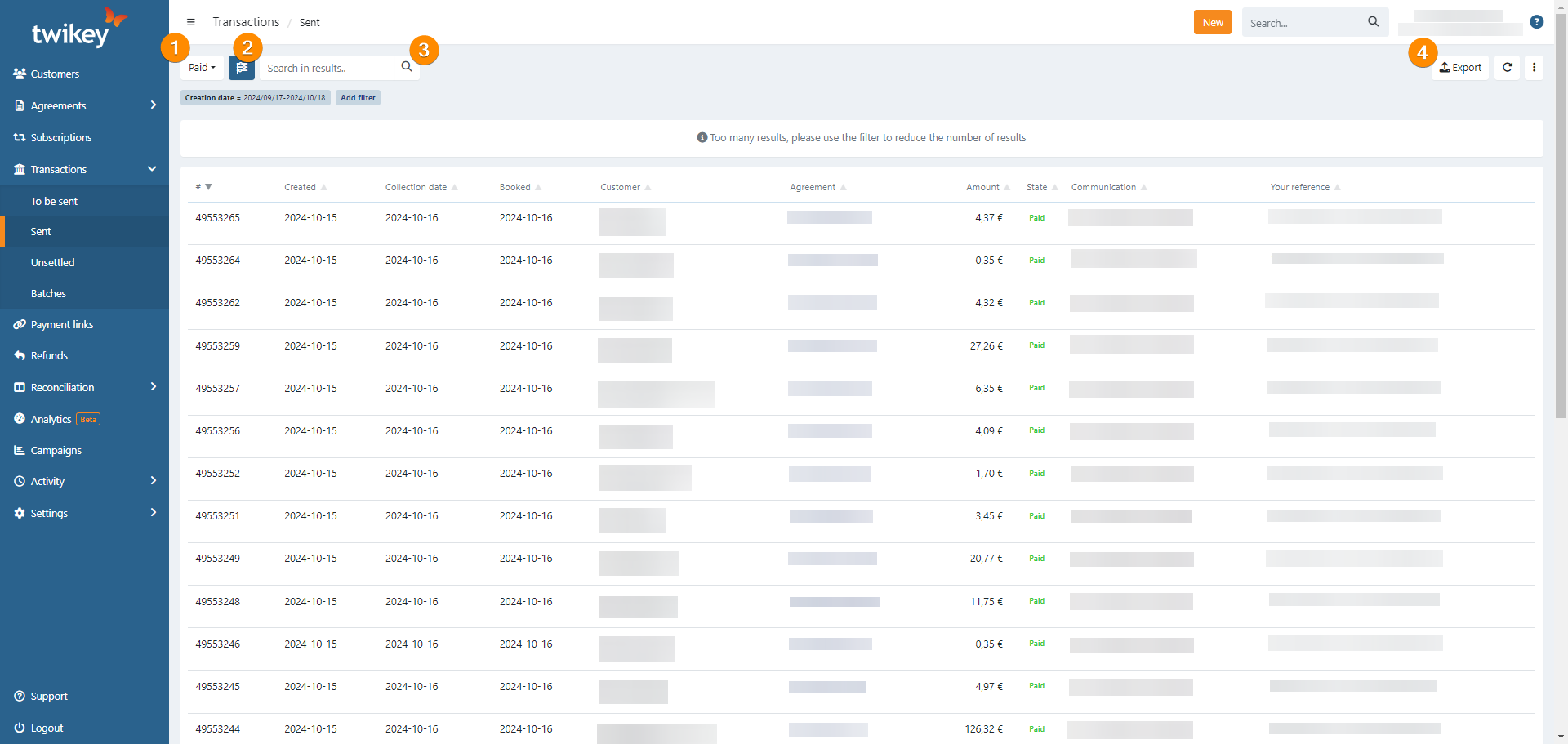
- Preset state filter
- (Advanced) filter button
- Search within results
- Refresh the dataset
- Column selection
- Exporting the selected transactions
Preset state filters
At the top of the screen, you can filter transactions by state using the preset filter.
By default, this is set to Paid.
Available states are:
Opened
Transactions that are created but not yet sent to the bank. This can include transactions that previously failed and were retried via a manual or automatic dunning step.Offered
Transactions that have been sent to the bank but for which no feedback has been received yet. Transactions may remain in this state if the transaction or batch was archived before bank feedback was returned.Paid
Successfully collected transactions.Failed
Transactions that could not be collected. Dunning may still be ongoing or already stopped.Everything
All sent transactions, regardless of their state.
(Advanced) filtering and result limits
The Sent screen shows a maximum of 500 transactions at a time.
If more transactions match your criteria, the following message is displayed:
List too long, showing limited results only. You can use filters to narrow it down.
You can refine the results using:
- The preset state filters
- The advanced filters to further narrow down the results
Both filter types can be combined.
Search within results
Using the search field, you can search within the currently displayed results using partial or full values of:
- Customer name
- Amount (in cents, without separators)
- Communication
- Reference
Refresh dataset
Click the button to refresh your dataset.
Column selection
Click the button to select the columns you want to see in the overview.
Exporting the selected transactions
Click on the three dots and select 'Export' to export the selected dataset.
- Without filters: the full dataset is exported
- With filters applied: only the currently visible transactions are exported (maximum 500)
Exports are generated in CSV format.
Navigation
From the results table, you can quickly navigate to related information:
- Click the customer name to open the customer profile
- Click the agreement reference to open the agreement details
- Click the transaction state to open the transaction details
- Click the collection date to navigate to the related batch
Column headers explained
- ID : The unique transaction ID
- Created : The date on which the transaction was created in Twikey. The creation date can be in the past, present or future.
- Collection date : The date on which the transaction was requested to be collected.
If no collection date is explicitly set when creating a transaction, Twikey automatically assigns the earliest possible collection date (today + 2 working days). - Booked : The actual date on which the bank processed the transaction.
The booked date may differ from the requested collection date, depending on:- When the transaction was submitted to the bank
- The bank’s processing timeline (typically ~3 working days)
- Feedback date : The date from which Twikey makes the bank’s payment feedback available. This equals the booked date plus a configurable delay. The feedback date only affects API-based integrations — in the Twikey interface, the booked date is shown directly.
- Customer : The name of the debtor
- Agreement : The agreement reference
- Amount : The total transaction amount
- State : The state of the transaction
- Communication : The communication shared with the debtor
- Your reference : Your internal reference to the transaction