
Overview of the various transaction screens
- To be sent
- Sending a transaction to the bank
- Sent
- Unsettled
- Details of an unsettled transaction
- Batches
- Cancelling a sent batch
More information about transactions can be found here.
To be sent
Transactions are automatically grouped in batches, based on your profile (preferred accountnumber).
On the "To be sent" screen, batches are divided into two sections :
Current:
- Batches with a requested collection date of today up to 2 bank working days ahead. (i.e. these batches needs to be deliverd at the bank today so they can be collected on the requested collection date).
- Batches with no collection date set (as we treat them as to be collected as soon as possible).
Note: When the option “Automatically send collection files to the bank every night” is enabled, your transactions will be sent to the bank tonight.
Future:
Here you can find the bathces with a collection date in the future, so more than 2 bank working days ahead.
Sending a transaction to the bank
When you want to send a batch of transactions to the bank you select a profile or click on prepare.
The following information is displayed:
Batch information
- Prepare button : Send to bank (if you have a gateway configured in Twikey) or manual download your bank file so you can upload it in your bank for processing.
- Options:
- Change requested collection date : Modify the requested collection date here.
- Export: Click this option to export a CSV file containing the batch details.
- Gateway: The payment hub associated with this profile.
- Requested collection date: The specified collection date. If no date is set, the collection will be scheduled as soon as possible (today + 2 bank working days).
- IBAN: The IBAN number on which the collection will be deposited
- Notify debtor: The debtor will receive a notification when you create the collection files, depending on whether the collection email option is enabled in your profile email settings)
- Transactions: The number of transactions in that batch.
- Amount: The total amount of this batch.
Transactions details
This section includes all transactions in the batch along with their details.
- Customer
- Agreement
- Communication to your customer
- Your Reference
- Amount
Remove transactions
To remove individual transactions, click the bin icon .
- Standalone transactions: The transaction will be removed.
- Transactions linked to an invoice: The transaction will be removed, the invoice status will be set to Booked
Uncollectable transactions
This lists all the transactions that were planned to be collected, but cannot be collected due to the state of the mandate. In most cases the mandate is suspended or missing information making the mandate invalid for collection.
Treat as technical failure
The selected transactions will be collected in a batch and handled with the error "Invalid Mandate" (MD01).
Actions defined in your corresponding profile for failed payments are applied (notify, propose alternative payment, etc.).Archive
The selected transactions are placed in a batch and both are directly archived.
No further actions are applied to those transactions.Send to bank
The selected transactions are sent to the bank and treated as if the mandate was still valid. This includes dunning actions in case of a failed payment.
Sent
After you've sent your transactions to the bank, they will move to the Sent screen.
The filters 'Everything' and 'Failed' include all failed transactions still in dunning and in a final failed state.
To display only one of those, you can use the advanced filter: 'Final status':
- None: Failed transactions still in dunning.
- Unsettled: Failed transactions that require a manual action.
- Collection Agency: Transactions sent to the collection agency.
- Archived: Transactions that are archived.
On the Unsettled screen, you can perform actions on unsettled transactions.
You can find the following information on this screen:
- The profile number
- The date on which the transaction was created
- The date on which the transaction was collected
- The date on which the transaction was booked
- The name of the customer
- The document reference
- The amount to be collected
- The state (paid, offered, failed)
- The communication
- Your reference
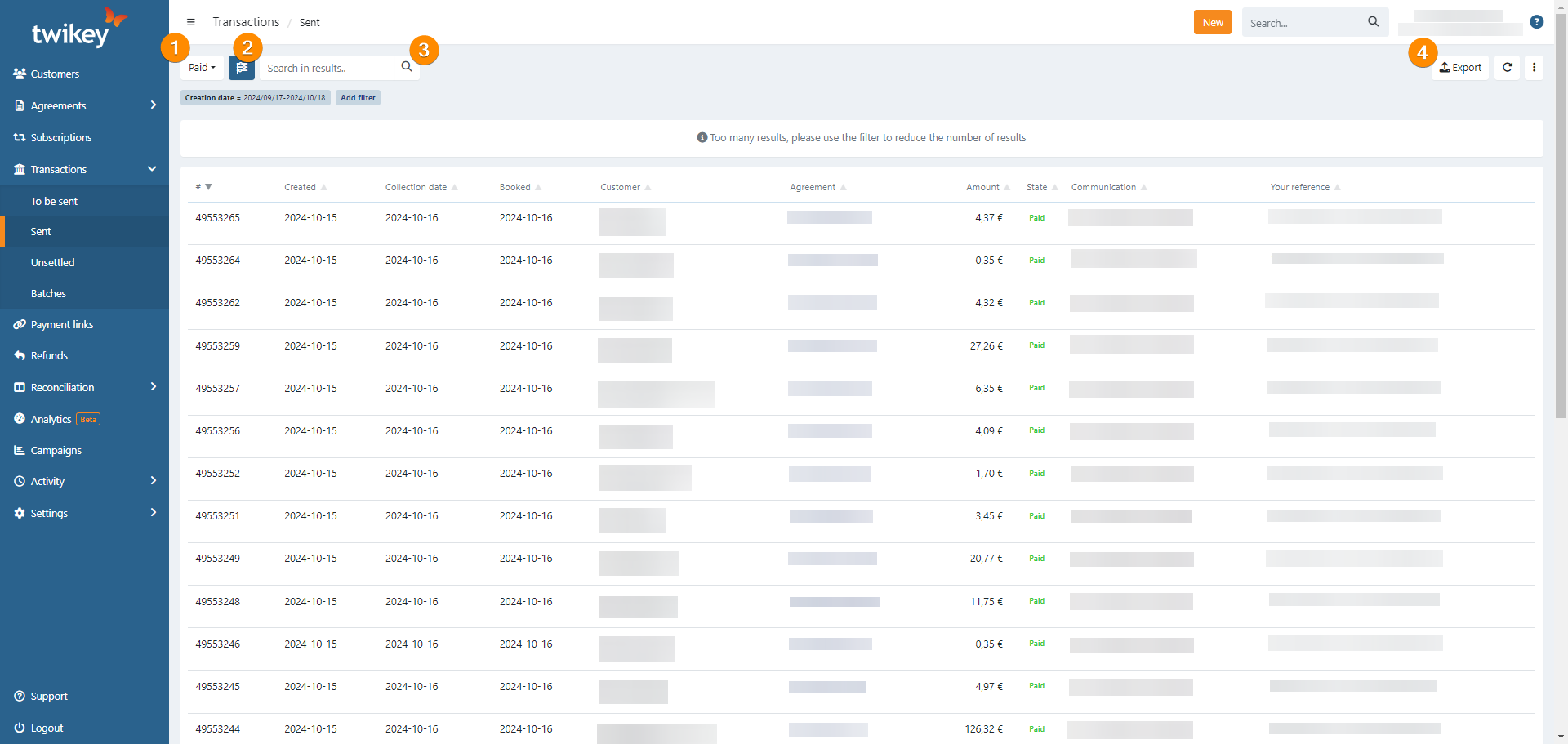
You can find more info about "Sent" on the overview
Unsettled
The Unsettled screen shows you the transactions that are still unsettled after all dunning steps have been executed, as well as failed transactions for which no dunning steps were defined.
You can find the following information in this screen:
- The date on which the transaction was created
- The date on which the transaction was last updated
- The name of the customer
- The document reference
- The amount to be collected
- The communication
- Your reference
- The error code
- The comment
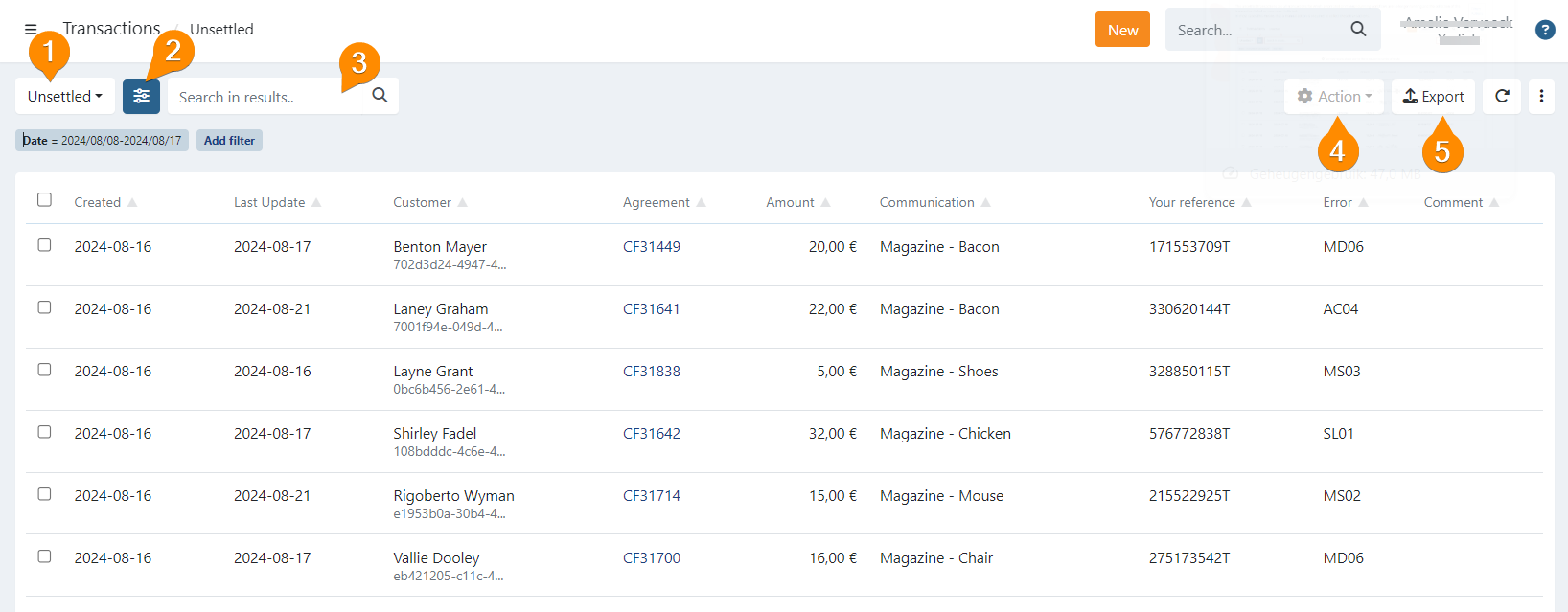
For additional information about "Unsettled," please refer to the overview. Details regarding the possible actions can be found here.
Details of an unsettled transaction
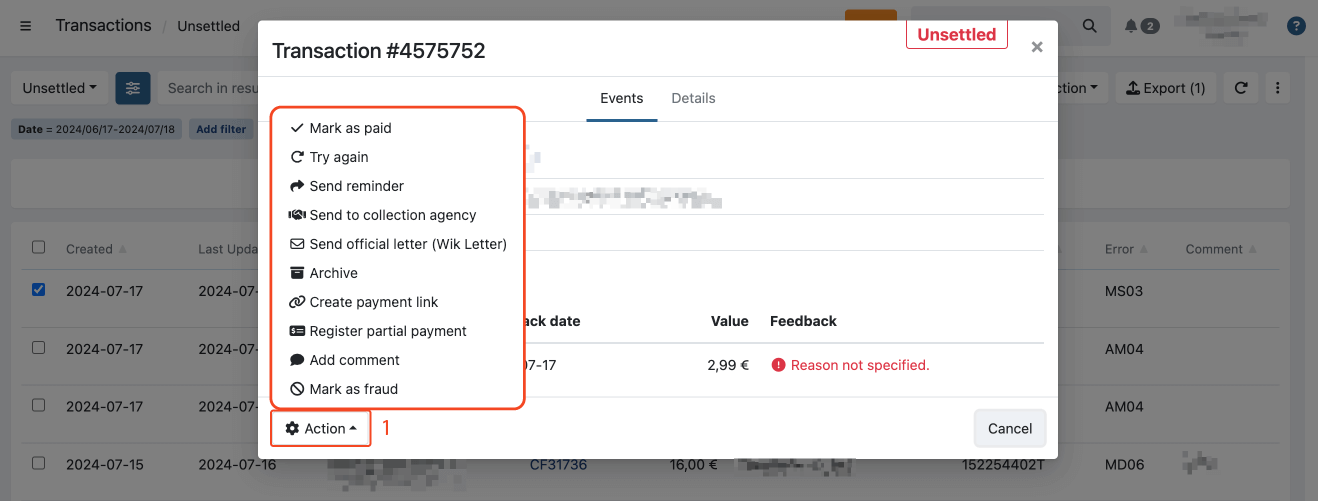
When you click on the Details button of an unsettled transaction, you get to see the transaction details.
You can find the following information in this screen:
- The name of the debtor: clicking this will take you straight to the customer
- The number of the customer
- The document reference: clicking this will take you straight to the document
- The communication to the debtor
- Your reference
- The amount due
- The bank reference
- The creation date
- The collection date: clicking this will take you straight to the batch
- The booked date
- The source of the unsettlement
- The error code
Batches
In the menu Transactions > Batches; you see an overview of all your batches.
Batches are groups of transactions that are processed together, allowing for efficient handling and oversight. For more detailed information about different aspects of batches, please refer to the following articles:
These resources will provide comprehensive insights into managing batches and their functionalities.
Cancelling a sent batch
Once a batch has been transmitted to the bank, Twikey is no longer able to intervene or cancel the collection process. If you believe the batch should be canceled, the first and most important step is to contact your bank immediately. As Twikey processes and forwards batches to the bank without delay, prompt action is essential.
Afterwards, you may contact support to discuss the available options, such as reoffering the batch or deleting it entirely.