
Import a batch of transactions via Direct Debit (PAIN.008) file
- Consider CSV or the API instead
- Supported versions
- How to import a PAIN Direct Debit file
- What happens during import
- Payment provider as gateway
- Supported XML fields
If your accounting package already generates SEPA Direct Debit (pain.008) files, you can upload them into Twikey to create transactions for collection.
Consider CSV or the API instead
Before uploading an XML file, it's worth knowing that most merchants are better off using our CSV import or API instead. A pain.008 file is generated entirely by your own accounting package, so any formatting mistake in it is only caught once Twikey processes the file — sometimes not until the bank rejects it.
With CSV or the API, Twikey handles the technical side for you:
- Mandates are validated and updated automatically
- Complex XML formatting issues never occur, because Twikey builds the file
- Files are generated according to the current SEPA rules and Febelfin standards
- Limits set by your bank or creditor contract — maximum batch amount, number of transactions, or transaction amounts — are respected automatically
- Every mandate's status is checked before submission, reducing the risk of failed payments
- All transaction identifiers are guaranteed to be unique from start to finish
If you'd like to switch, see the CSV import article listed under "Related articles".
Supported versions
Twikey supports pain.008.001 and pain.008.002 files, following the ISO 20022 XML standard.
How to import a PAIN Direct Debit file
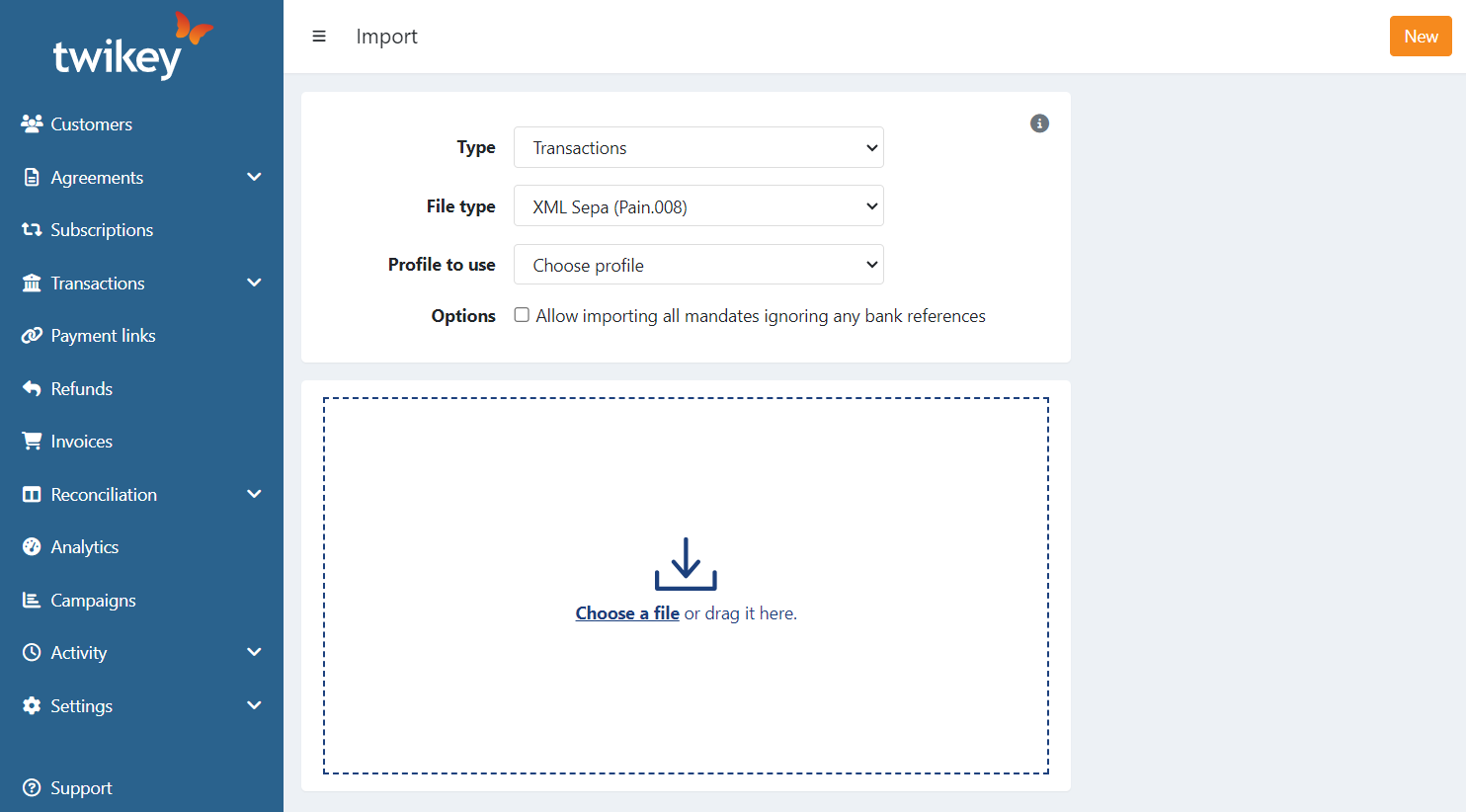
- Click the orange New button.
- Select Import.
- Select type = Transactions.
- Select source = XML Sepa (pain.008).
- Select the profile you want to use.
- Select the correct options:
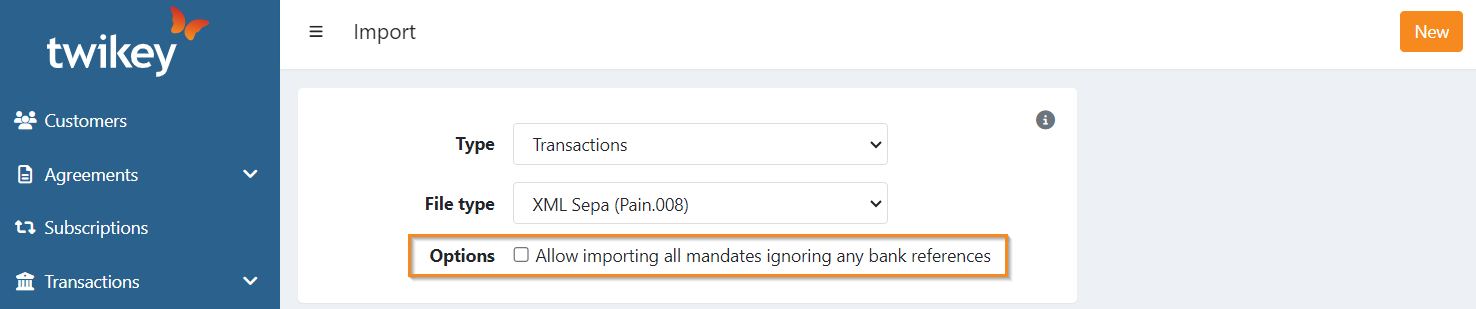
- If you enable lenient import ("Allow importing all mandates ignoring any bank references"):
- All bank references in the file are disregarded — Twikey generates these automatically
- The transactions are imported as-is
- New mandates are created automatically
- Imported transactions are placed in a batch "To be sent" instead of being sent immediately
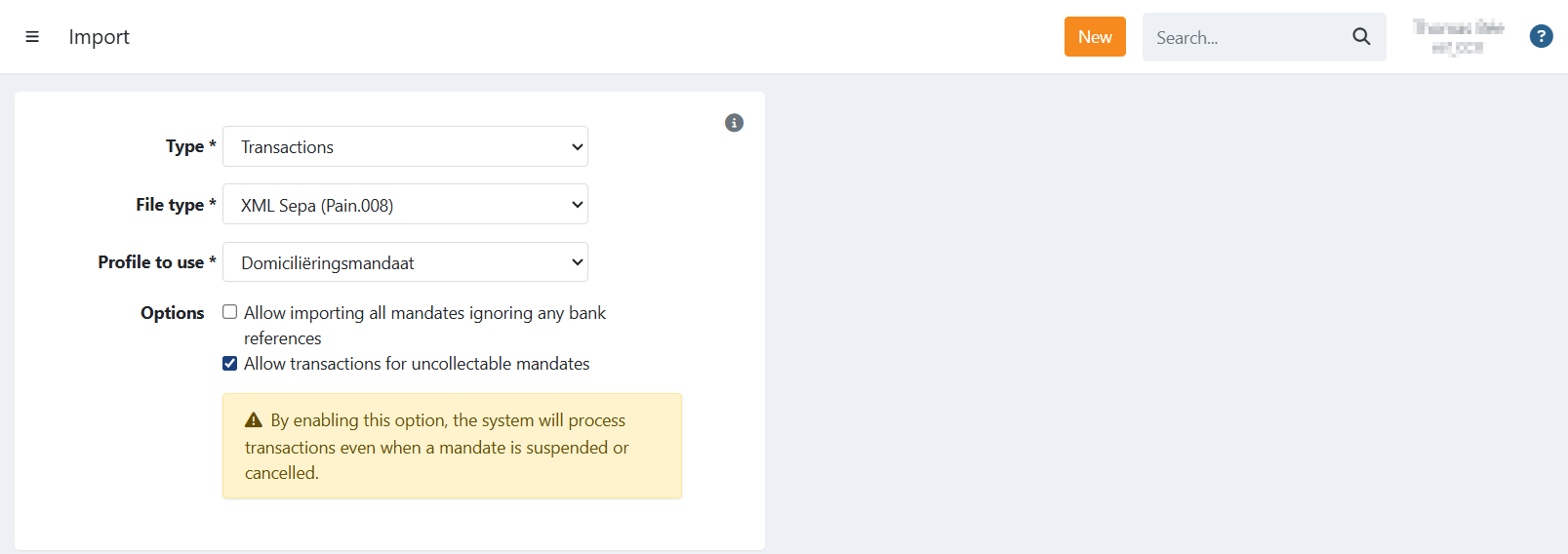
- If you enable "Allow transactions for uncollectable mandates":
- When selected, the file will be imported regardless of the mandate status. Transactions linked to cancelled and/or suspended mandates will still be processed and sent to the bank.
What happens during import
Twikey does not validate the XML file — it parses and extracts the transactions from it. Here's what that means in practice:
- The profile is matched automatically. Twikey routes the transactions to the profile whose bank gateway IBAN matches the creditor IBAN in the file (
CdtrAcct > Id > IBAN). - New mandates are created and signed automatically. If your file specifies a date of signature, that date is used as the signing date.
- An IBAN change updates the mandate. If the file contains a different IBAN for an existing CORE mandate, Twikey updates that mandate with the new account number.
- Cancelled or suspended mandates are rejected by default. To import them anyway, enable "Allow transactions for uncollectable mandates" (see step 6 above).
- Identifiers depend on the import mode. In standard mode, the original file — including its own e2e and PmtInfId identifiers — is sent to the bank as-is. In lenient mode, Twikey regenerates all of these identifiers itself before submission.
Payment provider as gateway
If you collect through a payment service provider instead of connecting directly to your bank, you can import Direct Debit files the same way.
Supported XML fields
If you're generating the file yourself and want to check why a value didn't come through correctly, this is where Twikey reads each field from:
| Field | XML Path |
|---|---|
| Mandate reference | DrctDbtTx > MndtRltdInf > MndtId |
| Date of Signature | DrctDbtTx > MndtRltdInf > DtOfSgntr |
| IBAN | DrctDbtTx > DbtrAcct > Id > IBAN |
| BIC | DrctDbtTx > DbtrAgt > FinInstnId > BIC |
| Name (first + last name) | DrctDbtTx > Dbtr > Nm |
| Country | DrctDbtTx > Dbtr > PstlAdr > Ctry |
| Street | DrctDbtTx > Dbtr > PstlAdr > StrtNm |
| Zip | DrctDbtTx > Dbtr > PstlAdr > PstCd |
| City | DrctDbtTx > Dbtr > PstlAdr > TwnNm |
| Mobile Number | DrctDbtTx > Dbtr > CtctDtls > MobNb |
| DrctDbtTx > Dbtr > CtctDtls > EmailAdr | |
| Customer Number | DrctDbtTx > Dbtr > CtctDtls > Othr |