
Import a batch of transactions via CSV file
Show me
You can create a batch of transactions in Twikey by uploading a CSV file.
This can be used for direct debit transactions and recurring credit card transactions.
How to import a CSV batch of transactions file
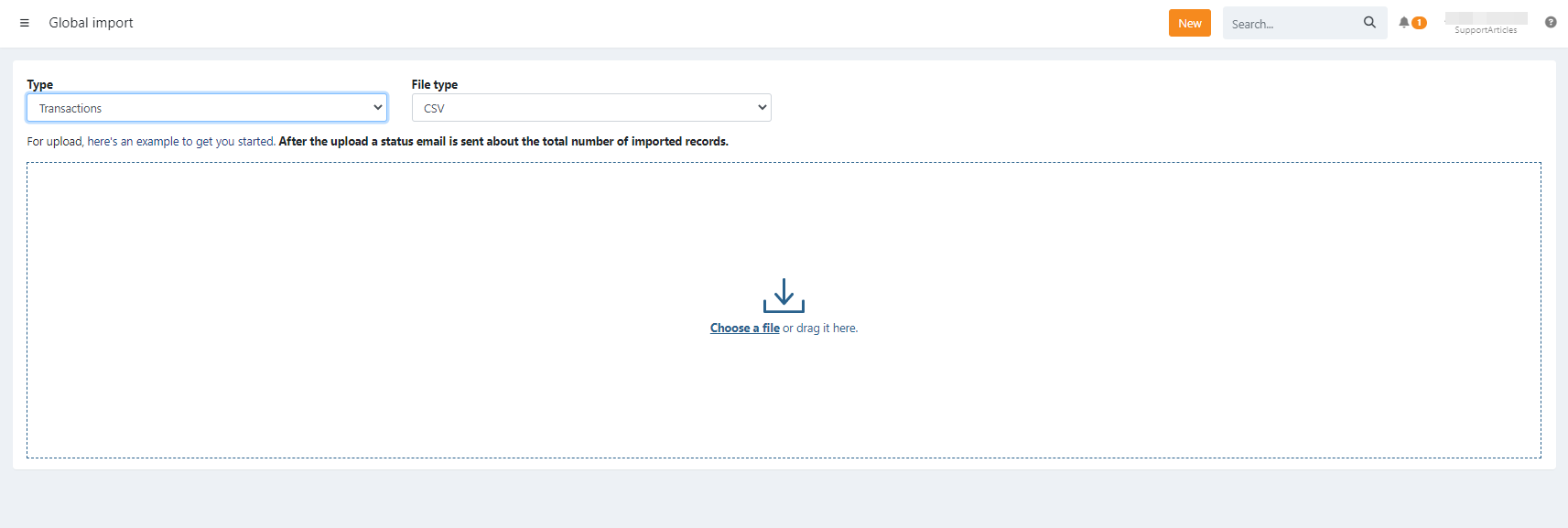
Via the global import menu
- Navigate to the orange 'NEW' button
- Select 'import'
- Select 'type = transactions'
- Select 'source = CSV'
- Uploaded transactions are automatically grouped into a batch according to their profile and can be prepared for collection.
Via the transactions menu
- Navigate to the 'Transactions' menu
- Navigate to the 'To Be Sent' menu
- Click the 'Import' button
- Upload your CSV file
Import CSV file with transactions
Click to download the import transactions file
- After import, transactions appear in the Transactions tab of the related mandate
- Importing a file using the same transaction references to update existing ones, is not possible. This will create new transactions.
Common fields
Required Fields
| Field | Description |
|---|---|
| mandateNumber | The mandate reference |
| value | The amount of the transaction, e.g. 12.36 or 12,36 |
| msg | The communication to the debtor |
Optional Fields
| Field | Description |
|---|---|
| ref | Your reference |
| place | Place of the transaction |
| reqcolldt | Requested collection date. When this is not passed, we collect the transaction as soon as possible (YYYY-MM-DD). |
Some editors (like Excel) may change formatting (e.g., decimal separators, leading zeros,..). Verify the file's format before uploading or use a plain text editor.
Once transactions are imported, they are grouped into a batch. If automated sending is enabled, the batch will be sent to the bank automatically. If not you can do this manually as well.
Why a transaction import fails
The error message shown after the import indicates what went wrong. The most common causes are:
- The transactions already exist — the batch has been imported before. Even after deletion, the batch is still detected as a duplicate. If the batch was previously sent to the bank and failed and you need to resend it, contact Twikey Support.
- The file format is incorrect — XML files must follow the Banking standards for internet banking for businesses (Febelfin). CSV files must follow the Twikey template above: check that all required headers are present, that the field formatting is correct, and that the country field is filled in.
Correct the file and import it again.
Last Update: 2026-08-04