
Overview of batches sent for collection
- What information can you see?
- Batch statuses
- What can you do on this screen?
- Switch between views
- Export your data
The Batches screen gives you a complete overview of all transaction batches you've sent to the bank or payment provider.
Think of a batch as a group of transactions that are processed together.
What information can you see?
Each batch in the list shows:
- ID - A unique ID in the format: batch ID / profile ID
- Creation date - When the batch was created
- Requested collection on - When the money should be collected
- Transactions - How many individual transactions are in this batch
- Total - The total amount of all transactions
- Offered - Money for which the bank hasn't confirmed status yet
- Paid - Successfully collected money
- Failed - Money that couldn't be collected
- Type - The category of transactions
- Sent to - Who the batch was sent to
- Status icon - Current state of the batch:
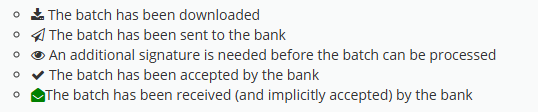
Batch statuses
The status icon in the last column shows where the batch stands:
- Sent — the batch has been submitted to the bank.
- Accepted — the bank has accepted the batch.
- Received — the batch is fully processed. You can view the feedback per transaction.
- Error — the batch was rejected. A common cause is exceeding the collection limits agreed with your bank. Check the limits allowed per batch and per month in your creditor contract, and check whether you received an email from Twikey with more details.
What can you do on this screen?
Use filters to find specific batches quickly.
Quick filters
- Everything - Show all batches (default)
- Offered - Batches waiting for bank feedback
- With feedback - Batches that have received bank feedback
- Feedback missing - Batches where bank feedback is missing
- View archived - Show only archived batches
Advanced filters
Create custom filters based on specific criteria.
Learn more about advanced filters.
You can combine quick filters and advanced filters together for more precise results.
Search
- Batch ID (format: batchId/templateId)
- Amount (in cents, without commas)
- Number of transactions
Switch between views
Toggle between two display modes using the buttons in the top right:
- € - View amounts in euros
- # - View number of transactions
This applies to the offered, paid, and failed columns.
Export your data
Export the currently displayed batches to a CSV file.The export includes all batches shown on screen (up to 500 records) based on your current filters.