
Export a batch
How to export a batch
You can export all transactions from a batch by clicking the Export button at the top right of the batch details screen.
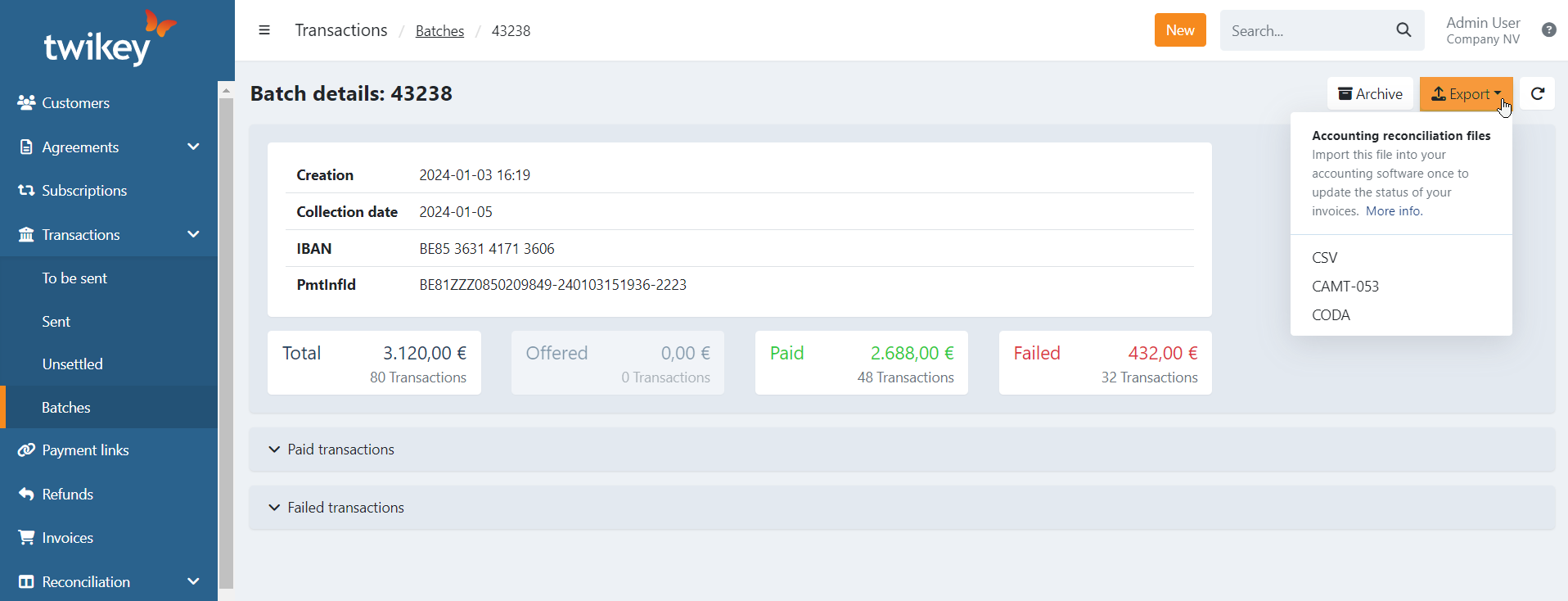
Available export formats
Choose from three formats:
- CSV - Spreadsheet format for Excel or Google Sheets
- CAMT-053 - Standard banking format
- CODA - Belgian banking format
The export shows the current status of each transaction at the time you download it.
If a transaction's status changes after you export, your next export will show the updated status.
Example:
- First export - Transaction shows as 'failed'
- Customer pays later via dunning workflow or payment link
- Second export - Same transaction now shows as 'paid'
Important: The exported file contains the state of the transactions (paid, failed, open) as they currently are. Should a transaction become paid afterwards for example (dunning workflow, mark as paid, ...) the next export will have a paid transaction instead.
Export file vs. reconciliation file
This export is different from a reconciliation file:
- Export - Shows current transaction statuses
- Reconciliation file - Shows original feedback exactly as received from the bank
Use reconciliation files when you need the bank's original response for accounting purposes.
Last Update: 2026-04-08