
What can you see in batch details?
- Batch information details
- Main actions
- Transaction information
- Understanding the "Booked" dat...
- Feedback delays
The batch details screen shows you all the transactions within a specific batch.
You can filter, view, and export these transactions, as well as archive the entire batch when needed.
Each batch displays important dates and allows you to click on individual transactions to see more information.
Batch information details
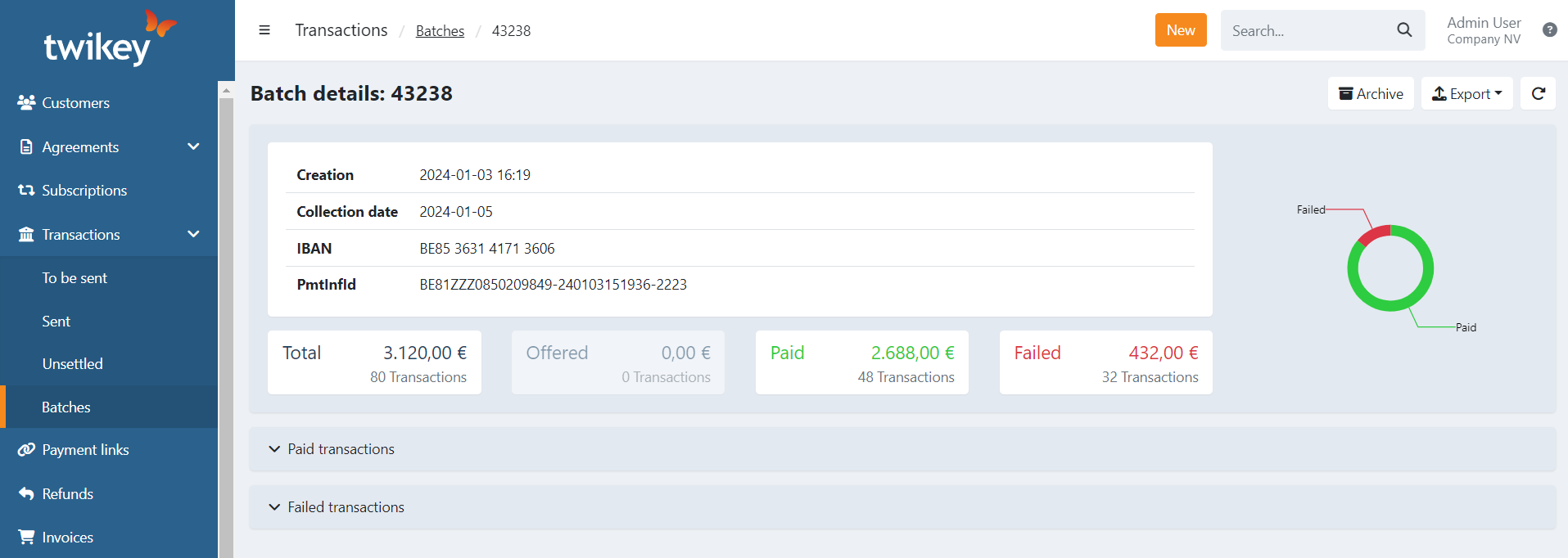
At the top of the screen, you'll see:
- Creation - When the batch was created and sent to the bank
- Requested collection on - When you requested the money to be collected
- Gateway - The payment gateway used (configured in Settings > Paymenthub)
- PmtInfId - Unique payment identifier for this batch
- Transactions details - Totals broken down by: total, offered, paid, and failed in amount and numbers
On the right side, you'll see a chart. When you open the failed transactions section, the chart breaks down the failures by type, making it easy to spot patterns.
Below you find the details of the batch, split in 2 types:
- Failed transactions
- Paid transactions
You can open the menu to see the details.
Once opened you can click on the transaction details to find more information.
Main actions
- Archive the batch - Move it to your archive (you can undo this later)
- Export the batch
- Navigate quickly:
- Click a customer name to see their details
- Click a document reference to view the agreement
- Click an amount to see transaction details
- Click an error code to understand why a transaction failed
Transaction information
Each transaction in the list shows:
- # - Transaction ID
- Customer - Debtor's name (company or person)
- Agreement - Document/mandate reference
- Amount - Transaction amount
- Created - When the transaction was generated
- Requested collection - The collection date (empty means "as soon as possible")
- Booked - When the status was last updated
- State - Current status (e.g., 'Paid' or error code like 'MS03')
- Stage - Additional status indicator:
- Empty or 'unsettled' - Failed transaction with active dunning workflow
- 'Archived' - Transaction has been archived
- Communication - Communication to your customer for this transaction
- Your reference - Your internal reference
Understanding the "Booked" date
The booked date shows the most recent time we received information about the transaction's status.
This date can change multiple times:
- First update - Initial feedback received from the bank/payment provider
- Subsequent updates - Subsequent feedback received from the bank/payment provider, like a refund request
- Dunning resolution - When a failed transaction is paid through a dunning step, like f.i. a payment link
Example timeline
- September 10 - Bank reports transaction as 'PAID' (booked date: Sept 10)
- September 13 - Bank reports 'FAILED' due to insufficient funds (booked date: Sept 13)
- September 18 - Customer pays via payment link (booked date: Sept 18)
Feedback delays
In your profile settings (Payments tab), you can set a delay in days for transaction feedback. This affects when feedback appears in the API Transaction feed but not in the interface.
When viewing transaction details with a delay configured:
- Feedback date = Booked date + delay days
- Booked date = Actual date feedback was received from the bank
Tip: Always check the booked date to see when the bank actually sent the feedback.