
How to update multiple subscriptions at once
In situations such as a general price adjustment, you can update multiple subscriptions at once using the bulk update functionality. This allows you to efficiently apply changes across several subscriptions in a single action.
Subscriptions that are already closed (finished) or cancelled can also be relaunched through a bulk update. The update can be performed without affecting the remaining number of runs or the next scheduled execution date.
How to update subscriptions in bulk
On the Subscriptions overview:
- Select the subscriptions you want to update. You can refine your selection using preset or advanced filters.
- Click Actions in the top-right corner.
- Choose Bulk update.
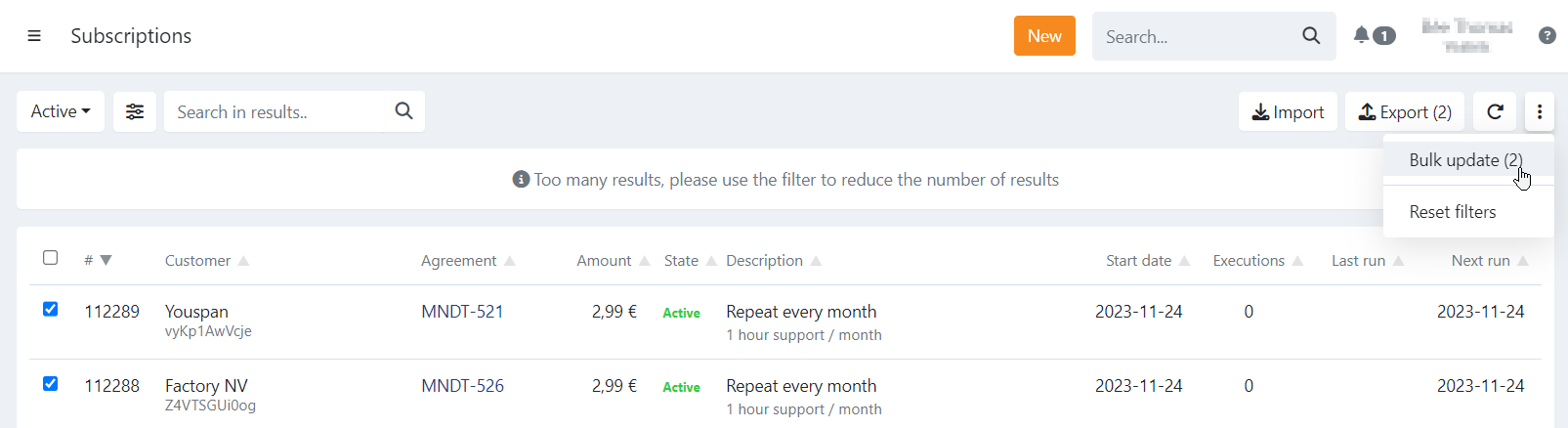
The bulk update modal will appear, allowing you to enter the new amount.
To change the start date, only select closed or cancelled subscriptions. If any active subscription is selected, the start date field will be disabled automatically.
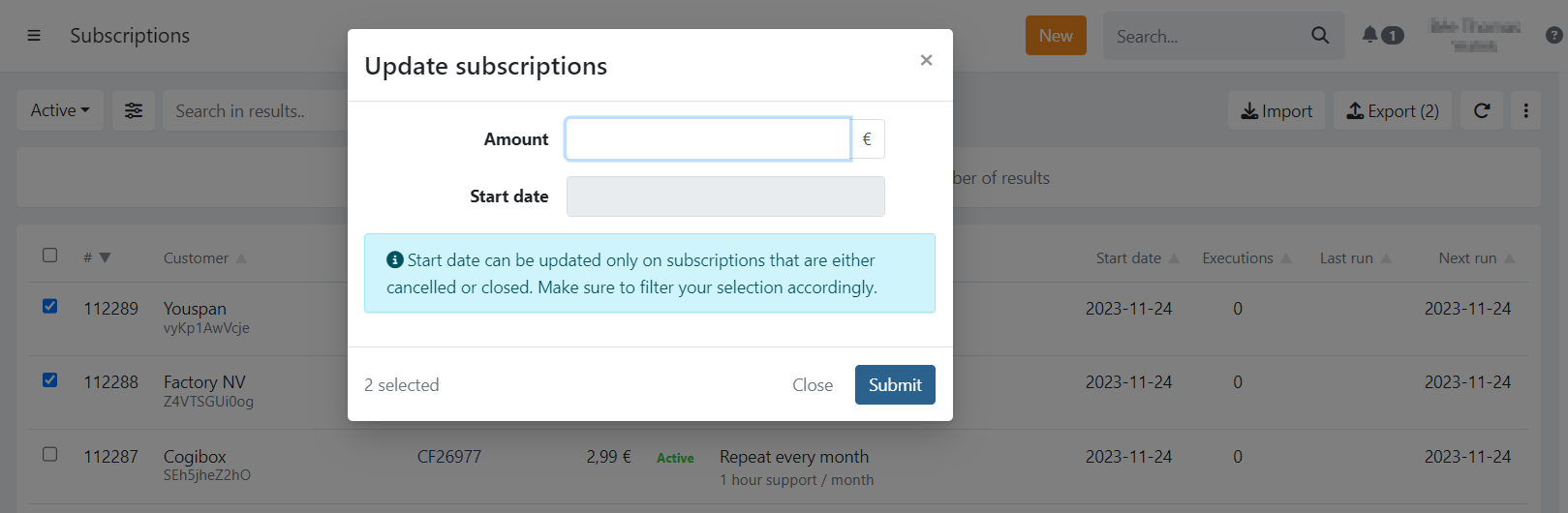
Click to apply the update to the selected subscriptions.