
07 Defining a document reference
- 1. General information
- 2. Automatically generate your reference...
- 3. Choose your own references
- 4. Replacing existing references
1. General information
Each document generated by your company needs to have a unique reference. You can define this reference yourself for every new invite or have the system generate it for you automatically.
If you allowed the system to generate your references for you, but you decided to do it yourself, you can still replace them with your own references.
2. Automatically generate your references
If you want the document reference to be automatically generated by the system, this reference will consist of a prefix followed by an auto-generated number. This number will automatically be incremented: PREFIX01 will be followed by PREFIX02 and so on. Even if a customer does not sign a certain document, the number for the next document will be incremented. The reason for this is that your customer can still decide to sign the document at a later stage.
To have the system generate the document reference for you, you simply have to define the prefix in your profile. Avoid the use of special characters such as / when creating this. We also advise you to start with a letter and not a number, as this is required for certain signing methods. The size of a prefix is limited to 15 characters. 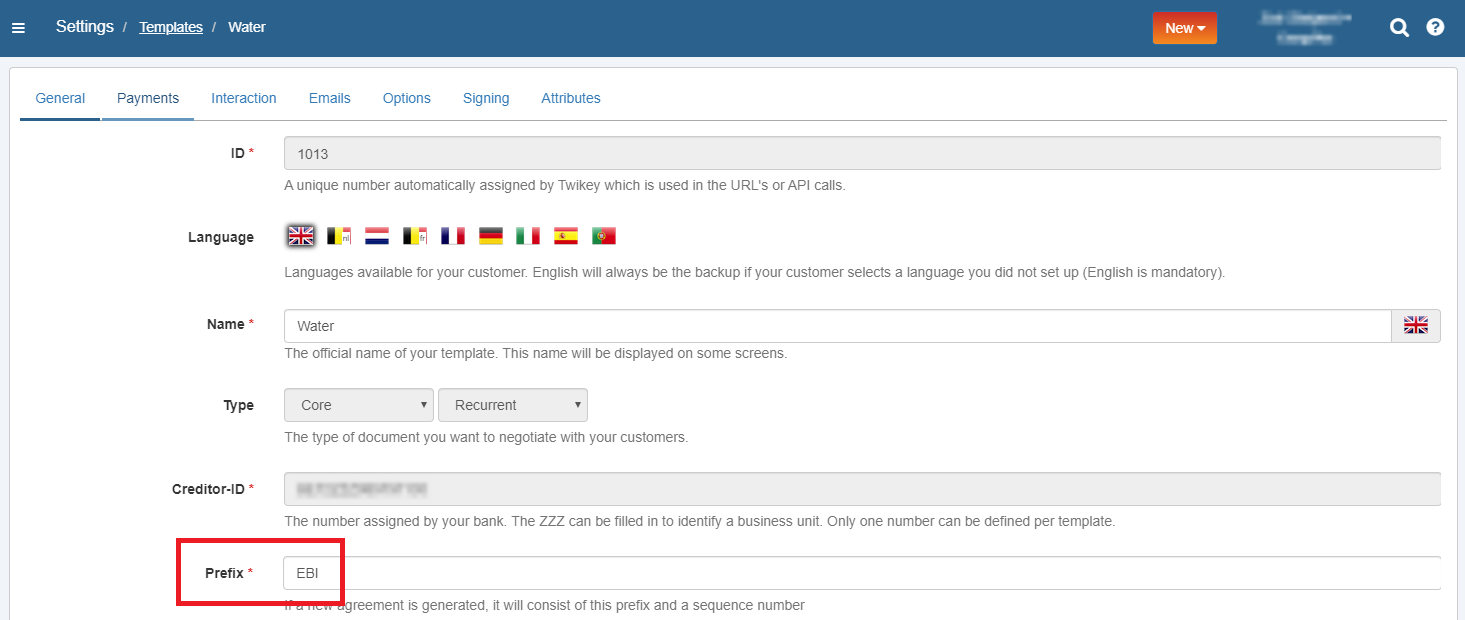
It is a good idea to integrate part of your company name in the document reference prefix. However, the document reference always has to be unique, so you need to have a different prefix for every profile.
Leading zero's: You can define a length using leading zero's. Define this by using '@0' followed by the length and the letter 'd'. Example:
MDNT@05d: Generates MNDT00001
The total of characters remains the same when increasing (MNDT00010, MNDT00100, ..).
3. Choose your own references
If you wish to choose your own document references, please go to the Options tab on your profile(s) and check the box in front of Never generate a document reference: 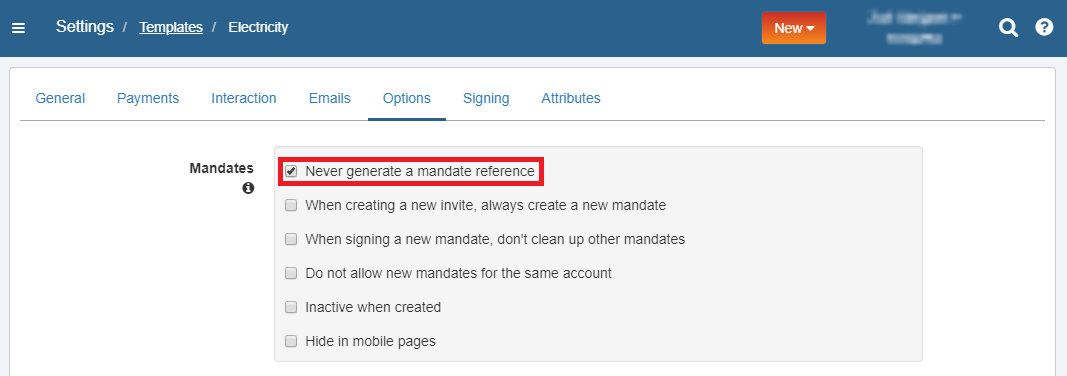
If you decide to choose your own references, you will have to define them for every new invite you create: 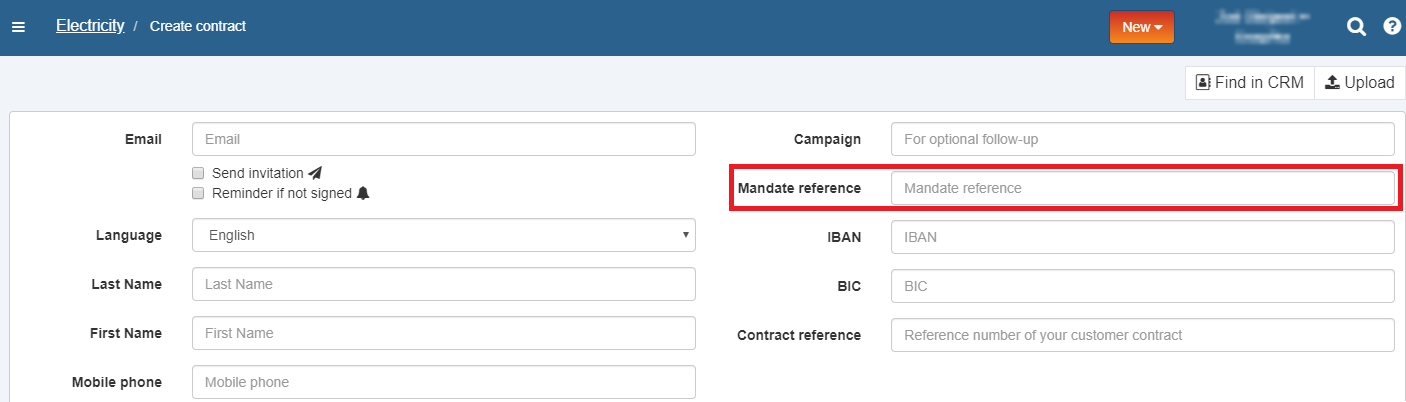
This also has an impact on the state of your profile: since you chose to select the reference yourself, the customer is unable to sign documents on your yourcompany.twikey.com page without being invited. For this reason, the state of your profiles has to be Available and not Published. For more information about the possible states of a profiles, see About profiles.
4. Replacing existing references
You can always replace an existing reference on a CORE-document, whether it is automatically generated or chosen by you.
This can be done either through API integration or directly in the document information screen. To do this, take the following steps:
- Go to the document and hover over the document reference.
- Click Edit:
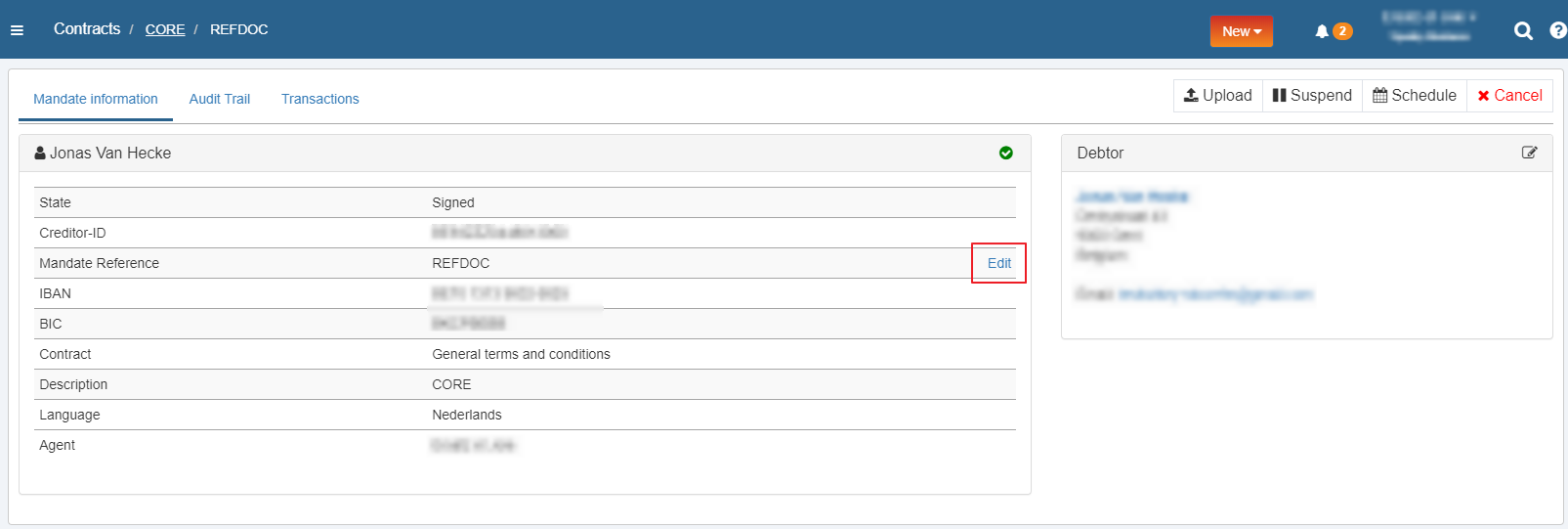
- Edit the reference and click to save or to cancel.
We will inform your customer that the reference of his document has been changed.