
SMS settings
On the SMS tab of a profile, you can configure the SMS messages sent to your customers. You can customize separate SMS per type — and customize each one per language.
Editing an SMS template
- Navigate to Settings in the left-hand navigation menu.
- Open the Profiles tab.
- Select the profile you want to configure.
- Open the SMS tab.
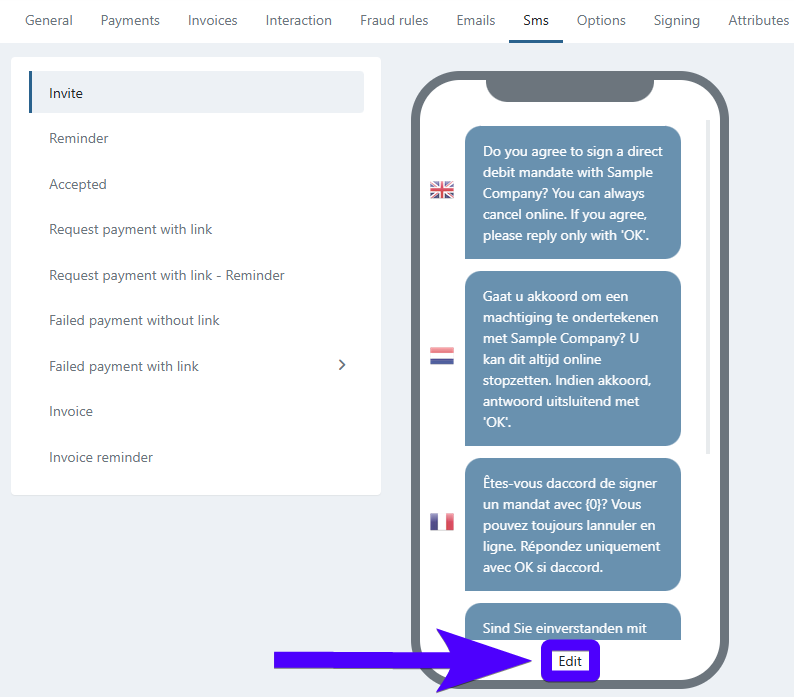
- Select the SMS message you want to edit from the list.
- Click Edit at the bottom of the phone screen.
- Update the content of the message.
- Click Save.
Only users with the Administrator role or higher can update the content of an SMS template.
SMS variables
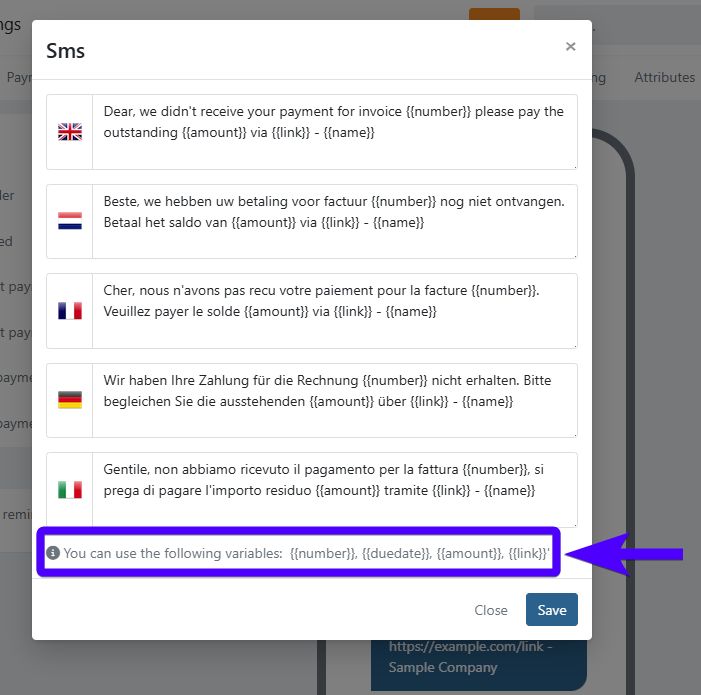
Each SMS type supports a specific set of variables. The info icon shows the variables supported for that specific SMS type.
| Variable | Description |
|---|---|
{{link}} | The URL to the signing or payment page |
{{number}} | Invoice number |
{{duedate}} | Date the invoice is due |
{{amount}} | Payment amount |
{{name}} | Your company name |
SMS message types
The SMS tab lists the following SMS types. Each one can be edited and personalized per language, independently from its e-mail equivalent.
Invite
Sent when a customer is invited to sign an agreement via SMS.
Contains the instruction that the customer needs to follow to sign the agreement.
Reminder
Sent as a follow-up when a customer was invited to sign a mandate but hasn't completed the signing yet.
Contains the signing link, so the customer can pick up the signing process where they left off.
Accepted
Sent to inform the customer that an agreement has been signed.
Contains a confirmation message and a link to view it.
Request payment with link
Sent when a payment link is sent to a customer via SMS.
Contains the payment link itself.
Request payment with link - Reminder
Sent as a follow-up when a previously shared payment link hasn't been paid yet.
Contains the payment link itself.
Failed payment without link
Sent when the dunning step Allow payment alternative is configured and Reminder only via sms is selected, and the Use payment link checkbox is not checked.
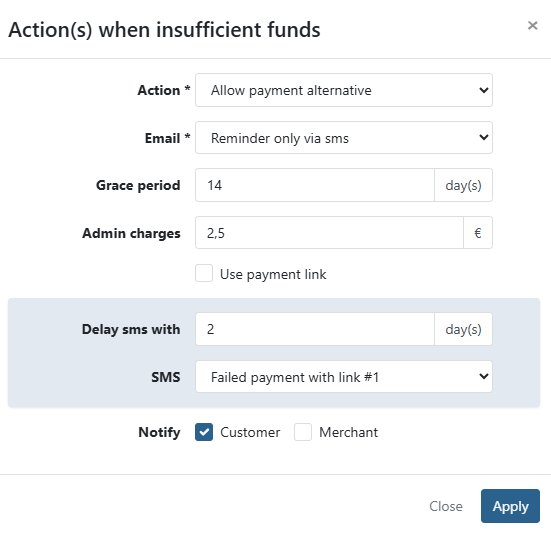
Only contains the notification that the payment has failed.
Failed payment with link (#1-4)
Sent when the dunning step Allow payment alternative is configured and Reminder only via sms is selected, and the Use payment link checkbox is checked.
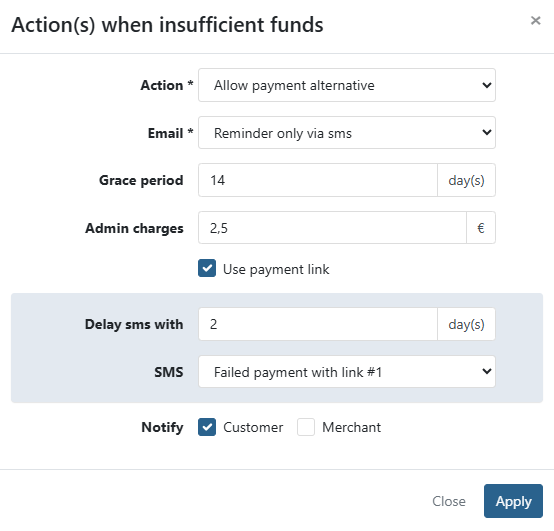
Contains the notification that the payment has failed and the payment link that the customer can use as an alternative to settle the failed payment.
There are four SMS messages that can be sent, allowing customizable content for each one.
Invoice
Sent when an invoice is sent to a customer via SMS.
Contains the invoice details and the payment link.
Invoice reminder
Sent when an invoice reminder is sent to a customer via SMS.
Contains the invoice details and the payment link.