How to connect a Payment Service Provider
Show me
Connecting a Payment Service Provider (PSP) allows you to collect payments via credit card or other online payment methods directly through Twikey. If you already have an account with a provider, the setup is quick.
Connect a provider
- Navigate to Settings in the left-hand navigation menu.
- Open Payment Hub.
- Click Add.
- Click Payment Provider.
- Choose your payment provider from the dropdown list.
- Fill in the required fields (these vary depending on the provider).
- Click Add.
Twikey verifies the features supported by your provider. Supported features display a green check.

- Direct Debit — Disabled by default. If supported by your provider, contact our support team to enable it. Twikey will run a test to verify the connection.
- Refunds — Enabled automatically when your provider supports refunds, allowing you to process them directly via the provider.
- Credit Card — Enabled when your provider supports recurring credit card transactions.
Recurring credit card payments
If your provider supports recurring credit card payments, Twikey will notify you that a new profile will be created automatically if none exists yet.
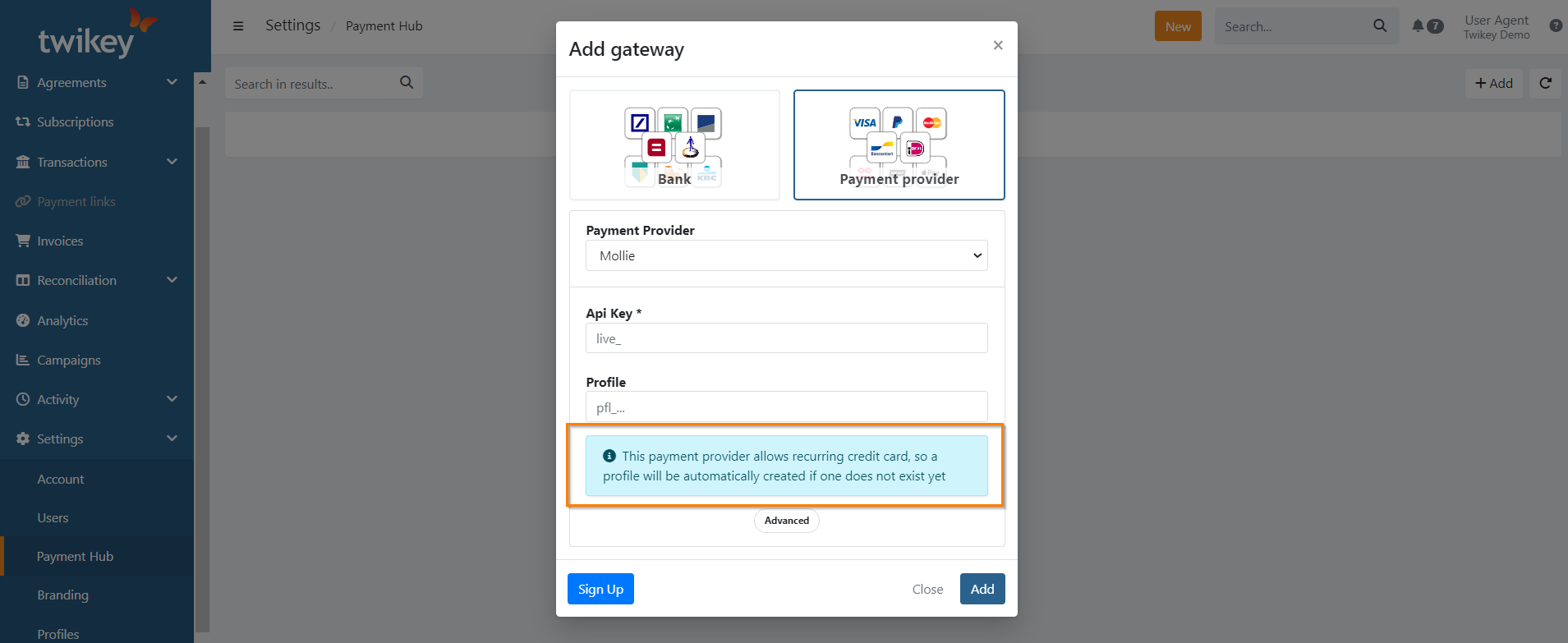
The new profile is of type Credit Card and contains all required attributes. It can be used immediately for both one-time and recurring credit card payments.
Reconciliation account
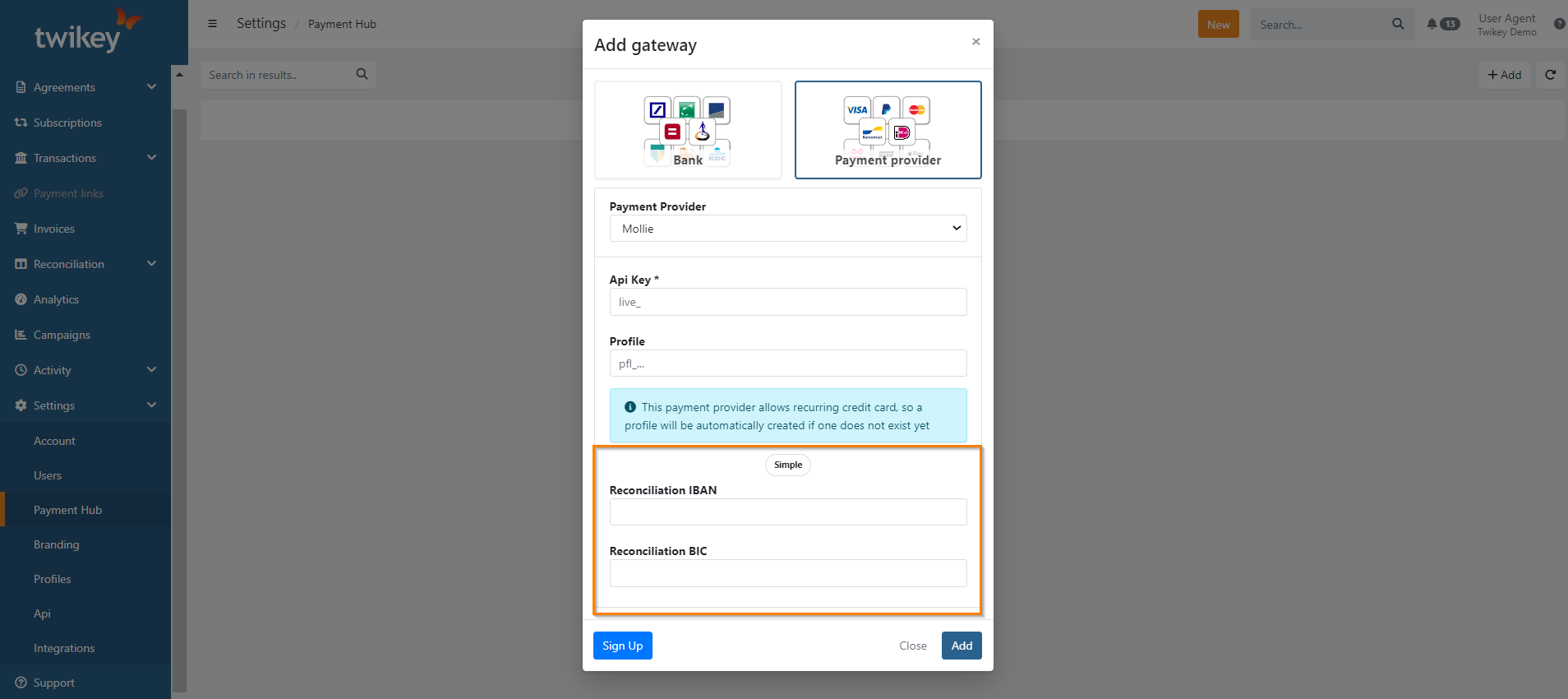
You can assign a specific reconciliation account to your payment provider. The reconciliation account is the bank account number that appears in payment link reconciliation files — it tells Twikey (and your accounting system) which bank account the PSP settles funds into. Assigning the correct account ensures that incoming PSP settlements are matched to the right account in your reconciliation reports.
- Click Advanced during setup to configure a custom reconciliation account.
Supported payment methods
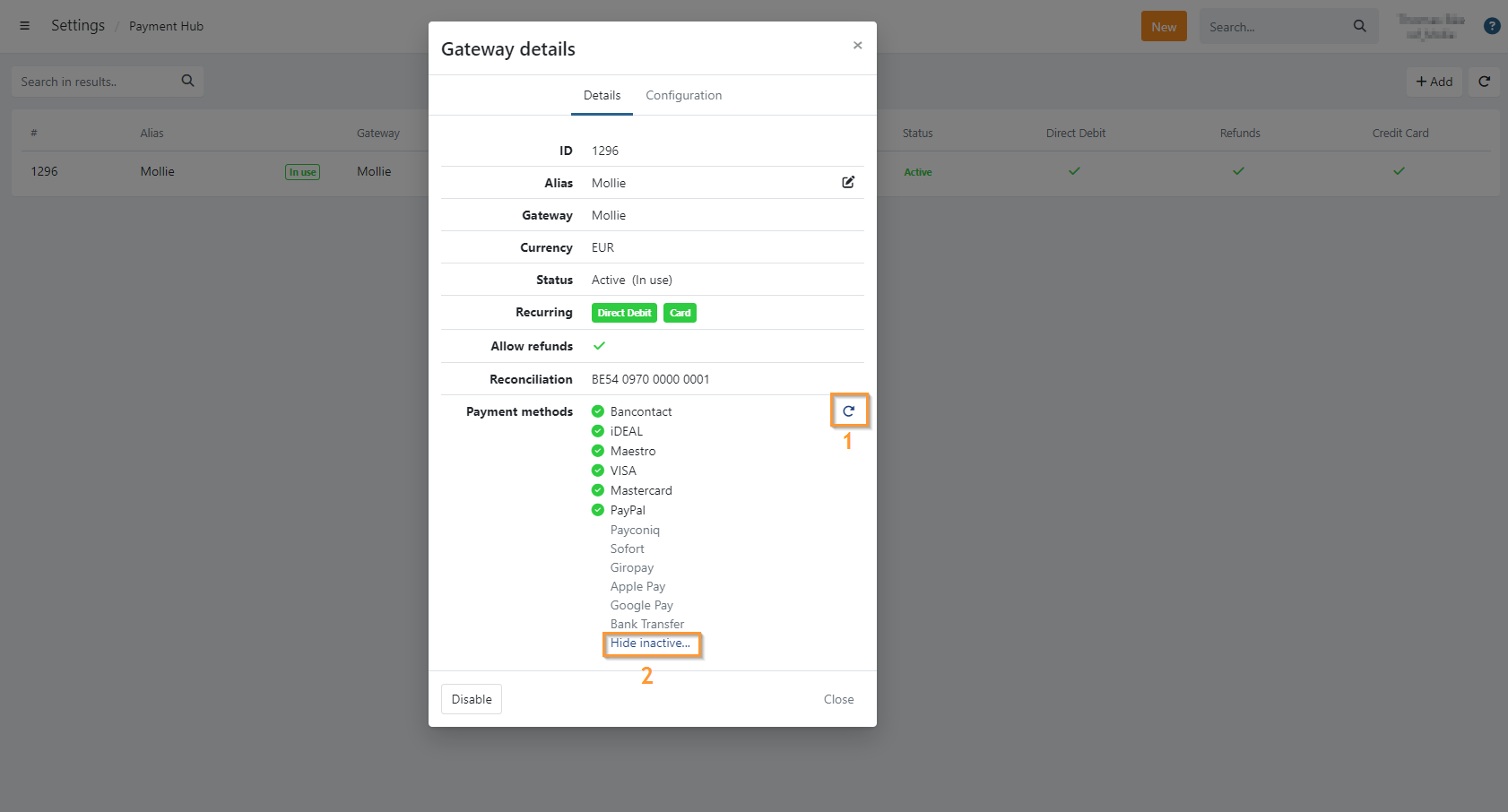
Payment methods are the specific ways your customers can pay via this provider — for example Visa, Mastercard, Bancontact Pay or iDEAL | Wero. The available payment methods are listed under Payment Methods in your provider's gateway details. This list shows only methods that are both supported by Twikey and activated in your provider's dashboard.
- Twikey updates this list automatically when a new payment solution is configured.
- If you make changes in your provider dashboard, click the refresh icon to update the list.
- Click Show inactive to see all methods, including those that are currently inactive.
Stripe
For Stripe, Twikey reads the payment methods from your own default payment method configuration in your Stripe dashboard. When your Stripe account is also connected to other platforms, Stripe creates an extra configuration for each of those platforms. Twikey ignores those configurations, so the list always reflects your own Stripe settings.