
Teamleader integration: Complete Guide
- 1. General information
- 2. Configuring your integration
- 3. Integration possibilities Teamleader
- 4. After the configuration
- 5. Managing your invoices from Teamleade...
- 6. PDF: adding documents
- 7. Invitations: Sending out invitations
- 8. Exceptional cases: reimbursement or r...
- 9. Subscriptions through Teamleader
- 10. Linking existing mandates to Teamlea...
- 11. Import credit notes
- 12. Customer synchronization
Show me
1. General information
As a customer of Teamleader, you can immediately send all your booked invoices to your environment to get them paid. These invoices can be paid through automatic collection (Direct Debit, recurring credit card payments,..), a payment link or even a regular transfer.
More documentation about the integration and possible setup is available on demand. Please contact our support team. For more information about managing your invoices, see Managing your invoices.
2. Configuring your integration
To set up your Teamleader integration:
- Go to Settings > Integrations and click on Teamleader.
- Click on the Connect button. You will be redirected to Teamleader where your authorisation will be requested.
- Once the authorisation is given, you will automatically return to the integrations screen. Here you can define the following settings:
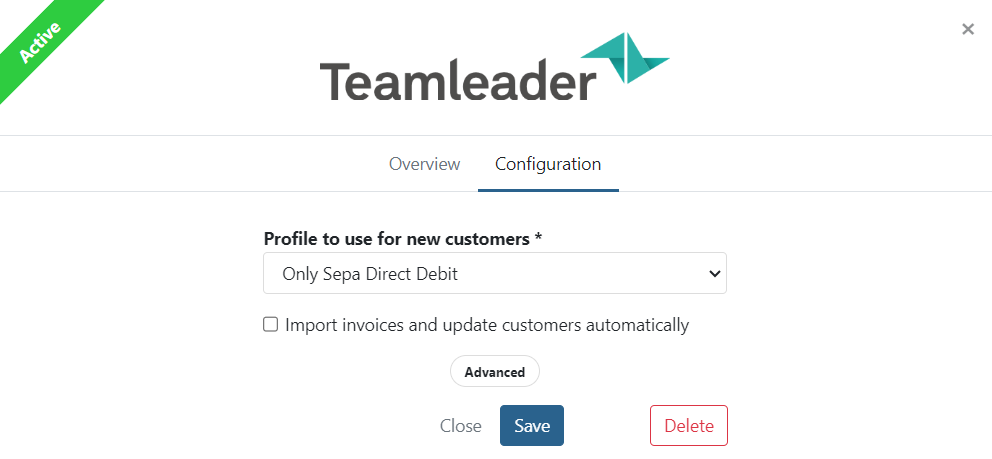
- Profile to use for new customers: choose the default invoice profile you want to use to for new customers.
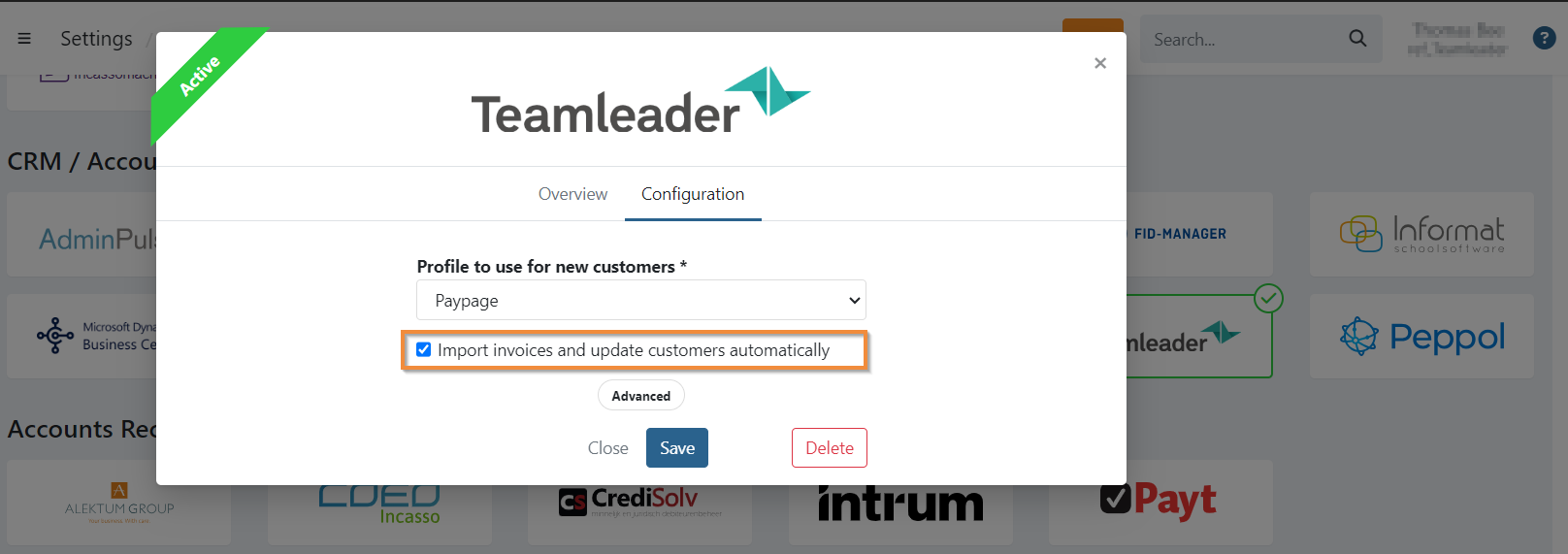
- Import invoices and update customers automatically: check this box if you want to automatically import the invoices booked in Teamleader and update customers in Twikey.
- Click Save.
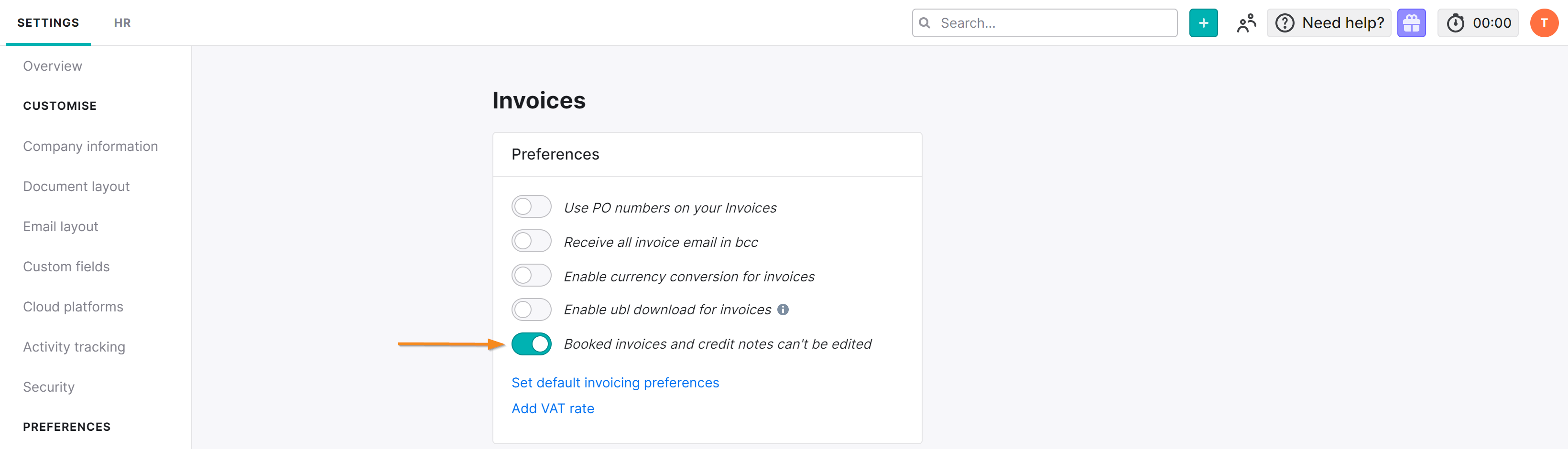
In Teamleader: activate "strict mode":
- Navigate to the settings: https://focus.teamleader.eu/settings.php#nav_invoices
- Activate the button: 'Booked invoices and credit notes can't be edited'
3. Integration possibilities Teamleader
Through Teamleader we have several possibilities to integrate, depending on your wishes.
Required:
- The link with Teamleader must be active. This can be done via the integrations menu.
- At least 1 profile is required with a certain configuration regarding the payment options.
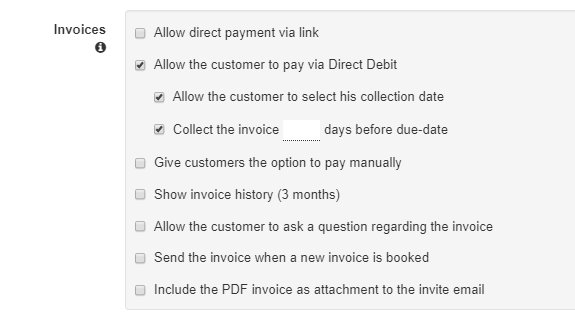
3.1 All invoices need to be collected by automatic collection / Direct Debit.
Create a profile and set the following options for arranging an invoice by Direct Debit / Direct Debit.
Configure this profile in the integrations menu and activate the automatic import of booked invoices.
3.2 Most of the invoices from my customers need to be collected by Direct Debit / Direct Debit, but I have some exceptions.
It is of course possible that the majority of your invoices need to be collected via Direct Debit/Direct Debit, but some invoices need to be settled via a different payment method.
Create a profile and set up the following options for arranging an invoice using Direct Debit / Direct Debit.
Create a second profile and set other payment options for arranging an invoice
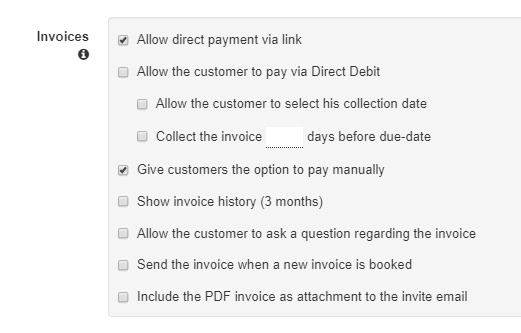
Configure the Direct Debit / Direct Debit profile in the integrations menu and activate the automatic import of booked invoices.
For those customers who do not wish to pay using Direct Debit/Domiciliation, adjust the default profile at customer level via the customers menu.
Here you can activate the other profile. This customer will only be able to use these payment options.
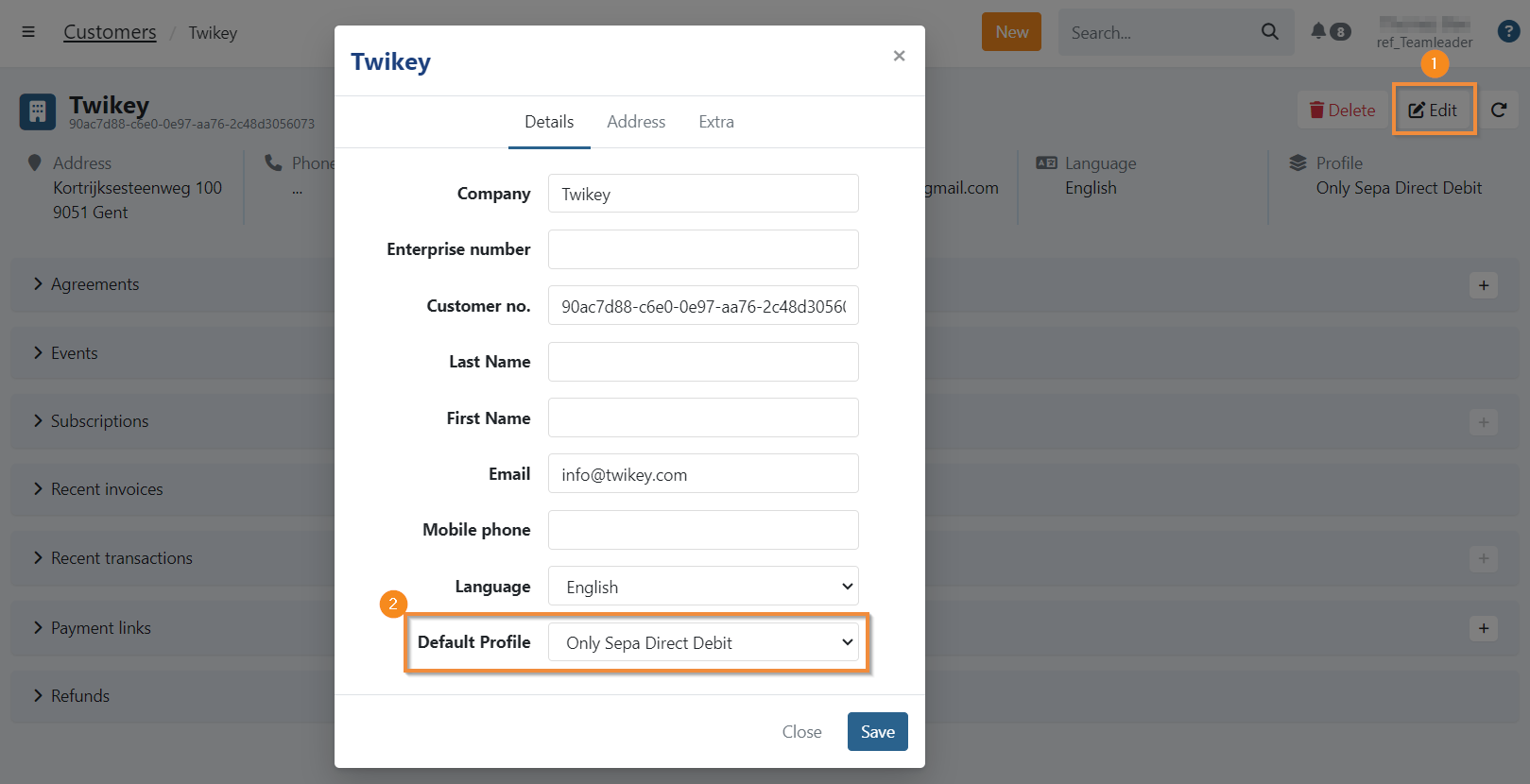
3.3 Advanced: I want to determine how my customer's invoice can be paid
In this case, you can specify the profile to use via Teamleader.
For example, you can have one profile allowing only direct payment, and one via Direct Debit in Twikey.
To do this, you need to create a custom field in Teamleader and specify a profile id in this field when creating a new invoice or subscription.
The invoice or subscription is then imported on the specified profile id.
When you don't pass any ID in the custom field, the default invoice profile of the customer is used when importing.
- Name: we suggest to use 'Twikey invoices' and/or 'Twikey subscriptions'. This makes it clear and easy to identify the right field
- Type: a Multiple selection type(*)
(*): If Teamleader is in Ducth, the multiple selection is called: "Vaste opties waarvan er 1 gekozen kan worden"
If you opt for a multiple selection type you can already pre-fill the options with profile-id's.
If you select a text-type then you'll need to (manually) provide the id for each invoice/subscription.
Once you defined you custom fields in Teamleader, you can define these in Twikey:
- Go to Integrations
- Open the Teamleader integration
- Click on 'advanced' (1) to toggle between simple and advanced
- Select the custom fields for invoices and/or subscriptions (2)
- Click 'Save' to confirm
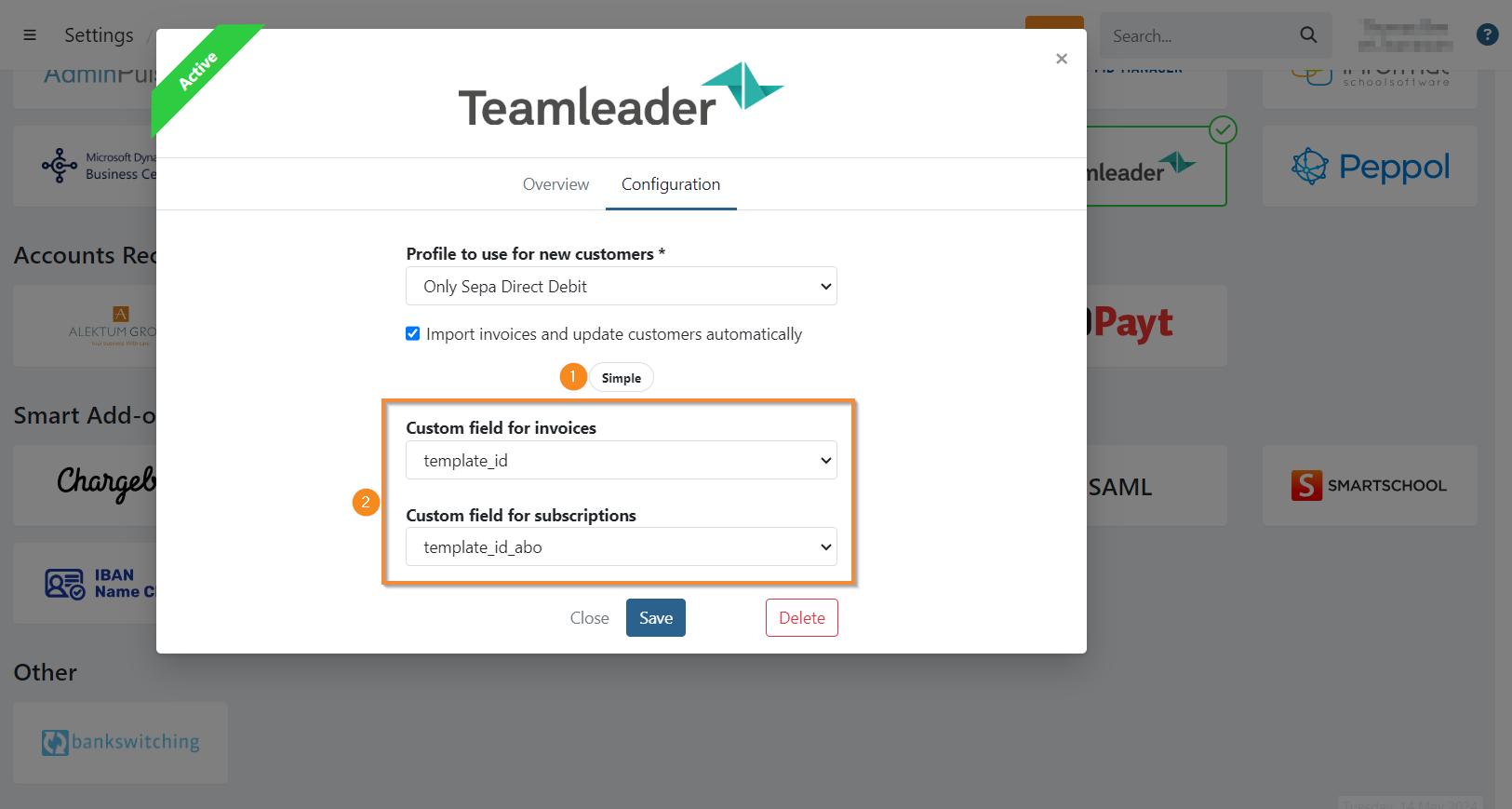
4. After the configuration
When the configuration is completed, we suggest to do an import of your invoices from the last 30 days. This way, the client database from Teamleader is also created in our system. You will then have a one-to-one link for every client between the two platforms.
The customer number in Twikey is equal to the customer id in Teamleader. When changing the customer number in Twikey, the next time an invoice is imported the customer number is reset. This is a 1-on-1 link.
To do this, go to the invoices overview in your Twikey environment.
On the overview select

On the import page then use (1) to open the import dialogue.
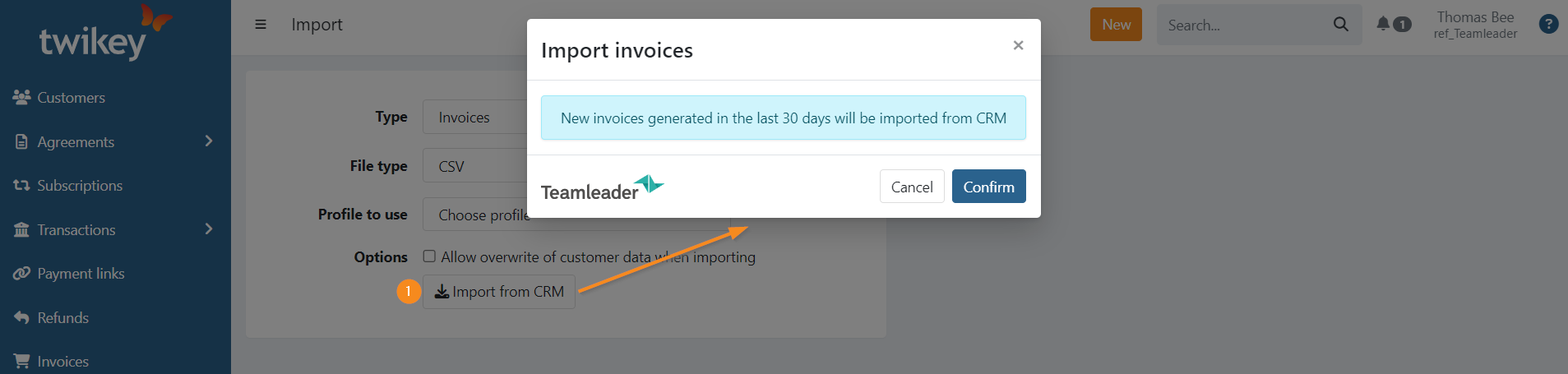
Click on to import all invoices created in the last 30 days.
5. Managing your invoices from Teamleader
Your invoices will now be imported from Teamleader into your environment. In case the option Import invoices and update customers automatically is on, this will happen automatically.
In case this option is disabled, you have to import your invoices manually. You can do this by taking the following steps:
- Go to the invoices overview in your Twikey environment.
- On the overview select
- On the import page then use (1) to open the import dialogue.
- Click on to import all invoices created in the last 30 days.
- A summary about the imported invoices is sent by email.
- When the status of the invoice changes in Twikey, the invoice in Teamleader will automatically be updated
To see a video with the full Teamleader flow, click here.
6. PDF: adding documents
The retrieval of the document(s) of the invoice(s) (PDF) are scheduled and imported at a later time. When the document is available the PDF-icon is displayed next to the invoice.
You can opt to manually retrieve the files if you need them sooner. For this, you can:
- Go to your invoices overview
- Set the advanced filter Pdf available: no
- Select the invoices
- Click on the three dots on the top right of the page
- Select "Download PDF documents"
7. Invitations: Sending out invitations
Invitations are either sent automatically or not, and only if the PDF of the invoice is available if it is configured as such on your profile.
In most cases your profile will be configured to send those out automatically once the PDF is available as such:
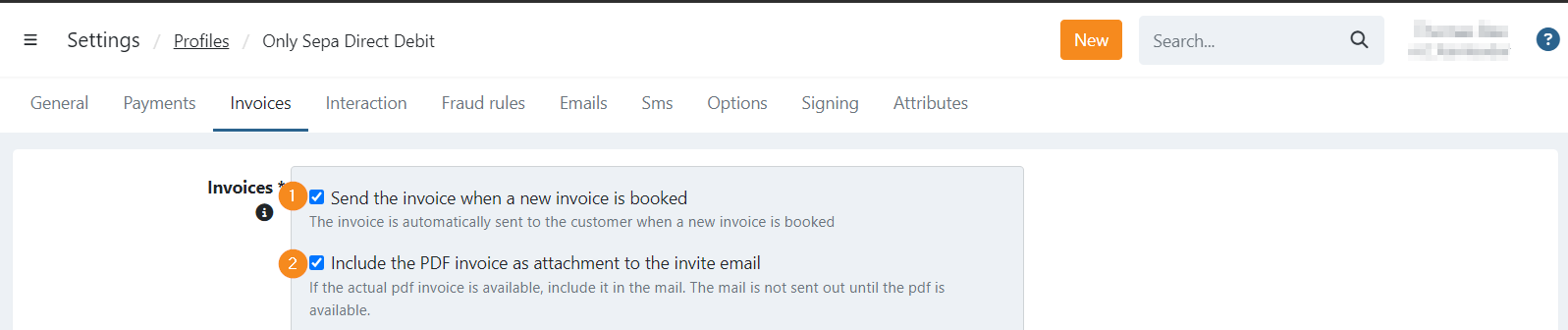
This means:
- When a new invoice is imported from Teamleader we directly send an invitation email.
- The invitation email is only sent if the PDF is also available
If you have both options enabled, the invitation is sent out once the PDF is retrieved, either if you manually downloaded the files or when Twikey imports them during the scheduled retrieval.
8. Exceptional cases: reimbursement or refusal
In some cases, you can get a paid status from the bank for an invoice which later turns out to be unpaid (i. e. a reimbursement or refusal from the customer).
The status in both your Twikey and Teamleader environment will change from Paid to Unpaid:
- Teamleader:
User: Invoice 2022 / 100001 was marked as not paid - Twikey:
Payment failedthe invoice is set back to booked or expired if the due date was reached.
9. Subscriptions through Teamleader
It is possible to create subscriptions in Teamleader which leads to an invoice.
We strongly suggest to put the payment term of the subscription not on 0 days as this would create an invoice where the date of creation would be the same as duedate.
The imported invoice will expire very soon and, if configured, we will send out reminder mails to your client.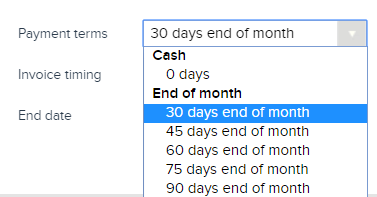
10. Linking existing mandates to Teamleader clients
It is possible you have customers with a signed mandate.
In order to be able to settle the invoices of these customers through their mandate you'll need to link the mandate to the customer in Teamleader.
This can be done on Customer no. (customerNumber)
This can be done by following the next steps:
- Activate the Teamleader integration
- Do an import of invoices of the last 30 days. By doing this you will also create your Teamleader customers in Twikey with their corresponding customer number.
(in most cases 30 days is sufficient, but if you think this is not enough you can make a larger import)
Pay attention - the option Send the invoice when a new invoice is booked should be deactivated in your profile to avoid sending mails to your customers. - Download your customers via the menu Customers.
- Upload the mandates via CSV file directly as signed - see: "How to import existing, signed agreements".
Pay attention - the column customerNumber in the CSV file should contain the customerNumber of Teamleader (f.e. 2d8309e1-a005-0d4c-8674-5eb981ecd2c3) - The imported invoices can be deleted or send to the client.
11. Import credit notes
It is possible to import credit notes from Teamleader.
To do this, the option "Import invoices and update customers automatically" need to be activated in the integration configuration.
Imported credit notes always start with "CN".
Example:
Credit note Teamleader: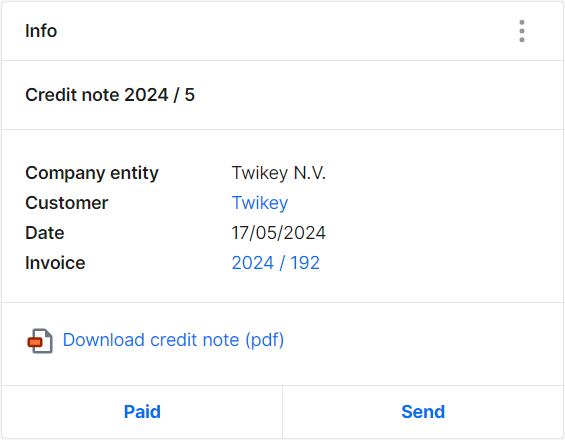
Credit note Twikey:
12. Customer synchronization
Customer data from Teamleader is synchronized to Twikey:
- After a few minutes: when 'Import invoices and update customers automatically' is enabled your customer data is also updated a few minutes later when we receive a notification from Teamleader.
- Manually: When the automatic update option is not enabled, you'll need to update customers manually in Twikey
Customers are only updated from Teamleader to Twikey.