
07 Recurly integration
- 1. General information
- 2. Configuring your integration
- 3. After the configuration
- 4. Managing your invoices from Recurly
- 5. Import or update customers
1. General information
As a customer of Recurly, you can immediately send all your booked invoices to your environment to get them paid. These invoices can be paid through a Direct Debit, a payment link or even a regular transfer.
For more information about managing your invoices, see Managing your invoices.
2. Configuring your integration
To set up your Recurly integration:
- Go to Settings > Integrations and click on Recurly.
- Enter the following information:
- Domain: your domain name at Recurly.
- API key: your API key for Recurly.
- Template to use when importing: choose the template you want to use to book your invoices.
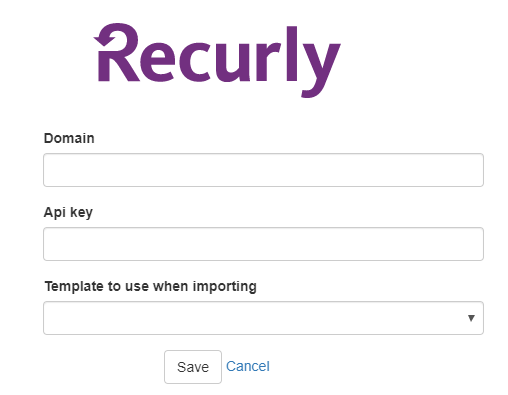
- Click Save.
3. After the configuration
When the configuration is completed, we suggest to do an import of your invoices from the last 90 days. This way, the client database from Recurly is also created in our system. You will then have a one-to-one link for every client between the two platforms.
To do this, please take the following steps:
- Go to the Invoices screen
- Click on Find in CRM
- Adjust the number of days to 90
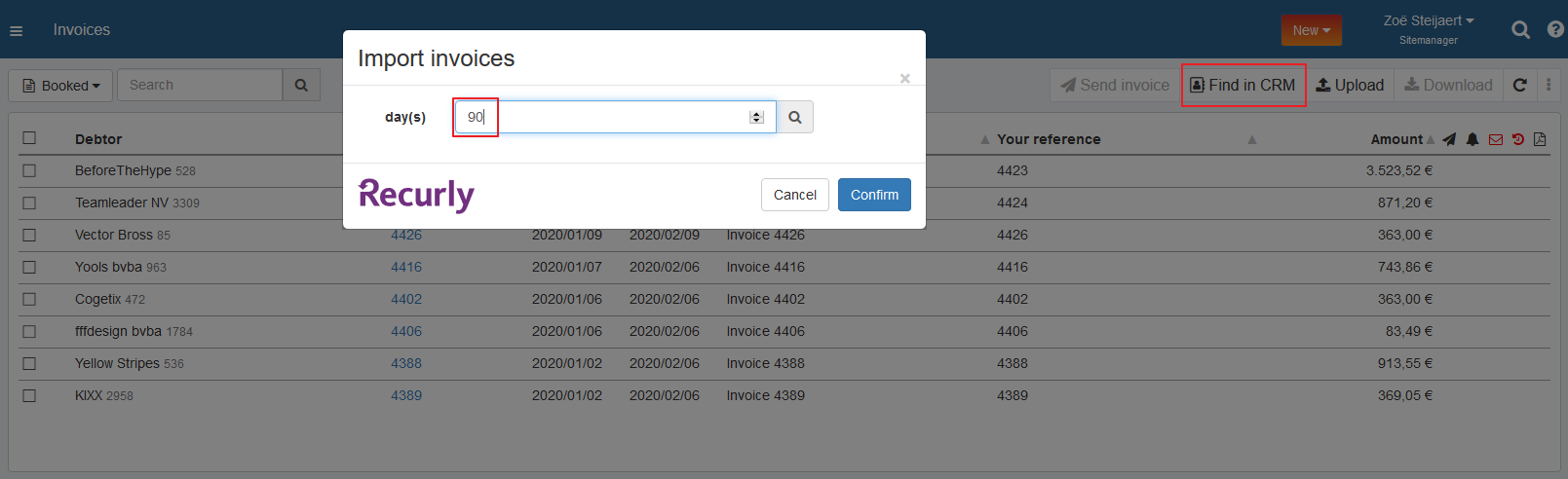
- Click Confirm
Establishing this one-to-one link is important for the update of the status of your invoices in Recurly. You can easily delete the import afterwards if needed.
4. Managing your invoices from Recurly
Your invoices will now be imported from Recurly into your environment. In case the option Automatically import booked invoices is on, this will happen automatically.
In case this option is off, you have to import your invoices manually. You can do this by taking the following steps:
- Go to the Invoices screen
- Click on Find in CRM
- Specify the number of days for which you want to import your invoices
- Click Confirm
- After the import, you will receive an overview by mail
- When the status of the invoice changes, both your environments will automatically be updated
Please note that previously imported invoices cannot be imported again.
5. Import or update customers
You can import new Recurly customers and update existing customers in Twikey.
To do this, please take the following steps:
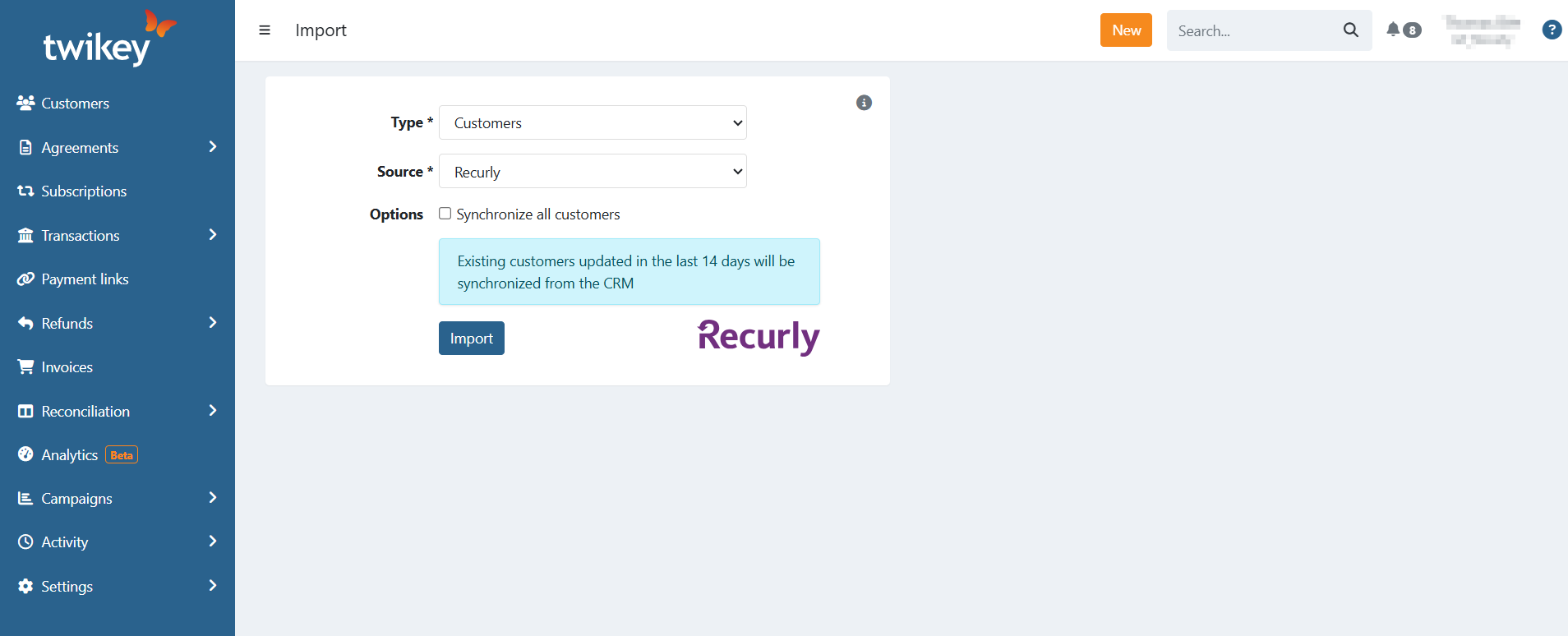
- Go to the Customer import screen
- Source: Select Recurly
Synchronization Options
The import tool serves two functions: it creates new customers and keeps existing ones synchronized.
- Default Behavior: Twikey automatically imports new customers and updates existing ones that were modified in Recurly within the last 14 days.
- Synchronize all customers: Select this option to update all existing customers in Twikey with their latest Recurly data, regardless of when they were last changed.
- Use Case: This is helpful to ensure delivery details (like Peppol addresses) match your CRM data before a large billing run.
After importing or synchronizing customers, you'll receive an email notification with the details of the import/update only if there were any updates.