How to activate Teamleader
- Step 1: Enable strict mode in Teamleader...
- Step 2: Connect Teamleader in Twikey
- Step 3: Configure the integration settin...
- Profile to use for customers
- Import invoices and update customers aut...
- Step 4: Configure custom fields for invo...
- Create a custom field in Teamleader
- Link the custom field in Twikey
Step 1: Enable strict mode in Teamleader (recommended)
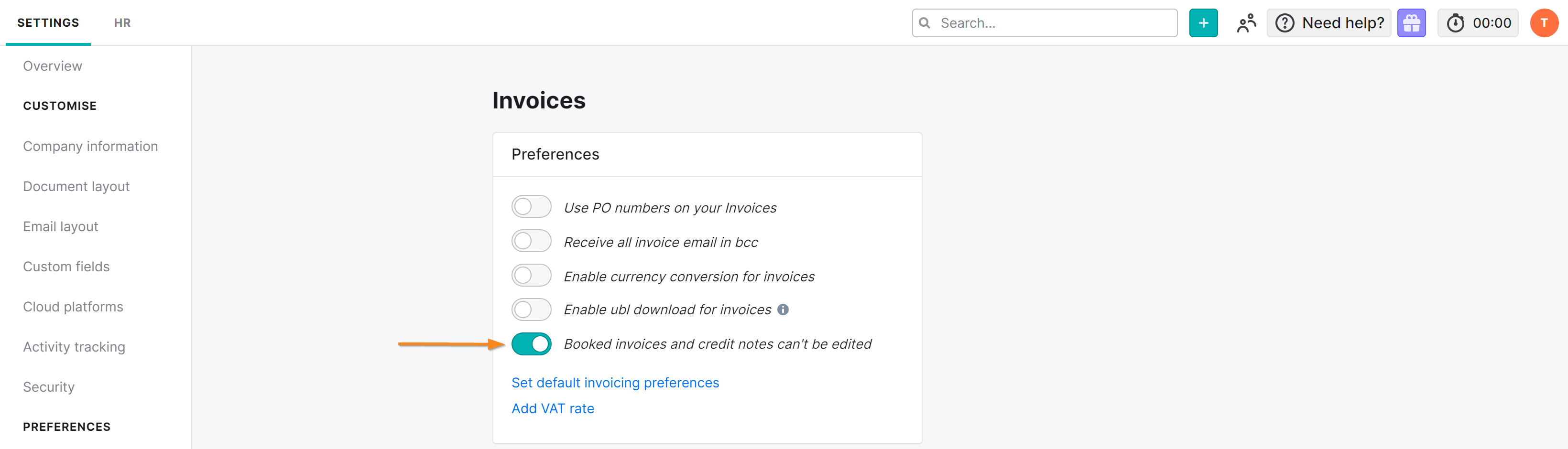
Strict mode prevents booked invoices from being edited in Teamleader. This is strongly recommended: without it, Twikey cannot sync the payment status of invoices back to Teamleader. It also avoids conflicts where an invoice status is changed manually in Teamleader at the same time Twikey tries to update it.
To enable it, navigate to Settings > Preferences > Invoices in Teamleader and activate: 'Booked invoices and credit notes can't be edited'.
Step 2: Connect Teamleader in Twikey
Navigate to Settings > Integrations in the left-hand navigation menu and select Teamleader.
If you are already logged in to Twikey, you can directly open the configuration.
Open the Configuration tab. Before the integration is connected, this tab shows only a Connect button.
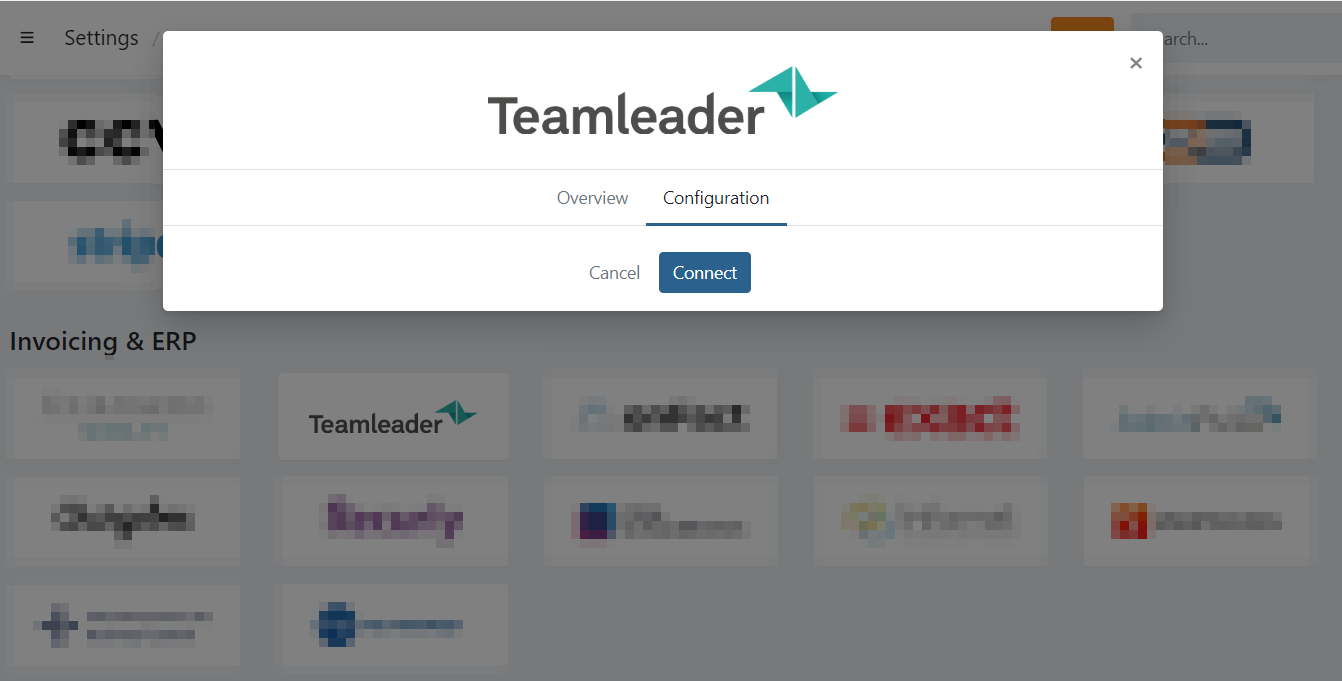
Click Connect.
You are redirected to the authentication page of Teamleader where you can log in and authorize Twikey with permission to access your Teamleader customers and invoices. Once authorized, you are automatically returned to the integrations screen in Twikey.
Step 3: Configure the integration settings
After connecting, the Configuration tab shows the full settings.
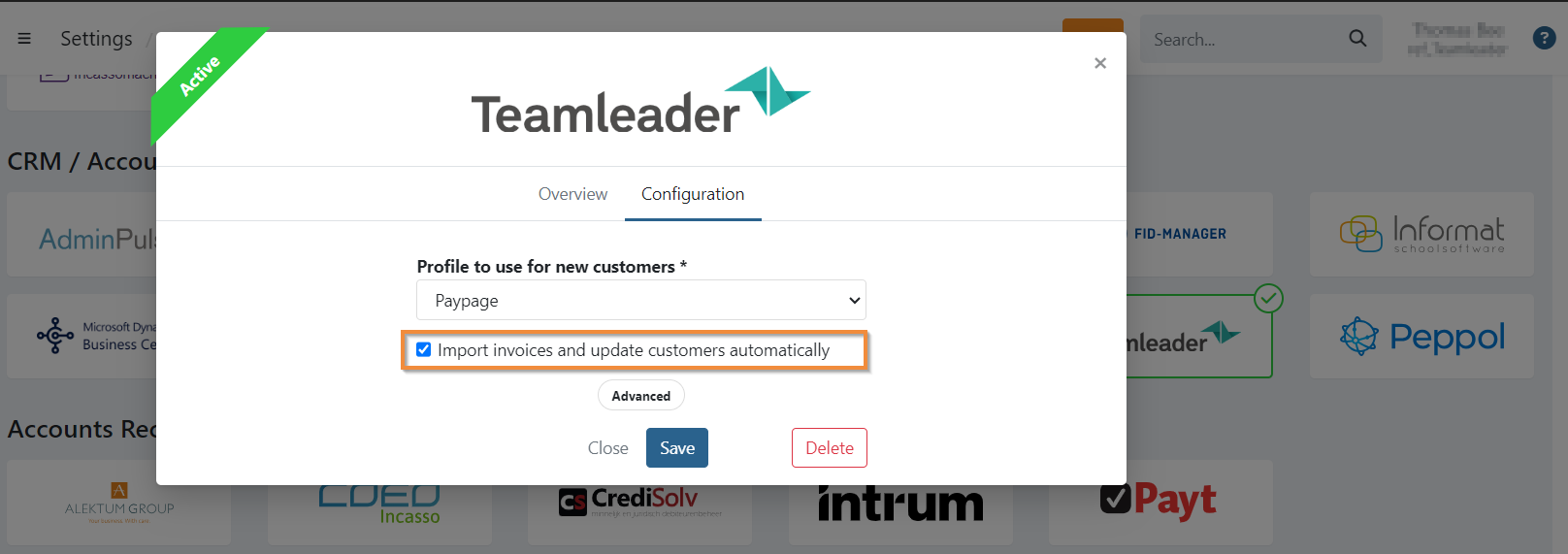
Profile to use for customers
Select a default profile to use for your customers:
- This is the default invoice profile registered on new customers when they are imported from Teamleader.
- Existing customers in Twikey keep their own profile. You can change a customer's profile at any time by editing the customer.
Import invoices and update customers automatically
Enable this option if you want to:
- Automatically import invoices in Twikey when they are booked in Teamleader.
- Automatically update customer data in Twikey when a customer is modified in Teamleader.
Step 4: Configure custom fields for invoices (optional)
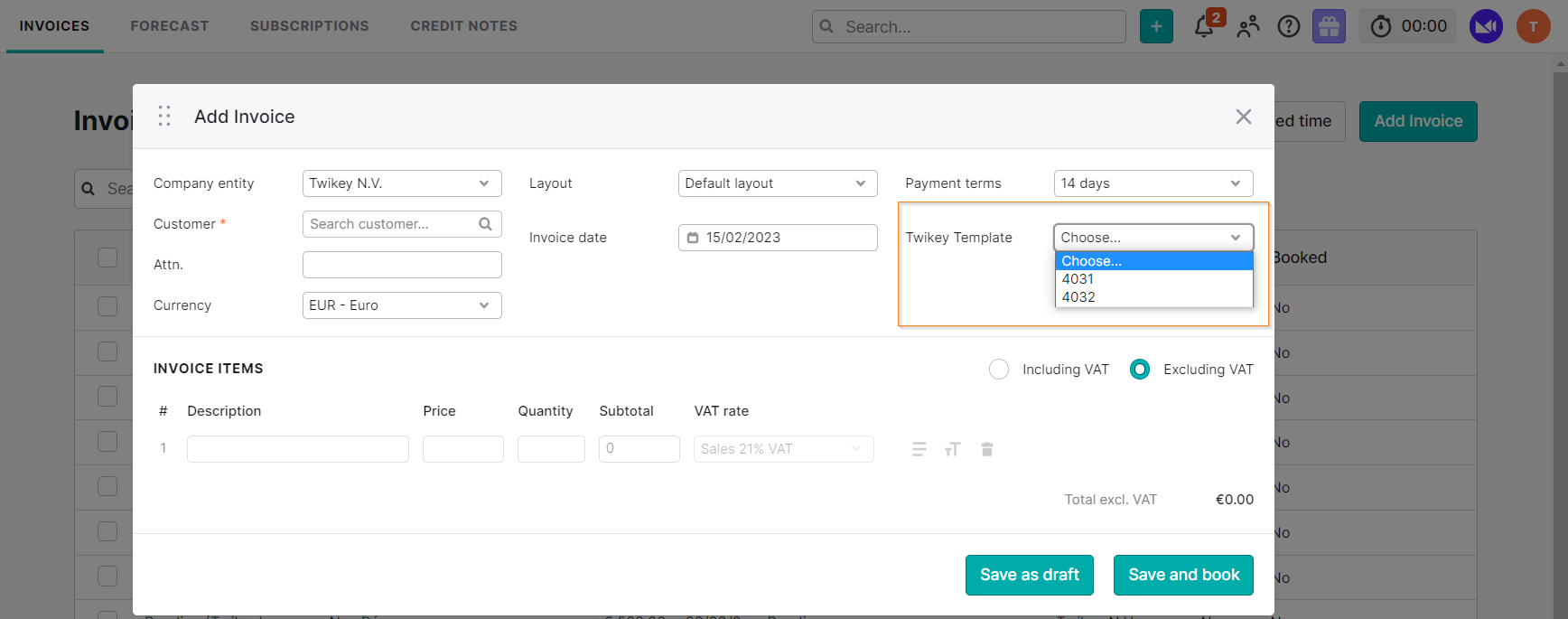
A profile in Twikey defines how an invoice can be paid — which payment methods are available, whether automatic collection via direct debit is enabled, what the dunning workflow looks like, and so on. By default, the profile configured on the customer is used for every invoice.
Custom fields let you override this on a per-invoice basis: you add a Twikey profile ID directly on the invoice in Teamleader, and Twikey uses that profile when importing. This gives you fine-grained control over how individual invoices are collected.
Example: a customer normally pays via direct debit. For one specific invoice you want them to pay via the Twikey payment page instead. You pass the profile ID of a profile where automatic collection is disabled, and Twikey will offer the payment page for that invoice only.
Create a custom field in Teamleader
In Teamleader, create your custom field:
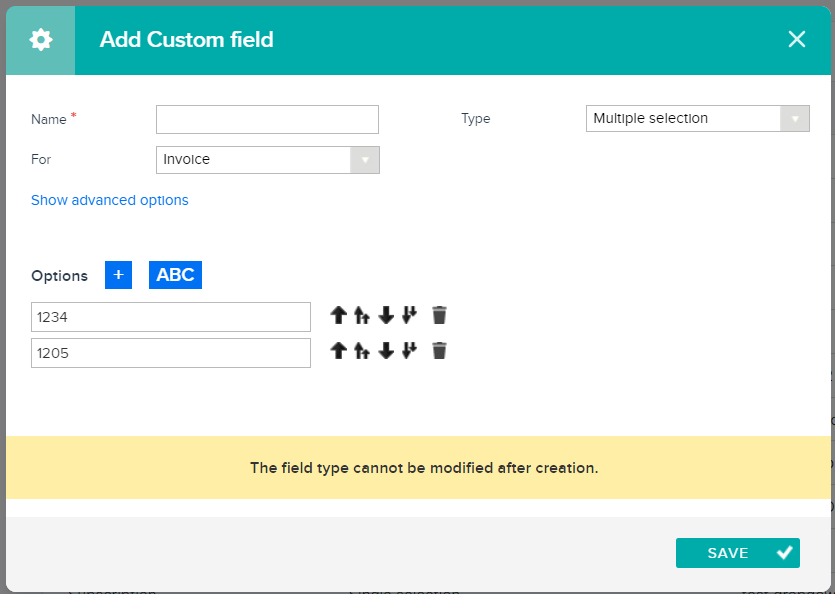
- Name: we suggest using 'Twikey invoices' to make it easy to identify.
- Type: a Multiple selection type is recommended — you can pre-fill the options with the profile IDs from Twikey so you can select the right one when creating an invoice.
If you choose a text type, you will need to manually enter the profile ID for each invoice.
Link the custom field in Twikey
Once the custom field is defined in Teamleader, link it in Twikey:
- Navigate to Settings > Integrations in the left-hand navigation menu.
- Open the Teamleader integration.
- Open the Configuration tab.
- Click Advanced.
- Select the custom field for invoices.
- Click Save to confirm.
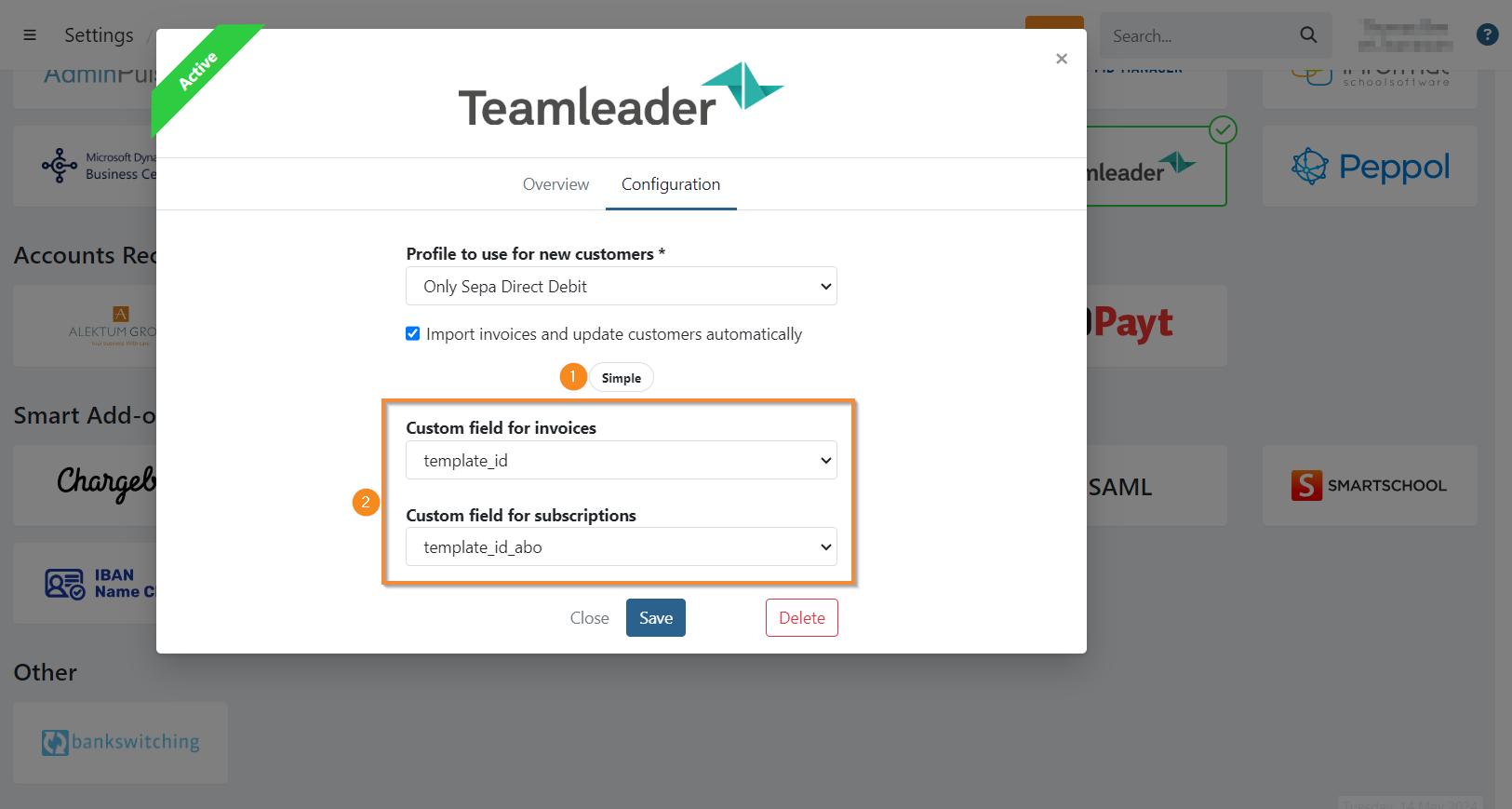
When creating a new invoice in Teamleader, you can now select the desired Twikey profile via the custom field. If no profile is selected, the customer's default profile is used.