
Using Teamleader with Twikey
- What the integration does
- Supported profiles
- Invoices
- Automatic import
- Manual import
- PDF of the invoice
- Sending invitations to your customers
- Invoice import — common causes
- The amount of the invoice
- The state of the invoice
- The connection expired
- Still need help?
- Credit notes
- Customers
- How customer data is mapped
- Import a customer from CRM
- Import customers via invoices
- Import your complete customer database
- Updating customers
- Subscriptions
- Linking existing mandates to Teamleader ...
- Teamleader entity
What the integration does
Invoice import
Booked invoices in Teamleader are automatically picked up by Twikey. Invoices with an amount of €0 are skipped. Once imported, there are two ways to handle sending:
- Teamleader sends the invoice — Teamleader delivers the invoice to your customer directly. Twikey can still send a separate mandate invitation, and if the customer has a signed direct debit mandate on the same profile, Twikey will automatically collect the invoice via direct debit.
- Twikey sends the invoice — Twikey sends a payment invitation to your customer with all configured payment options: direct debit, recurring credit card, payment link, or a combination. This is controlled by enabling "Send the invoice when a new invoice is booked" on the Twikey profile.
Payment status sync
When a payment is collected via Twikey, the invoice status in Teamleader is automatically updated to paid. This requires strict mode to be enabled in Teamleader (see How to activate Teamleader for the recommended setup).
Payment reversal
If a payment fails after it was initially marked as paid, Twikey reverts the invoice status in Teamleader back to booked automatically.
PDF retrieval
Twikey fetches the invoice PDF from Teamleader automatically. The PDF is attached to the invoice in Twikey. When Twikey sends the payment invitation, the PDF is included in the email to the customer.
Profile routing via custom fields
A Twikey profile determines how an invoice can be paid — which payment methods are available, whether direct debit is collected automatically, and what the dunning workflow looks like. By default, the profile configured on the customer applies to all their invoices.
How the profile is determined depends on where the invoice originates:
- Invoices created directly in Teamleader use the profile from a custom field on the invoice, or the customer's default profile if no custom field is set. This lets you control the payment setup at invoice level — for example, routing a specific invoice to a payment page even when the customer normally pays via direct debit.
- Invoices from Teamleader's subscription module use the default profile configured in the integration.
Supported profiles
A profile in Twikey determines how an invoice is collected. A profile can be configured for one or more of the following collection methods:
| Method | Description | Suitable for |
|---|---|---|
| CORE | SEPA Core Direct Debit | Consumers and businesses |
| B2B | SEPA B2B Direct Debit | Business customers only |
| RCC | Recurring credit card | Customers with a saved card token |
Profiles can combine methods — for example, a profile with both CORE and B2B lets Twikey automatically use the right mandate type per customer. A profile with CORE, B2B, and RCC covers all collection methods in one.
Invoices created directly in Teamleader support profiles with any combination of CORE, B2B, and RCC. The profile is determined by a custom field on the invoice, or the customer's default profile if no custom field is set.
Invoices from Teamleader's subscription module support profiles with CORE or B2B. The profile used is always the default profile configured in the integration.
Automatic import
The moment invoices get booked in Teamleader, this will trigger our import service if you enabled the option 'Import invoices and update customers automatically' in your integration.
This mostly takes a few minutes but can be a bit longer in some cases. When the invoice is still not available in Twikey after an hour or longer, check the common causes described further in this article.
Manual import
To manually import invoices:
- Navigate to Invoices in the left-hand navigation menu.
- Click Import.

- Click Import from CRM to open the import dialogue.
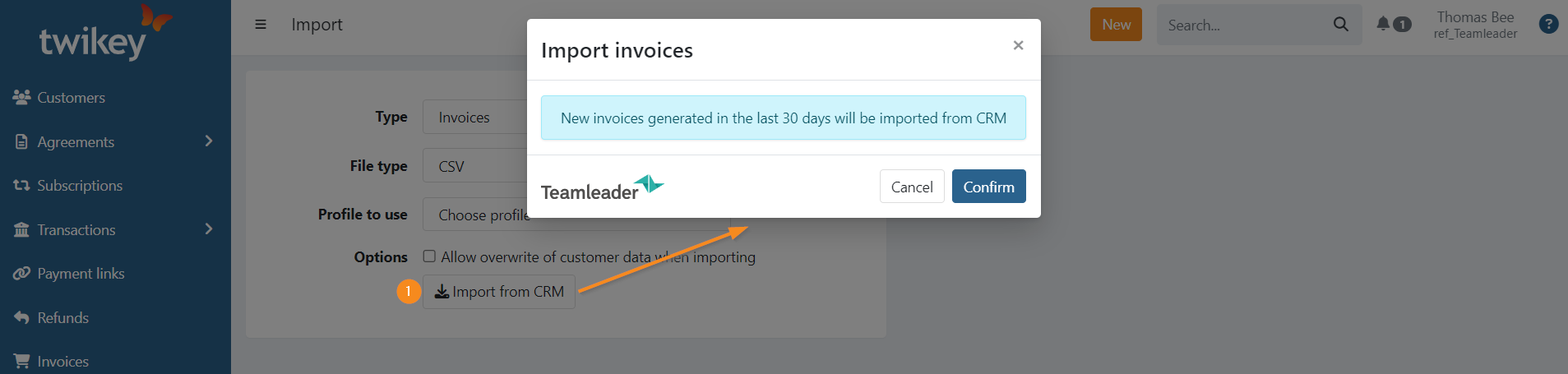
- Click Confirm to import all invoices created in the last 30 days.
A summary about the imported invoices is sent by email.
PDF of the invoice
The retrieval of the PDF document(s) is scheduled and imported at a later time. When the document is available, the PDF icon is displayed next to the invoice.
You can opt to manually retrieve the files if you need them sooner:
- Navigate to Invoices in the left-hand navigation menu.
- Set the advanced filter PDF available: no.
- Select the invoices.
- Click ⋮ in the top right of the page.
- Select Download PDF documents.
Sending invitations to your customers
Whether Twikey sends a payment invitation depends on your profile setup. If the option "Send the invoice when a new invoice is booked" is enabled on the profile, Twikey automatically sends an invitation when the invoice is imported. If this option is disabled, Teamleader handles the delivery and Twikey focuses on collection.
When Twikey sends automatically:
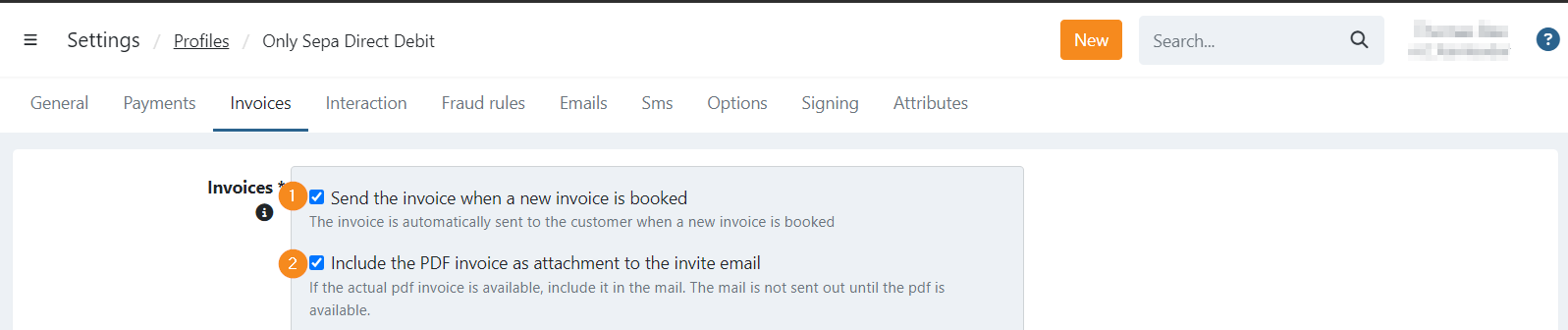
- When a new invoice is imported from Teamleader, an invitation email is sent directly.
- The invitation email is only sent if the PDF is also available.
The amount of the invoice
Only invoices with an amount greater than 0€ are imported. If the amount was initially 0€ and later updated, use the manual import from CRM to retrieve the invoice.
The state of the invoice
Only invoices in a booked (outstanding) state are imported. If an invoice was set to paid in Teamleader before it could be added to Twikey, it cannot be imported — paid invoices are skipped by both the automatic and manual import.
The connection expired
Twikey needs to periodically refresh its access to your Teamleader account. If Teamleader rejects that refresh permanently — for example because access was revoked on the Teamleader side — Twikey disables the integration and sends the account owner an email asking to reconnect.
If invoices have stopped coming in and you received such an email, go to the integration's Configuration tab and click Connect again. If you're not sure whether this happened, reconnecting is safe to do at any time and will not create duplicate invoices.
Still need help?
When contacting support, please include the invoice details and the activity log from Teamleader in your ticket.
Credit notes
Credit notes from Teamleader can be imported into Twikey. To enable this, the option 'Import invoices and update customers automatically' must be enabled in the integration configuration.
Imported credit notes always start with the prefix CN.
How customer data is mapped
Customer data from Teamleader is mapped one-on-one in Twikey. Customers are identified by their unique customer number in Teamleader.
- For persons: first and last name are filled in.
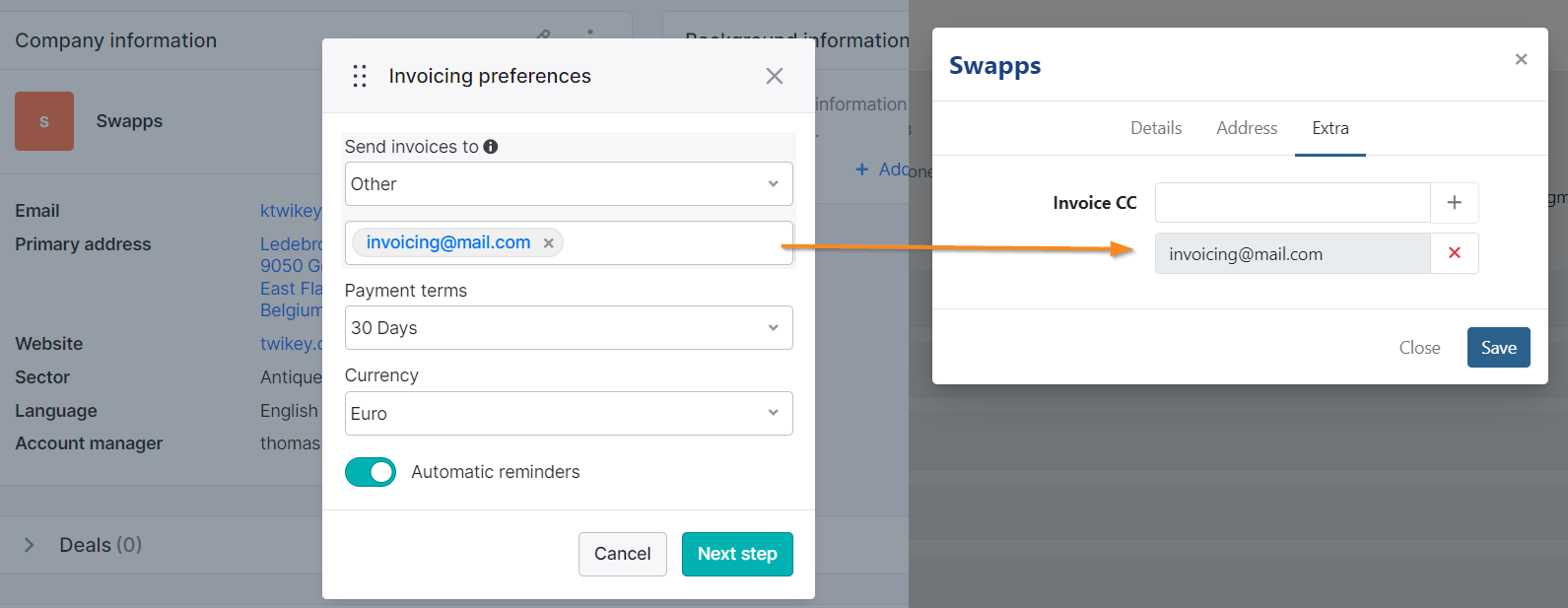
- For companies: the company name is used. If a separate invoicing email address is defined in Teamleader, it is added as CC on the customer in Twikey (only when 'Import invoices and update customers automatically' is enabled).
When sending the invoice via email, the invitation or reminder is sent to both the email address of the customer and the one in CC.
Import a customer from CRM
- Click New anywhere in Twikey and select Customer.
- Click Find in CRM to search for customers in Teamleader.
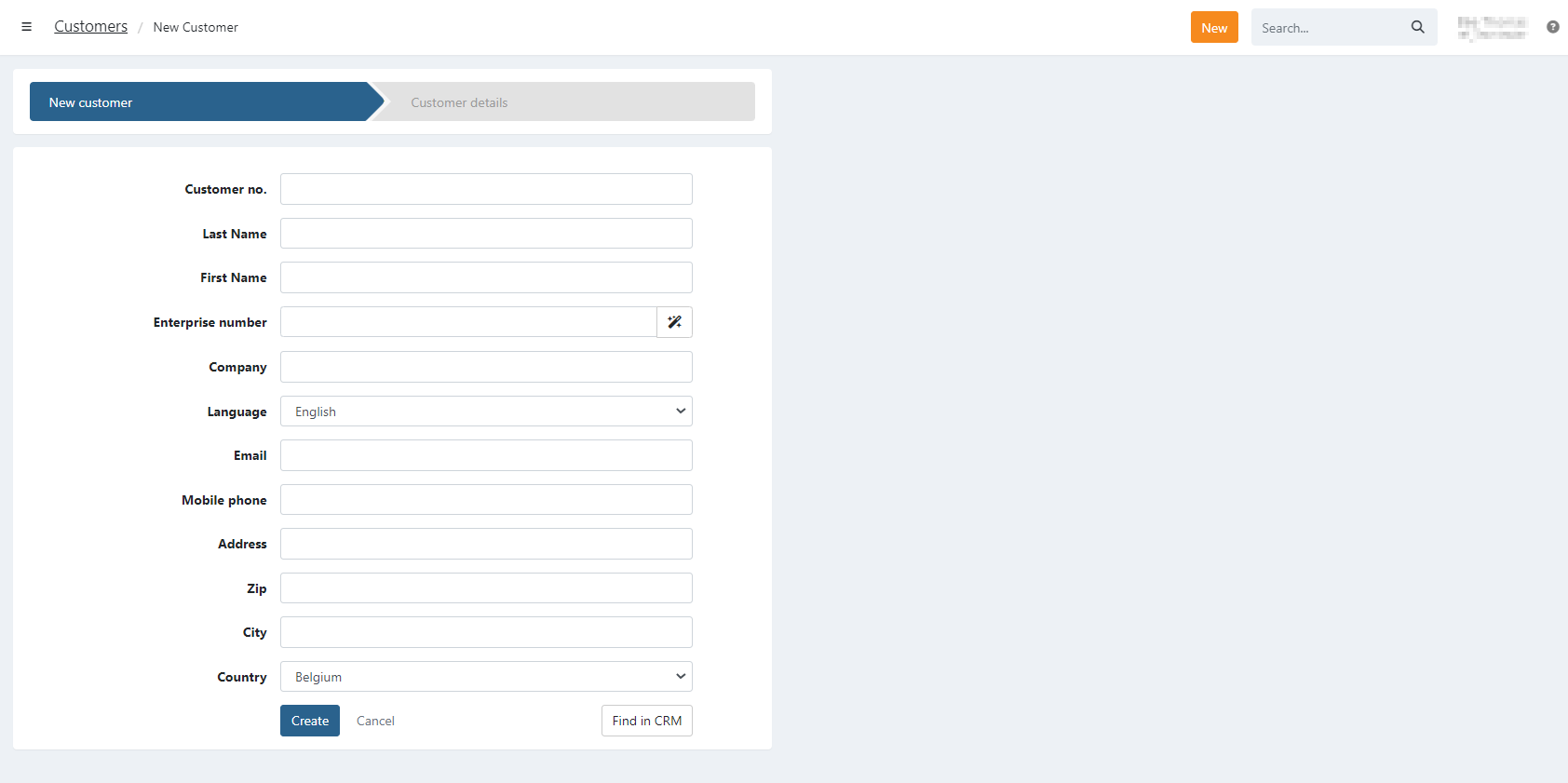
- Search by customer or company name and click the name to pre-fill the form with the data from Teamleader.

- Edit the fields if necessary.
- Click Create to add the customer in Twikey.
Import customers via invoices
When importing an invoice, the customer is automatically created in Twikey if they do not exist yet.
Import your complete customer database
To import every customer from Teamleader into Twikey, contact your Customer Onboarding agent. They will prepare the export for you. Once ready, a CSV file is available for download under:
Settings > Account > Shared Files

Updating customers
When 'Import invoices and update customers automatically' is enabled:
Once you edit a customer in Teamleader, a webhook is sent to Twikey within a few moments to minutes and the full customer record is updated.
When 'Import invoices and update customers automatically' is not enabled:
To update a customer manually:
- Navigate to Customers in the left-hand navigation menu.
- Click the customer name to open the detail page.
- Click Edit.
Subscriptions
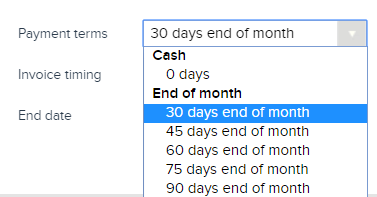
You can create subscriptions in Teamleader that generate invoices in Twikey.
Linking existing mandates to Teamleader customers
If you already have customers with a signed mandate, you can settle their Teamleader invoices through that mandate by linking it to the customer via the customer number.
- Activate the Teamleader integration.
- Import the invoices of the last 30 days. This also creates your Teamleader customers in Twikey with their matching customer number. Increase the range if 30 days is not enough.
- Download your customers via the Customers menu.
- Upload the mandates via CSV file directly as signed — see How to import existing, signed agreements.
- The imported invoices can then be deleted or sent to the customer.