
CreditDevice
- What the integration does
- Requirements
- Activate the integration
- Connect Twikey to CreditDevice
- Remove the integration
- Tips
CreditDevice is credit management software that follows up on your open invoices. With the Twikey integration, CreditDevice can invite your customers to sign a direct debit mandate and send unpaid invoices to Twikey for collection. Twikey reports the result of each mandate and collection back to CreditDevice, so your credit management team keeps working from one place.
You find CreditDevice on the Integrations page under Accounts Receivable.
What the integration does
- Invite customers to sign a mandate: CreditDevice selects the customers that are eligible for direct debit and requests a mandate invitation from Twikey. The customer receives an email with a link to sign the mandate. Twikey returns the signed mandate to CreditDevice and keeps its status synchronised, including cancelled and expired mandates.
- Collect open invoices automatically: CreditDevice sends unpaid invoices to Twikey as direct debit transactions when the invoice is marked for direct debit and the customer has an active mandate. The collection date is based on the due date or the invoice date, with a configurable number of days before or after it.
- Follow the result of each collection: Twikey reports each paid, failed or refunded transaction back to CreditDevice. For a failed transaction, CreditDevice stores the SEPA reason code and can start a follow-up action based on that code. CreditDevice also shows the Twikey batches and their status.
Requirements
- Twikey subscription: Professional
- Twikey: a reduced dunning scheme that is compatible with the integration
- CreditDevice: the Direct debit module (DDM), activated by CreditDevice
Activate the integration
- Navigate to Settings in the left-hand navigation menu.
- Open the Integrations tab.
- Click CreditDevice.
- Read the information on the Overview tab, including the requirements for the integration.
- Click Initialise.
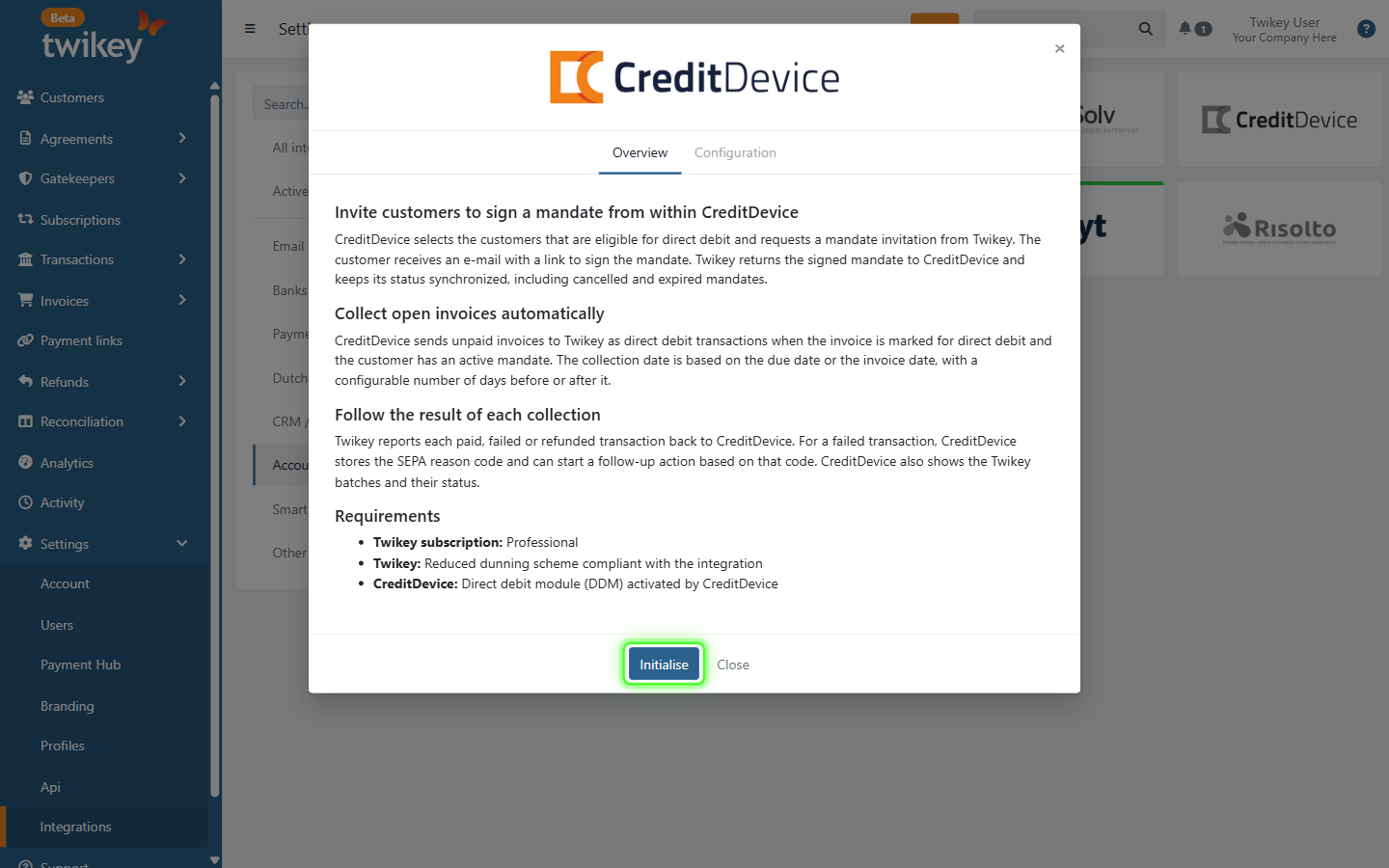
Twikey now creates a dedicated API key for CreditDevice. The integration is now marked as Active.
Connect Twikey to CreditDevice
- Navigate to Settings in the left-hand navigation menu.
- Open the Integrations tab.
- Click CreditDevice.
- Open the Configuration tab.
- Click the copy icon next to the API Key field and enter this key in your CreditDevice environment.
- Enter the webhook address you received from CreditDevice in the Webhook url field. Twikey uses this address to inform CreditDevice about updates on mandates and transactions.
- Click Save.
The webhook address must be a valid, publicly reachable URL. If it is missing or invalid, Twikey shows the message "Url is missing or invalid" and the address is not saved.
Remove the integration
- Navigate to Settings in the left-hand navigation menu.
- Open the Integrations tab.
- Click CreditDevice.
- Open the Configuration tab.
- Click Delete.
Once deleted, the API key no longer works and CreditDevice can no longer send mandate invitations or invoices to Twikey.
Tips
- Keep the API key confidential. Anyone with the key can send requests to Twikey on behalf of your company.
- Contact support@twikey.com if you need help setting up the connection.
Last Update: 2026-10-20