
Managing your branding
- Navigate to branding
- Domain name
- Upload your company logo
- Set your company colors
- Use your own stylesheet (Custom css)
Effective branding builds trust, loyalty, and recognition among your customers. When your signing flows, payment pages, and documents reflect your company's visual identity — logo, colors, and style — customers are more likely to recognize and complete the process with confidence. A consistent brand experience also reduces drop-off during signing or payment flows caused by uncertainty about the source.
Via Branding in your settings, you can customize your company logo and colors for online processes and documents such as agreements. If you have multiple brands (domains), you can configure the logo and layout for each one separately.
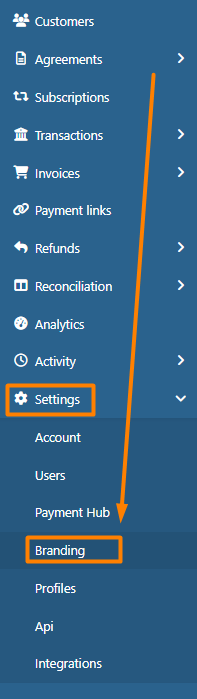
Domain name
Your domain name (e.g. mycompany) determines the URL used to navigate to your published profiles (e.g. mycompany.twikey.com). If you have multiple domains configured, use the dropdown to select which one to configure.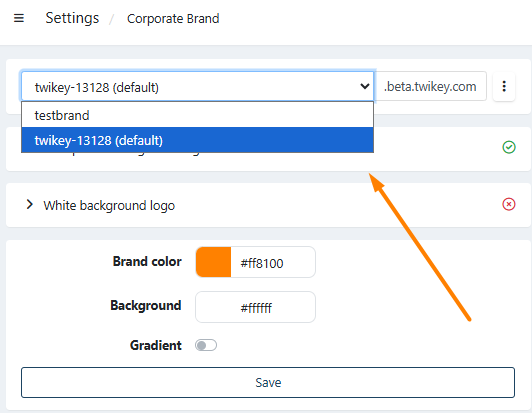
You can set the default domain via the ⋮ menu.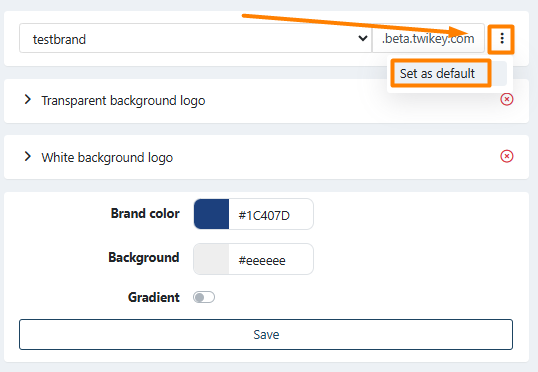
Upload your company logo
There are two logo slots available:
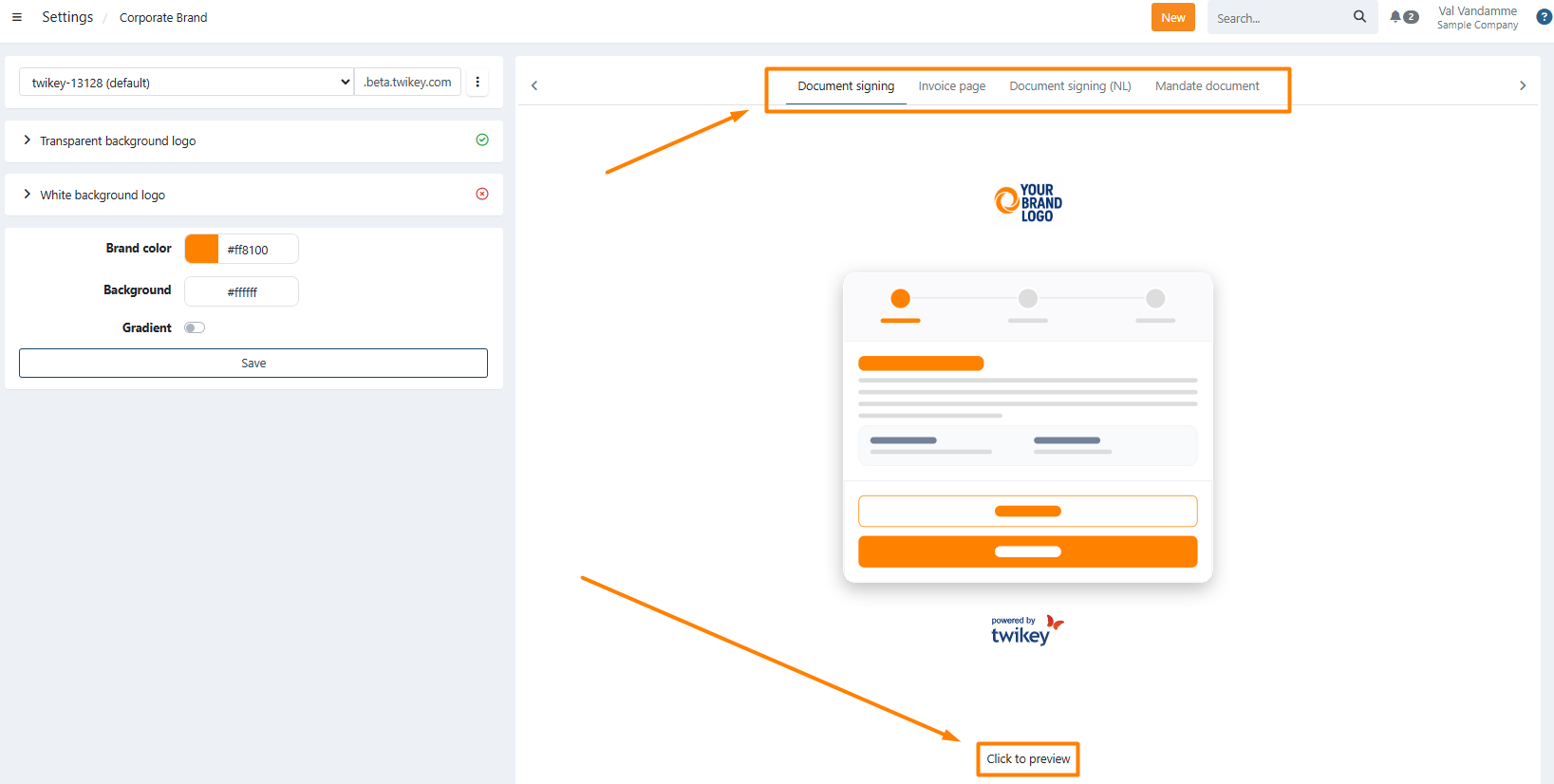
- Transparent background logo - used in online signing flows, public pages, and email correspondence. We recommend uploading a logo with a transparent background.
- White background logo - used on documents such as agreements and PDF files where a white background is required.
To upload a logo, click Choose a file or drag and drop the file into the upload area.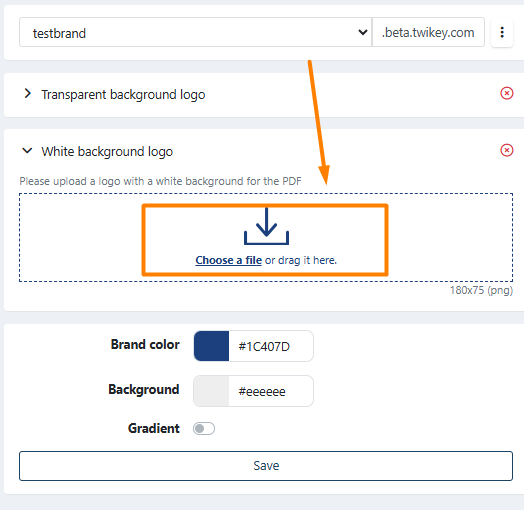
Recommended format:
- .png
- 180×75 px.
Set your company colors
The Brand colors settings let you quickly adjust the colors used across signing pages, invoice pages, and mandate documents.
Available fields:
- Brand color - the primary color used for buttons and accents (e.g.
#1C407D). - Background - the background color of the page (e.g.
#eeeeee). - Gradient - toggle on to apply a gradient effect to the background.
Click Save to apply your changes.
A live preview is shown on the right.
Use the tabs to switch between Document signing, Invoice page, Document signing (NL), and Mandate document.
Click the preview to open the full page in a new tab.
Use your own stylesheet (Custom css)
If the brand colors are not enough, for example because you want to change fonts or the layout of your signing pages, you can style your pages with your own stylesheet (CSS file). This advanced styling is not enabled by default.
When advanced styling is enabled, two tabs are shown above the style settings: Brand colors and Custom css.
- Navigate to Settings in the left-hand navigation menu.
- Click Branding.
- Open the Custom css tab.
- Click Download current stylesheet to get the stylesheet that is used today, as a starting point for your changes.
- Upload your adapted file under New stylesheet, by clicking Choose a file or by dragging the file into the upload area. Only .css files are accepted.
Once your own stylesheet is active, the live preview can no longer show your style changes. The Brand colors tab then shows the message "We cannot show live style changes when using advanced style." and a Reset to default button to return to the standard Twikey style.