
Show me
Company information
Company details
The Company details section provides a clear overview of your organisation’s key information and allows you to keep essential contact details up to date.
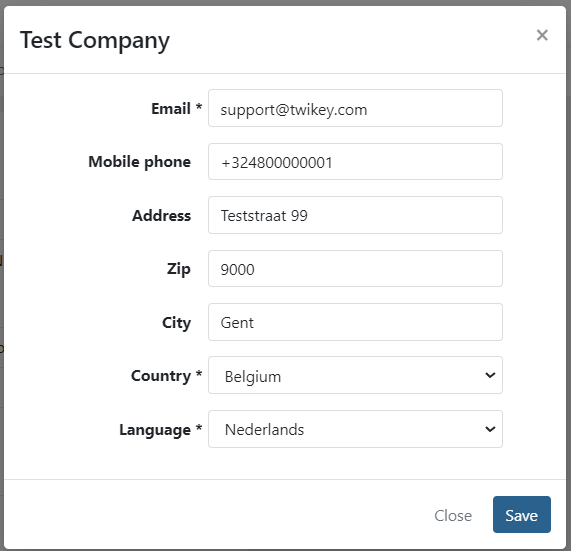
You can view the following information:
- Company name
- Customer number : we will ask you this number when you contact us by phone.
- Enterprise number
- Registered address (*)
- Company email address (*) : used as the CC address for customer communications (profiles and emails) and for receiving system notifications.
- Mobile number (*)
- Emergency contact (*) : To set or update your emergency contact, navigate to Settings > Users and click Set emergency contact in the top right corner and select the appropriate user.
- Number of active users
(*) - These fields can be edited.
Options
This section displays your current account configuration.
These settings are informative and can only be edited by our Support.
- Notify threshold for refund batch
- Set: A notification is sent when the refund batch reaches the configured threshold.
- Unset: No notification is sent when a refund batch is created or updated.
- Automatically send collection files to bank every night
- Enabled: Twikey automatically sends recurring payment instructions to your bank for collection every 24 hours.
- Disabled: Collection files must be sent manually.
- Incorporated terms and conditions
- Enabled: Twikey’s Terms & Conditions are embedded within your own Terms & Conditions. This allows parts of the customer flow to be skipped, resulting in a faster signup experience.
- Disabled: Customers are guided through the full Terms & Conditions flow during signup
- 3-D Secure disabled
- Bank card flows are processed without 3-D Secure authentication.
- OTP mandatory for all internal users
- Enabled: All internal users must log in using one-time password (OTP) authentication.
- Disabled: Users can log in without OTP authentication.
Limits
The Limits section shows the transaction thresholds configured for your account. These limits act as a proactive control before transactions are submitted to the bank. Since banks enforce their own definitive limits, Twikey uses these values to detect in advance whether a submission might be rejected or blocked.
Important : The values shown here are what's configured in Twikey — Twikey support can update them on request. However, they are only a proactive check, not the bank's actual limit. If a value here is set higher than what your bank truly allows (for example, a maximum of €1,000,000 configured in Twikey while your bank's real ceiling is much lower), Twikey won't flag it in advance, and the bank will still reject the batch. Contact your bank to know its actual enforced limits.
Available limits include:
- Maximum transaction amount
Any transaction below this amount can be created. - Maximum amount per batch
If a transaction causes the batch total to exceed this limit, it will be marked as uncollectible. Subsequent transactions that still fit within the remaining batch limit can continue to be processed. - Maximum transactions per batch
A batch can be created as long as the total number of transactions does not exceed this limit
These limits apply at the company/account level, to every collection you submit, and are configured in Twikey (by Twikey support, on request) as a proactive check against your bank's real limits. They are a different thing from the maximum amount on an individual B2B mandate (also called incassolimiet in Dutch), which your customer sets themselves when signing a Digitaal Incassomachtigen (eMachtiging) mandate at their own bank — see Maximum amount for B2B mandates.
Invoice delivery method
Here you can define the default invoice delivery method for contacts and/or companies.
The available delivery methods are email and Peppol.
As of 2026, Peppol invoice delivery is mandatory for companies established in Belgium.
Reconciliation method
Here you can define the default method for generating reconciliation files.
This setting determines when a reconciliation file becomes available and which transactions are included, aligning the output with your accounting and operational processes/packages.
See also the documentation about generate reconciliation files.
Available options :
- All Transactions
Reconciliation files can be generated immediately after the batch is sent to the bank.
At this stage, transactions are considered paid unless failure feedback is already available.
Why use this option?- Enables the fastest reconciliation workflow
- Suitable when early booking is required in your accounting system
- Useful if failures are handled later through separate correction processes
- Booked Transactions
Only transactions that have been successfully booked by the bank are included.
The reconciliation file becomes available once the bank has returned a status for all transactions in the batch.
Why use this option?- Ensures alignment with actual bank booking confirmation
- Reduces the need for follow-up corrections in accounting
- Recommended when accuracy is preferred over speed
- Only paid Transactions
The reconciliation file is generated once all transactions in the batch have been returned by the bank.
Only successfully paid transactions are included. Failed transactions are excluded, as they are already reported through the regular bank feedback files.
Why use this option?- Keeps reconciliation files clean and focused on successful payments only
- Simplifies accounting by avoiding the inclusion of failed transactions
- Ideal when your accounting system processes failures separately based on bank feedback