
How to create a batch of refunds by importing a CSV file
- Import CSV file with refunds linked to a...
- Import CSV file with refunds (NOT linked...
- Import CSV file with refunds
- Important to know
- Common import errors
In Twikey, you can create a batch of refunds by uploading a CSV file.
This is ideal for processing bulk payouts from your account to multiple customers.
Import CSV file with refunds linked to a mandate
Create the refund batch based upon an existing mandate reference. The refund is credited to the IBAN linked to the specified mandate.
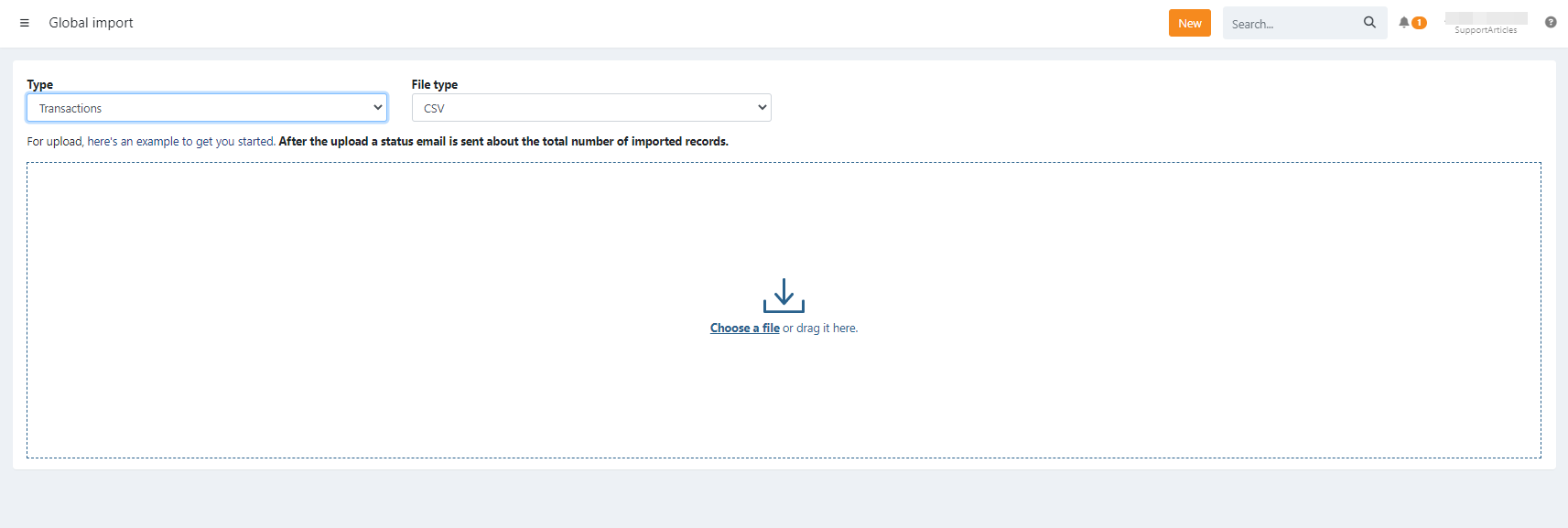
Import via the global import menu
- Navigate to the orange 'NEW' button
- Select 'import'
- Select 'type = Transactions'
- Select 'source = CSV'
- Uploaded transactions are automatically grouped into a refund batch
Common fields
Required Fields
| Field | Description |
|---|---|
| mandateNumber | The mandate reference |
| value | Needs to be negative, the amount of the refund , e.g. -12.36 or -12,36 - pay attention the amount is negative here |
| msg | The communication to the debtor |
Optional Fields
| Field | Description |
|---|---|
| ref | Your reference |
Import CSV file with refunds (NOT linked to an agreement)
Create the refund batch based upon a customernumber when there is no active mandate. You must provide the destination IBAN for the refund.
Via the refunds menu
- Navigate to the 'Refunds' menu
- Navigate to the 'To Be Sent' menu
- Click the 'Import' button
- Upload your CSV file
Import CSV file with refunds
Create the refund batch based upon a customernumber when there is no active mandate.
Required Fields
| Field | Description |
|---|---|
| customerNumber | The customer reference |
| iban | The IBAN account |
| bic | The BIC number of the IBAN |
| value | The amount of the refund , e.g. 12.36 or 12,36 - pay attention the amount is positive here |
| msg | The communication to the debtor |
Optional Fields
| Field | Description |
|---|---|
| ref | Your reference |
Important to know
Important: For direct debit refunds, keep in mind that customers can request a refund up to 8 weeks after the payment!
Some editors (like Excel) may change formatting (e.g., decimal separators, leading zeros,..). Verify the file's format before uploading or use a plain text editor.
Once imported, transactions are placed in a batch. The refunds batch still needs to be send to the bank for execution.
The refund file can only be sent automatically for execution with certain banks. Contact support for this.
After import, transactions appear in the refunds tab of the related mandate
Refunds for recurring credit card agreements are not supported.
Importing a file using the same refunds references to update existing ones, is not possible. This will create new refunds.
A refund linked to a mandate is also created when that agreement is suspended. Suspending an agreement does not stop refunds, only suspending the beneficiary account does.
Common import errors
- Invalid SEPA character: Your file contains characters not accepted by Twikey
- Invalid amount: Make sure amounts are formatted as numbers
- Refund failed: The IBAN of the refund belongs to a suspended beneficiary account of the customer. Reactivate the account on the customer detail page or use another IBAN. In an import with customer numbers, the whole file is then not imported. See Manage beneficiary accounts.
Last Update: 2026-10-15