
How to create a refund
- Collected via a traditional bank
- Collected via a Payment Service Provider...
- Find the transaction to create your refu...
- View refunds for a customer
Show me
You can issue a full or partial refund for any transaction.
The available refund methods depend on how the payment was originally collected:
Collected via a traditional bank
Refunds are processed directly through your bank account using the refund via bank option.
Collected via a Payment Service Provider (PSP)
This includes recurring credit card transactions processed by the PSP.
You can choose to:
- Refund via payment provider – send the refund back through the payment provider.
- Refund via bank – if you have a refund-supported bank gateway active, you can refund via your bank account. This option is often more cost-effective than using the PSP.
Find the transaction to create your refund
You can open a transaction from several places in Twikey:
- Transactions > Batches > open a batch > click the transaction
- Transactions > Sent > search and click the transaction
- Customer detail page > Recent transactions > click the transaction
- Agreement detail page > Recent transactions > click the transaction
Create a refund via your bank
- Click the transaction to open the detail page.
- Open the Refund tab.
- Select via bank account (if you have a choice)
- Select the beneficiary account to send the refund to. This can be the IBAN from the agreement or any beneficiary account registered on the customer or click New to add a new beneficiary account on the spot.
- Enter the amount (the full amount is prefilled by default).
- Enter a communication.
- Optionally, add an internal comment (visible in the Events tab of the agreement).
- Click Confirm.
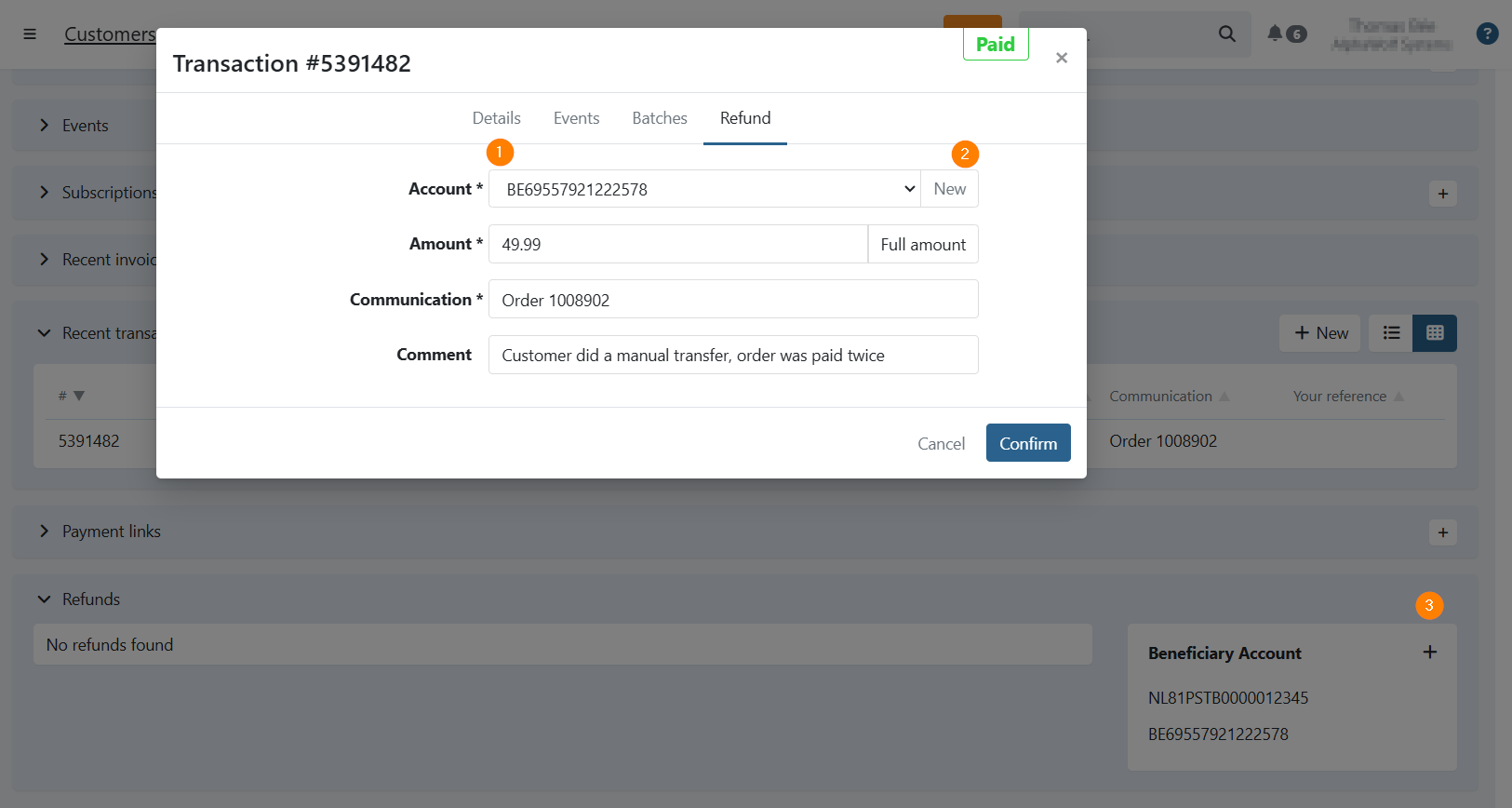
- The refund is now ready to be sent to the bank.
Suspended beneficiary accounts are still shown in the account list. A refund to a suspended account fails with the message Refund failed. Reactivate the account on the customer detail page or select another account. See the article "Manage beneficiary accounts".
Create a refund via your PSP
- Click the transaction to open the detail page.
- Open the Refund tab.
- Select Via PSP.
- Enter the amount (the full amount is prefilled by default).
- Enter a communication.
- Optionally, add an internal comment.
- Click Confirm.
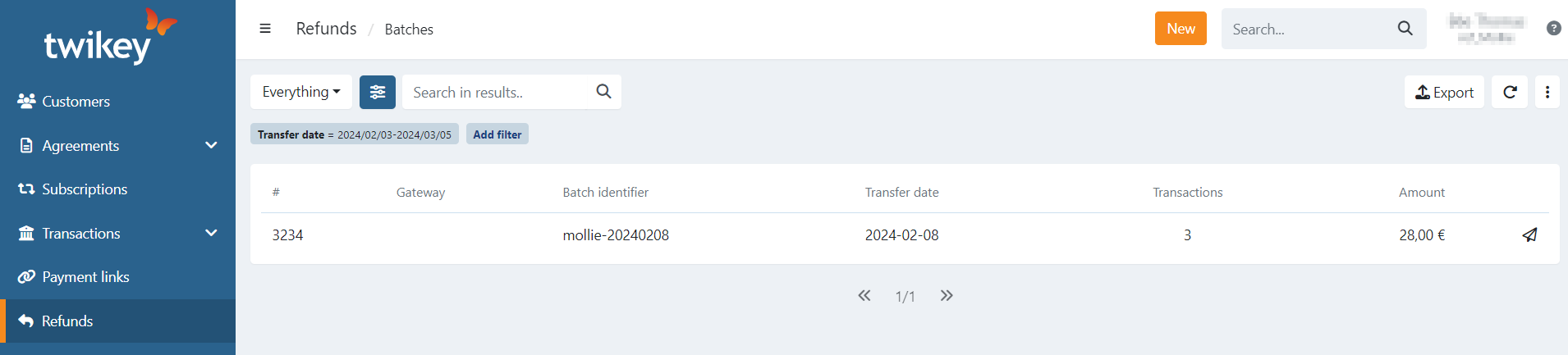
- The refund is sent to the payment provider immediately. A refund batch is created automatically and marked as sent.
View refunds for a customer
- Navigate to Customers in the left-hand navigation menu.
- Click the customer to open the detail page.
- Open the Refunds tab.
This tab shows all bank refunds for the customer, including those created via import or API.
Refunds processed via PSP are not shown in the customer refunds tab.
Last Update: 2026-10-15