
Generate reconciliation files for your accounting package
- General information
- Overview
- Generate CAMT53, MT940 or CODA files
- Reconciliation Account
- How to generate files
- Formats and targets
- Reconciliation method
- Content
Show me
General information
Generating reconciliation files gives you the possibility to keep your accounting up to date more easily.
Since separate payments are often compressed into one bigger transaction and then transferred to your business bank account, it is difficult to keep record of all payments correctly and generates a lot of manual work in most cases.
When generating a reconciliation file, all transactions are listed instead of one big transaction.
- Payment link files can be generated once each day, when a link was paid the file is available the next day.
Example: Bob and Julia have paid using their respective links on Monday,the file is available Tuesday and contains both payments. - Direct Debit files can be generated depending on your selected Reconciliation method
Overview
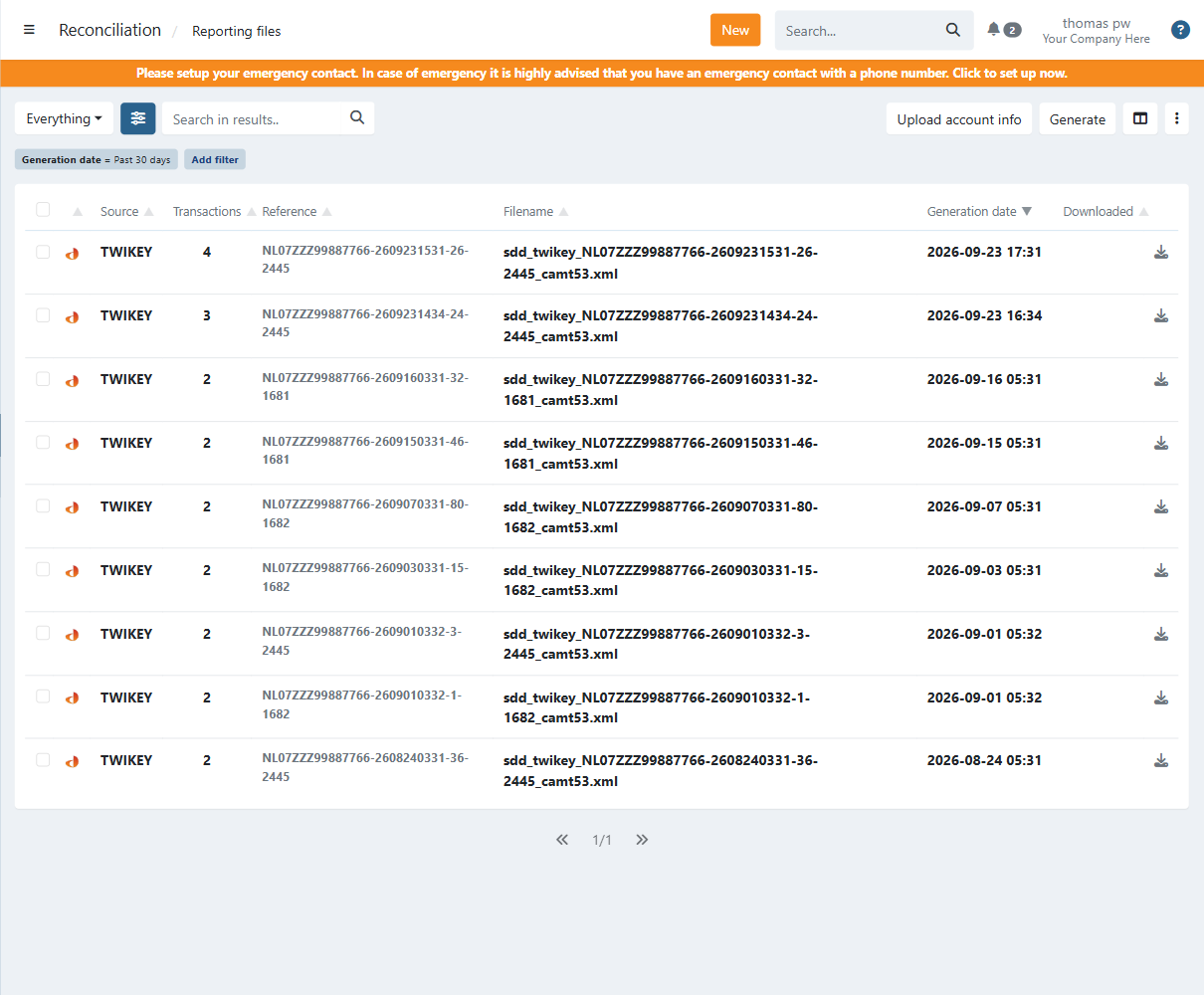
Navigate to Reconciliation > Files in the left-hand navigation menu. On this screen you can:
- Search the files with Search in results...
- Filter on Everything, Archived or Non Archived files, and add filters such as the generation date.
- Upload a bank statement with Upload account info.
- Generate CAMT53, MT940, CODA or CSV files with Generate.
- Download a file with the download icon at the end of the row.
Reconciliation Account
When you click Generate and select a target, Twikey shows the reconciliation account that will be used in the file for that target. For Transactions, the selected Reconciliation method is shown as well. Click Update preference to change it.
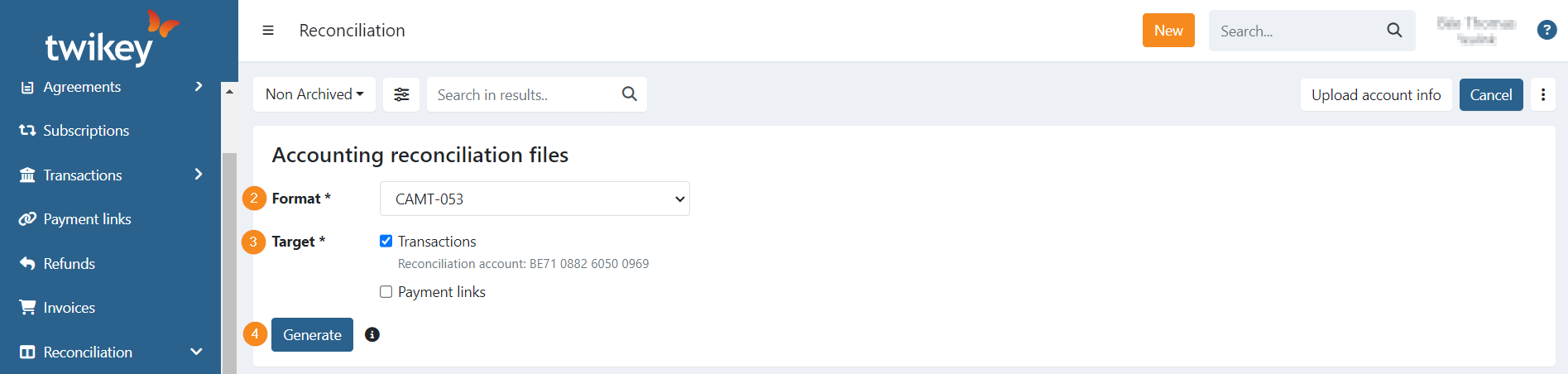
This account is defined in this particular order, and depending on the target:
Transactions
- The default Twikey account is used: BE71088260500969
- A custom account of your choice is used: Contact your Customer Onboarding agent to configure one.
Payment links
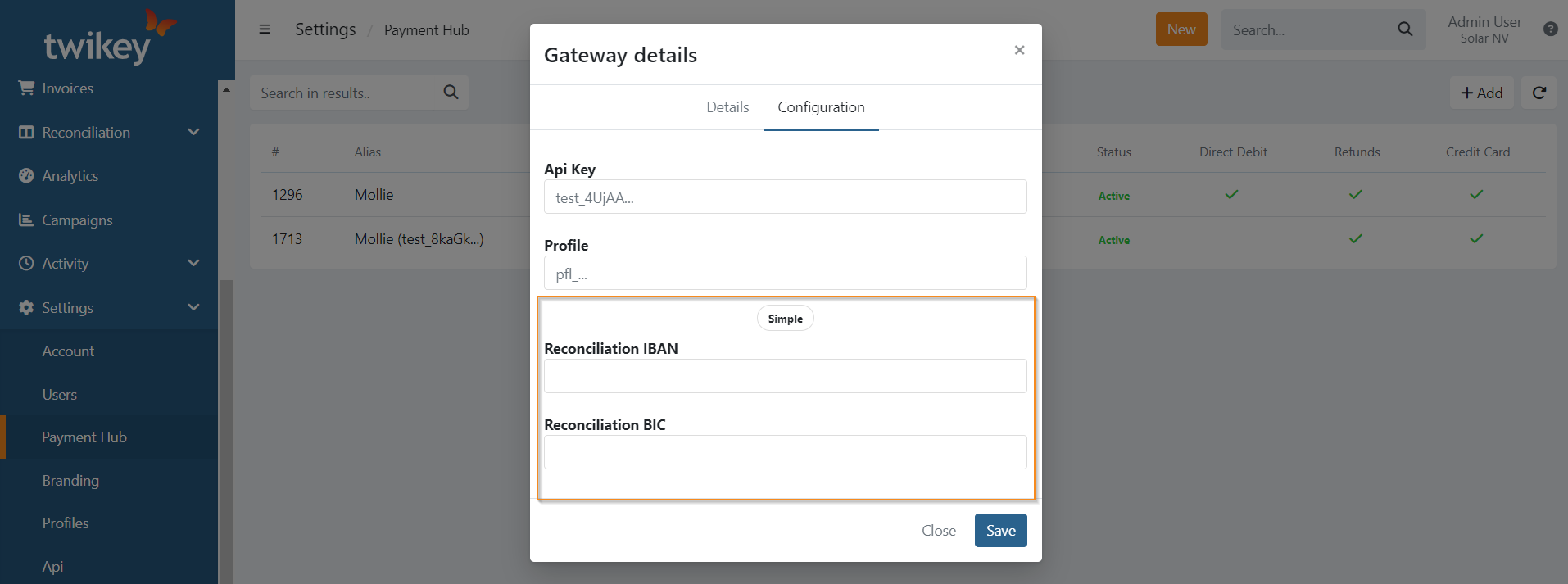
- You configured a reconciliation account in your Payment Provider Gateway, that one is used
Settings > Payment Hub > Payment provider Gateway > Configure > Advanced:
- No specific account is configured on your Payment Provider Gateway:
We use the IBAN from that Payment Provider if known in our system:
- Mollie: NL30ABNA0524590958
- MultiSafePay: BE15399104252630
- CCV: Depending on your registered address:
- Belgium: BE79363065348233
- Netherlands: NL26INGB0006865503
In case we do not know the IBAN, there won't be any account displayed. Configure one on your Payment Provider Gateway first in order to generate payment link reconciliation files.
How to generate files
- Navigate to Reconciliation > Files in the left-hand navigation menu.
- Click Generate in the top-right corner.
- Select the Format.
- Select one or both Targets.
- Click Generate.
The new files appear in the list once they are generated.
Formats and targets
When generating files you select both a format and a target.
Available formats:
| Format | Region | Notes |
|---|---|---|
| CAMT-053 | BE & NL | Standard ISO 20022 XML format |
| CODA | BE | Standard CODA format |
| CODA (as details) | BE | Detail version using digit 6 in the transaction reference |
| MT940 | NL | Compatible with Exact Online and other bookkeeping software |
| MT940 (Twinfield) | NL | Compatible with Twinfield (Kluwer) |
| CSV | BE & NL | All transactions listed with their bank status (paid or failed) |
Available targets:
| Target | Covers |
|---|---|
| Transactions | Payments collected via Direct Debit (DD) or Recurring Credit Card (RCC) |
| Payment links | Payments processed via a PSP such as Mollie, CCV, or MultiSafePay |
Both targets can be selected at the same time.
Filenames
Each generated file follows a predictable naming pattern so you can identify its origin at a glance.
CAMT example:
sdd_twikey_BE81ZZZ1234567891-210319152443-2223_camt53.xml
          └─ creditor ID ──┘ └ date+ref ┘ └─ template ID
CODA example:
sdd_twikey_BE81ZZZ1234567891-210322033017-2223.cod
          └─ creditor ID ──┘ └ date+ref ┘ └─ template ID
The prefix is sdd_twikey_ for Direct Debit files and rcc_twikey_ for Recurring Credit Card files.
Reconciliation method
You can configure which transactions are included in your Direct Debit reconciliation files via Settings > Account > Company > Reconciliation method.
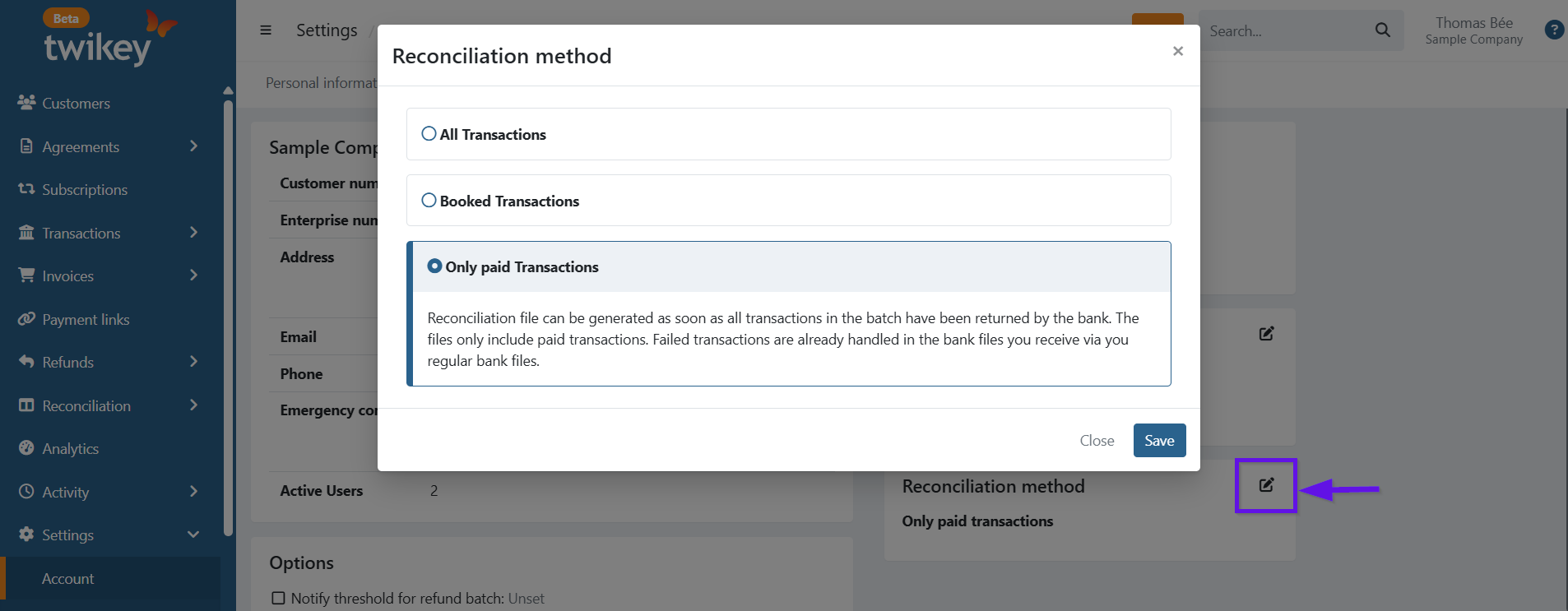
Three options are available:
Only paid Transactions (default)
The reconciliation file is generated after a waiting period of 3 working days from the collection date. Only paid transactions are included. Failed transactions are already handled in the bank files you receive via your regular bank feed, so including them here would create duplicates in your accounting package.
The 3-day gate is intentional: in the standard SEPA Core flow, the bank first acknowledges receipt of the batch, but the final feedback - confirming which transactions are definitively settled and which have been returned - arrives a few days later. Generating before this window risks producing a file that does not reflect actual bank outcomes.
Direct Debit files are generated in batch order. When an earlier batch is still waiting for final bank feedback, the files for later batches are held back until that feedback arrives. Files can therefore arrive later than usual, but no batch is skipped.
Booked Transactions
Includes all transactions that have received a booking date from the bank - both paid and failed. Use this when your accounting package needs a complete picture of all booked items and handles deduplication with the bank file on its own.
All Transactions
Includes all transactions regardless of whether bank feedback has been received. Transactions without a booking date will use the collection date as a fallback. Use this when you do not want to wait for bank confirmation and accept the risk that some transactions may later turn out to be rejected.
Content
The content of the files use the general standards.
In the CODA files we include a reference to the batch id on the first line:
Transactions
For CODA, CAMT053 and MT940 files, which transactions are included depends on your selected Reconciliation method. Regardless of that setting, transactions that originally failed but were later recovered - either through the dunning workflow or manually marked as paid - are never included. These were not settled via the bank and would break the 1-on-1 match with your bank file.
The reversal zero sum entry is always included in the transaction count shown on screen.
CSV files behave differently: they always list all transactions from the batch together with the status received from the bank (paid or failed). The file count shown in the overview reflects only the paid transactions.