background
Tags:payment linksbetaallinksrequest to payone-time paymentpayment link overviewsearch and filterstatestatuscreationexpirycustomeramountremittanceprofilePSP referenceoriginlanguageshareinviterefunddunningautomatic recoveryCSV importAPI

A payment link, also referred to as a Request to Pay, is an easy way for merchants to request a one-time payment from customers. Payment links can be created directly in the Twikey interface, imported via CSV, or generated through the API.

You can also leverage payment links within Twikey’s smart failure management system. This allows you to quickly send links via email or SMS to recover payments from failed Direct Debit or Recurring Credit Card transactions.

Payment links require that the corresponding payment method is activated within Twikey.

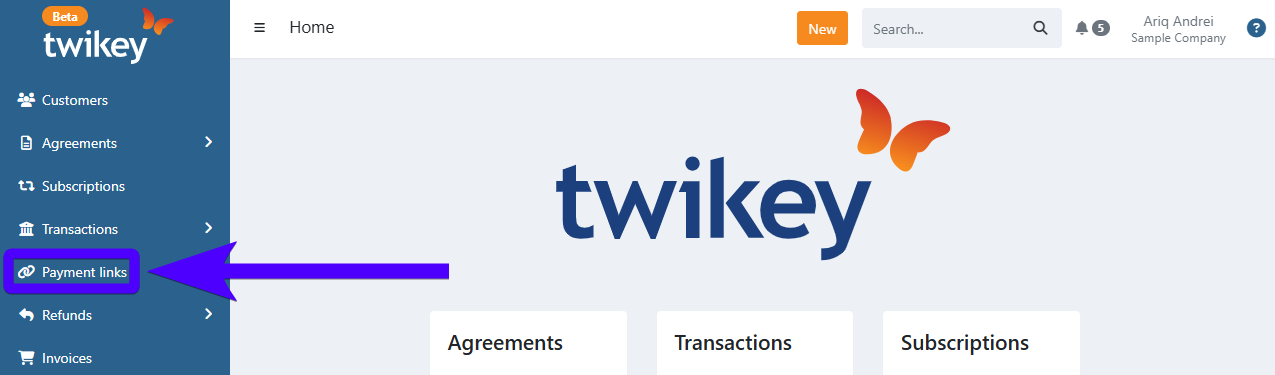
  1. Click on Payment links on the sidebar.

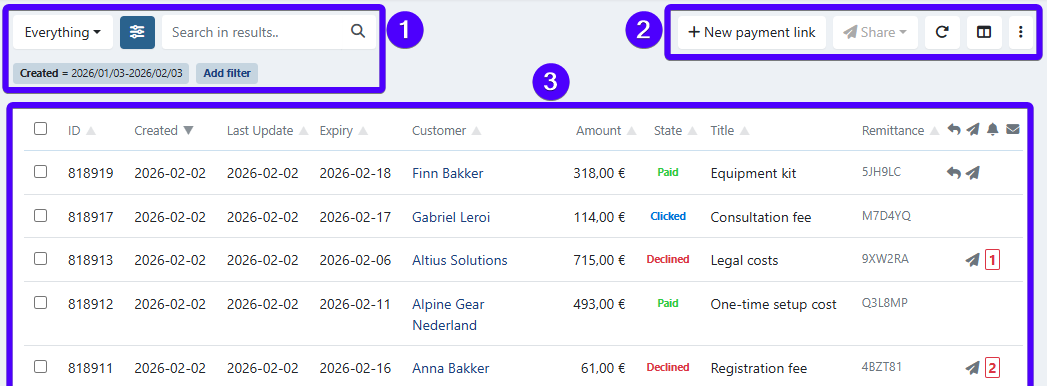
The payment links interface appears as follows:

  1. The search bar and filters.
  2. The utility buttons.
  3. The list of payment links.

Below, you'll find the explanation for each section of this interface.

The search bar and filters

The payment links overview interface is equipped with a search bar and filters. The search bar is used to search for a specific payment link.

Meanwhile, the filters are used to filter out the payment links that are displayed on the list of payment links based on certain pre-selected attributes (for example: expired payment links only).

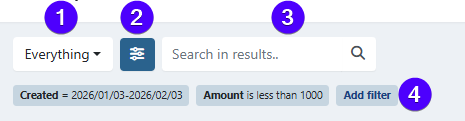
This section consists of four items:

  1. The standard preset filter.
  2. The advanced filter.
  3. The search bar.
  4. The list of filters that are currently being used. To apply an extra filter, click on Add filter.
You can use multiple filters at once. Moreover, the date range filter is always mandatory.

The standard preset filter

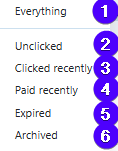
This is used to filter out the payment links that are displayed on the list of payment links based on simple attributes. At the moment, here are the available options:

  1. Select to display all payment links.
  2. This option displays unclicked payment links only.
  3. This option displays clicked payment links only.
  4. This option displays paid payment links only.
  5. This option displays expired payment links only.
  6. This option displays archived payment links only.

The advanced filter

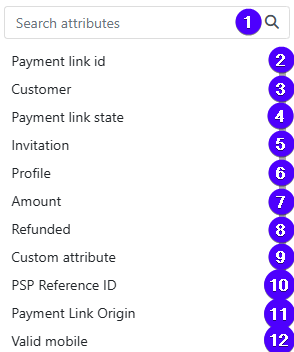
This is used to filter out the payment links that are displayed on the list of payment links based on advanced attributes. At the moment, here are the available attributes:

  1. Use the search bar to search for an attribute.
  2. Filters out payment links based on their ID. You can find each payment link's ID on the leftmost column of the list of payment links.
  3. Filters out payment links based on the customer that uses them.
  4. Filters out payment links based on their state.
  5. Filters out payment links based on whether they've been sent to the customer. And for sent payment links - you can filter them out further based on their sending method (e-mail/SMS/letter).
  6. Filters on payment links based on the profile that are being used for them.
  7. Filters on payment links based on the payment amount.
  8. Filters on payment links based on whether they contain any refund.
  9. This filter is not applicable for payment links - you can ignore it.
  10. Filters out payment links based on their PSP Reference ID.
  11. Filters out payment links based on their origin.
  12. Filters out payment links based on whether the customer using them has a valid mobile phone number.
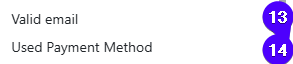
  13. Filters out payment links based on whether the customer using them has a valid e-mail address.
  14. Filters out payment links based on their payment method.

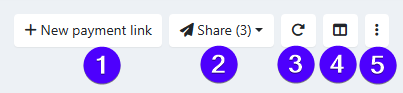
The utility buttons

  1. Click to create a payment link.
  2. Click to send your payment links. Before clicking on this button, you need to select one or several payment links from the list. Otherwise, this button will be blurred and can't be used.
  3. Click to reload the list of payment links.
  4. Click to select which columns are displayed on the list of payment links. You can find the explanation of all columns on the guide section about the list of payment links further down below.
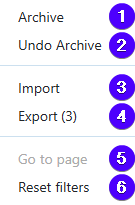
  5. The three-dot button allows you to perform the following actions:

  1. Click to archive payment links. Before clicking on this button, you need to select one or several payment links from the list. Otherwise, this button will be blurred and can't be used.
  2. Click to unarchive the payment links that have been archived. Before clicking on this button, you need to select one or several payment links from the list. Otherwise, this button will be blurred and can't be used.
  3. Click to import payment links.
  4. Click to export payment links. Before clicking on this button, you need to select one or several payment links from the list. Otherwise, this button will be blurred and can't be used.
  5. Click to navigate to a specific page on the list of payment links interface. If your list has less than two pages, then this option will be blurred and can't be used, as shown in the screenshot above.
  6. Click to reset all filters that have been applied.

This interface displays the list of your payment links. The payment links that are displayed here are based on your search bar and filters configurations.

Please be aware that this interface can display a maximum of 500 payment links. Thus, if you have more than 500 payment links, some of your payment links will not be displayed on this list. Moreover, the following alert message will also appear:

Hence, if you're looking for a specific payment link and it's not displayed on the list, then you will need to use the search bar and/or filters to narrow the list of payment links that are displayed.

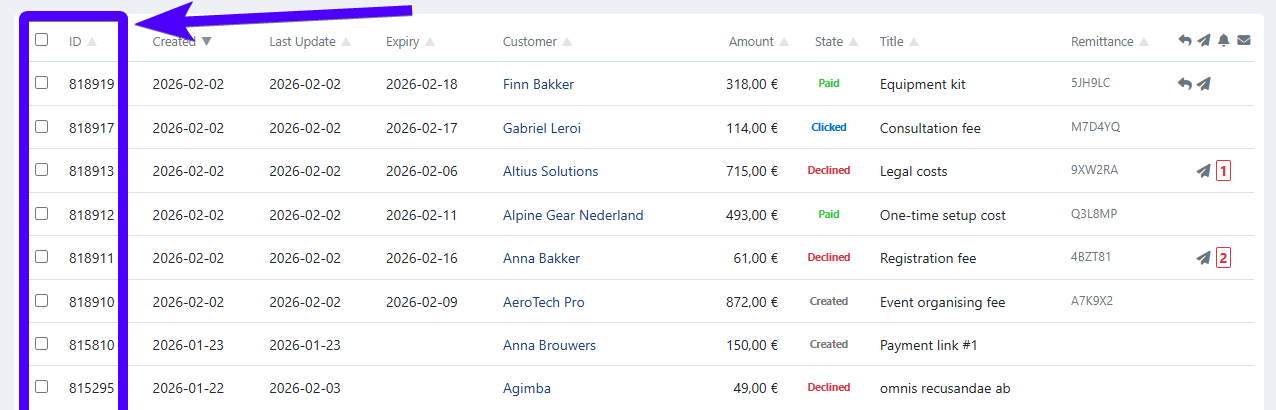
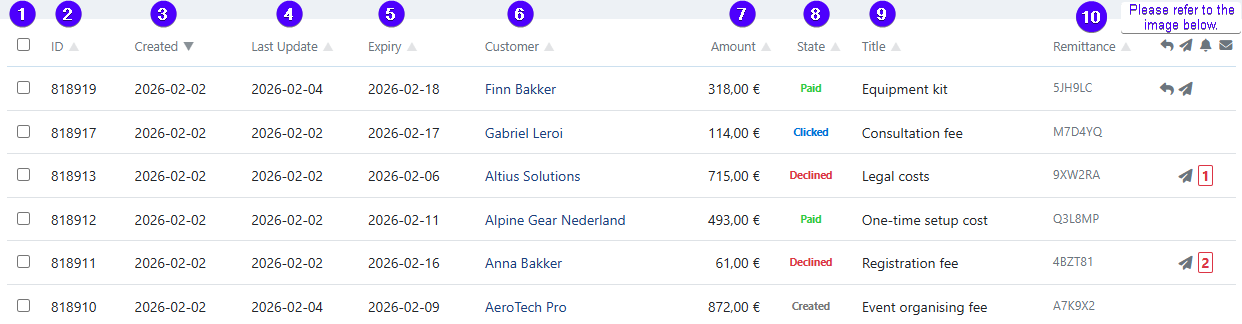
Additionally, this interface has several columns. You can select which columns are displayed on the utility buttons settings. Below, you can see the list and explanation of all available columns:


  1. To select a payment link, tick the box next to the payment link's ID. To select all payment links on the list, click on the box on the top of the column (which is located just under the number "1" on the image above).
  2. It displays the payment link's ID (a set of numbers used to identify a payment link).
  3. It displays the payment link's creation date.
  4. It displays the payment link's last update date. An update can refer to any event that involves that specific payment link. For example: that payment link was sent to the customer.
  5. It displays the payment link's expiry date (if any).
  6. It displays the customer that uses the payment link.
  7. It displays the payment link's payment amount.
  8. It displays the payment link's state.
  9. It displays the payment link's title (the payment description that's displayed to the customer).
  10. It displays the payment link's remittance.
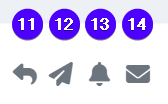
  11. It displays whether a payment link has ever been refunded (either partially or entirely).
  12. It displays whether a payment link has been sent to the customer (via email/SMS/WhatsApp).
  13. It displays whether a payment link's reminder has ever been sent. A number will appear in this column, which represents which reminder was last sent to the customer. For example, the image below shows the number "3". This means that the last reminder sent was reminder #3. You can learn more about reminder sequences here.

  1. It displays whether the payment link's target customer has an invalid e-mail address.

A payment link can have the following states:

Created: The payment link has been created, but not yet opened by the customer.
Clicked: The payment link has been opened by the customer, but not yet paid.
Paid: The payment link has been paid.
Expired: The payment link's expiry date has passed, yet no payment has been received.
Declined: The payment was unsuccessful. There are two possibilities: the customer has declined to pay, or there was a problem during the payment process.

Moreover, you can consult the details of a payment link by clicking on that specific payment link on the list. Depending on the payment link's state, a menu with two or three tabs will appear. Below, you can find the explanation for each tab.

The share tab

This tab allows you to send this payment link to the targeted customer. Learn more about it here.

This tab can only be opened if the payment link has one of these states:

  • Created
  • Clicked
  • Expired
  • Declined

The details tab

This tab shows the key details about this payment link. This tab can always be opened regardless of the state.

  1. The target customer of the payment link.
  2. The payment link's description that is shown to the customer.
  3. The payment link's remittance.
  4. The payment amount.
  5. The payment link's creation date.
  6. The payment link's last update date. An update can refer to any event that involves that specific payment link. For example: that payment link was sent to the customer.
  7. The payment link's expiry date (if any).
  8. The payment link's profile.
  9. The payment link's Reference ID from the payment service provider (PSP).
  10. The payment link's *origin.
  11. The method that the customer used to pay.
  12. The payment link's language.

*Origin refers to the source/reason of the payment link's creation. Here are the possible origins:

  • API: The payment link was created via API. Additionally, if you included a X-PARTNER header, the partner is also displayed between the brackets.
  • First payment: The payment link was used to authenticate an agreement (as a first payment).
  • Dunning: A dunning step created the payment link, and it's related to a failed transaction either via:
    • Automated dunning configured on your profile.
    • A manual dunning action on the transaction.
    • API, creating a payment link that is linked to a failed transaction (using the parameter txref).
  • Invoice: The payment link originated from an invoice.
  • Credit Card Renewal: The payment link was created via a task to renew a recurring credit card agreement.

The origin information will only appear if the payment link was created though one of the methods above.

The refunds tab

This tab allows you to (partially or entirely) refund a paid payment link. This tab can only be opened if the payment link has the paid state.

If the payment link doesn't have any refund, you will see the option to send a refund:

If one or multiple refunds have been sent, you will see the list of refunds instead (and the option to send more refunds):

You can learn more about refunding a payment link here.

Last Update: 2026-02-23