
How to refund a payment link
Show me
A payment link can be refunded partially or in full. Partial refunds can be done multiple times, but the combined total cannot exceed the original payment amount.
Two refund methods are available:
- Via bank account — a credit transfer to the customer's IBAN. The refund is added to a refund batch and must be sent to the bank.
- Via PSP — the refund is sent directly to the payment provider that processed the payment.
How to refund a payment link
- Navigate to Refunds in the left menu
- Set your filters, be sure to select Paid as once of the filters
- CLick on a payment link to Navigate to the payment link details
- Select the refund tab
- Make the your refund choice, see below for more information
Refund via bank account
- Click on the payment link to open the details.
- Open the Refunds tab.
- Enter the required information:
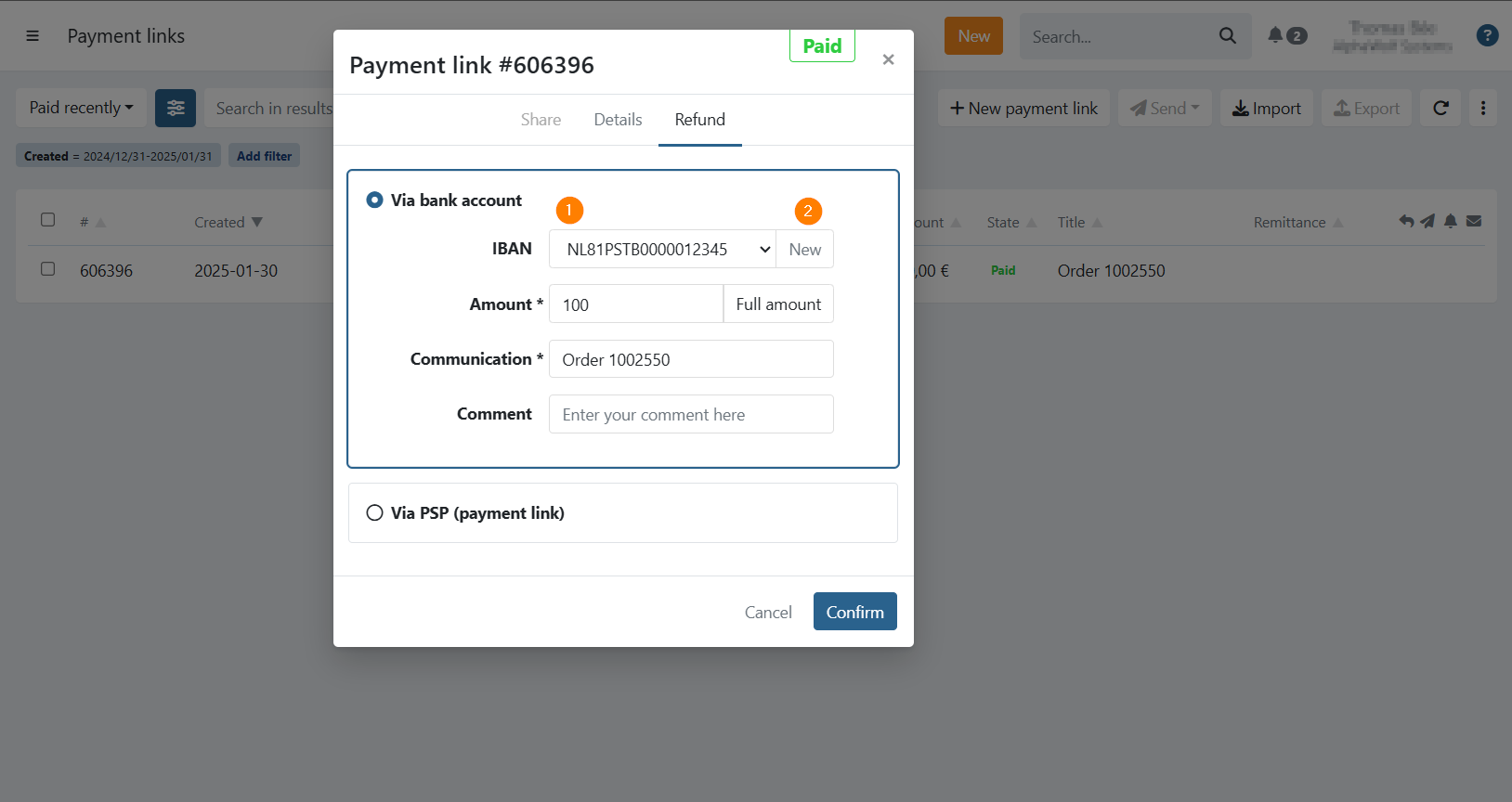
- Account (1): Select a beneficiary account. If an IBAN was captured from the PSP it will appear in the list.
- New (2): Add a new IBAN on the spot - it will be saved as a beneficiary account on the customer.
- Amount: Amount to refund (full amount is prefilled by default).
- Communication: The refund communication.
- Comment: Optional internal comment.
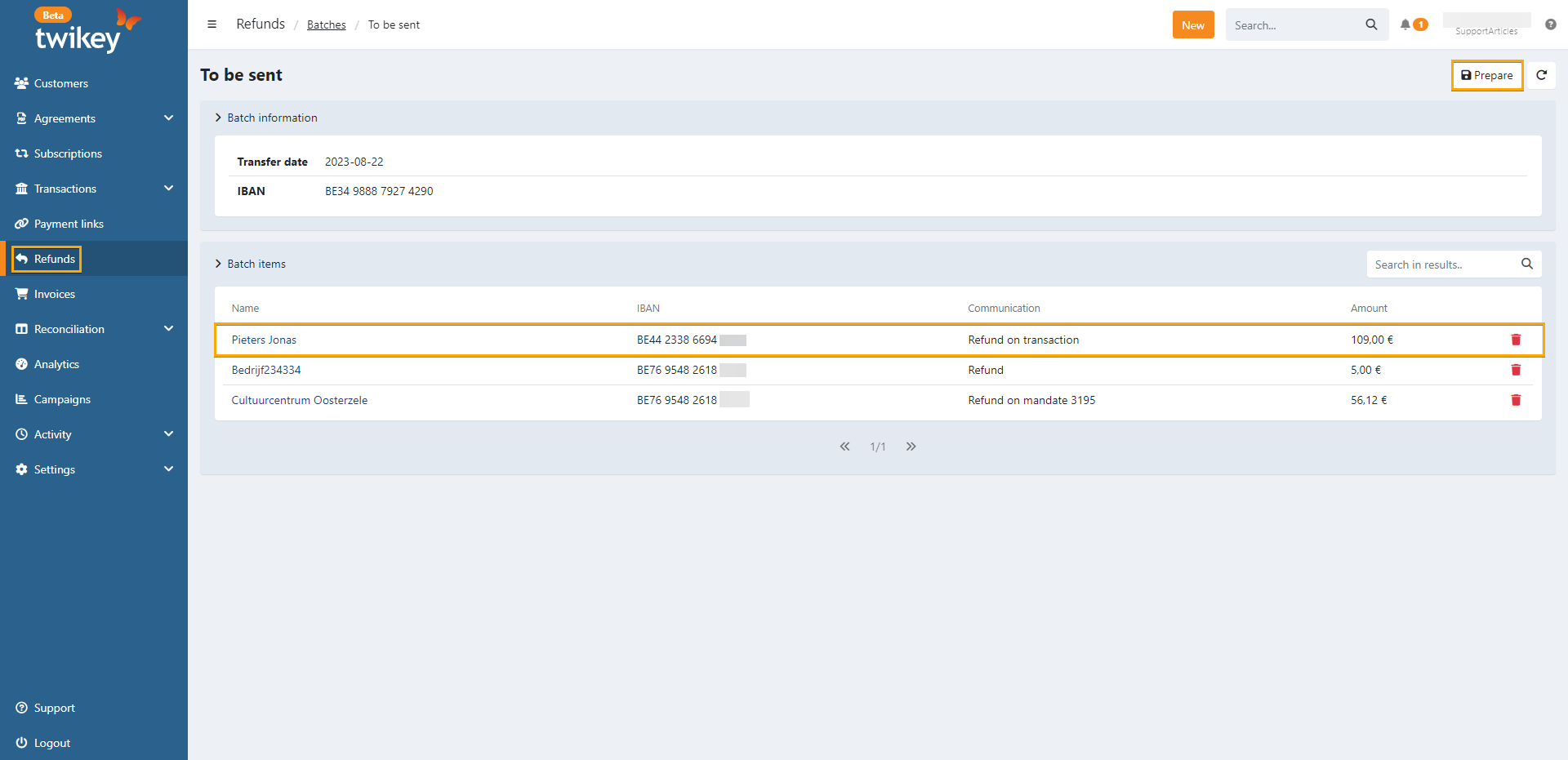
- Click Confirm. The refund is added to the To be sent batch on your Refunds page.
Suspended beneficiary accounts are still shown in the account list. A refund to a suspended account fails with the message Refund failed. Reactivate the account on the customer detail page or select another account. See the article "Manage beneficiary accounts".
Refund via PSP
- Click on the payment link to open the details.
- Open the Refunds tab.
- Click Refund via PSP.
- Enter the required information:
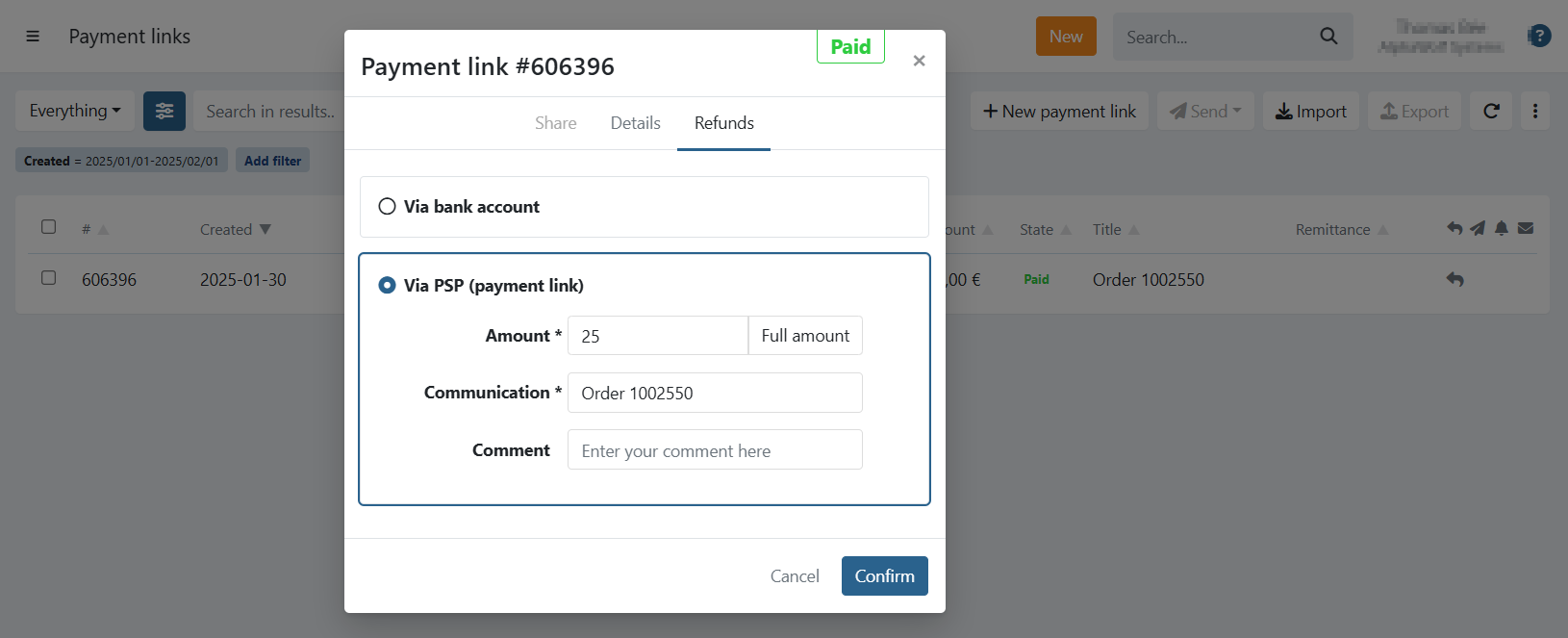
- Amount: Amount to refund (full amount is prefilled by default).
- Communication: The refund communication.
- Comment: Optional internal comment.
- Click Confirm. The refund is sent to your provider immediately.
Last Update: 2026-10-15