
How to filter your invoices
The invoice overview offers two levels of filtering:
- quick view filters that instantly switch between common invoice states
- advanced attribute filters that let you combine multiple criteria to build a precise selection.
Quick view filters
The dropdown in the top-left of the invoice overview (labelled Open invoices by default) provides fast preset views:
- Everything — Removes any state filter and shows all invoices regardless of status.
- Open invoices — The default view, shows invoices that are not yet paid, archived, or expired.
- Paid invoices — Shows only invoices that have been paid.
- Unsent invoices - Shows only invoices that were not sent on any channel yet, and for which no email or SMS reminder was sent.
- Expired invoices — Shows invoices where the due date has passed and no payment was received.
- Invalid email — Shows invoices where the customer's email address is missing or undeliverable, indicated by the red envelope icon in the list.
- Delivery failed - Shows invoices with a failed delivery on any channel, for example a failed Peppol delivery or a bounced invitation email.
- Credit notes — Shows only the credit notes (negative amount)
- Double payment — Shows invoices for which more than one payment was received
Advanced filters
Click Add filter to open the advanced filter panel.
You can combine multiple filters at once to precisely target a specific segment of invoices.
Identifying invoices
- Invoice number — Find a specific invoice by its number.
- Customer — Filter by a specific customer name or record.
- Customer type — Filter by whether the customer is a person or a company.
- State — Filter by the current invoice status: Open, Paid, In Progress, Expired, or Archived.
- Profile — Filter by the payment profile used on the invoice.
- Due date — Filter invoices by their payment due date.
- Pay date — Filter by the date the invoice was actually paid.
- Amount — Filter by invoice amount using greater than, less than, or equal to conditions.
- Remittance — Filter by the remittance reference or communication shown on the invoice.
- Custom attribute — Filter by any custom attributes you have defined on your invoices.
Communication & delivery
- Delivery status - Filter by whether the invoice was sent, not sent, or failed to be delivered. See the Delivery status and delivery channel filters section below.
- Delivery channel - Filter by the channel the invoice was sent on: Email, SMS, Print (letter) or Peppol. Peppol is only shown when Peppol is active on your account.
- Email reminder — Filter by whether an email reminder was sent, and at which level (1–4).
- SMS reminder — Filter by whether an SMS reminder was sent.
- Viewed — Filter by whether the customer has opened the invoice payment page.
- Valid email — Filter by whether the customer has a valid, deliverable email address on file. Useful before sending bulk email invitations.
- Valid mobile — Filter by whether the customer has a valid mobile number. Required for SMS sending.
Payment & collection
- Automatic collection — Filter by whether the invoice is configured for automatic direct debit collection via a signed mandate.
- Collectable mandate — Filter by whether the customer currently has a valid, active signed mandate that allows direct debit collection.
- Used Payment Method — Filter by the payment method the customer used to pay, such as card, wire transfer, or direct debit.
Document availability
- PDF available — Filter by whether the invoice PDF has been generated and is attached. Useful before bulk-sending invitations that include the PDF as an attachment.
- UBL available — Filter by whether a UBL electronic invoice file is attached. Relevant when sending via Peppol.
Billing runs
- Invoice billing run — Filter by the billing run the invoice is associated with. This option is only visible if invoice billing runs are configured on your account.
Delivery status and delivery channel filters
Twikey keeps the delivery status of an invoice per channel. The Delivery status and Delivery channel filters let you find invoices based on that status. You can use them separately or together.
Delivery status
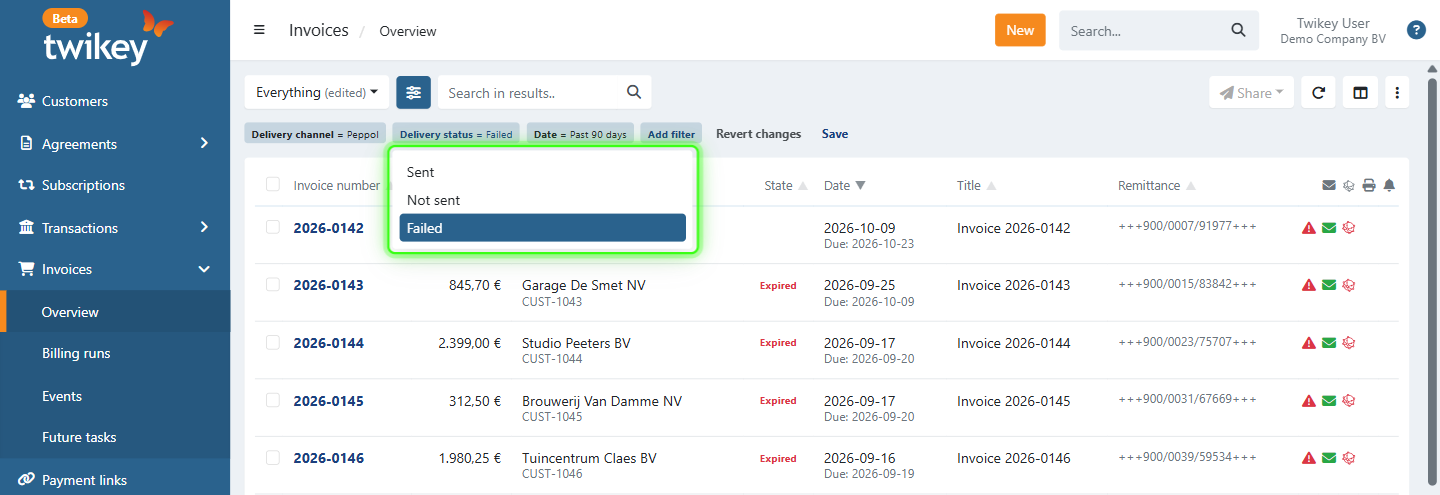
- Sent - Returns invoices that were sent, or accepted by the provider (for example the Peppol Access Point or the postal service), on at least one channel.
- Not sent - Returns invoices that were never sent, or for which every delivery failed.
- Failed - Returns invoices with a failed delivery, for example a failed Peppol delivery, a bounced invitation email, or a letter the postal service refused.
Delivery channel
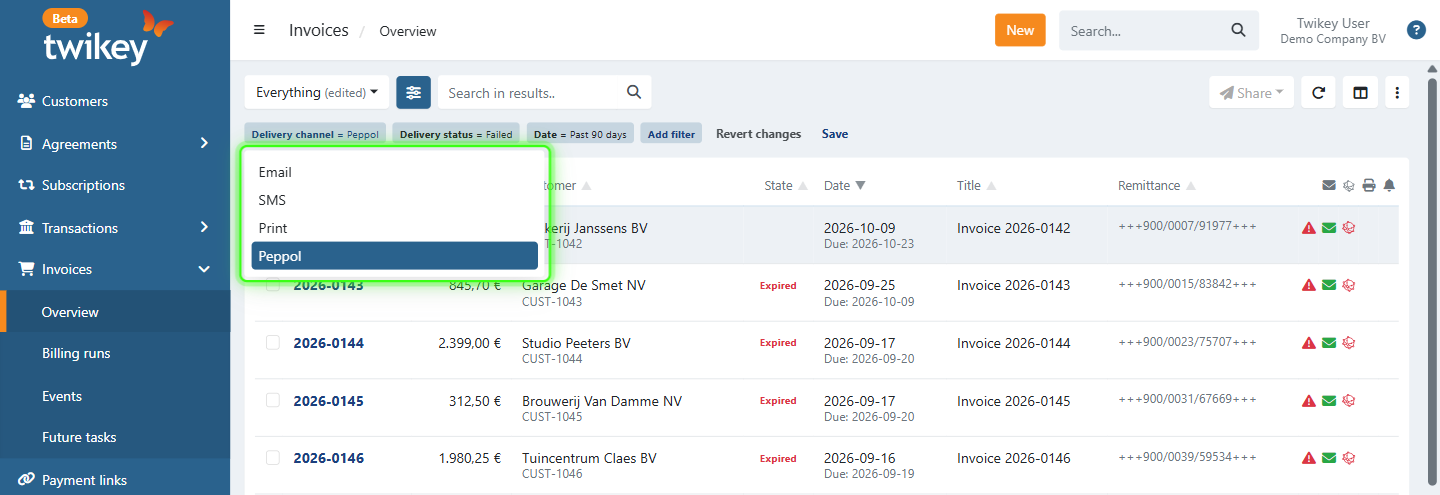
- Email, SMS, Print (letter) and Peppol - Returns invoices that have a delivery on that channel, whatever its status.
How the two filters work together:
- Both filters set - The status applies to that channel only. For example, Failed with Peppol returns the invoices where the Peppol delivery failed, even when an email was sent successfully for the same invoice.
- Only a channel - Returns every invoice with a delivery on that channel.
- Only a status - The status applies across all channels. An invoice with a failed Peppol delivery and a sent email is returned by both Sent and Failed.
A new send on a channel replaces the earlier status of that channel. For example, when you resend a failed Peppol invoice and the delivery succeeds, the invoice is no longer returned by Failed for Peppol. The full history stays available in the Events tab of the invoice.
When you export the invoice list while the Delivery channel filter is set to one channel, the export contains three extra columns for that channel: the delivery state, the number of delivery attempts, and the delivery details (the proof of an accepted delivery, or the reason of a failed delivery).
Selecting invoices
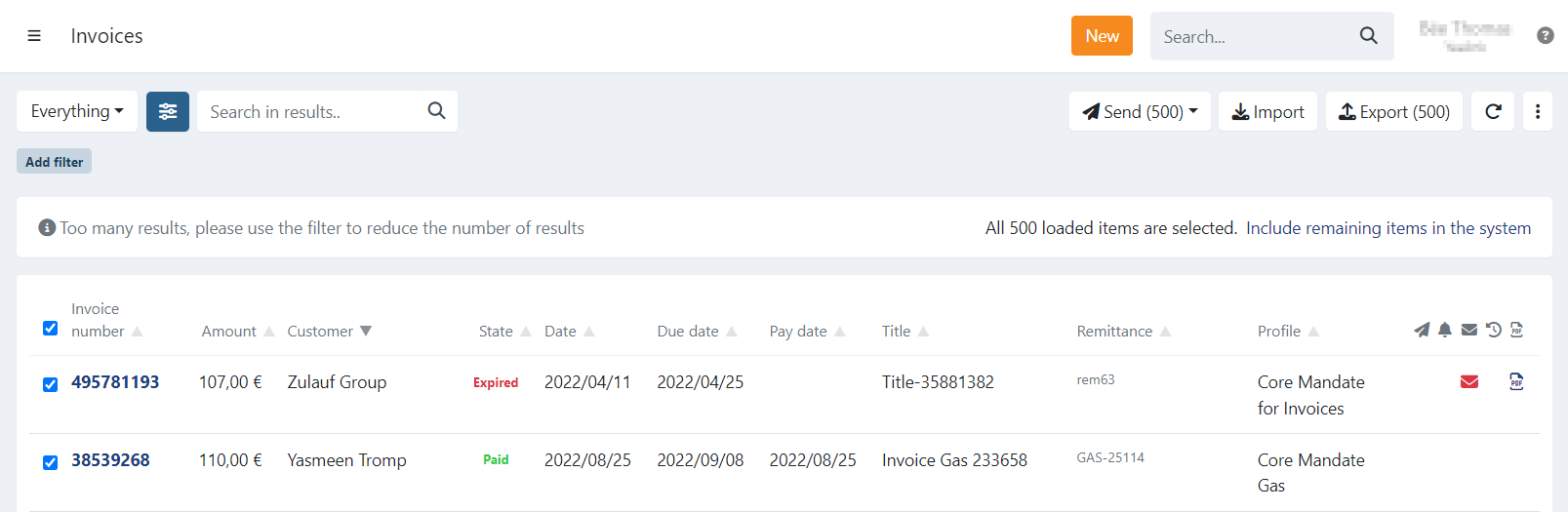
The invoice overview is limited to 500 invoices at a time.
When you select all invoices at once, you can choose to perform an action on:
- Only the 500 displayed invoices, or
- All invoices that match your current filter.
A dialogue will notify you about this option.
To select all remaining invoices that are not displayed, click: "Include remaining items in the system."