
About Invoices
Twikey allows you to invite your customers by email, SMS, or postal letter to pay their invoices through your own branded payment page.
The payment page can include multiple payment options depending on your need:
- Set up an automatic payment: End-customer chooses to pay with a recurring payment method such as direct debit or recurring credit card
- Pay now: End-customer chooses to pay by one-time payment link or by wiring
- Set up future payment: End-customer chooses to schedule the payment in the future with a recurring payment method such as direct debit or recurring credit card
Reminders for unpaid invoices can be sent by email or SMS, individually or in bulk. See How to send invoice reminders via email and Send an invoice link via SMS.
Requirements to manage invoices
To manage invoices in Twikey, you need the invoice data in your system. This can be done in several ways:
- Import by file: CSV with or without the PD or by UBL or specific format
- Import by integration: From your invoice software
- Import by API
Additionally, the corresponding payment methods must be activated for the chosen payment options on your payment page.
For more details, see Managing your payment methods.
Invoice overview
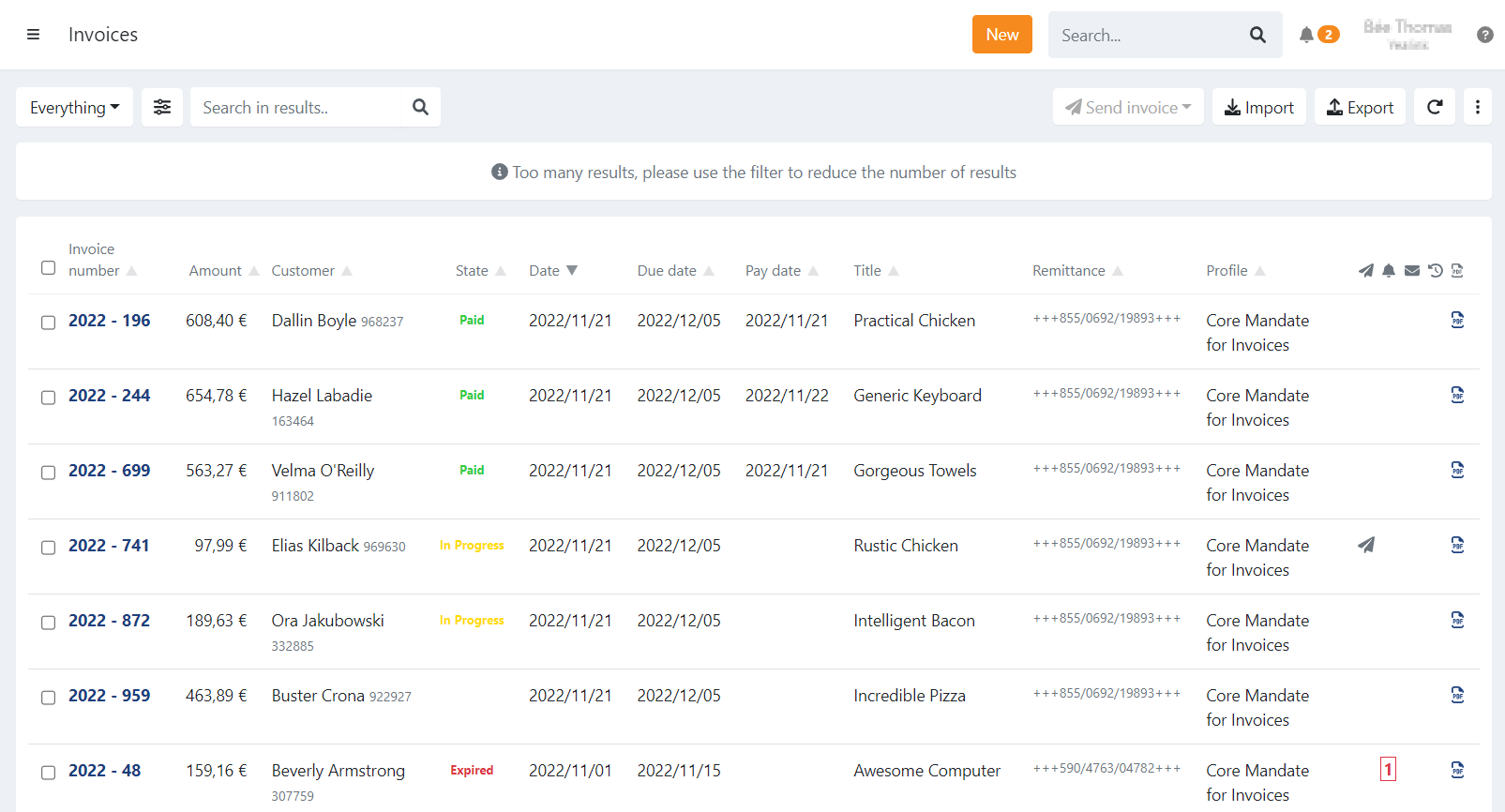
The invoice overview in Twikey provides a detailed list of all your invoices and their current status.
The columns you see include:
- Invoice number: Unique identifier of the invoice.
- Amount: Total amount of the invoice.
- Customer: Name of the customer associated with the invoice.
- State: Current payment status:
- Booked: The invoice is registered but no payment is in progress yet.
- In Progress: Payment is pending (typically via Direct Debit as the bank is processing the payment).
- Paid: The invoice has been paid.
- Expired: Payment was not received before the due date.
- Archived: Older invoices that are stored for record keeping.
- Date: Creation date of the invoice. This is NOT the invoice date as such but the date provided when importing the invoice via a file, your CRM integration, or creating the invoice using the API.
- Due date: The date by which the payment is due. The invoice link remains valid even after this date.
- Pay date: The date on which the invoice was paid.
- Title: Description or title of the invoice as displayed on the payment page.
- Remittance: Reference or communication for the customer.
- When valid as a structured message or OGM (Belgium), it is formatted like:
+++123/4567/89123+++. - The remittance is returned on the customer’s account statement.
- When paying via wire transfer on bank account connected with Twikey, if the remittance and amount match the invoice, the payment is automatically marked as paid.
- When valid as a structured message or OGM (Belgium), it is formatted like:
- Profile: Indicates which payment profile was used, defining available payment options.
- Icons: Different icons may appear on the right side of each invoice:
Icon Meaning Paper Plane An invitation was sent to the customer Bell A reminder email was sent to the customer (reminder level is displayed) Red envelope The email is invalid or could not be delivered Clock The customer selected a specific date on the payment page for collection (only for Direct Debit transactions) PDF PDF is available for the invoice
Key features
- You can search invoices using the search bar with partial or full matches on invoice number, amount, customer, or remittance.
- The list can be filtered by status, profile, or other criteria to quickly locate specific invoices.
- The overview displays a maximum of 500 invoices at a time. To perform actions on invoices beyond this number, use the option to Include remaining items in the system.
- You can select invoices individually or in bulk to perform actions such as sending invitations, reminders, retrieving PDFs, or moving to a different profile.
Icons
On the right of each invoice different icons can be displayed:
- An invitation was sent to the customer
- A reminder email was sent to the customer. The reminder level is displayed.
- The email is invalid or could not be delivered, a red envelope is displayed.
- The customer selected "Set up future payment" on the payment page on which the invoice can be collected. Only available when the payment is done using a Direct Debit transaction.
- PDF is available for the invoice.
- You can now attach a UBL file with the invoice PDF when sending the invoice via email or allow the customer to download it.
Selecting invoices
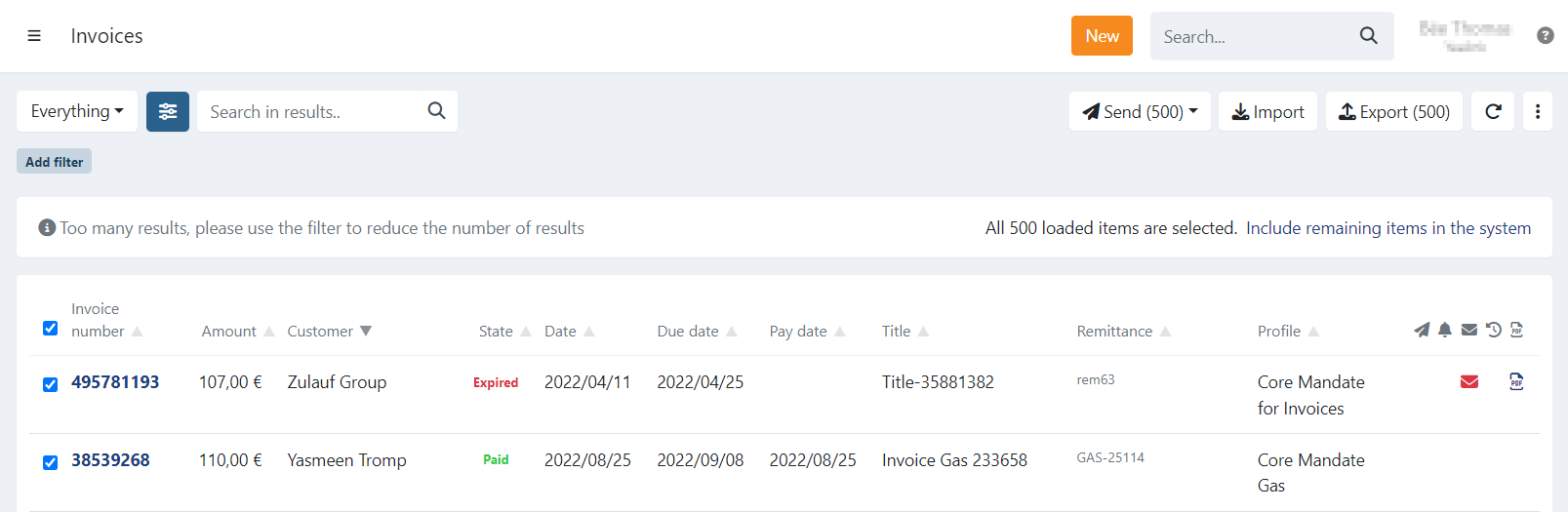
The invoice overview is limited to 500 invoices at a time.
When you select all invoices at once, you can choose to perform an action on:
- Only the 500 displayed invoices, or
- All invoices that match your current filter.
A dialogue will notify you about this option.
To select all remaining invoices that are not displayed, click: "Include remaining items in the system."