
How to send invoice reminders
- Send individual email reminders from the...
- Send multiple email reminders from the i...
- Selecting invoices
Show me
Send individual email reminders from the invoice menu
From the invoice overview, click on an invoice to open the invitation screen.
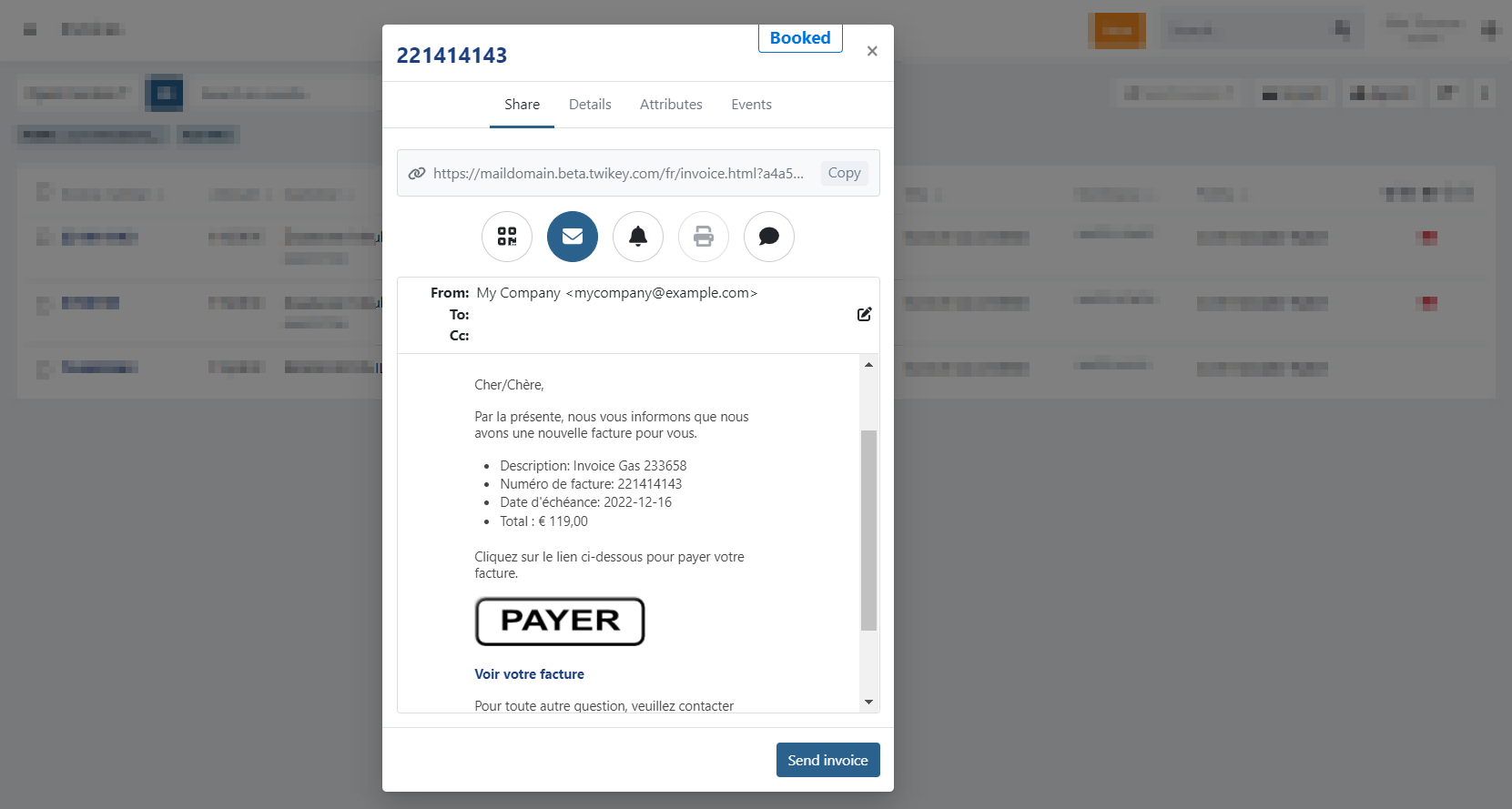
- Select the bell icon to display a preview of the email message
- Click send reminder 1 or select another reminder mail type
To send a reminder by SMS instead of email, select the SMS icon on the invitation screen instead of the bell icon, then choose Reminder instead of Invite. A valid customer mobile phone number is required.
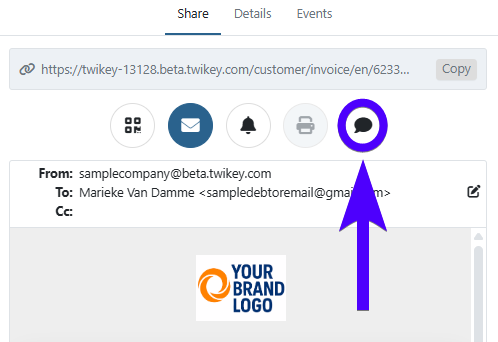
Within the email reminder, you can configure the following fields:
- From: The sender of the email. A different sender address can be configured per invoice profile (optional).
- To: The recipient of the email.
- You can edit the recipient for a specific invoice.
- This change only applies to the selected invoice.
- The customer’s stored email address remains unchanged.
- Cc: An additional recipient. This can only be configured at customer level.
Verify the correct language(s) are enabled in the (invoice) profile. If the invoice language is not enabled, the email is sent in another enabled version of the same language (for example Dutch for Belgium instead of Dutch for the Netherlands). If no version of that language is enabled, the email is sent in English as this is the default language.
The email content can be customized via Settings > Profile > Email tab > Invoices.
Send multiple email reminders from the invoice menu
To send multiple invoice reminders at once:
- Select one or more invoices in the invoice overview.
- Click Share to open the dropdown menu.
- Under the Reminders section, choose one of the following options:
- Next reminder: Automatically sends the correct reminder (1–4) based on the last reminder sent for each invoice.
- 1 | 2 | 3 | 4: Sends a specific reminder level to all selected invoices, regardless of their current reminder status.
- The reminder level will be reset to the selected level for all chosen invoices.
- Via SMS: Sends a reminder by text message to customers with a valid mobile number.
- A confirmation window will appear with the number of invoices to send a reminder.
- Click Yes to send the reminder mails.
If the selection includes invoices with the status Paid or Archived, no reminders will be sent for those invoices. All other eligible invoices in the selection will still receive the mail.
Selecting invoices
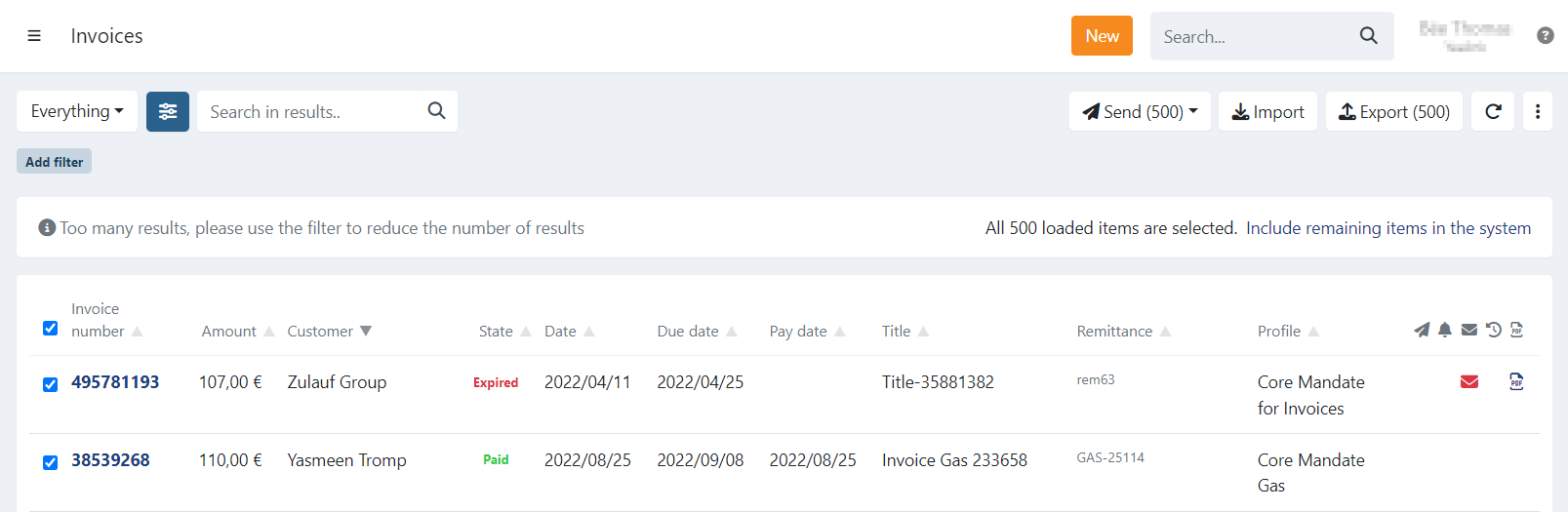
The invoice overview is limited to 500 invoices at a time.
When you select all invoices at once, you can choose to perform an action on:
- Only the 500 displayed invoices, or
- All invoices that match your current filter.
A dialogue will notify you about this option.
To select all remaining invoices that are not displayed, click: "Include remaining items in the system."
Last Update: 2026-10-09