
How to send invoices via email
- Send individual email invitations from t...
- Send multiple email invitations from the...
- Selecting invoices
Show me
Send individual email invitations from the invoice menu
From the invoice overview, click on an invoice to open the invitation screen.
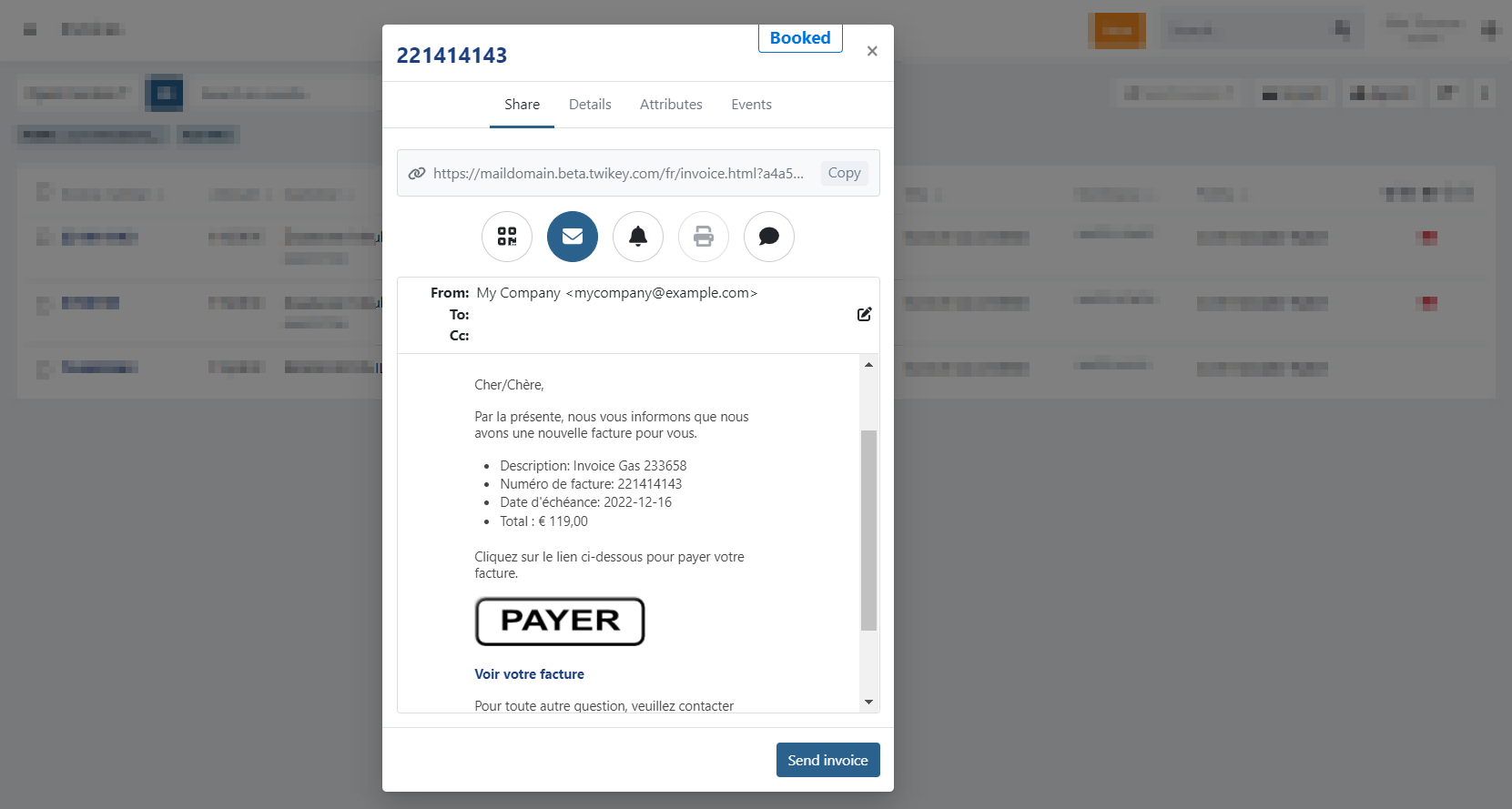
- Select the envelope icon to display a preview of the email message
- Click send invoice
Within the email invitation, you can configure the following fields:
- From: The sender of the email. A different sender address can be configured per invoice profile (optional).
- To: The recipient of the email.
- You can edit the recipient for a specific invoice.
- This change only applies to the selected invoice.
- The customer’s stored email address remains unchanged.
- Cc: An additional recipient. This can only be configured at customer level.
If a Cc address bounces (for example, because it no longer exists or its mailbox is temporarily rejecting messages), the invoice is still marked as a delivery failure — even when your customer received the invitation successfully. Twikey tracks delivery failure per invoice, not separately per recipient, so we can't automatically decide whether a bounced Cc copy should count as a failed delivery for your business. Open the invoice's Events tab to see which address actually bounced.
Verify the correct language(s) are enabled in the (invoice) profile. If the invoice language is not enabled, the email is sent in another enabled version of the same language (for example Dutch for Belgium instead of Dutch for the Netherlands). If no version of that language is enabled, the email is sent in English as this is the default language.
The email content can be customized via **Settings > Profile > Email tab > Invoices**.
Send multiple email invitations from the invoice menu
To send multiple invoice invitations at once:
- Select one or more invoices in the invoice overview.
- Click Share to open the dropdown menu.
- Choose Email
- A confirmation window will appear with the number of invoices to share.
- Click Yes to send the invitation mails.
If the selection includes invoices with the status **Paid** or **Archived**, no invitation will be sent for those invoices. All other eligible invoices in the selection will still receive the mail.
Selecting invoices
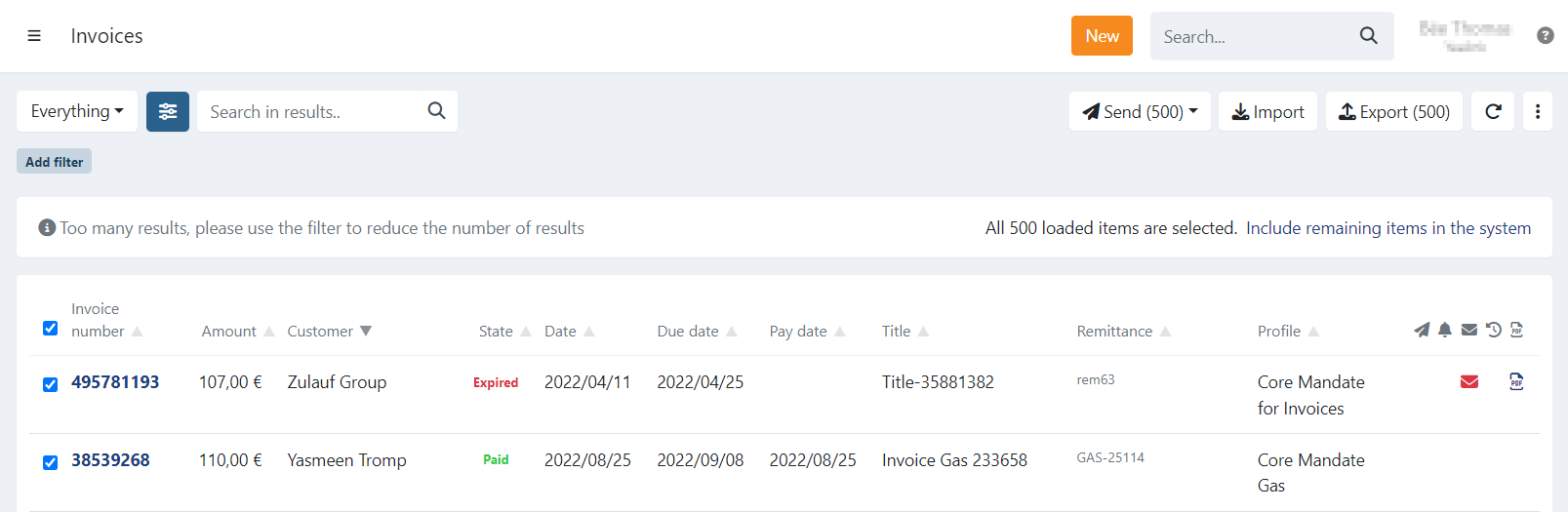
The invoice overview is limited to 500 invoices at a time.
When you select all invoices at once, you can choose to perform an action on:
- Only the 500 displayed invoices, or
- All invoices that match your current filter.
A dialogue will notify you about this option.
To select all remaining invoices that are not displayed, click: "Include remaining items in the system."
Last Update: 2026-10-14