Invoice billing runs
- Billing run overview
- Billing run detail
- Invoice lists per state
- Actions
- How to create an invoice billing run
- How to assign invoices to a billing run
An invoice billing run lets you group invoices under a shared name, for example a billing cycle like "April 2026", so you can track their status, monitor how many have been delivered and paid, and take bulk actions on the whole group at once.
This is different from the mandate conversion campaigns used to invite customers to sign a mandate. Invoice billing runs are purely about managing and monitoring invoice batches.
Billing run overview
Navigate to Invoices > Billing runs in the left-hand navigation menu to see all your invoice billing runs.
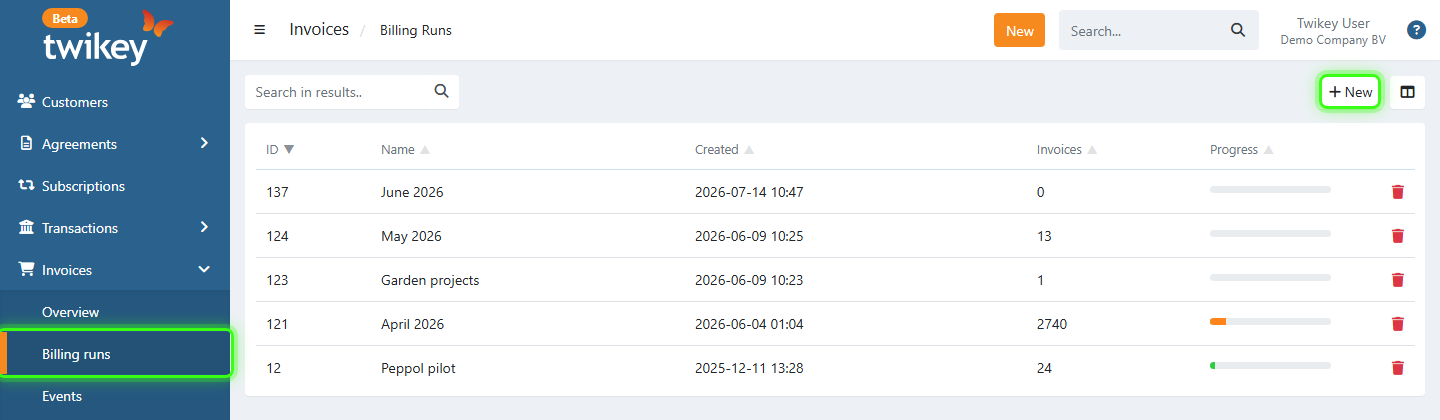
The overview shows:
- ID: The internal identifier of the billing run.
- Name: The name you gave the billing run (e.g. "April 2026").
- Created: The date and time the billing run was created.
- Invoices: The total number of invoices linked to this billing run.
- Progress: A progress bar showing the share of paid invoices at a glance.
From this screen you can create a new billing run using the + New button, or delete a billing run using the trash icon.
Billing run detail
- Navigate to Invoices > Billing runs in the left-hand navigation menu.
- Click on a billing run to open its detail page.
The detail page has two statistics panels at the top, followed by the invoices of the billing run grouped by state.
Invoice status panel (left)
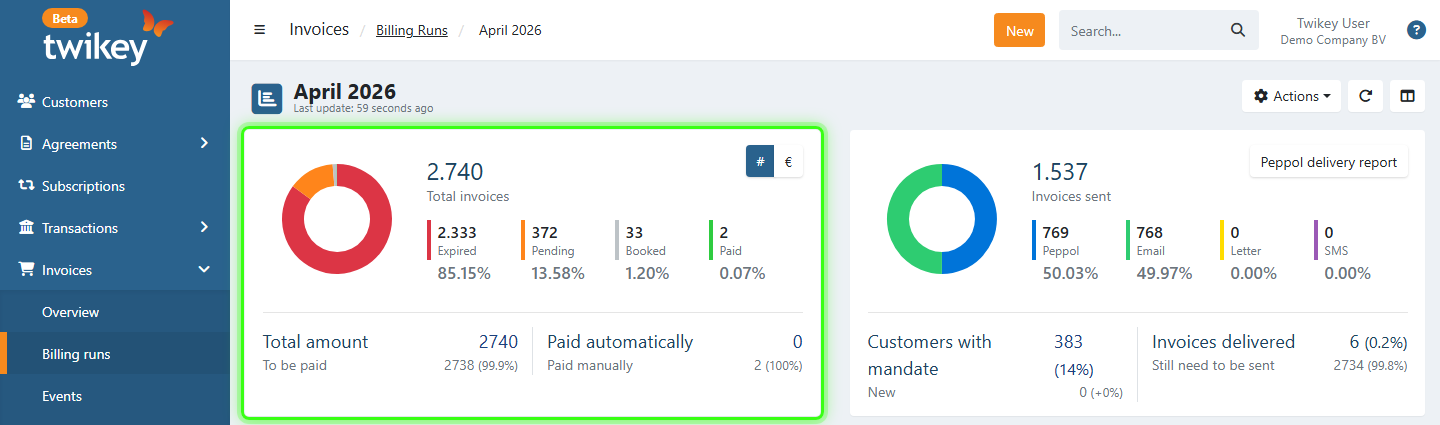
Shows the total number of invoices in this billing run and breaks them down by state:
- Expired: Invoices past their due date without payment received.
- Pending: Invoices for which a direct debit collection is in progress.
- Booked: Invoices not yet past due and not yet paid.
- Paid: Invoices that have been paid.
The percentages reflect the share of each state in the total. Use the # and € buttons at the top right of the panel to switch between the number of invoices and their amount.
Below the chart, the panel shows:
- Total amount: Total value of all invoices in the billing run, with the amount still to be paid shown below.
- Paid automatically: Number of invoices paid via a recurring payment (direct debit, recurring credit card). Paid manually shows how many were paid in another way.
Notification channel panel (right)
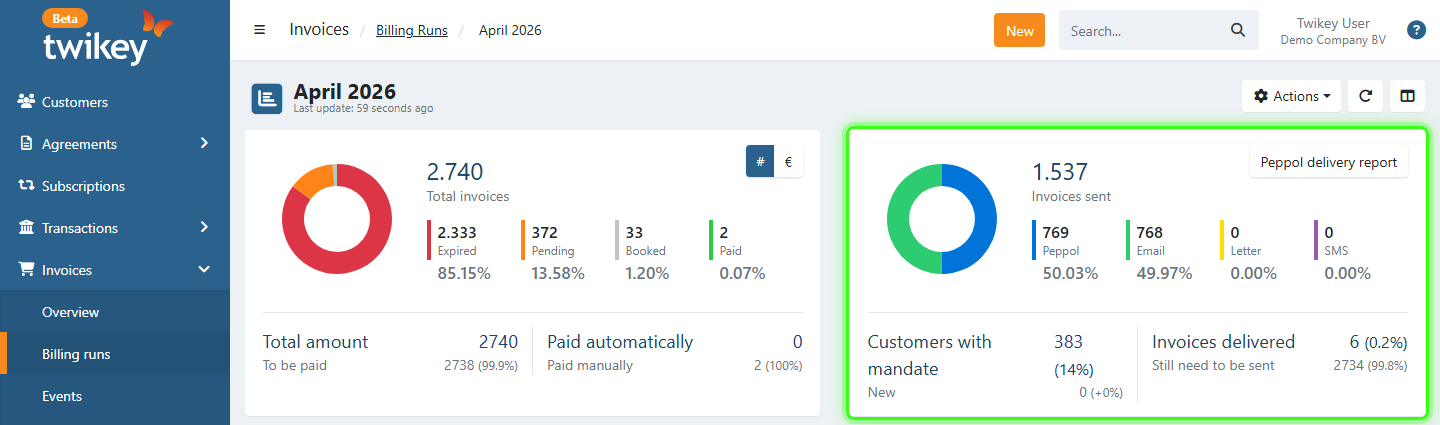
Shows the total number of invoices sent and breaks them down by channel:
- Peppol
- Letter
- SMS
Note that the total counts each channel separately: if the same invoice was sent by both Peppol and email, it counts once for Peppol and once for email. The percentages reflect each channel's share of that total. Archived invoices and credit notes are not counted.
Below the chart, the panel shows:
- Customers with mandate: Number of customers in this billing run who have an active mandate. New shows how many signed a new mandate since the billing run was created.
- Invoices delivered: Number of distinct invoices with at least one delivery that did not fail, regardless of how many channels were used. Still need to be sent shows how many have not been delivered yet. Click it to open these invoices in the invoice overview.
In the top-right corner of this panel, one of these buttons is shown:
- Peppol delivery report - Shown when Peppol is active on your account and the billing run has Peppol deliveries. It opens the Peppol delivery report, see below.
- Delivery failed - Shown instead when the billing run has no Peppol deliveries but has failed deliveries on another channel. It shows the number of failed deliveries and opens the invoice overview filtered on this billing run and on Delivery status = Failed.
Peppol delivery report
The Peppol delivery report shows how the Peppol deliveries of the billing run went, and lets you act on the invoices that failed.
- Navigate to Invoices > Billing runs in the left-hand navigation menu.
- Click on a billing run to open its detail page.
- Click Peppol delivery report in the notification channel panel.
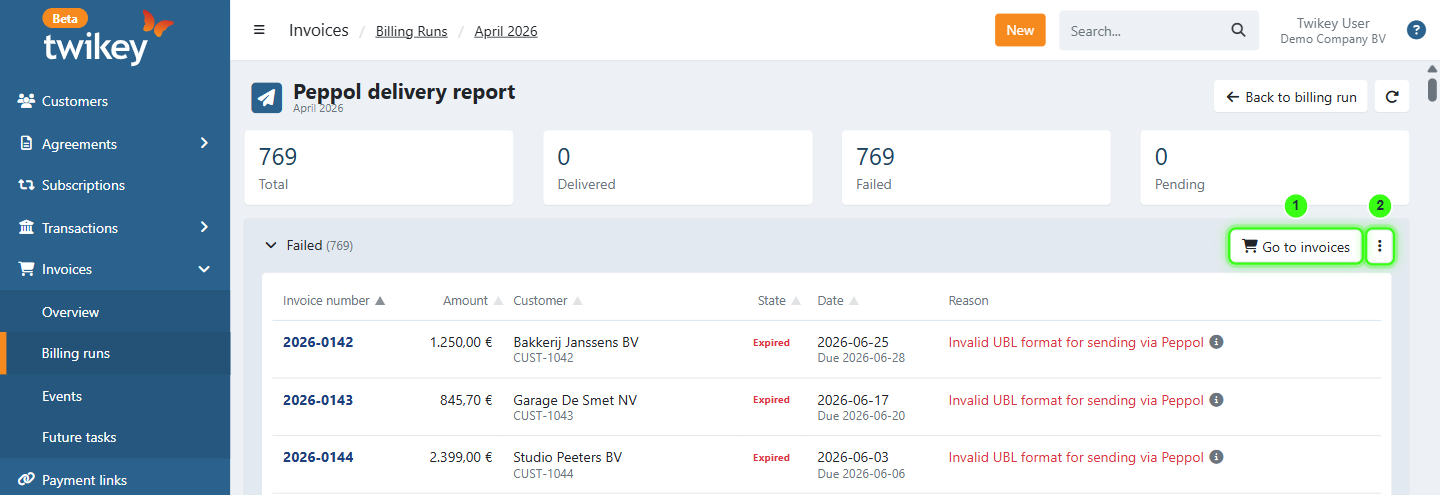
The report shows four counters for the Peppol deliveries of the billing run:
- Total - Invoices in the billing run with a Peppol delivery.
- Delivered - The Peppol Access Point accepted the invoice.
- Failed - The Peppol delivery failed.
- Pending - The invoice was sent to Peppol, but no result is known yet.
Below the counters, the Failed and Sent panels list the invoices per status. A panel is only shown when it contains invoices. Click a panel header to open it:
- The Failed panel shows the reason of each failure. Click the info icon next to the reason to see the full error text.
- The Sent panel shows the number of attempts and the transmission ID of each delivery.
- Click Go to invoices (1) to open these invoices in the invoice overview, for example to resend them.
- Click the three-dot icon (2) and select the export option (for example Export failed Peppol deliveries) to download these invoices. The export uses the standard invoice export format, with three extra columns for the Peppol delivery: the delivery state, the number of attempts and the delivery details.
Click Back to billing run to return to the billing run detail page.
Invoice lists per state
Below the statistics panels, the invoices are grouped into collapsible sections by state. Each section header shows the number of invoices in that state. Click on a section header to expand it and see the individual invoices within that group.
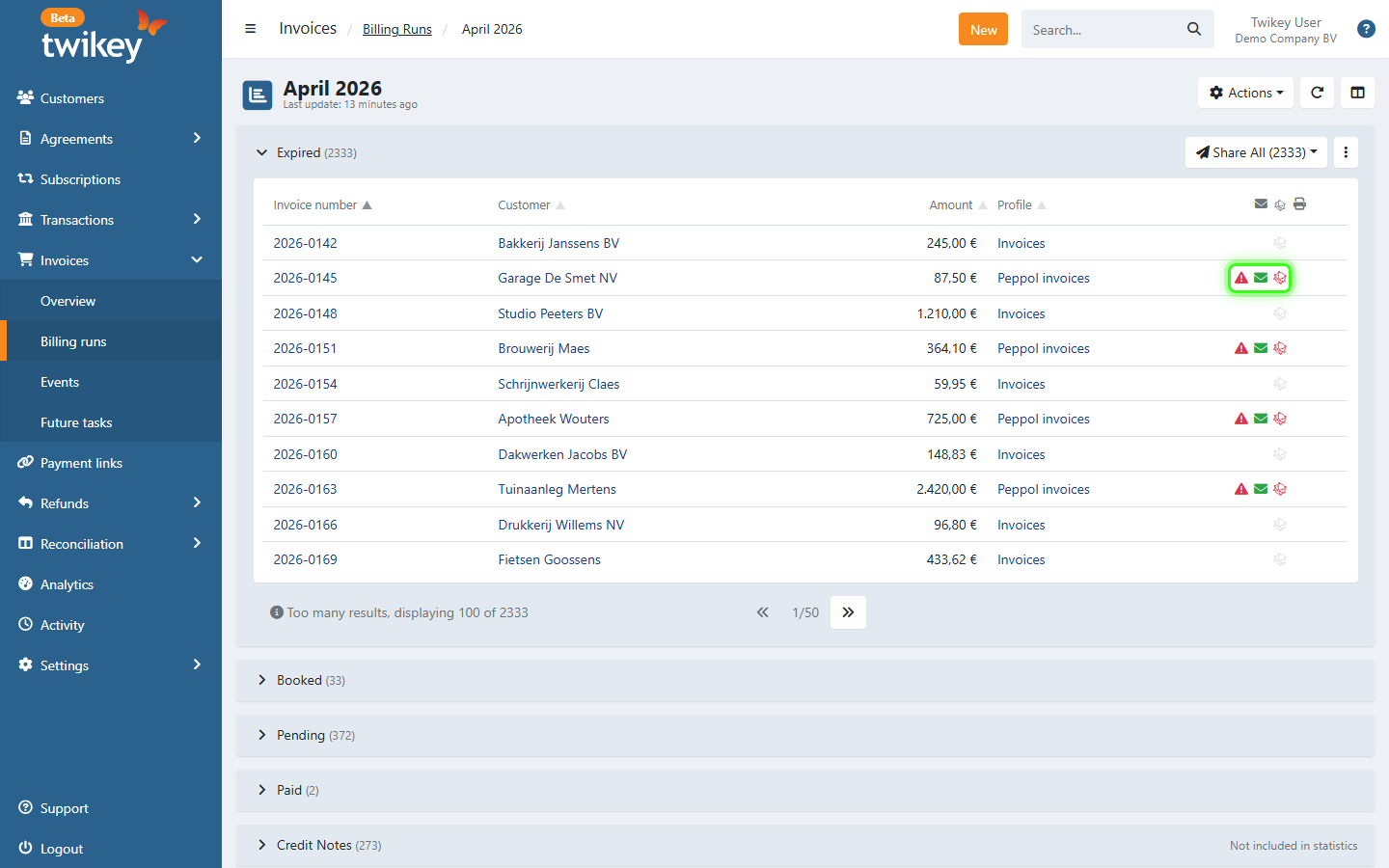
- Expired: Invoices that are past their due date without payment received. These are the invoices that may need follow-up or a reminder.
- Booked: Invoices that have been registered but are not yet past due and not yet paid.
- Pending: Invoices for which a direct debit collection is currently in progress. These are awaiting confirmation from the bank.
- Paid: Invoices that have been fully paid. This section has an extra Payment Method column (e.g. Bancontact Pay, Manual Payment) showing how each invoice was settled.
- Credit Notes: Credit notes linked to the billing run. This group shows the state of each credit note in an extra State column. Credit notes are not counted in the invoice totals, do not affect the delivery or mandate statistics, and are not included in the Total amount.
Each row shows the invoice number, customer, amount, profile and icons for the delivery per channel (envelope for email, Peppol icon for Peppol, printer for letter). A red warning triangle means at least one delivery of the invoice failed. For Peppol and letter, a green icon means the delivery was accepted, a red icon that it failed, and a light icon that it is still pending or that this is the preferred delivery method.
The three-dot icon at the right of each group header holds the export of the invoices in that group.
Share All
The Expired and Booked groups have a Share All button at the right of the group header. It opens a dropdown with two sections:
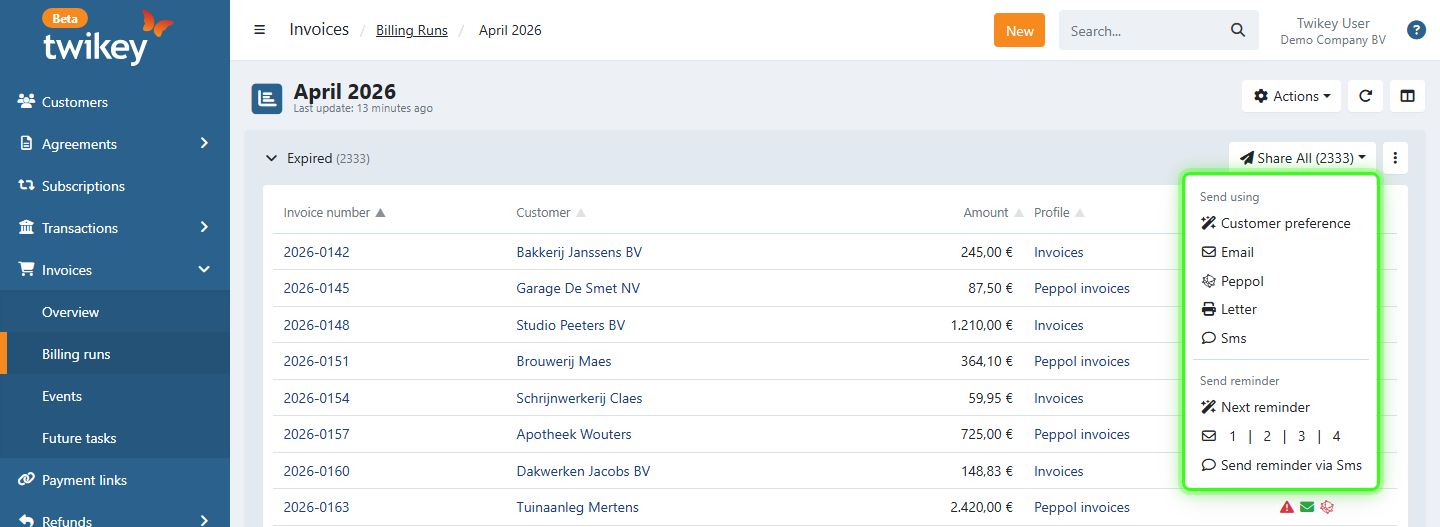
Send using: sends all invoices in the group:
- Customer preference: uses each customer's configured delivery method
- Peppol
- Letter
- Sms
Send reminder: sends a reminder for all invoices in the group:
- Next reminder: sends the next reminder level (1 to 4) based on what was last sent for each invoice
- 1 | 2 | 3 | 4: sends a specific reminder level for all invoices in the group
- Send reminder via Sms
Actions
The Actions dropdown in the top right of the billing run detail page provides the following options:
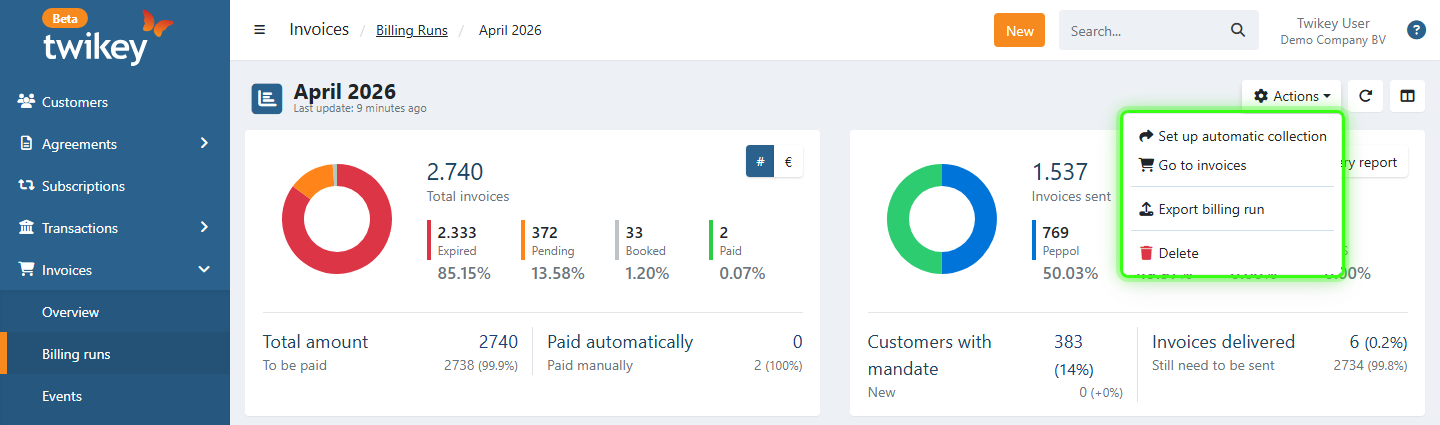
- Set up automatic collection - Redirects you to the customer overview with two advanced filters pre-applied: Invoice billing run = <billing run name> (to show only customers with invoices in this billing run) and Agreements = 0 (to show only customers without an existing mandate). You are then prompted to invite these customers to sign a mandate: select a profile and assign them to an existing mandate campaign or create a new one. This makes it easy to convert invoice-only customers into recurring payment customers directly from the billing run.
- Go to invoices - Opens the invoice overview pre-filtered to show only the invoices in this billing run.
- Export billing run - Downloads the invoices of the billing run in the standard invoice export format. Archived invoices and credit notes are not included. Each state group (for example Expired) also has its own export option in its menu.
- Delete - Permanently removes the billing run. This does not delete the invoices themselves, only the billing run grouping.
How to create an invoice billing run
- Navigate to Invoices > Billing runs in the left-hand navigation menu.
- Click + New.
- Enter a Name.
- Optionally, select a Period.
- Click Add.
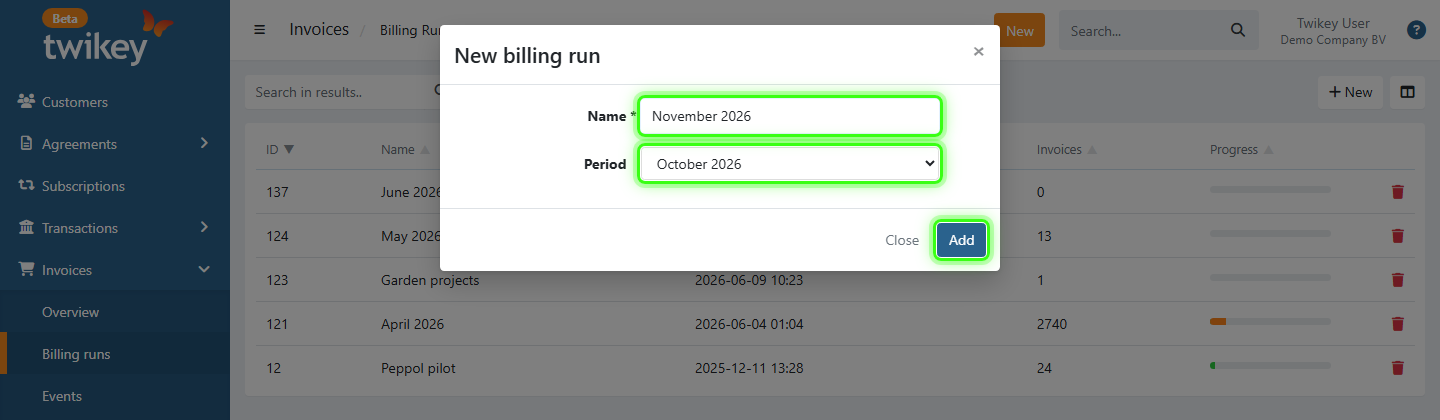
The name can always be changed afterwards regardless of the period chosen.
Period (optional)
The period dropdown offers the last three calendar months plus a None option.
- Select a month: Twikey automatically links all invoices whose invoice date falls within that month to the billing run. This is the date on the invoice document itself as provided during import or creation, not the date the invoice was registered in Twikey.
- None: The billing run is created empty. You can then assign invoices to it manually from the invoice overview.
How to assign invoices to a billing run
Invoices can be assigned to a billing run in bulk from the invoice overview:
- Navigate to Invoices > Overview in the left-hand navigation menu.
- Filter and select the invoices you want to group.
- Click the three-dot icon at the top right.
- Select Assign billing run.
- Select the desired billing run.
- Confirm.
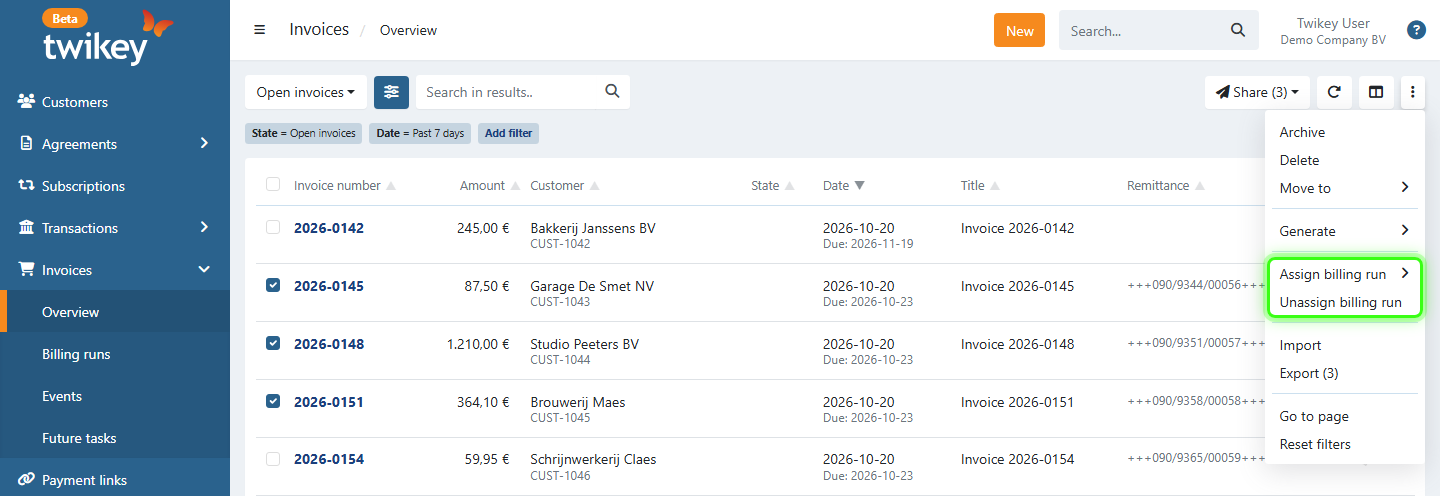
To unlink the selected invoices from their billing run, select Unassign billing run in the same menu.
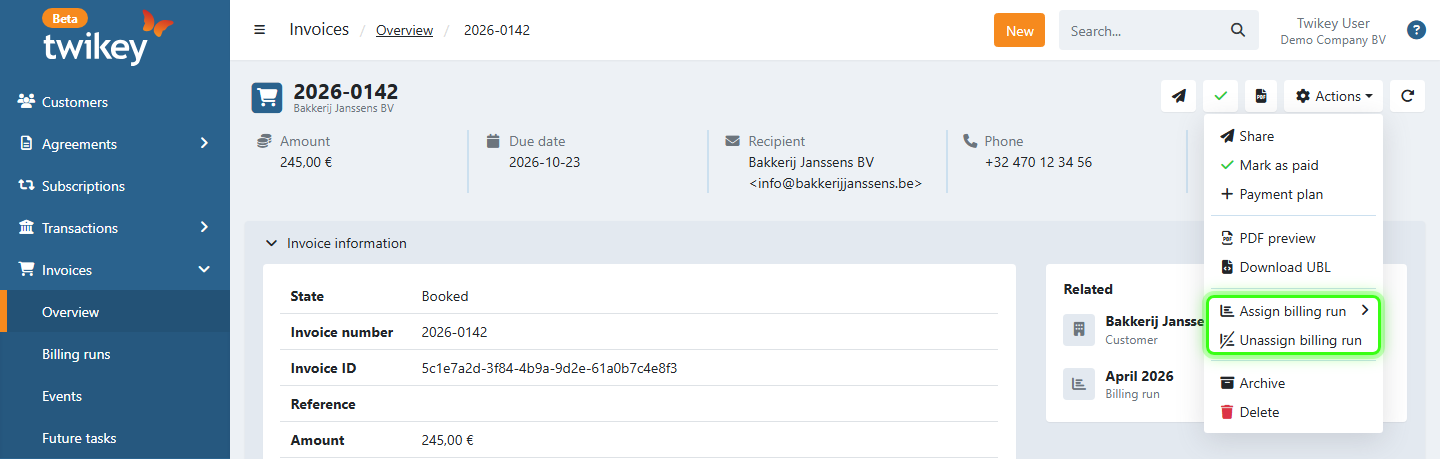
You can also assign or unassign a single invoice directly from the invoice detail page, using Assign billing run or Unassign billing run in the Actions dropdown.