
About customers
- Open the customers overview
- What you see on the customers overview
- Find a customer
- Buttons and actions
- The list of customers
- When the list looks incomplete
The Customers menu is where you manage all your customers in Twikey. From the customers overview you can look up a customer, filter your customer database, create, merge, import or export customers, and invite customers to sign an agreement.
Open the customers overview
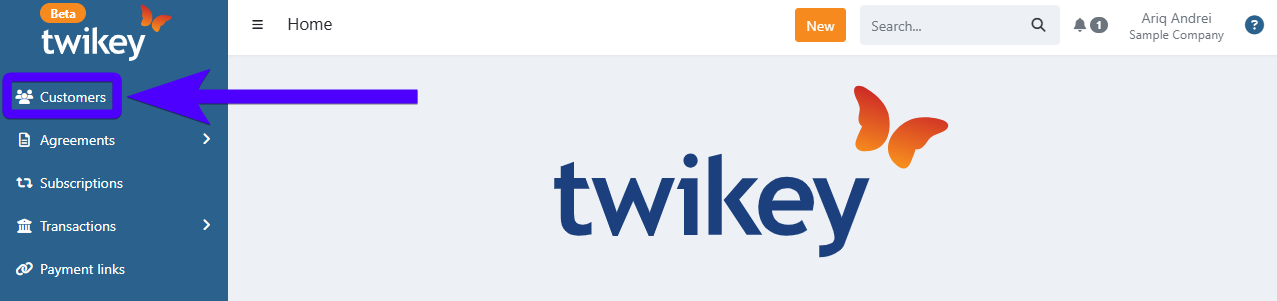
Navigate to Customers in the left-hand navigation menu.
Click ...or view list of customers below the search bar.
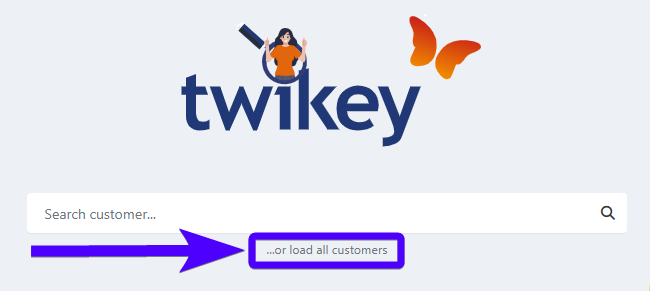
The list of customers does not load automatically. If you are looking for one specific customer, you can also type their name, or their complete e-mail address or customer number, in the search bar instead.
What you see on the customers overview
The overview is divided into three areas:
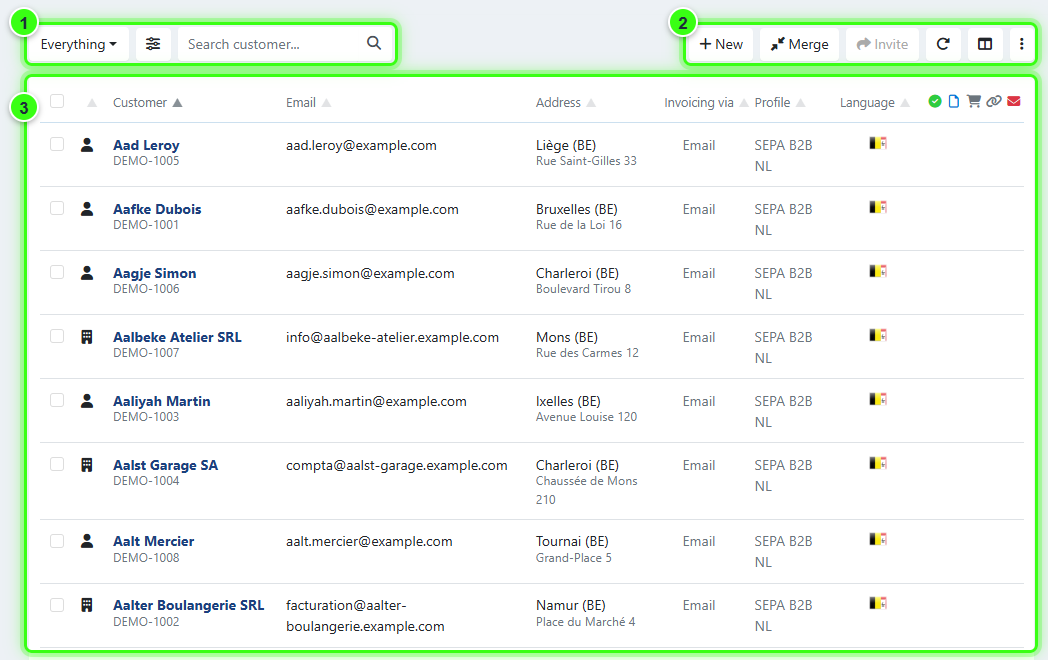
- Search bar and filters - find a specific customer, or narrow the list down to a group of customers. See Find a customer.
- Buttons - create, merge, invite, import or export customers. See Buttons and actions.
- List of customers - all customers matching your search and filters. See The list of customers.
Find a customer
Use the search bar when you know who you are looking for, and the filters when you want to see a group of customers. You can combine the search bar and several filters at once.
Search bar
- By name - type at least three characters of the name or company name. The search is forgiving: it also finds partial names, names with a typo, and names written with or without accents.
- By e-mail address - enter the complete e-mail address.
- By customer number - enter the complete customer number, exactly as it is stored. A part of the customer number does not return a result.
You can also look up a customer with the global search bar at the top of the screen.
Quick filters
Click Everything next to the search bar to switch between the most used selections:
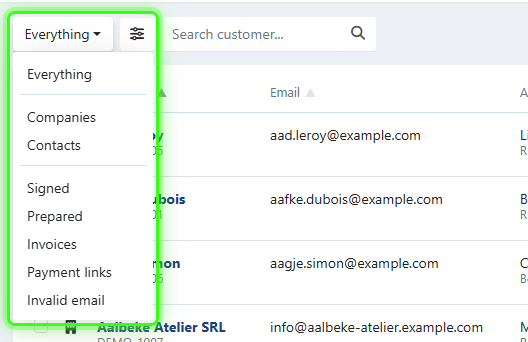
- Everything - all customers.
- Companies or Contacts - only company-type or person-type customers.
- Signed - customers with a signed agreement.
- Prepared - customers with a prepared agreement.
- Invoices - customers with invoices.
- Payment links - customers with payment links.
- Invalid email - customers with an invalid e-mail address.
Advanced filters
For a more specific selection, click the filter icon next to Everything and choose an attribute. Type in Search attributes to find one quickly.
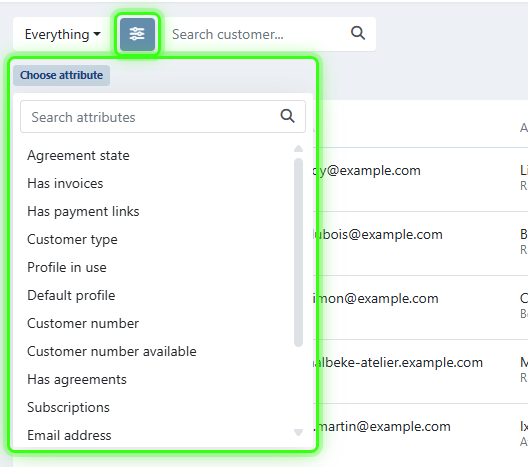
| Attribute | Shows customers... |
|---|---|
| Agreement state | with an agreement in a specific state |
| Has invoices | with or without invoices |
| Has payment links | with or without payment links |
| Customer type | of the type company or person |
| Profile in use | with an agreement on a specific profile |
| Default profile | with a specific default profile |
| Customer number | with exactly this customer number |
| Customer number available | with or without a customer number |
| Has agreements | with or without agreements |
| Subscriptions | with no, one or multiple subscriptions |
| Email address | with a specific e-mail address |
| Valid email | with a valid or an invalid e-mail address |
| Valid mobile | with a valid or an invalid mobile number |
| Automatic collection | with automated invoice collection on or off |
| Billing run | in a specific invoice billing run (only shown if billing runs are configured) |
The filters you add appear under the search bar. To add another one, click Add filter. To remove the filters you added, click Revert changes, or select Reset filters in the ⋮ menu.
Save a filter
If you use the same filters often, save them as your own quick filter:
- Set up the filters you want.
- Click Save next to the filters.
- Enter a Name. Select Set as default if you want this filter to be your default selection.
- Click Save.
Your saved filter now appears at the top of the Everything menu. If you change a saved filter later, click Save and choose Save filter to update it, or Save as new filter to keep both. To delete a saved filter, click the trash icon next to it in the Everything menu.
Buttons and actions
The buttons at the top right work on your customer database. Invite, Export and Delivery method work on the customers you select first with the checkboxes in the list. The button then shows how many customers are selected, for example Invite (2).
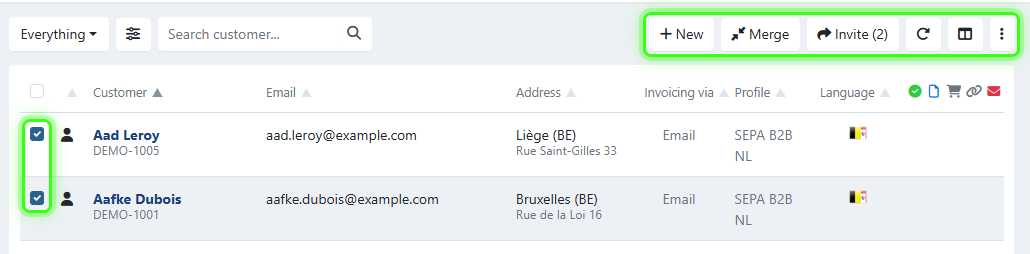
- New - create a customer.
- Merge - merge two customers into one, for example when the same customer was created twice. You choose which name, e-mail address and other details the merged customer keeps. Only available for admin users.
- Invite - invite the selected customers to sign an agreement. You choose a profile and a campaign, and you can follow up the invitations on the campaign.
- Refresh (circular arrow) - reload the list, for example after you created, imported or changed customers.
- Configure columns (column icon) - choose which columns the list shows.
- ⋮ - open more actions, see below.
More actions
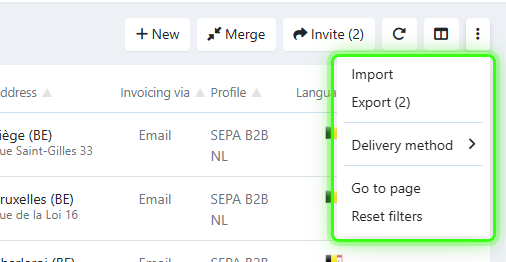
- Import - import customers from a file.
- Export - export the selected customers to a file.
- Delivery method - change how invoices are delivered to the selected customers, see below.
- Go to page - jump to a specific page of the list. Only shown when the list has more than one page.
- Reset filters - remove all quick and advanced filters.
Change the invoice delivery method for several customers
The invoice delivery method decides how invoices reach your customers. To change it for one customer, edit the customer. To change it for several customers at once:
- Select the checkboxes next to the customers you want to update, or select all customers with the checkbox at the top of the list.
- Click ⋮ at the top right.
- Select Delivery method.
- Choose one of the delivery methods:
- Company setting - use the default delivery method of your company.
- Disabled - invoices are not delivered automatically. You can still send them manually.
- Email, SMS, Paper or Peppol - always deliver invoices this way. SMS only works when SMS sending is enabled for your account and the customer has a valid mobile number.
- Click Yes to confirm the update for the selected customers.
The list of customers
The list shows the customers that match your search and filters, sorted by name.
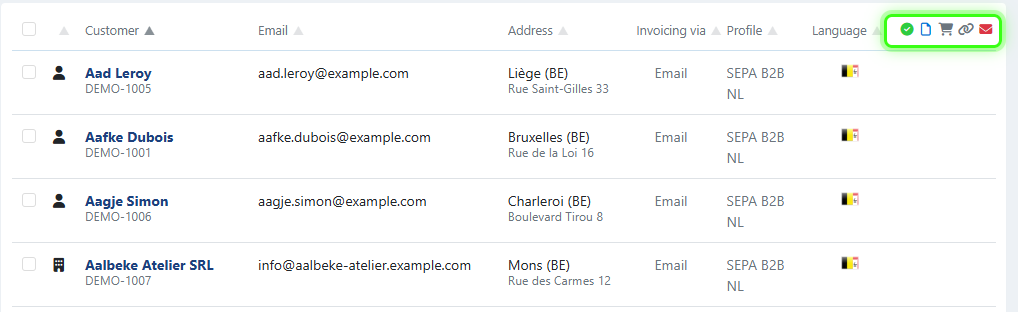
| Column | What it shows |
|---|---|
| Checkbox | Select the customer for an action. The checkbox in the header selects all customers. |
| Type icon | Building for a company, person for a contact. |
| Customer | The name, with the customer number underneath. Click the name to open the customer details. A yellow warning icon next to the name means automatic collection is switched off for this customer. |
| The e-mail address of the customer. | |
| Address | The city and country, with the street underneath. |
| Invoicing via | The invoice delivery method, for example Email, SMS, Print or Peppol. |
| Profile | The default profile of the customer. |
| Language | The language of the customer, shown as a flag. |
The icons at the right of the list (highlighted above) show what the customer has:
- Green check - a signed agreement. See agreement states.
- Document - a prepared agreement.
- Shopping cart - one or more invoices.
- Link - one or more payment links.
- Red envelope - an invalid e-mail address.
Use Configure columns to show or hide columns.
When the list looks incomplete
There are a few reasons why you may not see all your customers:
- The list was not loaded yet - when you open Customers, click ...or view list of customers to load the list.
- The list shows at most 500 customers at once - if you have more, only the first 500 are shown, in alphabetical order.
- A search or filter is active - check the filters under the search bar, or select Reset filters in the ⋮ menu.
When there are too many results, the overview asks you to narrow them down:
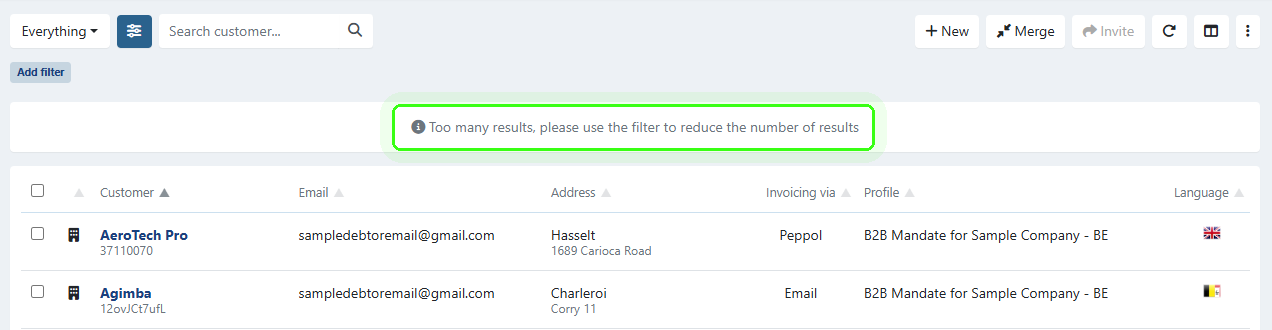
In that case, the status icon columns can also be hidden, even if you enabled them. Use the search bar or filters to reduce the number of results and the columns come back.
To act on more than 500 customers at once (for example a bulk export or invite), select all visible customers and click "Include remaining items in the system" in the confirmation dialogue. The action then applies to every customer matching your current filters.