
How to create a new customer
What is a customer
Just as the name suggests, a customer in Twikey represents a real-life customer of your organization. In Twikey, there are two types of customer: A person-type customer and a company-type customer.
A person-type customer represents an individual person and is represented by a person icon, as shown in the image below: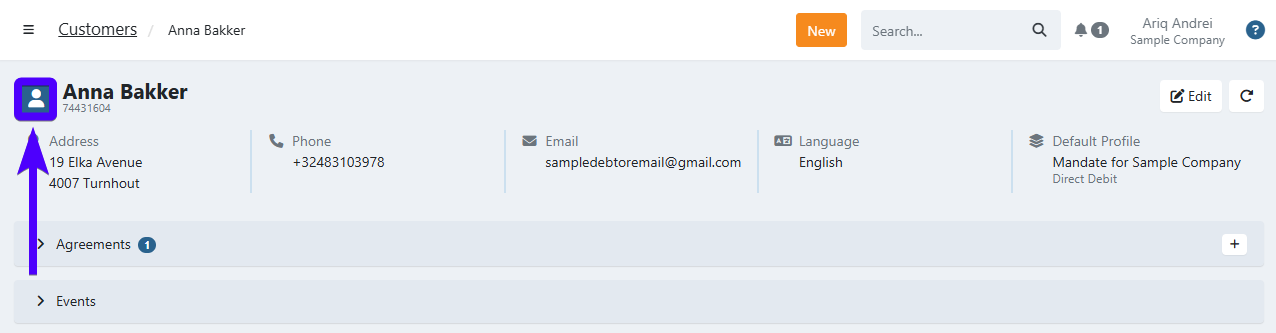
Meanwhile, a company-type customer represents a corporate customer, and is represented by a building icon, as shown in the image below: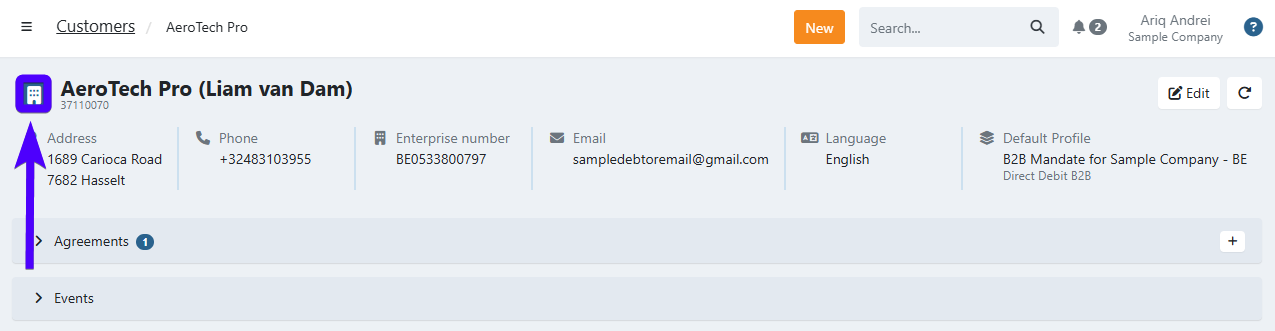
How to create a customer
There are various ways of creating a customer. We will explain them one-by-one in the guide sections below.
Regardless of the method, it is advisable to include a customer number. A customer number is recommended for three reasons:
- Unique identification — the customer number identifies each customer unambiguously, which keeps your database easier to manage.
- Correct linking on import — when you import invoices via CSV, the customer number is used to assign each invoice to the right customer. The same applies to payment links and other items created through import or our API.
- No unintended merges — customers who share an e-mail address and have no customer number are merged into one automatically.
Creating a customer from the customer overview
- Click on Customers on the sidebar.
- Click on ...or load all customers.
- Click on + New.
- Fill in the customer's data. Not all fields are mandatory, as it depends on the customer type. Please refer to the explanation below:
If you're creating a person-type customer, then you must at least fill in the Customer no. field or the Last Name and First Name fields.
If you're creating a company-type customer, then the Company field must be filled.
Moreover, if your company-type customer is based in Belgium or the Netherlands, you can simply fill in the Enterprise number field and click on the magic wand icon (shown in the image below). The Company, Address, Zip, City, and Country fields will be automatically pre-filled by our system.
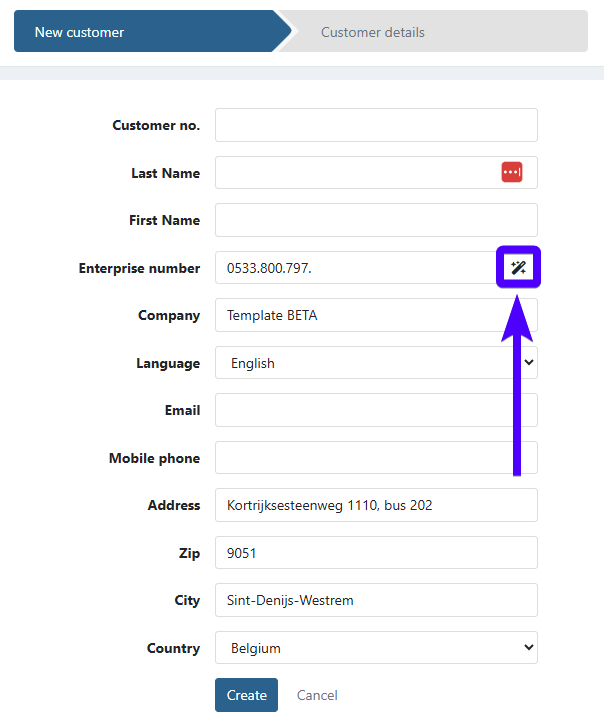
- After you've filled all the necessary data, click on Create.
Creating a customer from the global new button
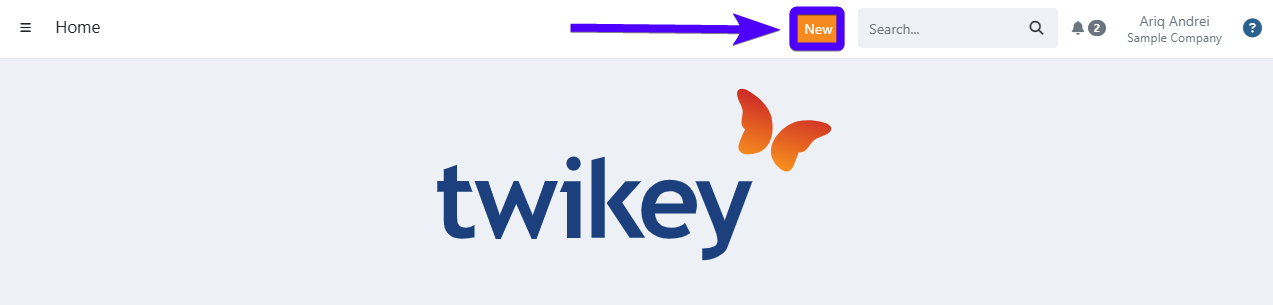
Another method is by using the New button.
- Click on the New button, which is located on the top of the screen, as shown in the image below:
- Click on Customer.
- Fill in the customer's data. Not all fields are mandatory, as it depends on the customer type. Please refer to the explanation below:
If you're creating a person-type customer, then you must at least fill in the Customer no. field or the Last Name and First Name fields.
If you're creating a company-type customer, then the Company field must be filled.
Moreover, if your company-type customer is based in Belgium or the Netherlands, you can simply fill in the Enterprise number field and click on the magic wand icon (shown in the image below). The Company, Address, Zip, City, and Country fields will be automatically pre-filled by our system.
- After you've filled all the necessary data, click on Create.
Creating a customer by importing it
It's also possible to import customers into Twikey. This method is advisable if you would like to create a large number of clients at once. Here's how to do it:
- Click on the the New button, which is located on the top of the screen, as shown in the image below:
- Click on Import.
- On the Type field, select Customers.
- On the Source field, select the desired import source.
- Upload the file to the designated area. Afterward, the customers will be added to your customer list.
To learn more about importing customers, click here
Creating a customer from your CRM system
You can also add a customer to Twikey from your Customer Relationship Management (CRM) system. Please be aware that you will need to a have a CRM tool that has been integrated into your Twikey environment before you can do this.
Here's how to add a customer from your CRM system:
- Click on Customers on the sidebar.
- Click on ...or load all customers.
- Click on + New.
- Click on Find in CRM.
- Click on Company name for company-type customers or Customer name for person-type customers.
- Type on the client's name on the search bar. The data from the CRM system will be automatically filled on the relevant fields.
- Click on Create.