
Sign mandates on paper
General information
Although our main goal is to handle all mandates electronically, it may sometimes be necessary to print a mandate for your customer, for example because his bank is not affiliated (B2B) or because he does not have an eID.
It is possible to invite your customer to sign a printed document in several ways. If the customer returns the signed document, you need to approve this document in your environment in order to get it signed.
If electronic signing is not available for the customer's bank:
- Core mandates: Send a paper invite (letter or email). The mandate can be managed solely between you and the customer, as bank registration is rarely a requirement.
- B2B mandates: A paper invite can also be sent or, you can enable the B2B profile option "on paper" allowing the customer to select to print the document during the signing flow and return the signed document to you. For B2B mandates a registration at the bank side is necessary.
Inviting your customer to sign a printed document
You can specifically invite your customer to sign a document on paper:
- Open the invite screen (see Inviting and reminding a customer to sign your document)
- Go to the Print tab:
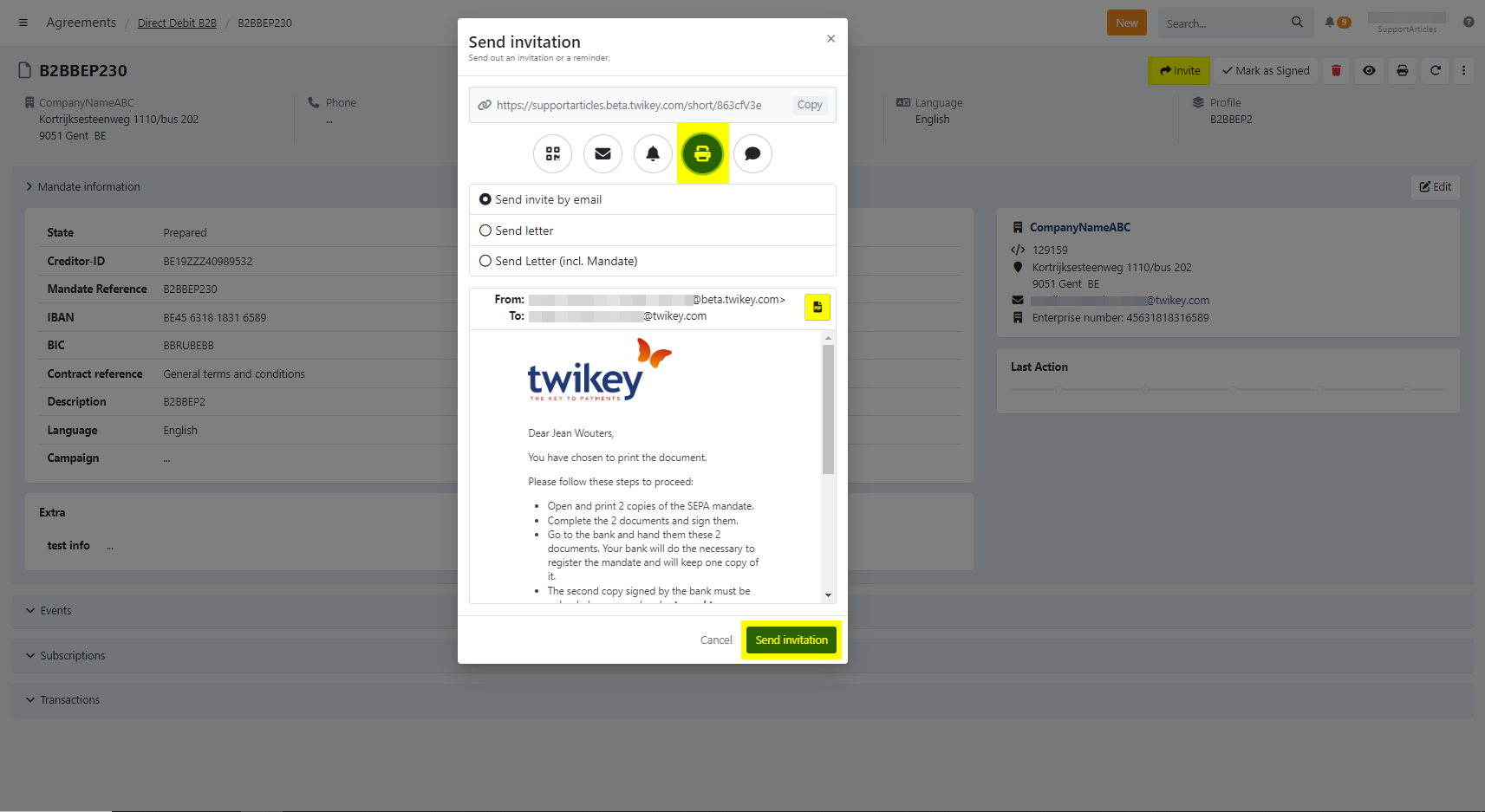
Twikey offers two ways to support this:
Option 1: Download and print the document yourself
: Click on the PDF icon (1) to download a preview.
- Open the invite screen (See: Inviting and reminding a customer to sign your document)
- Go to the Print tab
- Click the PDF icon (1) to download the document preview
- Print the document and have it signed by the customer yourself (This can also be used when you want to print the document directly (at your agency for example) so the customer can sign it directly)
Option 2: Send a paper invite via email or postal mail in Twikey
Instead of printing or sending it yourself, you can send the document directly to the customer by clicking on the print icon and selecting the preferred option.
- Send invite by email: Send the invitation to your customer via mail.
- Send letter: Send the invitation letter to your customer via postal delivery.
- Send Letter (incl. Mandate): Send the letter and the mandate to your customer via postal delivery.
For B2B documents, you can leave the choice whether or not to print the document to your customer. To enable the option On paper in the signing flow, take the following steps:
- Go to the profile for which you want to invite the customer.
- Go to the Options tab.
- Scroll down until the The customer can section.
- Check the box in front of print the document and return the signed document via email or upload.
- Click Save.
- If you send the invite link to the customer, the possibility to On paper will now appear in the list with signing options.
Processing a signed printed document
If you invited your debtor by mail to sign a mandate on paper, the document should be uploaded in your environment once it has been signed. The customer will receive the following email after you or they chose the print option: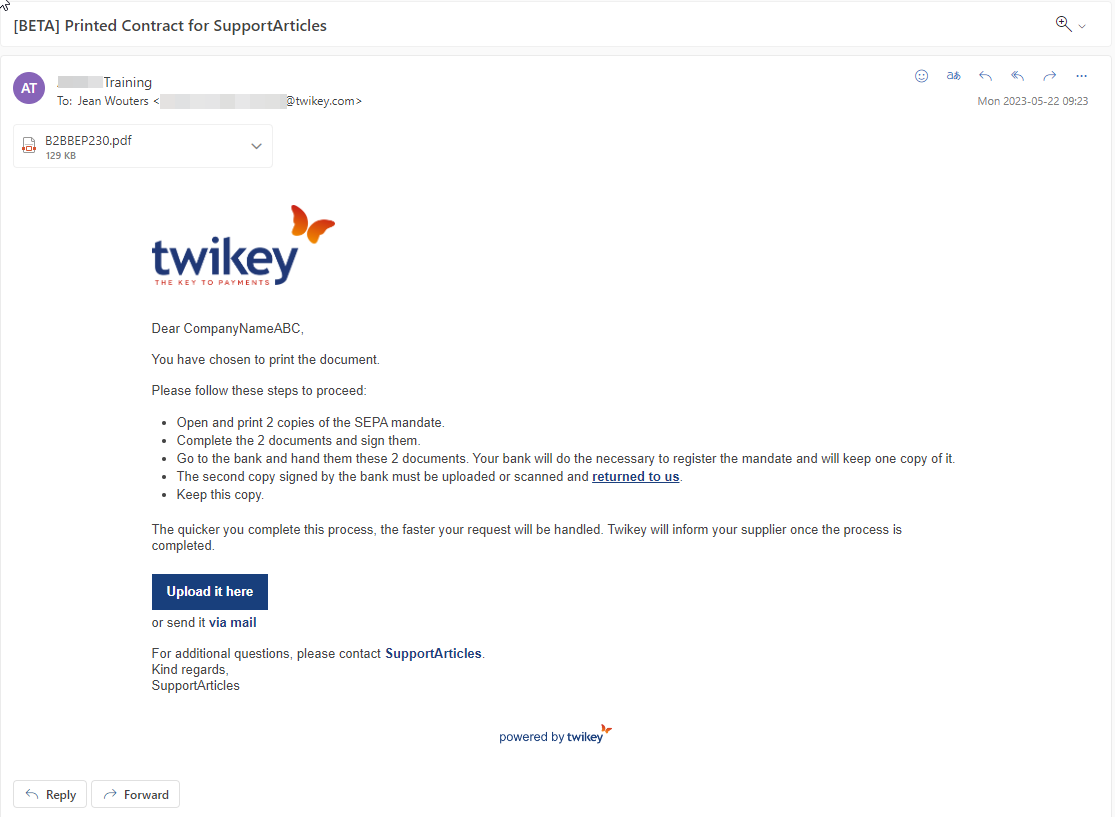
They now have the option to return the signed document to you by mail or by uploading it into your environment. To upload it, they need to enter their IBAN number and check that all required information is present in the document.
To process a signed printed document that has been uploaded by your customer, take the following steps:
- Go to the document for which the file is uploaded. Documents with pending uploads are easily recognisable in the overview by the icon.
- The uploaded file will now be added as a PDF file on the document.
- Check whether all required signatures are present, and click Mark as signed
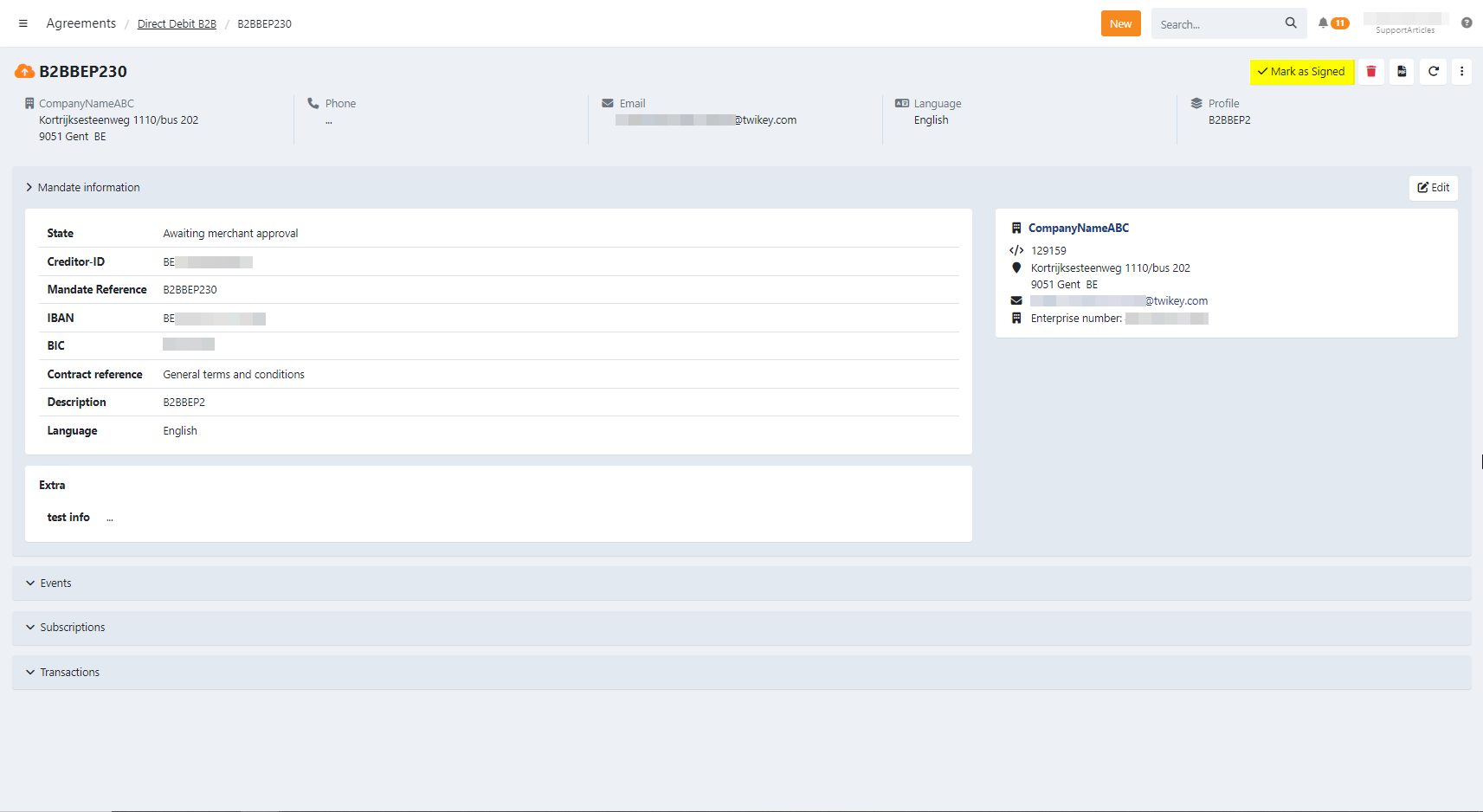
- The state of the document will now change to Signed.
To process a signed printed document that has been sent to you by your customer, take the following steps:
- Go to the document for which you received the file.
- Click on Mark as signed.
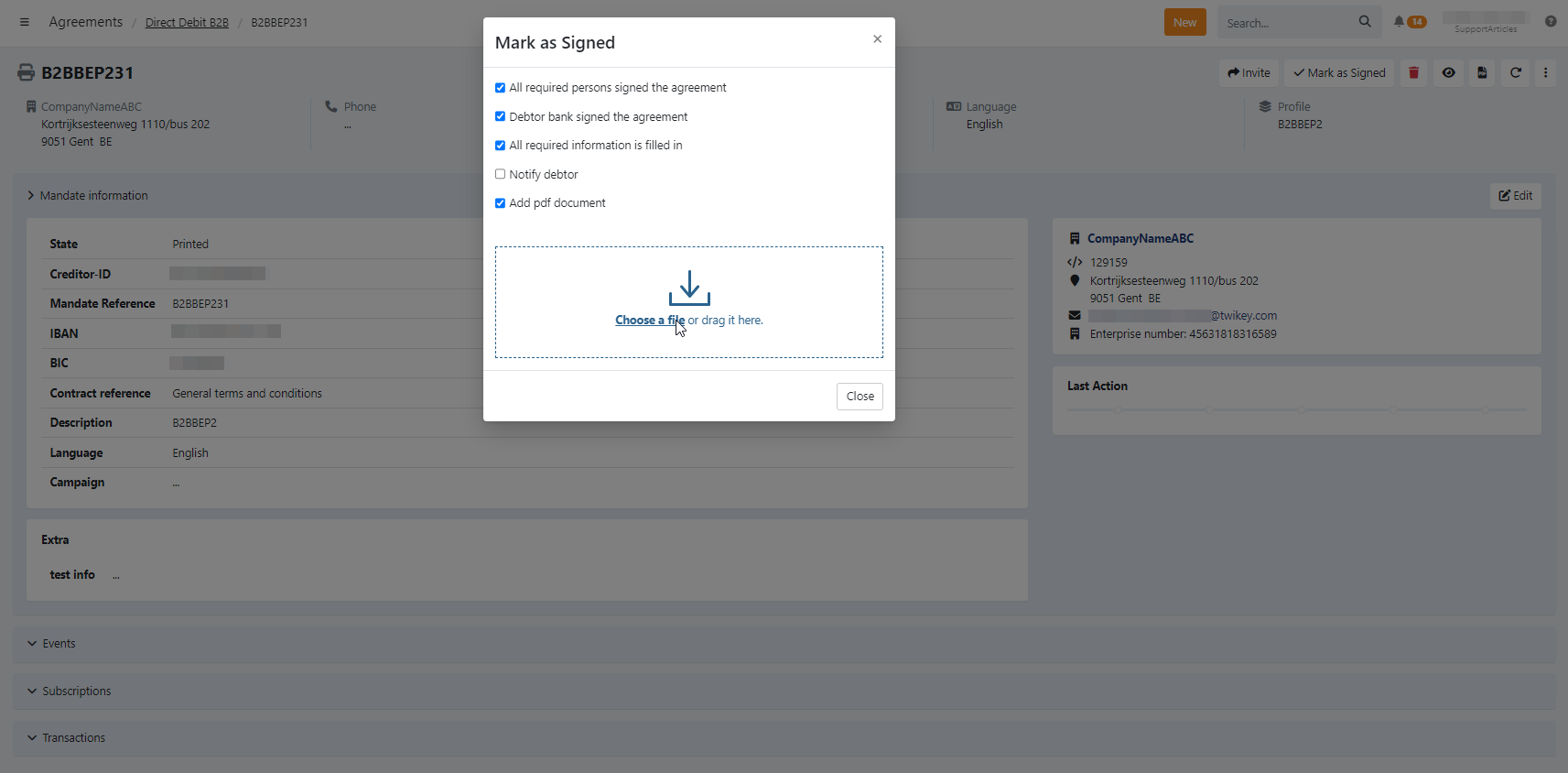
- Make sure all required information is on the document you received and check the following boxes:
- All required persons signed the document
- All required information is filled in
- Notify debtor
- Choose Upload to upload the file in your environment or Keep in my archive to keep the file in your own archives, but mark the document as signed.
- The state of the document will now change to Signed. If you chose to upload the file, it will now be added as a PDF file on the document.
⚠️Important B2B mandates must still be registered by the bank, action needed by your customer.
For B2B mandates, it remains essential that the bank registers the mandate.
In case of a paper flow, the customer must take the initiative to visit their bank or complete the registration via their banking app, depending on their bank’s process. It is important that they carefully follow the instructions provided.
While supporting documents (e.g. email confirmation from the bank, a bank stamp, or signature) are not required for Twikey, they can still be useful for your own internal verification.
Note: Twikey does not perform any checks on B2B registrations by default in paperflow.
If you want Twikey to verify the registration, you can enable B2B validation. (See related article B2B validation.)