Inviting and reminding customer(s) to sign an agreement
- General information
- Individual invitation by email
- Individual reminder by email
- Multiple invites and reminders by email
- Schedule reminders on agreements by emai...
Show me
General information
When you've created a new document, there are several ways in which you can invite or remind your customer to sign it.
An invite link remains valid for one year if your customer has not clicked it. If the customer started to sign the document, the link is valid for 6 months. This means your customer has 6 months to complete signing the document.
If a customer started to sign a document by printing it, the Print Reminder is automatically sent after 7 days.
Individual invitation by email
Sending invitations by email to your customers can be done from the general overview of your agreements or on the details of the agreement using the button.
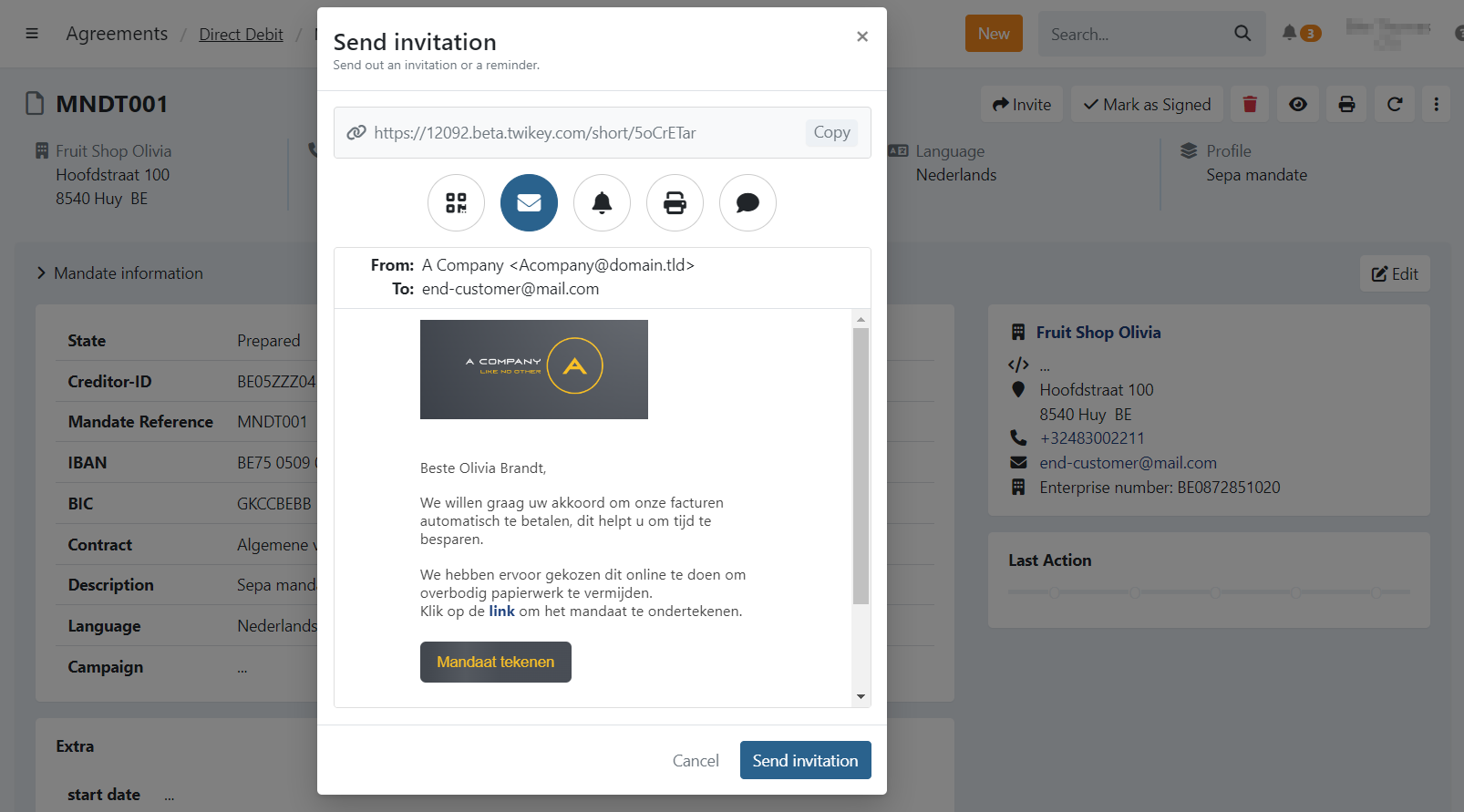
Using the individual approach will display more information such as a preview email, the From and To.
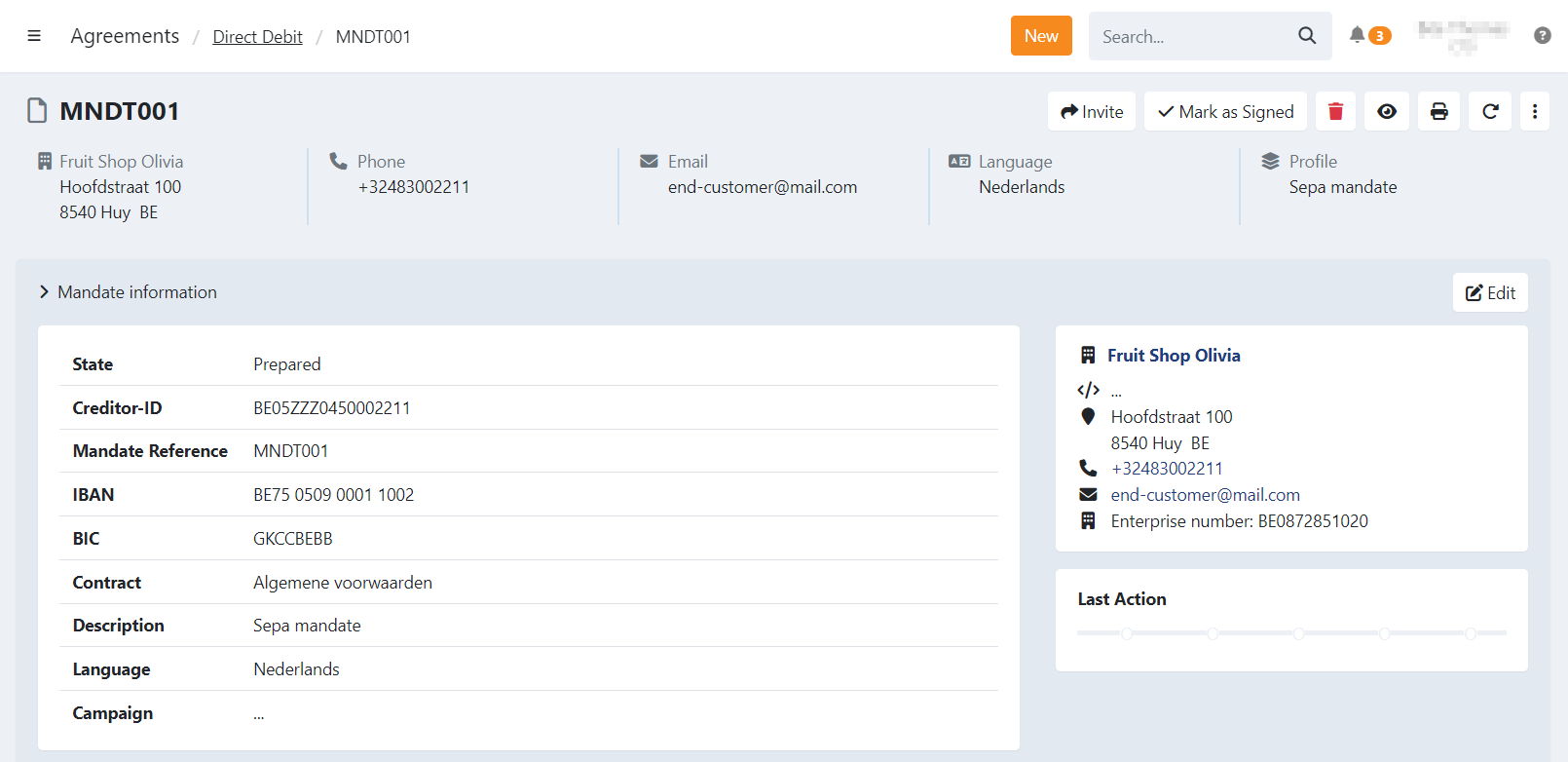
On the details of a prepared mandate click on the button
and select Email.
On the email tab you can now see From and To which email address and a preview of the email you are about to send.
Individual reminder by email
There are various ways in which you can send your customers a reminder to sign their document. You have the option to send these reminders manually or to schedule them for a later time.
To send your customer a manual reminder immediately, you have the following options:
From document - send a reminder for 1 specific document
- Use the invite screen described in paragraph 2 above.
- Go to the Reminder tab and choose the reminder you want to send
- Click Reminder if not signed.
From overview - send a reminder for 1 or more documents
- Go to the document overview and select all documents for which you want to send out the reminder.
- Click the Invite button on the top right of your screen.
- Choose Reminder if not signed. This will send out the last reminder you sent for this client. If no reminders have been sent for this client yet, the first reminder will be sent.
To schedule a reminder for your customer on a later time, you have the following options:
From document - send a reminder for 1 specific document
- Go to the document for which you want to schedule a reminder and click the Schedule button on the top right.
- Choose which reminder you would like to send and choose the date on which you want to send the reminder.
- Click Confirm. The reminder will be sent automatically on the date you chose.
From overview - send a reminder for 1 or more documents
- Go to the document overview and select all documents for which you want to schedule the reminder. Then click and choose Schedule.
- Choose which reminder you would like to send and choose the date on which you want to send the reminder. Then click Confirm. The reminder(s) will be sent automatically on the date you chose.
There are four different reminders that can be customized in the email tab of your profile. See Managing your emails to find out how to do this.
Multiple invites and reminders by email
Invitations in bulk by email
In the Prepared overview on the agreement screen, you can send invites and reminders to one or more customers at once.
- Filter on Prepared(1)
- Select one or more agreements(2)
- Click on Invite (3)
You can select to:
- Invite (4): Send the initial invitation email.
- Reminder if not signed (5): This will send the appropriate reminder automatically depending on which reminder was already sent to the customer. E.g.: the customer already received 2 reminders, the 3rd one is sent out.
- Custom (6): Select which reminder template to send (1, 2, 3 or 4) to the selected customer(s).
Reminders in bulk by email
Schedule reminders on agreements by email
It possible to schedule reminders on agreements by email manually or automatically.
Manually:
In the Prepared overview on the agreement screen, you can send invites and reminders to one or more customers at once.
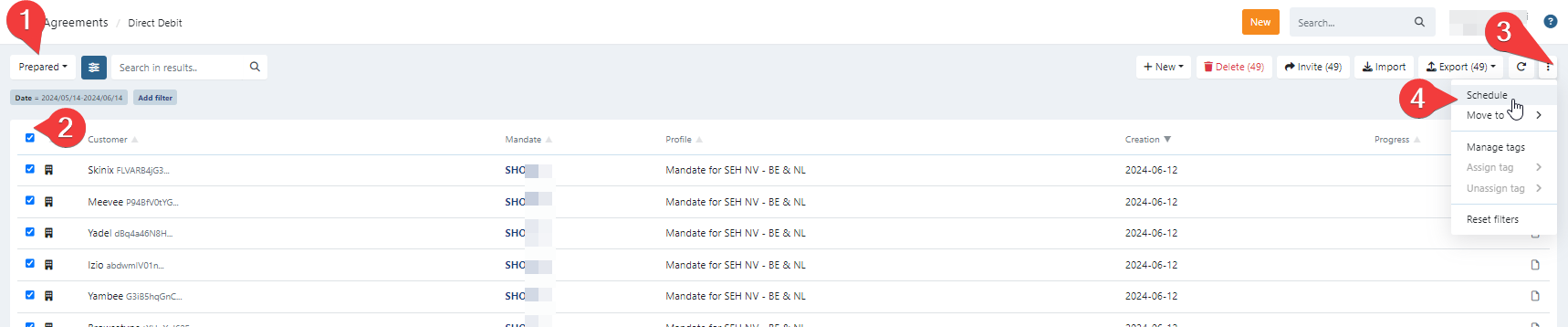
- Filter on Prepared(1)
- Select one or more agreements(2)
- Click on the three dots(3)
- Select Schedule(4)
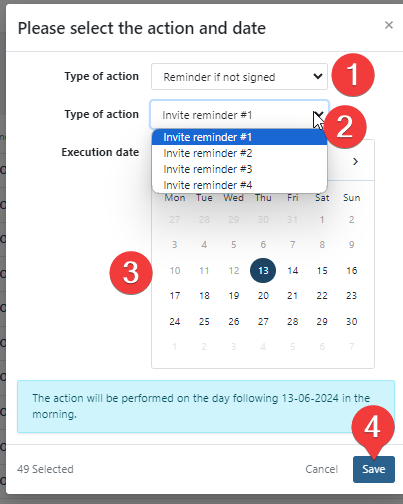
- Choose a type of action: reminder if not signed (1)
- Choose invite reminder #1 or #2 or #3 or #4 (2)
- Choose an execution date for each reminder (3)
- Click on save (4)
Automatically
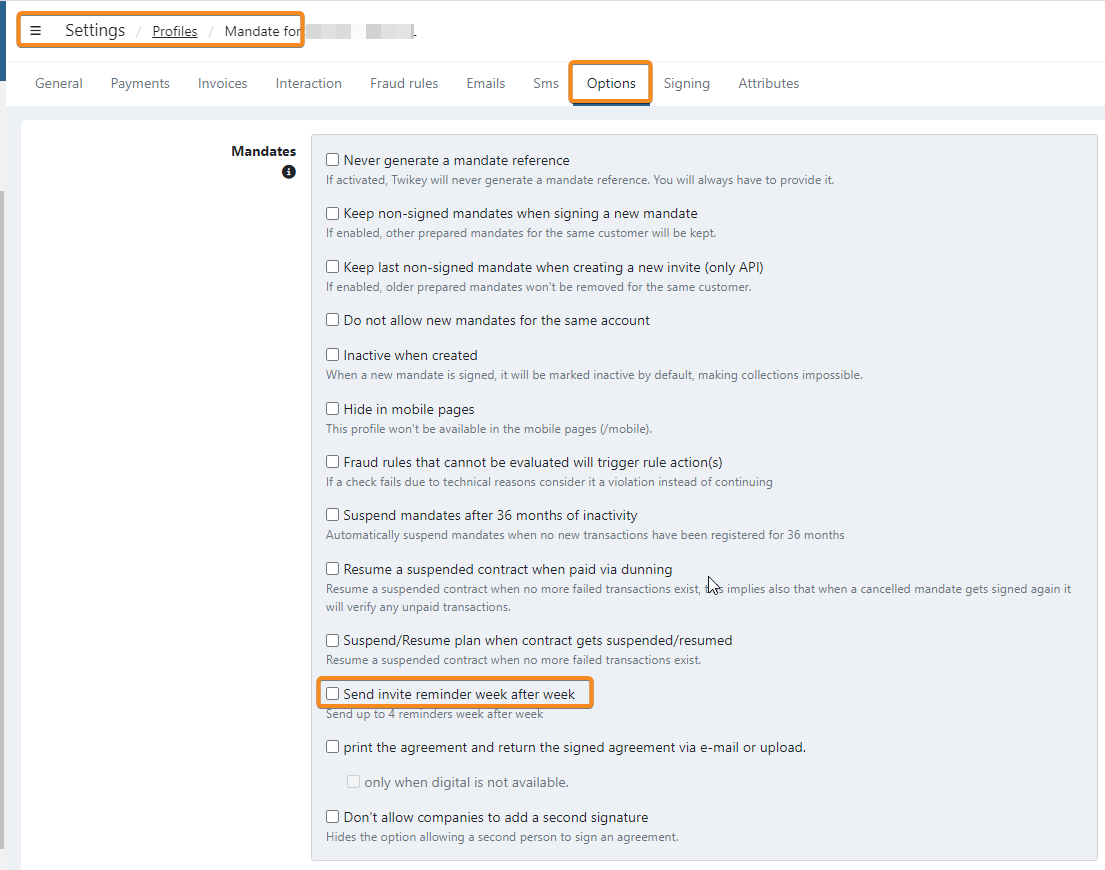
In the profile it's possible to activate the option send invite reminder week after week the system will send automatically up to 4 reminders week after week for unsigned agreements