
How to view or add comment to agreement events
The Events panel on an agreement's detail page gives you a full audit trail of everything that has happened on that agreement - from signing attempts to errors and cancellations. You can also add comments to communicate with your debtor or keep internal notes, making this panel useful for both support follow-up and internal record-keeping.
How to view or add comment to agreement events
- Navigate to Agreements menu in the left-hand navigation menu
- Find your agreement (use filters) and open the agreement details by clicking on the agreement reference
- Click the title of the Events panel to expand or collapse the list of events.
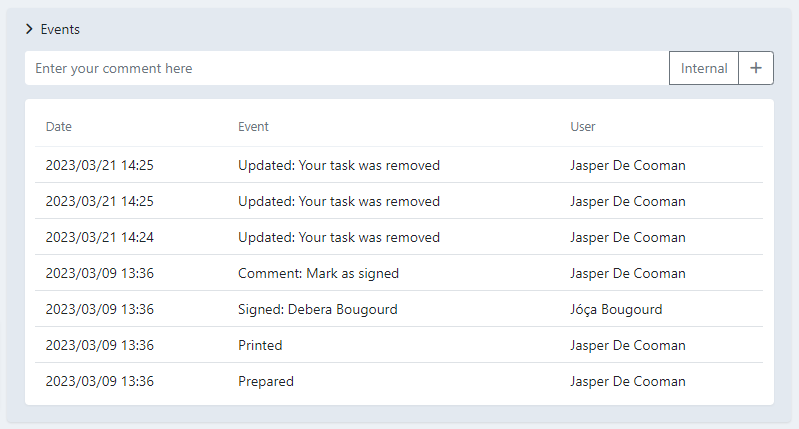
Event types
The following events can appear in the panel:
Remote validation failed
When signing an agreement the debtor is redirected to their bank's environment. This error occurs when validation at the bank fails, typically due to a connectivity issue on the bank's end.
Expired
The signing session has expired. This does not mean the Twikey invite link itself has expired - the debtor can still use the same link to restart the process. This error usually occurs when the signer opens multiple tabs or leaves the signing page idle for too long without completing it.
To verify that the link is still valid:
- Navigate to the agreement detail page.
- Click the paper plane icon (Share) in the top-right corner, copy the link, and open it to test it.
Cancelled by customer
After signing, the debtor receives a link to view their agreement in Twikey's debtor portal. From there, they can update their IBAN or cancel the agreement. If the agreement is cancelled this way, you'll see this message.
How to add comment to the agreement events
You can add a comment to the event list to communicate with your customer or log an internal note.
- Click the visibility label next to the comment field to select who can see your comment:
- Internal - Only visible to you as creditor.
- Public - Visible to the debtor in their view of the agreement.
- Bank - For internal use only.
- Enter your comment in the text field.
- Click the + icon to add the comment to the event list.