
Agreement details
The agreement detail page shows everything about one agreement in one place: its state, the linked customer, the history and the transactions. It is also the starting point for every action on the agreement, such as suspending, cancelling or moving it.
Open the agreement detail page
- Navigate to Agreements in the left-hand navigation menu, or look up the agreement using the search bar.
- Click the agreement to open the detail page.
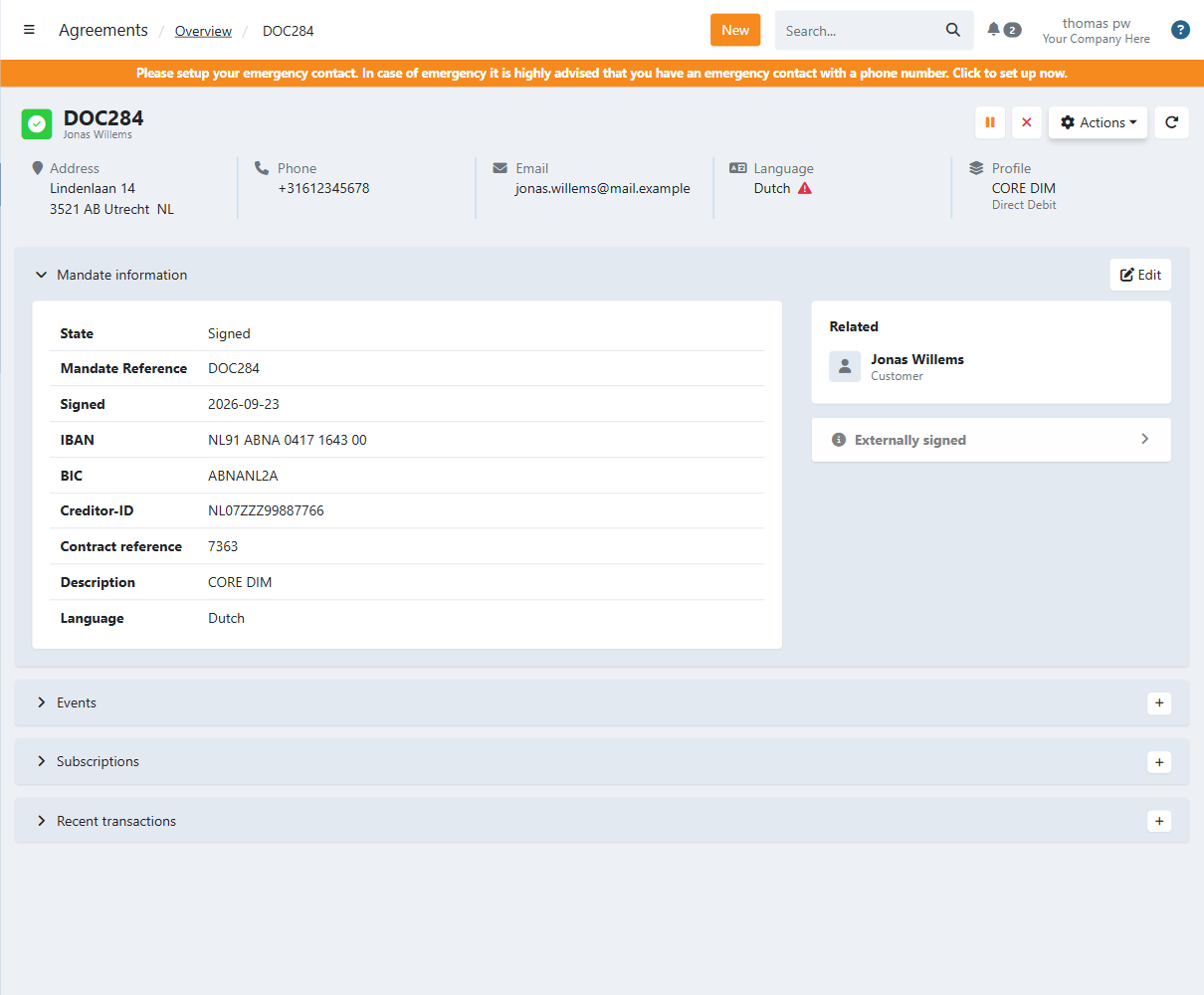
What you find on the page
- Header - The state icon, the agreement reference and the customer name, followed by the customer's address, phone, email and language, and the profile the agreement belongs to.
- Mandate information - The agreement data, such as the state, mandate reference, sign date, IBAN and creditor ID. Click Edit to change the fields that can be edited.
- Related - A link to the customer of this agreement, which opens the customer information in a window. When the agreement comes from a campaign, the campaign is listed here too.
- Progress - Below Related, the latest status of the agreement is shown, for example Externally signed or Uncollectable mandate. Read more about the signing progress and the agreement states.
- Tags - The tags assigned to the agreement. Click a tag to see all agreements with that tag.
- Upcoming events - Only shown when actions are scheduled for this agreement. You can run a scheduled action now (Run or Run and remove) or Remove it. See how to schedule tasks.
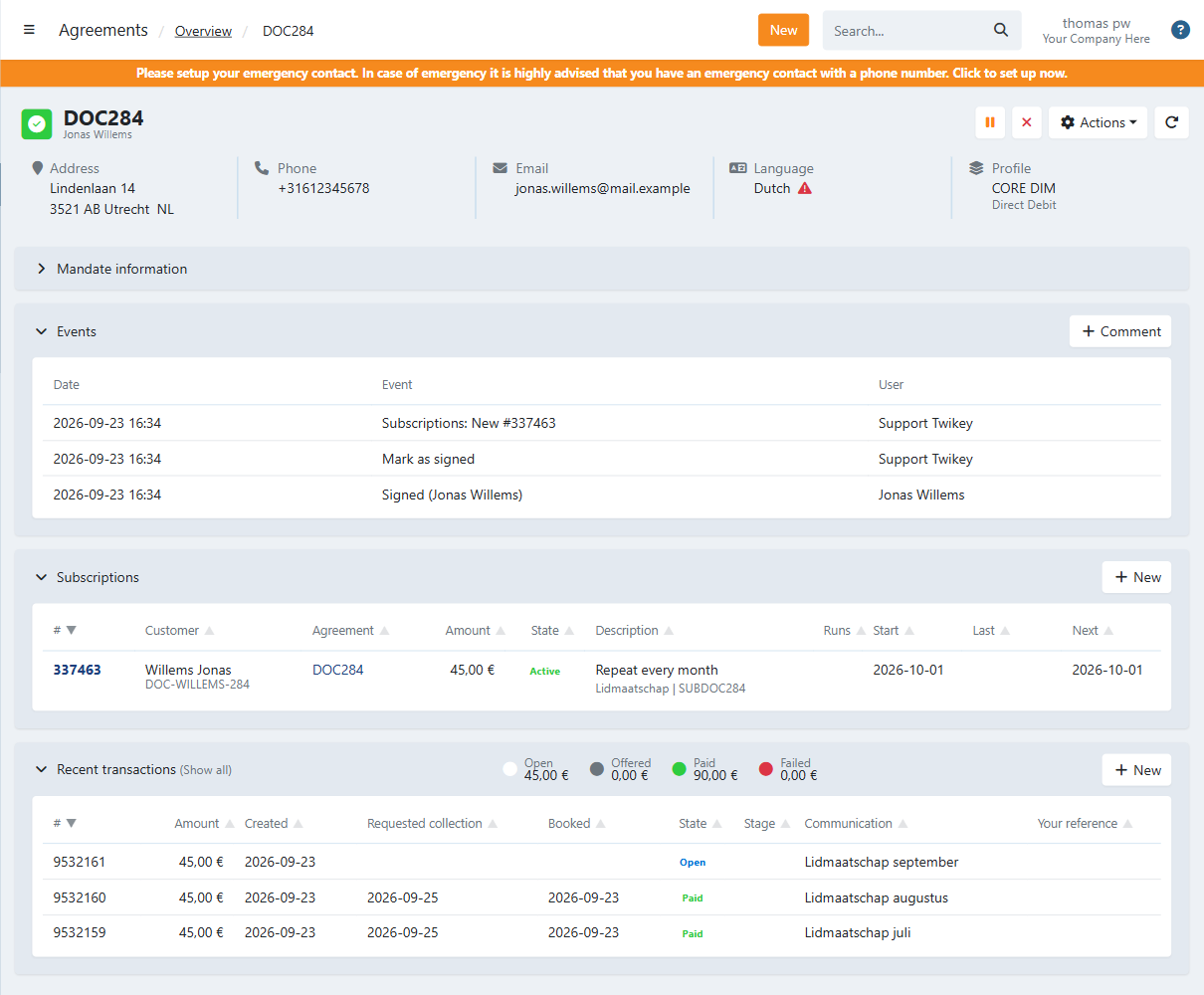
- Events - The history of everything that happened on the agreement, with the date and the user. Click Comment to add a Public, Internal or Bank comment.
- Subscriptions - The subscriptions linked to this agreement. Click New to create a subscription.
- Recent transactions - All transactions of this agreement, with the totals per state (Open, Offered, Paid and Failed). Click New to create a transaction. Click Show all to open the transactions that were sent to the bank for this agreement.
Actions on the agreement
The icons in the top-right corner give quick access to the most common actions. Which icons you see depends on the state of the agreement:
- Pause icon - Suspend the agreement.
- Play icon - Reactivate a suspended agreement.
- Cross icon - Cancel the agreement.
- Check icon - Mark the agreement as signed.
- Bin icon - Delete the agreement.
- Paper plane icon - Share the agreement with your customer.
- PDF icon - Open the agreement document.
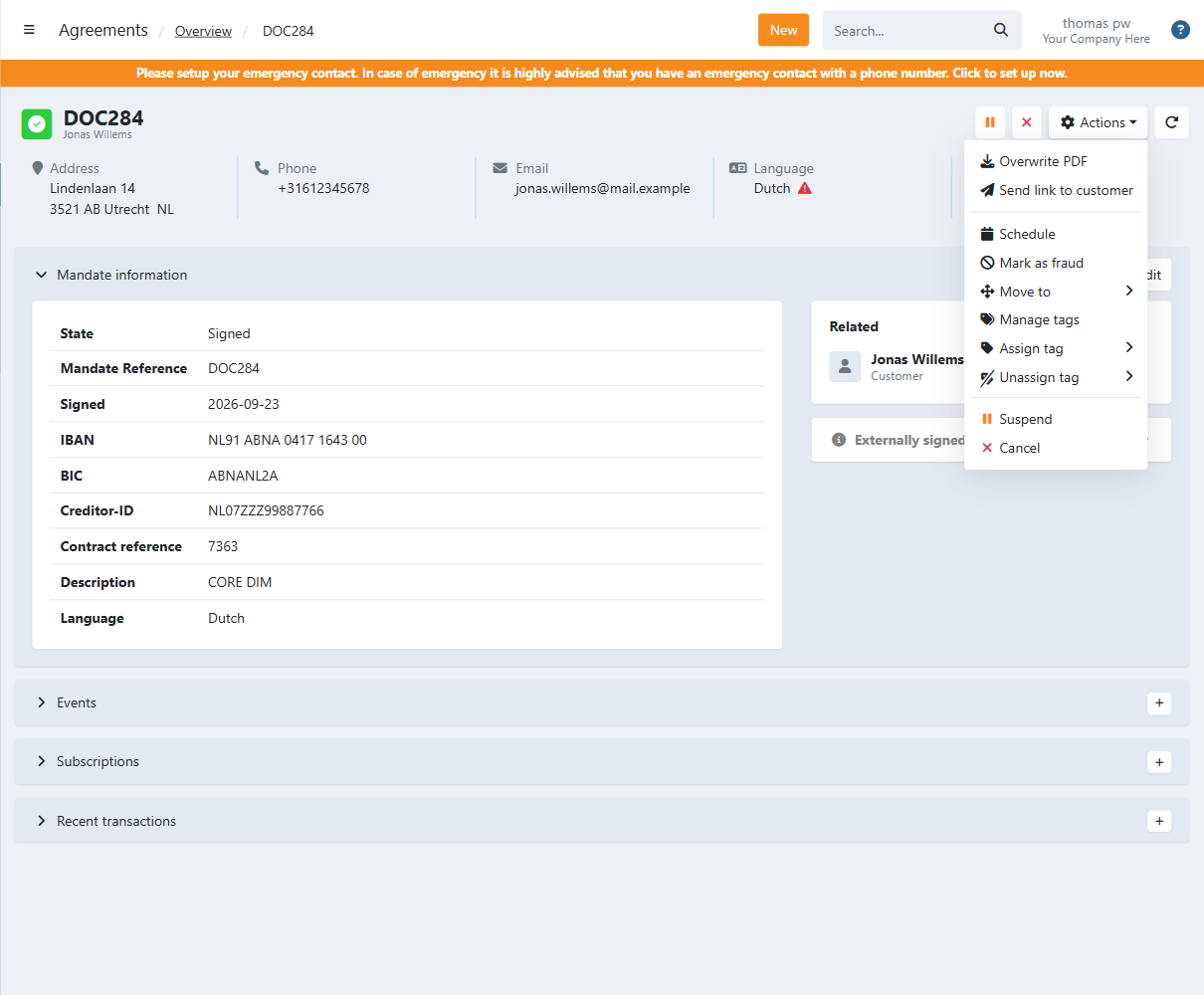
Click Actions for all available actions, including the ones above. Depending on the state, you can for example:
- Send a link to the customer.
- Schedule an action, such as a suspension or reactivation on a later date.
- Mark the agreement as fraud.
- Move the agreement to another profile.
- Manage, assign or unassign tags.
- Overwrite the agreement PDF.
Last Update: 2026-09-23