
Why scheduling future tasks on agreements
- How to schedule a tasks on agreements
- Available tasks/actions
- Schedule a mandate suspension
- View and manage scheduled tasks
Scheduling tasks lets you plan agreement actions — such as sending signing reminders or suspending and reactivating agreements — in advance for a specific date. This is useful when you want to automate follow-ups without manual intervention, for example when onboarding new customers or managing seasonal pauses in collection.
You can schedule tasks (actions) on agreements depending on their state and you can do this for one or multiple agreements.
How to schedule a tasks on agreements
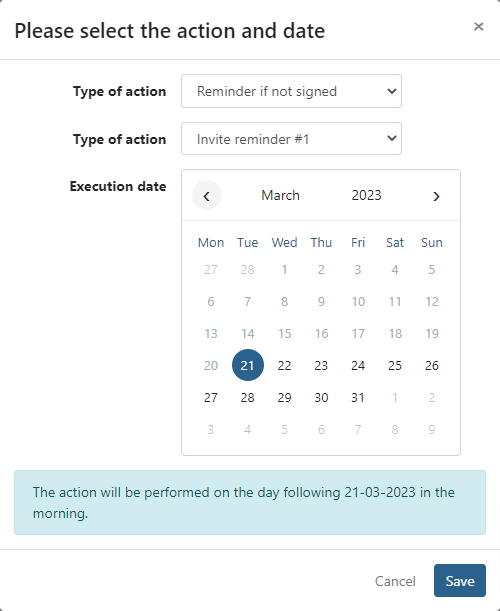
- Navigate to Agreements menu overview in the left-hand navigation menu.
- Apply a status filter to the overview depending on what task you want to create
- Click Actions in the top-right corner.
- Click Schedule
- Select your type of tasks/actions and execution date
- Click Save
Available tasks/actions
Schedule a mandate signing reminder
Use this option to automatically send a reminder to customers who have not yet signed their agreement.
Reminders can only be scheduled for agreements in the Prepared state.
- Navigate to Agreements menu overview in the left-hand navigation menu.
- Choose Prepared as main filter
- Select your agreements
- Click Actions in the top-right corner.
- Click Schedule
- The type of action is automatically set on Reminder if not signed
- Select your reminder mail #1, #2, #3, or #4.
- Select the date on which the reminder should be sent.
- Click Save.
Schedule a mandate suspension
Use this option to temporarily deactivate the agreement, so no new transactions can't be collected.
- Scheduled suspensions are applied only if the agreement is in the Signed state on the scheduled date. They will not run if the agreement is already Suspended or Cancelled.
- Navigate to Agreements menu overview in the left-hand navigation menu.
- Choose Signed as main filter
- Select your agreements
- Click Actions in the top-right corner.
- Click Schedule
- Select your type of action and the date on which the task should be executed.
- Click Save.
Schedule a mandate reactivation
Use this option to restores a suspended agreement to active status, so transactions can be collected again.
- Scheduled reactivations are applied only if the agreement is in the Suspended state on the scheduled date.
- Navigate to Agreements menu overview in the left-hand navigation menu.
- Choose Signed or Suspended as main filter
- Select your agreements
- Click Actions in the top-right corner.
- Click Schedule
- Select your type of action and the date on which the task should be executed.
- Click Save.
View and manage scheduled tasks
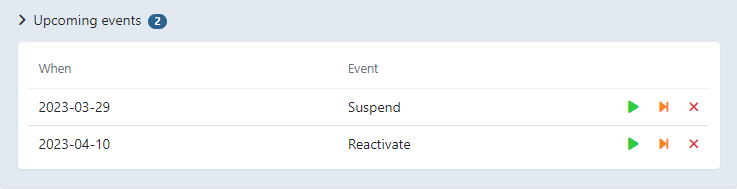
After scheduling a task, you can review it or take immediate action from the agreement detail page.
- Navigate to Agreements in the left-hand navigation menu, then click the agreement name to open the detail page.
- Click Upcoming Events on the detail page to expand the list of scheduled tasks.
- From this list, choose one of the following actions for any task:
- Run — Executes the task immediately without removing the scheduled execution.
- Run and Remove — Executes the task immediately and removes the scheduled entry.
- Remove — Cancels the scheduled task without executing it.